Use photographic language and sketches to guide Firefly
Rob de Winter shows how to add lens, aperture, and lighting details to shape the generated image in Firefly.
Published
Introduction and meet Rob de Winter
[Adobe Firefly displays the Generate image workspace.]
[Rob de Winter]: When you start generating images in Adobe Firefly, [Three dog images display, ending on a wide fisheye view.] one of the things you'll first notice is that the prompt makes all the difference.
Knowing which language to use can completely change what image you get back.
[Cut to Rob de Winter in his studio.]
I'm Rob de Winter, Adobe instructor, designer, and author from the Netherlands, and in this video I'll show you how to use photographic terminology and how even a simple sketch can guide your results.
Go to firefly.adobe.com and click Generate image.
Let's first take a look at the basics.
The first thing I want to show you is the Model dropdown in General settings.
You'll find all the available AI models here.
You can say that the most recent models, the ones with the highest version numbers like Gemini 3.1 (w/ Nano Banan 2) and FLUX 2 (pro) are all quite comparable in a few important ways.
You can describe what you want in plain language.
They're very good at combining multiple images, editing existing ones, and they're so good that they don't look like an AI image.
So, I'd always go straight for the latest models.
If you don't get the result you expected with one model, just try another one.
You'll see a few examples of that in this video.
With all these models, you type a prompt to generate an image.
One thing all the newest AI models do is when you leave something out of your prompt, the AI model decides what you didn't tell it.
For example, if you don't tell anything about the environment, the model will come up with the environment itself.
That can be useful, but later I'll show you how to take more control over that.
Let's start with the simplest prompt possible just the word "dog."
Let's select the Firefly Image 5 model, which is commercially safe, and then select the Landscape (4:3) Aspect ratio.
[Landscape 4:3 is selected.]
Leave the resolution at 1K and click Generate.
This is the Firefly Image 5 result.
[A golden retriever sits by a bowl on a wooden porch.]
The model picked the breed, the setting, the lighting, the framing, and even whether it's a photo or an illustration, because you didn't ask for any of that in the prompt.
In other words, when you leave something out of your prompt, the model will fill it in for you.
The shorter the prompt, the more freedom the model gets.
Compare results across AI models
[The image updates to a retriever in a sunny park, then to a close-up portrait against a soft background.]
This is the Gemini 3.1 result with the same prompt, and this is the FLUX 2 (pro) result.
I think they all look great, but let's try a more extended prompt now.
The latest AI models have a broad knowledge of the world, including photography.
So, you can add technical photography language to your prompt, like lens type and aperture.
A prompt like this, with location, lighting setup, and aperture included [A detailed prompt for a Dachshund portrait on a beach is entered.]
Add photographic detail to your prompts
will give you this result with Gemini 3.1.
[A long-haired Dachshund sits on a sandy beach with ocean waves.]
And if you add "shot with a fisheye lens" to the same prompt, [The image changes to a fisheye-style view, enlarging the dog's face and curving the horizon.] you'll get a completely different image from the same basic setup.
Let's now look at how you can apply this to preparing a shoot.
For example, with a woman in a red dress in a mountain and sea landscape.
Here's a more fully worked out prompt for a cinematic portrait.
[The prompt is edited again while the fisheye dog image remains on screen.]
I'm using a Hex color code for the red, and I'm telling the model where to put the subject in the frame.
The more specific you are about the composition, the more the result matches what you had in mind.
[A generated landscape appears showing a woman in a red dress standing on a rocky cliff above the sea.]
This is the widescreen aspect ratio result with Gemini 3.1 and this one with FLUX 2 (pro).
[The image changes to a different view of the woman in a red dress.]
Guide composition with a reference sketch
Instead of just typing a text prompt, you can also upload a reference image to guide the composition.
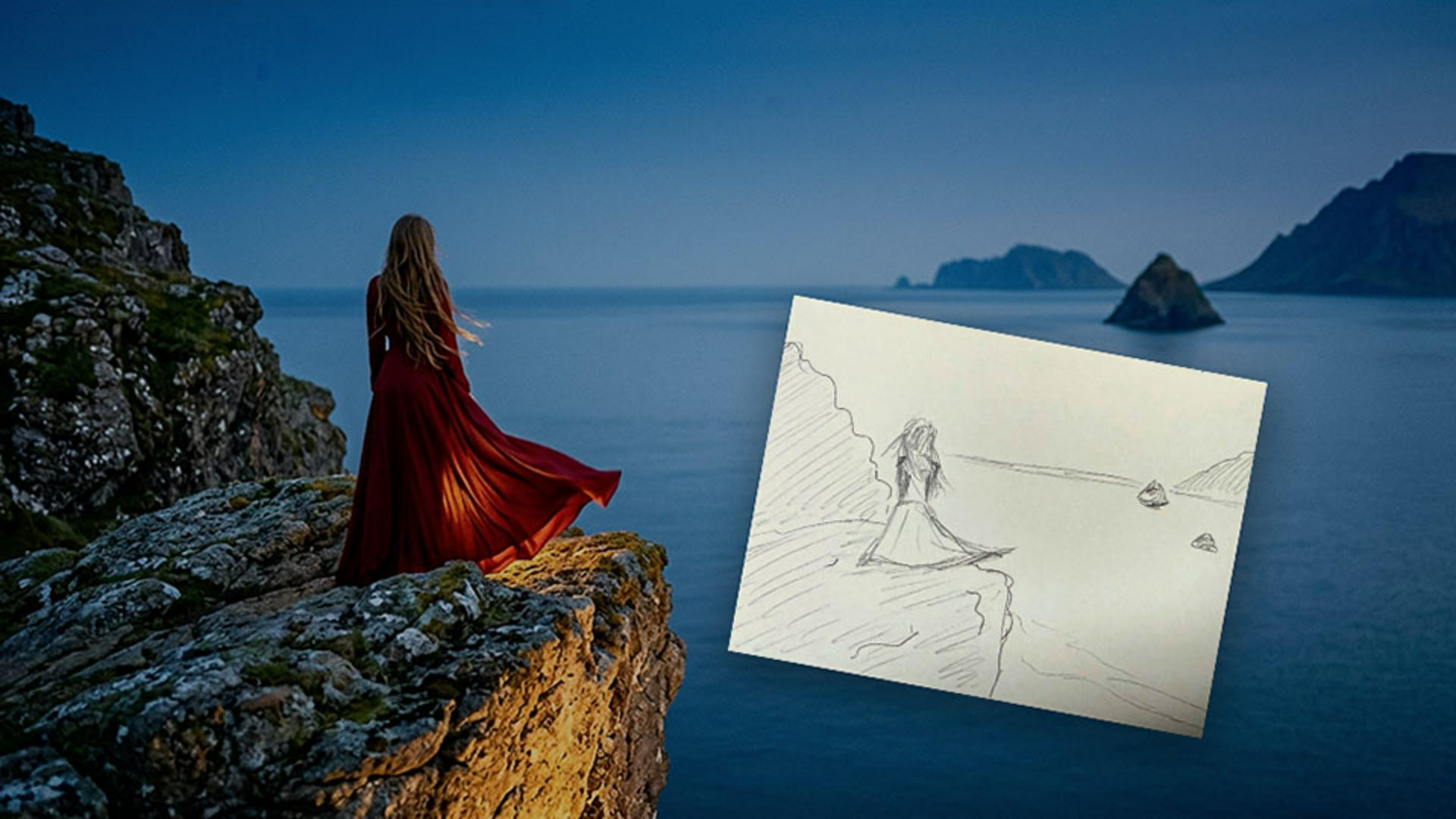
This is the part I find most useful and fun, because for me, it always works well to make a quick sketch [The result changes to a sketched coastal scene with a woman viewed from behind.] as a kind of a visual plan for the shot.
I drew a sketch of a woman in a dress, just with a few lines, and I dragged that into the Reference image area in Firefly using the Gemini 3.1 model.
Then I add this line to the start of my prompt, "Turn the sketch into a cinematic photo," [The reference sketch appears as a thumbnail beside the prompt and a new image is generated.] and after that I keep the rest of the prompt and settings we used for the previous image.
The sketch guides the composition, [The generated image follows the sketch composition, placing the woman in red on the cliff overlooking the sea.] and the model builds a realistic photographic image around it.
[The finished coastal image fills the screen.]
If you have a specific idea in mind, a quick sketch is often better than trying to describe the composition entirely in words.
[Cut back to Rob in his studio.]
These were a few examples of developing photographic ideas with Adobe Firefly.
Start simple.
Add photographic language or even a sketch to prepare yourself for a shoot.
Now you can give it a try yourself.
Again, I'm Rob de Winter and I'll see you in one of the next videos.
What you’ll learn
Add photographic detail to your prompts
Beyond a basic description, prompts can include lens type, aperture, and lighting setup. The more specific the language, the closer the result matches the shot in mind.
Compare results across AI models
The same prompt can produce different results depending on which model generates it. Trying more than one model will help you find the version that best fits your vision.
Guide composition with a reference sketch
A rough sketch uploaded as a reference image can direct the pose, framing, and composition of the final result. Firefly builds a photographic image around the sketch's structure.
Instruction by

