How exploration helps Adam G find his creative bullseye.
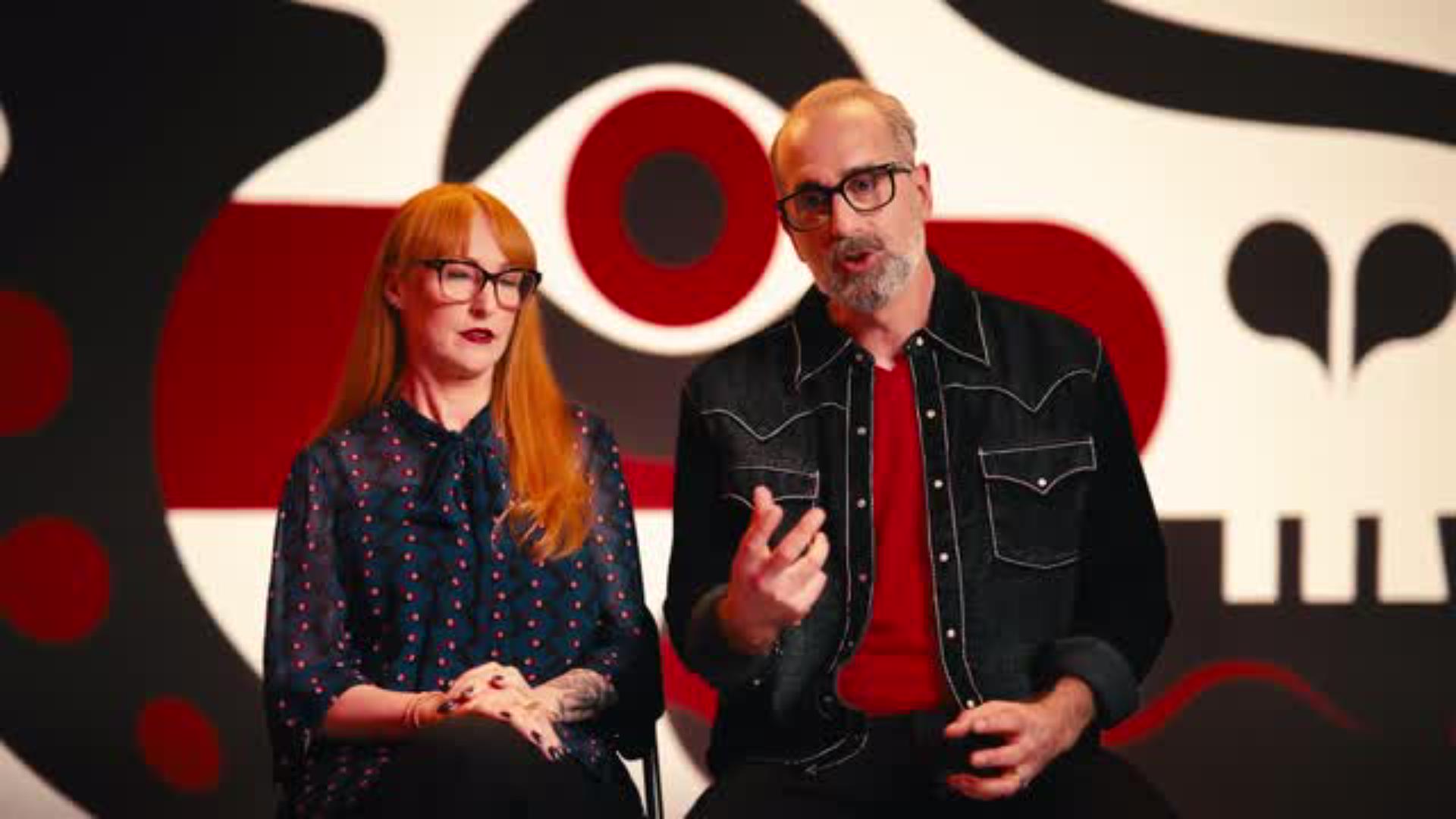
“I like to find those happy accidents that happen along the way and exploit them. Generative Shape Fill…sent me down alleyways that I wouldn't have necessarily thought of.”

Step 1: Start with a shape.
Adam is a brand designer who starts each concept with pen on paper. He likes to then redraw the basic shapes in Adobe Illustrator using the Shape and Pen tools — like he did to create this bull illustration.

Step 2: Explore with new models.
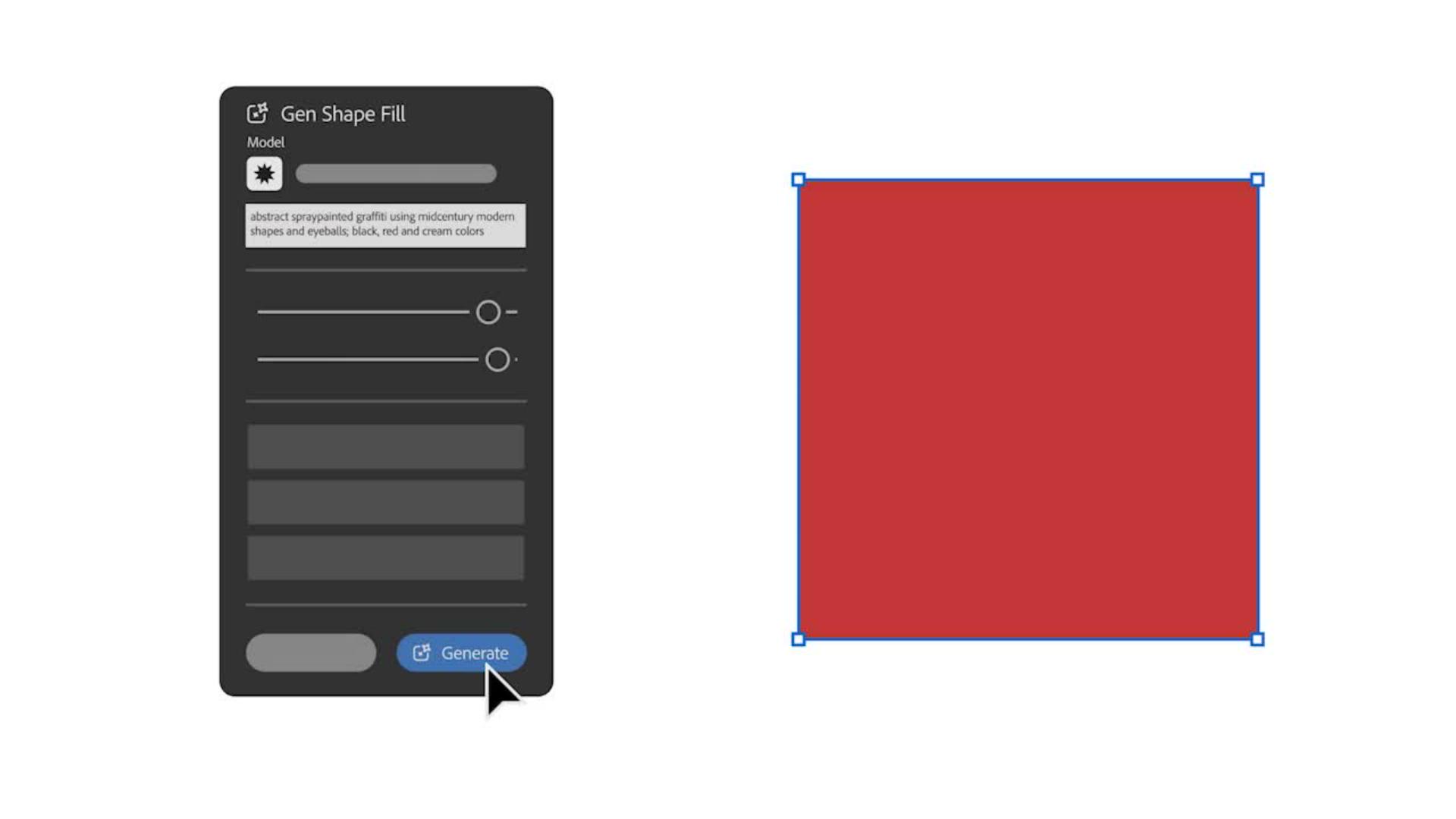
To explore your concepts, choose Generative Shape Fill in the Contextual Task Bar. For this design, Adam filled the square with a variety of mid-century modern styles and patterns using Nano Banana.
Step 3: Remix the model.
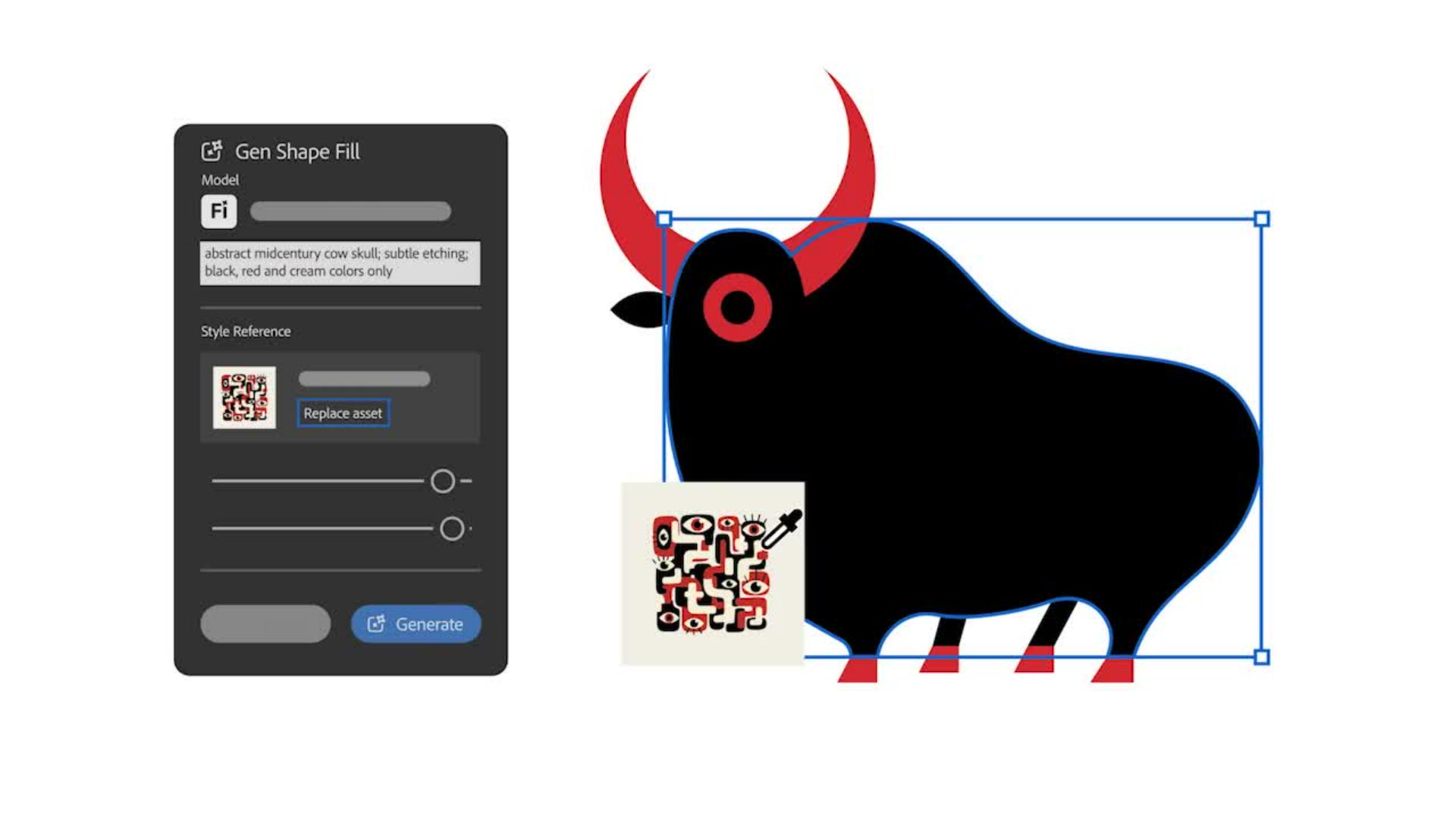
Using that graphic as a style reference image in the Generative Shape Fill dialog box, he switched to the Firefly model and created several iterations until he landed on the right look and feel.
Step 4: Make it yours.
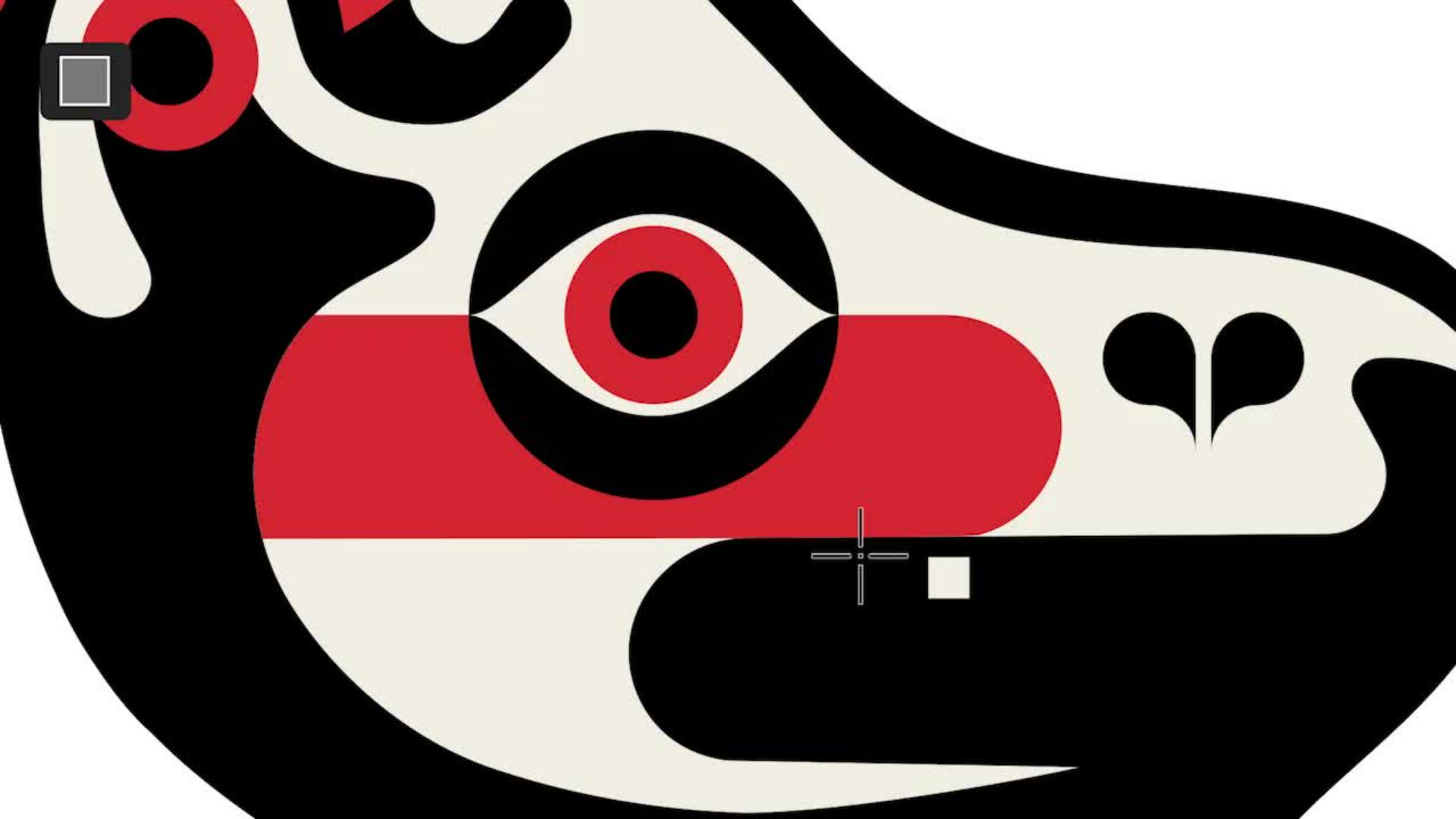
Finally, Adam tweaked the vector result by removing some elements he didn't need, cleaning up, reshaping, and drawing over parts to get to a final illustration that he felt truly represented his vision.
Instruction by
Adam G

