Not every layer mask - starts with a selection.
Brushing on a layer mask is another way - to add black and white to a layer mask to hide and show - different parts of a layer.
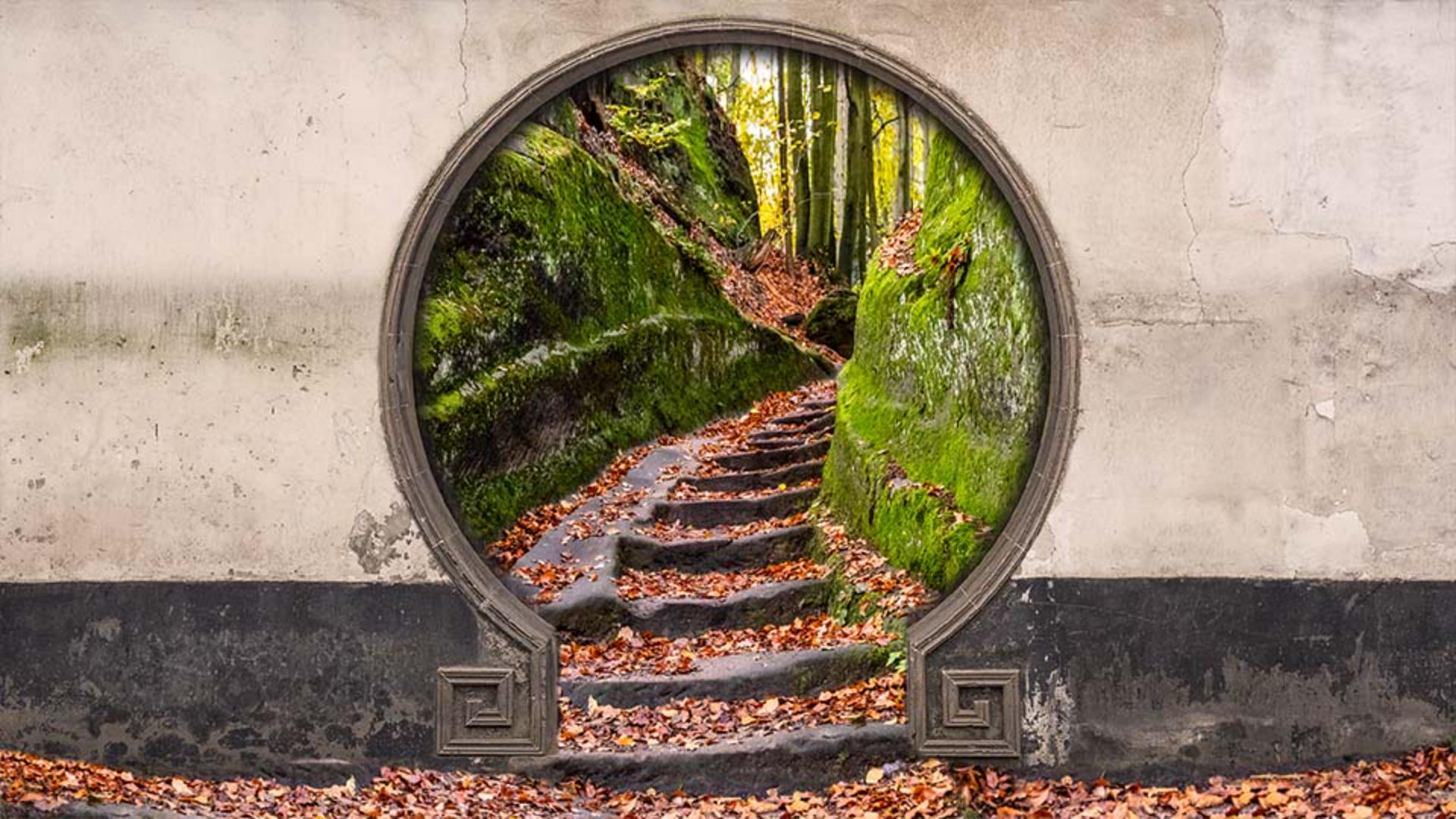
In this tutorial, - we'll use the Brush Tool on a layer mask to combine different parts of this photo - with this photo, to create this new image.
We'll start - by making a layer mask from scratch.
Then we'll brush on the mask - with black to hide a part of the mask layer, revealing another world - on the layer below.
And we'll brush on the mask with white if there are any hidden areas - that we want to bring back into view.
Hi, I'm Jan Kabili from Adobe.
And I can't wait - to share this tutorial with you.
I hope it will not only teach you - a useful technique, but also deepen your knowledge - of how layer masks work so that you can use them successfully - on your own images.
Here's the image we'll use - for this tutorial.
It has a gate on the top layer and this forest scene on the bottom layer.
We're going to add a layer mask - to the top layer, to the gate, so we can hide parts of that - to see through to the forest scene below.
As we do that, keep in mind - that a layer mask is a grayscale element.
So the only colors you can add to it - are black, white and shades of gray.
Doing that acts as a signal to Photoshop telling Photoshop which parts of the layer - you want to show and which you want to hide.
One way to add black, white or gray - to a layer mask is with a brush.
So let's try that.
We have the gate layer selected, we'll go down to the bottom - of the Layers panel and we'll click the Add Layer Mask button to add an initial layer mask - to the gate layer.
Notice that the layer mask thumbnail - that represents this mask is white.
And that's why you don't see a change - in the image yet, because white on layer mask - shows what's on the masked layer.
So right now, - everything on the gate layer is visible.
Now let's paint on this layer mask - with black.
First, we'll make sure - that the layer mask thumbnail, not the image thumbnail, - is highlighted here in the Layers panel.
Then we'll go over to the Toolbar, and we'll try - to set our foreground color to black.
The easiest way to do that - is to press D on the keyboard.
D sets the default colors - when a layer mask is selected, which are white as the foreground color - and black as the background color.
We want to switch those, so next we'll press X on the keyboard.
And now black is the foreground color - and white the background color.
That's what we want, we want to paint with black, - the foreground color.
Next, we'll select the Brush Tool, - which is here in the Toolbar.
And we want a brush that's almost as big - as that circular area in the gate.
So we'll go up to the Options bar - for the Brush Tool and click this icon, which opens the Brush Preset picker.
Here, we're going to drag the Size slider - over to the right to make the brush bigger.
And if you're following along, I'm going to choose a brush - that's about 960 pixels in size.
I'll leave the brush Hardness - at about 85%.
So there's a bit of a soft edge - around my brush.
Now let's go into the image - and with the layer mask still selected, center the brush tip - in that circular area of the gate and click a few times, - that's added black to our layer mask, as you can see over here - in the Layers panel, and the black on the mask is hiding - the corresponding part of the gate layer, So the forest on the layer below - is coming through.
That looks pretty good.
But I'd actually like - to hide more of that gate.
So I'm going to make my brush tip smaller.
You could do that - from the Brush Preset picker again, or just press the left bracket key - on the keyboard several times.
The left bracket key is located - near the P key on most US keyboards.
With that smaller brush, I'm going to come over the image and still painting with black - on the layer mask, I'm going to hide this area - and move all the way down to the sidewalk.
And I'll hide part of the sidewalk too - by dragging over to the left.
And then over to the right.
And here's a little bit - I want to fill in with black too.
And doing that is revealing what's on the forest layer below - in those areas.
Now what happens if you make a mistake - and you paint too far with black, for example, like this?
This is no problem to fix - because a layer mask is always editable.
Even if you took 30 more steps - on this image, you could always come in - and remove this little area of black that's hiding part of the wall.
To do that, I'm going to switch - my foreground color to white.
Over in the Toolbar, - the foreground color is now black.
As before, I press X on the keyboard, and that switches the foreground - and background colors.
So now my brush is loaded with white.
And I can just paint with white - over that same area where I painted - with black on the layer mask before and the gate comes back into view there.
Let's take a look - at the layer mask we've made.
I'll hold the Option key on a Mac - or the Alt key on Windows and click the layer mask thumbnail.
Here you can see - where we painted with black, and all of that area - is hidden on the gate layer, so the forest layer is showing through.
Where the layer mask is white, - the gate layer is visible.
And around the edge of the circle, - there's a little bit of gray that comes from the soft edge - of the brush tip that we selected.
That gray area partially hides - what's on the gate layer, so there's a nice soft edge there - in the image.
Let's go back and look at the image again by Alt or Option clicking - on the layer mask thumbnail.
And there's our result, - a composite of two photos combined with a non-destructive layer mask that you can edit - or even remove at any time. -