Build a composite with a layer mask
Learn how to use layer masks to combine images in a composite.
Published
Introduction
If you want to get started making multiple image composites in Photoshop, then one of the most important things to learn is how to use layer masks to control what is visible on a layer.
Once you unlock this key technique, you'll have one of the main skills for creating the images that you imagine.
Hi, I'm Seán Duggan from the Adobe Learn team.
In this tutorial, we'll explore how you can create a composite with layer masks that are made from a selection of a specific area to preserve accurate edge detail, as well as with the Brush Tool for a softer blending effect.
In this project, I have a file with two layers
Step 1: Understanding the composite setup and goal
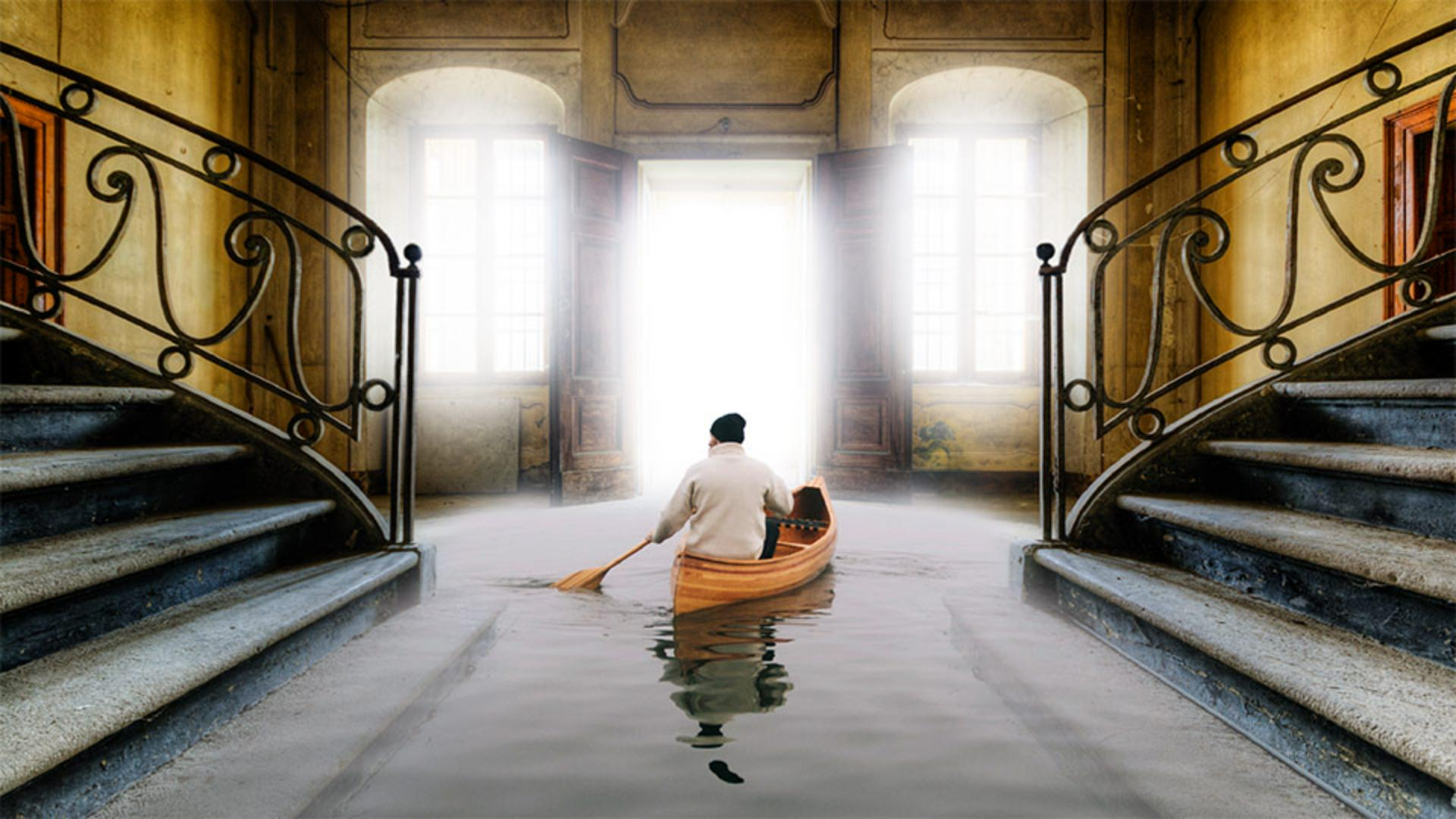
a photo of a person in a canoe on a misty lake, and an image of a grand room in an abandoned mansion.
We're going to use a layer mask to bring the lake image into the mansion and create an imaginary scene.
I'll start with the canoe layer selected in the Layers panel.
Step 2: Creating a layer mask from a subject selection
From the Select menu, I'll choose Subject and Photoshop will make a selection of the subject of this scene.
Next, I'll click the Add Layer mask icon at the bottom of the Layers panel to turn this selection into a layer mask.
Some of the edges around the back of the canoe and the water are still a bit rough, but we'll fix those shortly.
The main reason that I began with this selection is that I wanted to have an accurate mask for the top part of the man in the canoe.
If you look at the layer mask thumbnail in the Layers panel, you can see that the white area corresponds to what was selected, and black represents the unselected areas.
This is an important concept when working with layer masks.
White shows what is on a layer and black hides the layer.
Let's continue by modifying the mask.
In the Tools panel on the left,
Step 3: Refining the mask using the Brush tool
I'll choose the Brush Tool.
I'll click the Brush Picker in the Options bar and make sure that I have the Soft Round brush selected.
I'll set the brush Size to about 500 px, so I have a large brush that will easily cover the area between the two lower steps.
In the Options bar, I'll make sure that the brush Opacity is set to 100%.
At the bottom of the Tools panel, I'll make sure that my foreground color is set to white.
If white is in the background swatch, you can easily exchange these colors by clicking the curved double arrow icon next to the swatches, or by tapping X on the keyboard.
Now I'll paint over the floor, behind the canoe and between the two lower steps to reveal the surface of the lake in that area.
By the way, here's a really useful keyboard shortcut for resizing the brush.
Tap the left bracket key to make the brush smaller and the right bracket key to make the brush larger.
For the next part, I want to make my brush size a bit smaller, so I'll tap the left bracket key a couple of times.
With the smaller brush, I'll paint over the lower part of the canoe and also the area in front of the windows.
I want to make sure that I don't paint over the top half of the man, because I want to preserve that hard, accurate edge that was created with the Select Subject command.
Step 4: Blending elements with low-opacity brush strokes
Next, I'll create the look of shallow water over the two lower steps.
In the Options bar, I'll lower the Opacity to about 30%.
Using a lower opacity for the brush will let me partially reveal the lake's surface, while still seeing the steps below.
I'll paint a brush stroke over the bottom step on the right, and I'll release the mouse and then go over that same area again.
After each brush stroke, I'll release the mouse button.
With each brush stroke more of the water is revealed.
The idea here is to make it look like the two bottom steps are covered by just a little bit of water.
I'll do the same thing for the lower step on the left side.
One of the great things about layer masks is that they offer so much flexibility in how you combine images.
For instance, I think I revealed a bit too much of the original lake image on the lower part of the step on the left.
So I'll tap X to exchange the colors and make black the foreground color.
I'll also lower the brush Opacity a bit more.
This will allow me to gradually reduce the visibility of the lake surface.
I'll brush over this area to reveal a bit more of the darker part of this step.
There, that's looking good.
Painting with black on a layer mask, using a lower opacity brush is a great way to combine the details of both layers.
Step 5: Reviewing the finished layer mask and key concepts
Let's pause to check out what the layer mask looks like.
If I Option click or Alt click on the thumbnail of the layer mask, we can see a better view of it.
This is a good example of a mask that combines both accurate edges from our initial selection, as well as softer feathered edges from the Brush Tool.
The areas that are white are showing 100% of the canoe and lake image.
And where it's black, none of that layer is visible.
Where you see gray, it's only showing that layer partially.
And you can see that with the most recent edits, where I painted over the bottom steps with the brush set at a lower opacity.
I'll Option or Alt click on the layer mask thumbnail to return to the main view of the image.
The Lake house image is looking good, and we did this with a layer mask created from a selection made by the Select Subject command and some additional mask editing with a soft edge brush.
Layer masks are one of the most essential techniques that you have in your Photoshop compositing toolkit.
Because they let you mask parts of an image instead of erasing detail.
They're very flexible, and they allow you precise control over which parts of a layer are visible in your composite image.
Note: Stock assets provided are for practice purposes only. See terms.
What you'll learn
Use a layer mask to combine images
With a layer mask you can combine images and control what part of an image is visible in a composite.
Instruction by

