Create AI-generated video and sound in Premiere on mobile
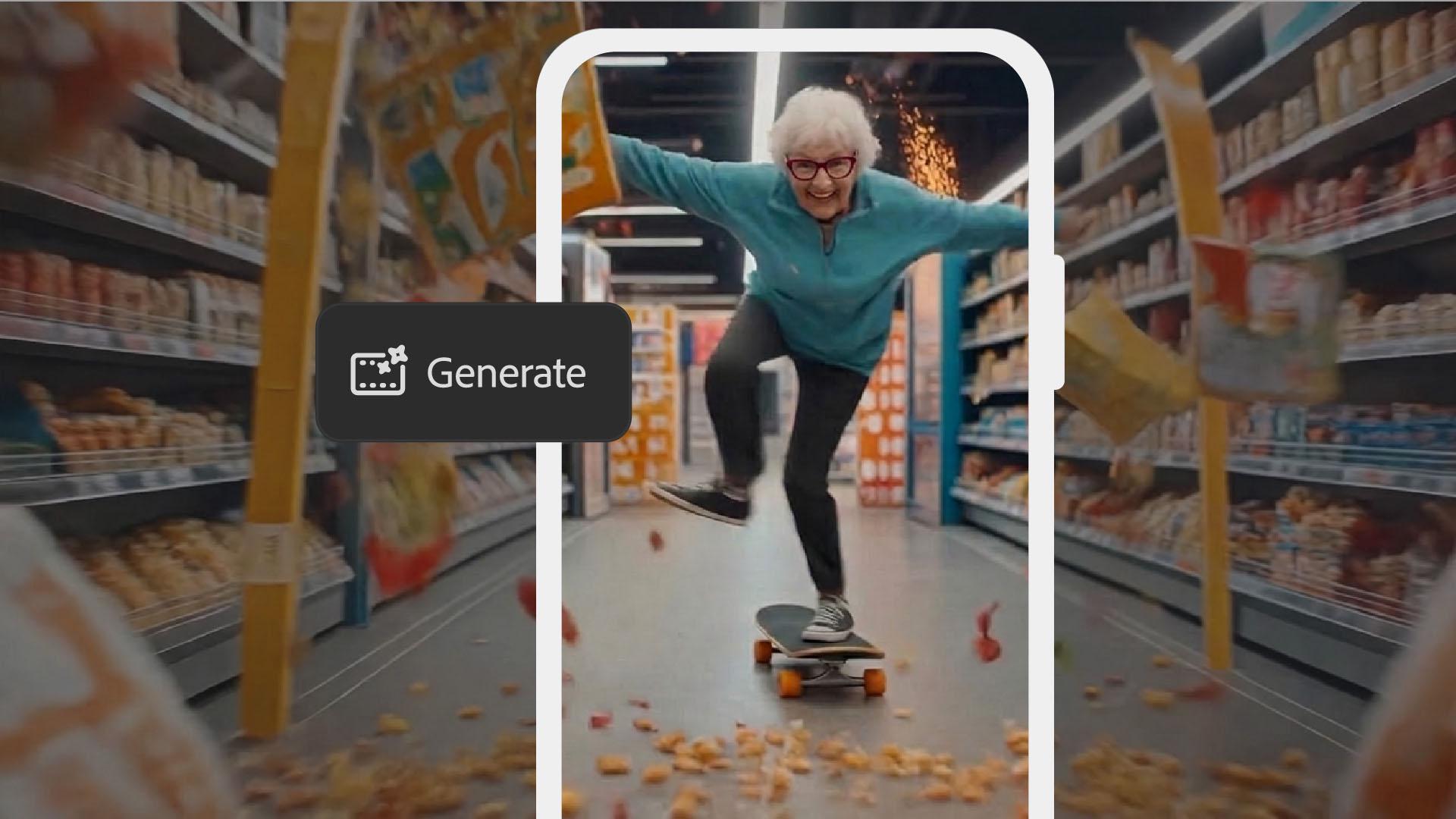
Go from text prompt to a fully produced clip with AI-generated visuals and layered sound effects, all from your phone.
Published
What you’ll learn
Generate video from a text prompt
Set your aspect ratio, resolution, and video duration. Then choose an AI model and write a specific, descriptive prompt to generate your clip.
Add and generate sound effects
Search the built-in library of free sound effects and add them to the timeline. Generate custom sound effects using a descriptive prompt for the perfect fit.
Trim, time, and mix your audio
Drag your sound effects to the right spot in the timeline and trim them for an exact match. Dial in the volume for each clip so the final mix feels balanced.
Instruction by

