Sound design for your mobile videos
Layer music, ambiance, sound effects, and record a voice over to create your perfect sound mix.
Published
What you’ll learn
Add music that sets the mood
Lower your clip’s ambient audio and browse free soundtracks by mood and genre. Add the music track to your timeline and trim it to fit your video’s length.
Layer ambient sound effects
Search for effects like rustling leaves to build the atmosphere. Drop them into your timeline and make adjustments to the volume and length so they fit your scene.
Record and enhance your voice over
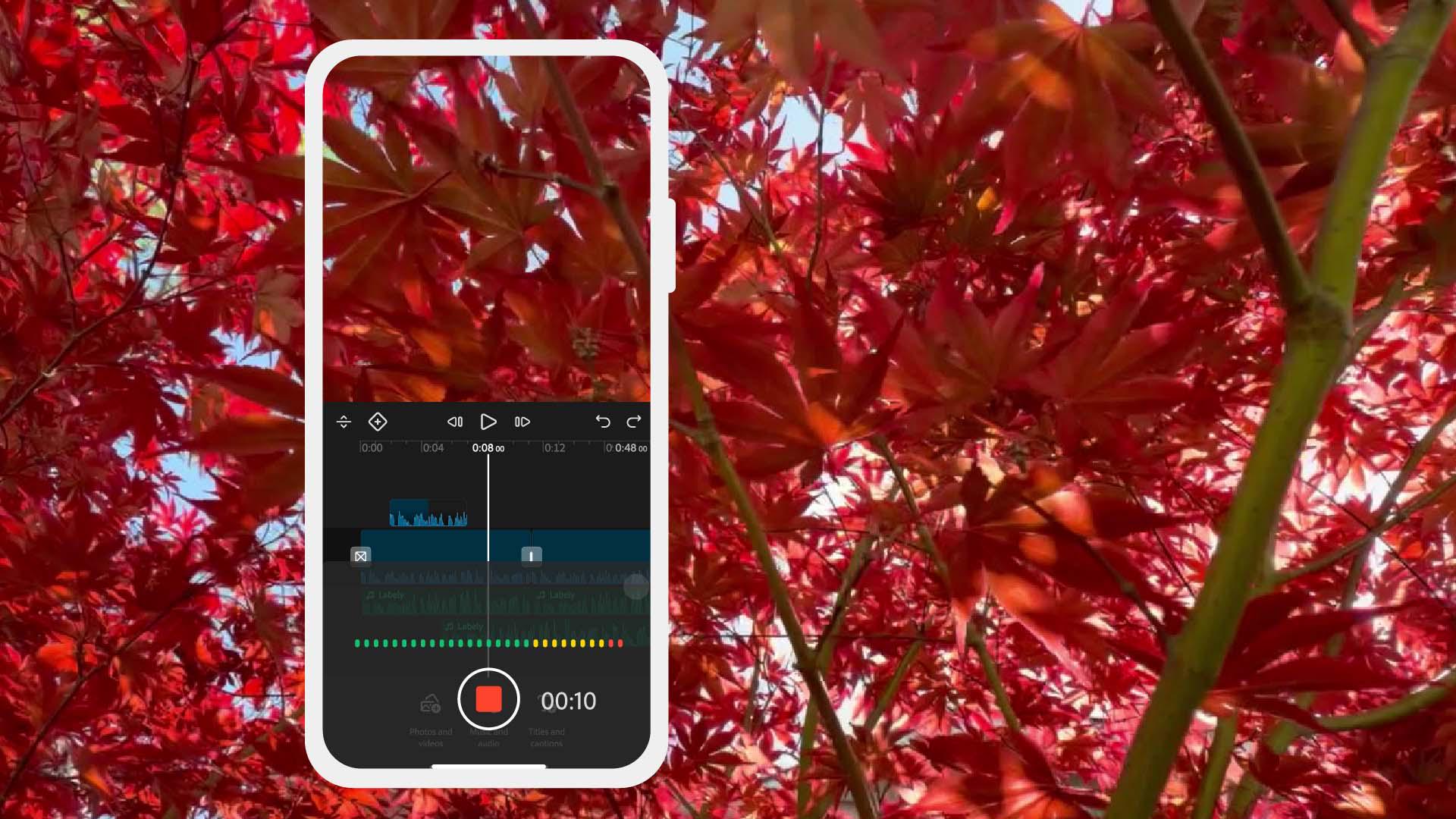
Record your voiceover directly in the timeline, then turn on Enhance Speech to clean it up. Refine each layers volume so the narration comes through clearly.
Instruction by

