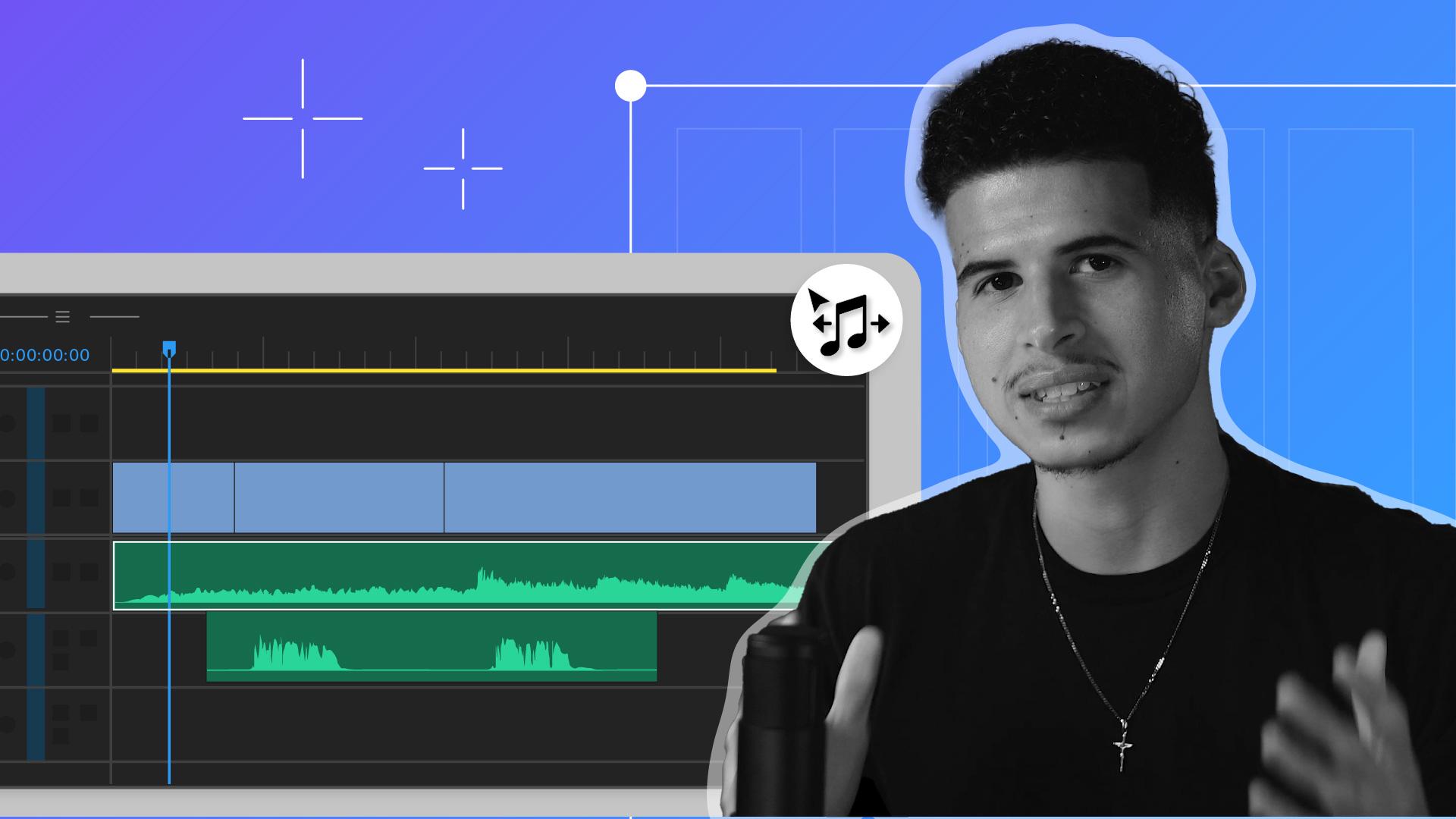
Are you tired of your video sounding unprofessional?
Whether you're juggling multiple audio sources, struggling with inconsistent volume levels, or trying to make your speech clear, Adobe Premiere Pro has the solution.
I am Jay Espitia-Pierluissi, and I've been running a video production business for over five years, working with clients all around the world, as well as coaching other videographers on how to scale their business past $10,000 a month.
In this tutorial, we'll show you how to transform your audio tracks from noisy and disorganized to clean and professional using Adobe Premiere Pro.
Let's dive in and make your videos sound as amazing as they look.
Syncing audio from multiple sources
First up, syncing audio from multiple sources.
Imagine you've recorded an audio separately on a lav mic and a camera mic, Premiere Pro makes this process seamless.
Here's how to do it.
First, select your video and audio clips in the Project panel.
Then right click and choose Merge Clips...
Use the Audio option to sync the clips automatically.
Now all your audio is perfectly in sync, saving you hours of manual alignment.
Now let's talk about auto leveling.
Auto leveling audio with Essential Sound
Consistent loudness across your clips is crucial for a professional sound.
Premiere Pro's loudness radar can help.
First go to the Essential Sound panel, go to Windows, then Essential Sound.
Click on the audio clip you want to edit, go to Loudness and then Auto-Match.
You can do this with all your clips.
This will ensure all your clips maintain a consistent volume level throughout.
No more sudden jumps or drops in audio levels.
Clear crisp dialog is essential.
Enhancing dialog clarity and speech
Here's how to enhance speech in Premiere Pro.
Select the dialog track, with the auto tagging update, you can just click on the Dialog icon and the panel will automatically open.
Clip labeling is automatic in version 24.4 and newer.
Use the Enhance Speech slider to clean up the audio, reducing background noise and improving clarity.
Your speech will now cut through, clearly making it easy for your audience to understand every word.
Now let's talk about music,
Working with music: stock and remixing
stock, remix and ducking.
Adding the right background music sets the tone for your video.
Premiere Pro offers a range of stock music options.
Go to Essential Sound and click on Browse.
Choose from a variety of tracks available and drag your selection to the Timeline.
Need to fit a music track to your video length?
Use the remix feature.
Select the music clip and go to the Essential Sound panel, adjust the Duration and Premiere Pro will intelligently edit the music to fit your desired length.
Finally, ducking ensures your dialog stands out
Using ducking for balanced dialog and music
even with background music.
Here's how.
Select your music track and navigate to the Essential Sound panel, enable Ducking and adjust the Sensitivity, reducing the music volume when dialog is present.
Now your background music will automatically lower during speech, ensuring clear and professional audio balance.
By mastering these audio techniques in Premiere Pro, you'll elevate your video production to a whole new level.
Syncing multiple audio sources, auto leveling, enhancing speech, and managing music tracks will become second nature.
Hope this was helpful.
Now let's make your video sound incredible.
Note: Stock assets provided are for practice purposes only. See terms.
What you'll learn
Sync multiple audio sources
If you record audio on multiple devices, you can synchronize the two clips directly from the Project panel, saving you time compared to manually matching both audio sources.
Auto-Match Loudness
Avoid sudden drops in your audio levels using Auto-Match within the Essential Sound panel. Auto-Match will automatically adjust your clip’s loudness to consistent level, ensuring smooth and even audio throughout your project.
Enhance Speech
Reduce background noise and improve dialogue clarity using AI powered Enhance Speech in the Essential Sound panel. Use the slider to change the intensity of the effect.
Add and customize music
In the Essential Sound panel, you’ll find a variety of free and paid stock music options. When you find one you like, use the Remix tool to make sure it’s the correct length for your video.
Refine your audio mix with Ducking
Ensure your music doesn’t overpower your dialogue by enabling ducking. This will automatically lower the volume of your music clips when dialogue is playing.
You can control how Adobe websites use cookies and similar technologies by making choices below. But note that if you disable cookies and similar technologies entirely, Adobe websites may not function properly.
Cookies are small text files stored by your web browser when you use websites. There are also other technologies that can be used for similar purposes like HTML5 Local Storage and local shared objects, web beacons, and embedded scripts. These technologies help us do things like remembering you and your preferences when you return to our sites, measure how you use the website, conduct market research, and gather information about the ads you see and interact with.
You can make choices in the menu below about what cookies and other technologies you want us to use on Adobe sites when you visit them from this browser. You can always change those choices later by clicking on the Cookie Preferences link at the bottom of the page.
If enabled:
We can improve your experience by tailoring the site and the content to things we think might be of interest
We can better keep track of your preferences — like what language you prefer to use
We will better understand your likely interests so we can provide you more relevant Adobe ads and content on non-Adobe websites and in non-Adobe apps
It will help us improve the performance of our website and those of our partners who use the Adobe Experience Cloud
If disabled:
We won’t be able to remember you from session to session so the experience may not be tailored to your interests
You’ll still have access to the content of the site but certain features that depend on cookies may not function
You’ll still see ads, they just may not be as relevant to you
General information
You can control how Adobe websites use cookies and similar technologies by making choices below. But note that if you disable cookies and similar technologies entirely, Adobe websites may not function properly.
Cookies are small text files stored by your web browser when you use websites. There are also other technologies that can be used for similar purposes like HTML5 Local Storage, web beacons, and embedded scripts. These technologies help us do things like remembering you and your preferences when you return to our sites, measure how you use the website, conduct market research, and gather information about the ads you see and interact with.
You can make choices in the menu below about what cookies and other technologies you want us to use on Adobe sites when you visit them from this browser. You can always change those choices later by clicking on the Cookie Preferences link at the bottom of the page.
If enabled:
We can improve your experience by tailoring the site and the content to things we think might be of interest
We can better keep track of your preferences — like what language you prefer to use
We will better understand your likely interests so we can provide you more relevant Adobe ads and content on non-Adobe websites and in non-Adobe apps
It will help us improve the performance of our website and those of our partners who use the Adobe Experience Cloud
If disabled:
We won’t be able to remember you from session to session so the experience may not be tailored to your interests
We’ll still count your use of our site and services
You’ll still have access to the content of the site but certain features that depend on cookies may not function
You’ll still see ads, they just may not be as relevant to you
Operate the site and core servicesOperate site and measure engagement
Always active
These cookies are required, and they are used to enable the site and related services core functionality. Without them the site could not operate, so they cannot be disabled.
These cookies enable the site and related services’ core functionality and collect statistics about user engagement, such as counting active use to help us understand trends. These cookies cannot be disabled.
Measure performance
These cookies are used to analyze site usage to measure and improve performance. Without them Adobe cannot know what content is most valued and how often unique visitors return to the site, making it hard to improve information we offer to you.
These cookies are used to analyze site usage to measure and improve performance. Without them Adobe cannot know what content is most valued, making it hard to improve information we offer to you.
Extend functionality
These cookies are used to enhance the functionality of Adobe sites such as remembering your settings and preferences to deliver a personalized experience; for example, your username, your repeated visits, preferred language, your country, or any other saved preference.
Personalize advertising
These cookies are used to enable Adobe and our partners to serve ads more relevant to your interests. Without them you will still see ads, but they might not be as relevant to you.
Personalize advertising
These cookies are used to enable Adobe and our partners to serve ads more relevant to your interests. Without them you will still see ads, but they might not be as relevant to you.