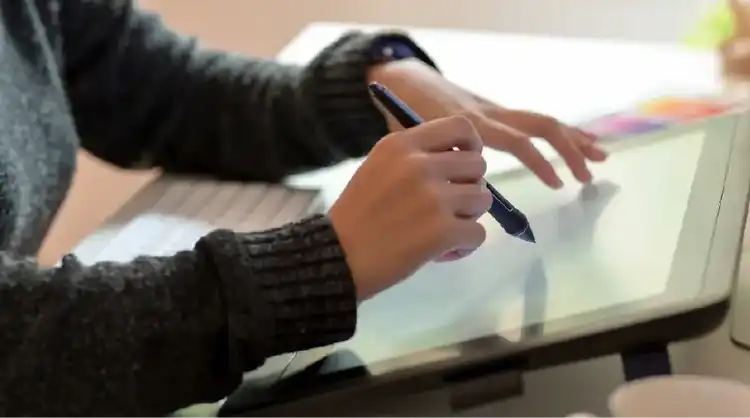
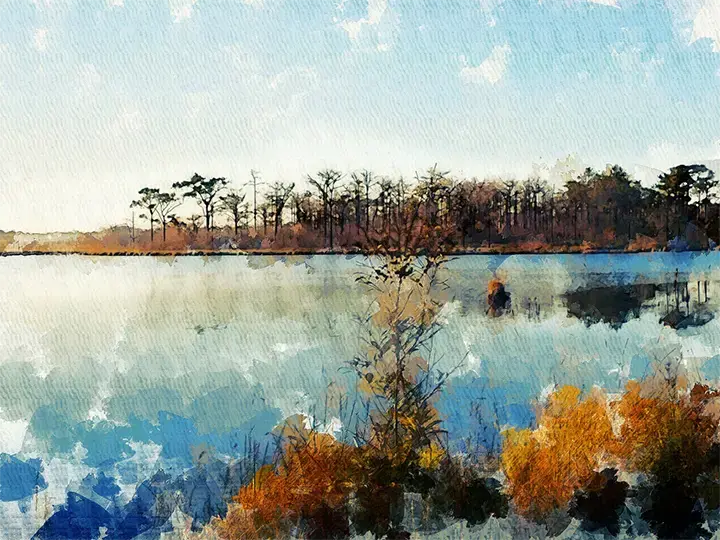
Fortunately, everything you know about the form of traditional painting still applies to digital painting. The key difference is that digital painting swaps paintbrushes and canvases for a stylus and a screen, or increasingly, for a text prompt. Digital paint is still built up in layers, still requires creative judgement, and still takes practice to get right.
You'll often see the term used interchangeably with digital drawing, and there's a lot of overlap between the two: both use the same core tools and software, and the line between them comes down to technique rather than a hard rule. "Digital painting" tends to describe work built up in blended tones and colour, closer to traditional paint, while "digital drawing" leans more on line work.
Software like Adobe Photoshop, Fresco or Illustrator lets painters represent different mediums on screen and create complex images using a pen-like stylus. More recently, AI painting generators have added another route in, covered in more detail later in this guide.
The Benefits of Digital Painting vs Traditional Painting
Digital artists aren't shy about the benefits of digital painting over traditional approaches. Convenience is one of the biggest: instead of preparing materials or varnishing a canvas, you only need to turn on your laptop or tablet and open your painting app of choice.
It's also easy to edit. With a program like Adobe Photoshop, you can undo mistakes instantly, and use tools to blur, distort, stretch and recolour your work with a click. AI tools like Generative Fill take that further, letting you add or edit elements much more quickly in some workflows.
Digital painting is also more cost-effective over time. Once you've invested in your software and tools, starting a new piece costs nothing, and a mistake never wastes materials. And because your work exists as a digital file from the start, it's easy to export and share, whether that's a logo for a client or an illustration for Instagram.
What You'll Need for Digital Painting
Starting out with digital painting can seem complicated, but you only need a handful of digital painting tools to begin. The most common setup is a stylus used with a drawing tablet: a graphics tablet connects to your computer and relies on your screen to show your work, while a display tablet or all-in-one device lets you draw directly on the surface you're looking at.
You'll also need software. Adobe Photoshop is one of the most popular choices, with over 60 tools and a wide range of brush types, from digital matte painting to watercolour landscapes.
Painting with AI: A New Way In
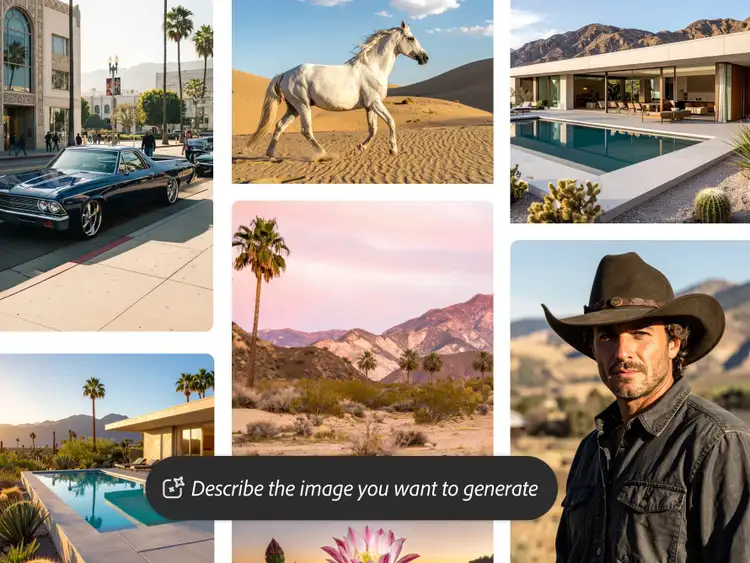
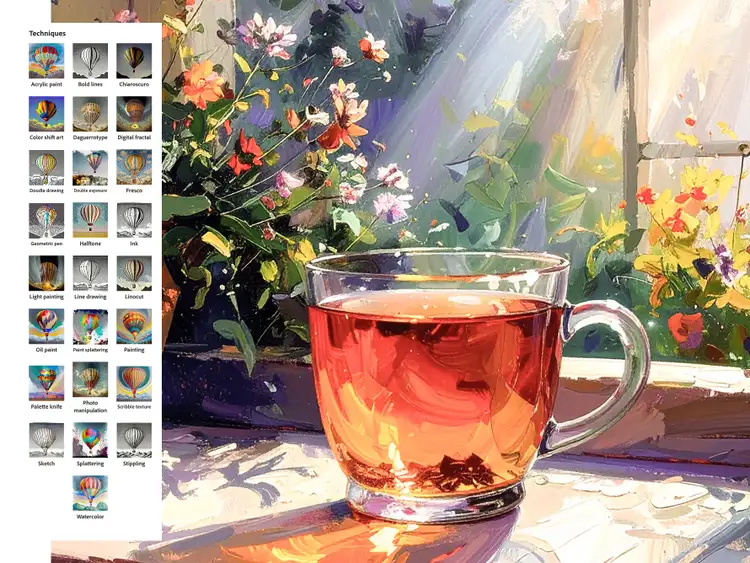
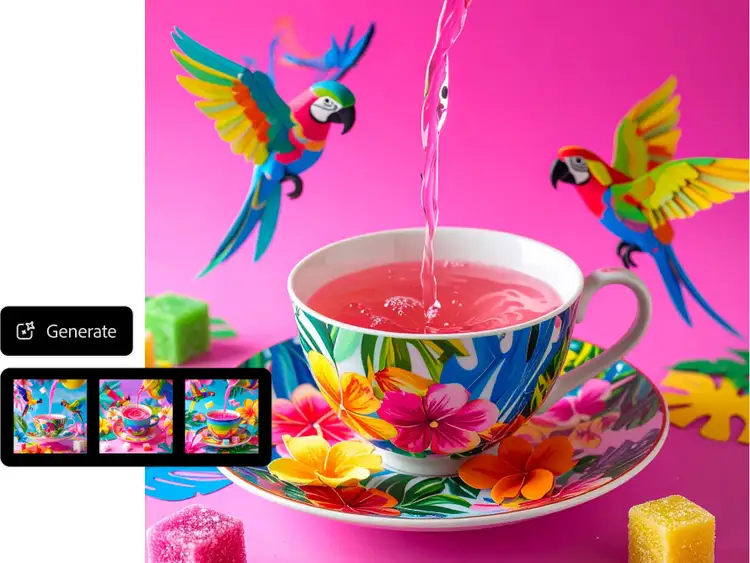
Alongside the stylus-and-tablet approach, AI painting generators offer another way to create a digital painting, one that doesn't require a stylus or drawing tablet. You describe what you want to see in a text prompt, from a sun-drenched landscape to a fantastical creature, and the AI generates it in the style of an analogue medium like watercolour or oil.
Many AI painting generators follow a broadly similar process: you write a prompt describing the subject, mood and style you want, the AI generates an image to match, and you can then adjust settings such as style, colour and lighting, or simply regenerate with a refined prompt until you're happy with the result.
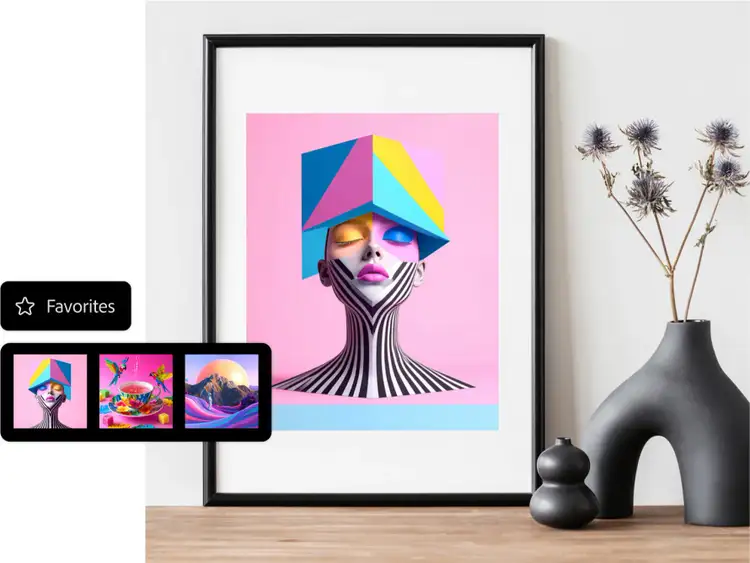
The output can be a starting point rather than a finished file. Because it's generated as a flat image, painters can bring it into an editor to add detail, correct proportions or blend it with other elements. Adobe Firefly's AI painting generator works this way, with a Text to Image tool built for exactly this kind of exploration.