
Try these tutorials with Adobe Express
Create web pages, social media graphics, and videos.
How to master rhythm and delivery in everything you create.
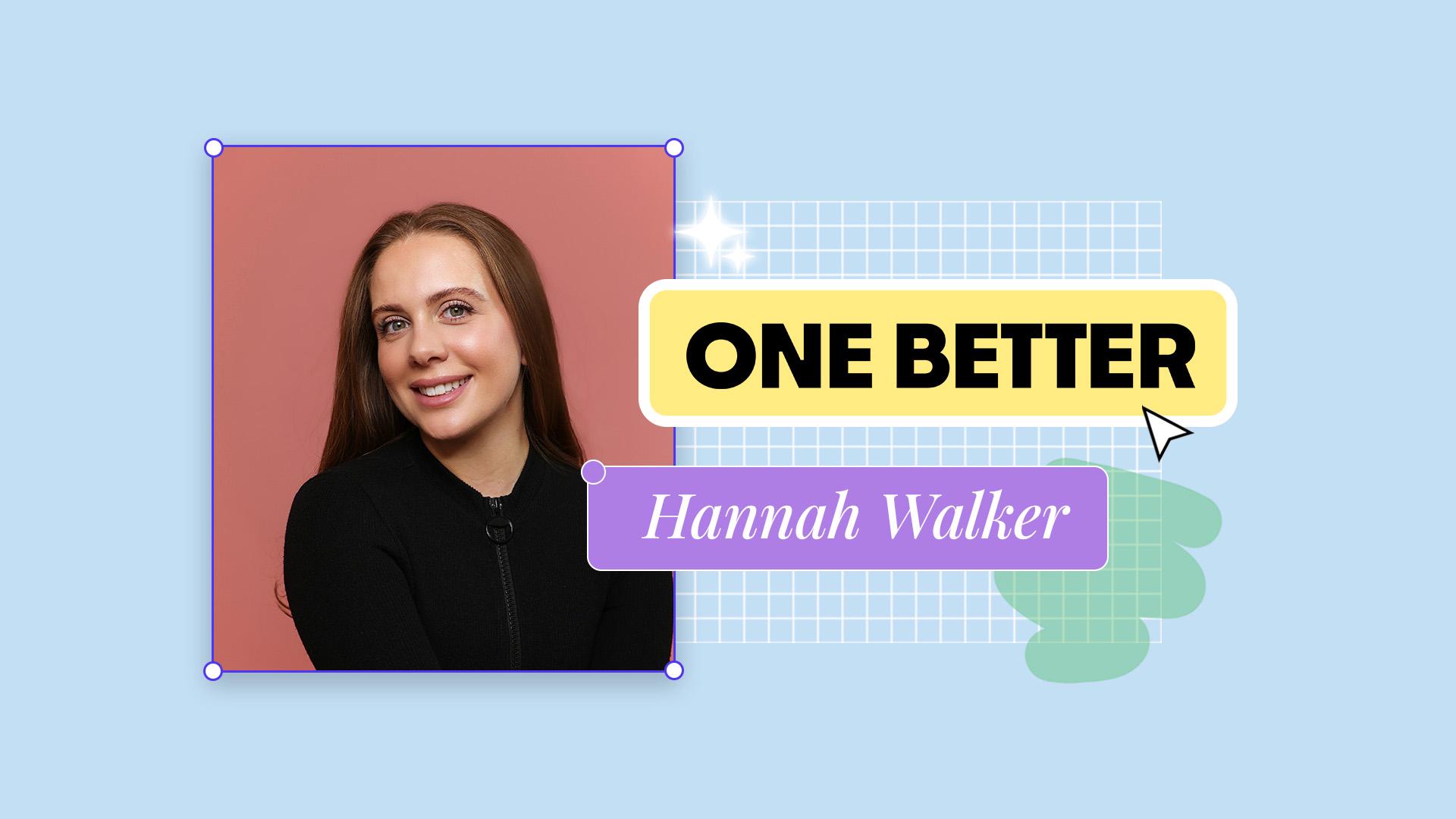
Growing up as a dancer, Hannah learned that being even half a beat off can throw the whole piece. Now, as a creator, designer and founder of HTW Creative, that same instinct guides how she edits, designs, and delivers her work. For Hannah, going one better means caring for the details from the rhythm, energy to the audience experience - it’s those small shifts that turn something good into something unforgettable.
Hannah edits her videos like choreography, matching every cut to the beat for that scroll-stopping flow.
In Home, select Social media and ads in the Get Started menu and easily upload your media.
In the left panel, navigate to Add-ons, search for TikTok Symphony Assistant, and explore the TikTok Commercial Music Library to add trending tracks to your video.
Once it’s loaded, mute the original sound and choose your new track from the TikTok Symphony Assistant — that’s the rhythm you’ll be editing to.
Now comes the fun part! Edit your video so it moves with the music. Watch, listen, cut - then repeat until it hits just right. The keyboard shortcut S makes it easy to make precise, rhythmic edits. When it feels seamless, add a text overlay for context and try a little animation to catch attention.
Download your video or schedule it directly to TikTok inside Adobe Express using Content Scheduler. You can even use Generate caption to create the perfect caption from a short prompt.
There you have it - engaging content that hits the beat in just a few clicks.
Before anything goes live, Hannah asks herself two questions: ‘ Did I enjoy making this?’ and ‘Would I engage with it if I saw it on my feed?’ If either answer is no, she changes something until both feel like a yes.
One of her favourite finishing touches is a strong Reel cover. From Home search Reel Cover Templates - there’s hundreds to choose from!
Easily make it your own by swapping in your own background image, update the text, and play with fonts, colours, and layout until it feels unmistakably on brand.
In just a couple of minutes, you’ll have a cover that’s consistent with your grid and clearly tells viewers what your Reel’s about. Download your video and share straight into Instagram, or schedule for later through Content Scheduler.
Hannah uses Adobe Express to not just elevate what she creates, but how she delivers it.
Start from a Presentation Template, upload your existing file or start from scratch. Then add animations, visuals, product images, or brand assets to bring your story to life. Use Animate to add subtle movement. Simply select an element, choose an animation style, and fine-tune until it feels just right.
Select Add content and then Audio in the media menu to add some background music. Once your deck is ready, click Share and select view only link to generate a live, shareable version. Before sending, test it on both desktop and mobile to check load speed and readability
With every detail in place, your presentation now opens smoothly and looks dynamic.