

Generate on your own timeline.
Generate the video and sound effects you need right from your timeline. Use your sequence as reference and get closer to your vision from the first prompt.


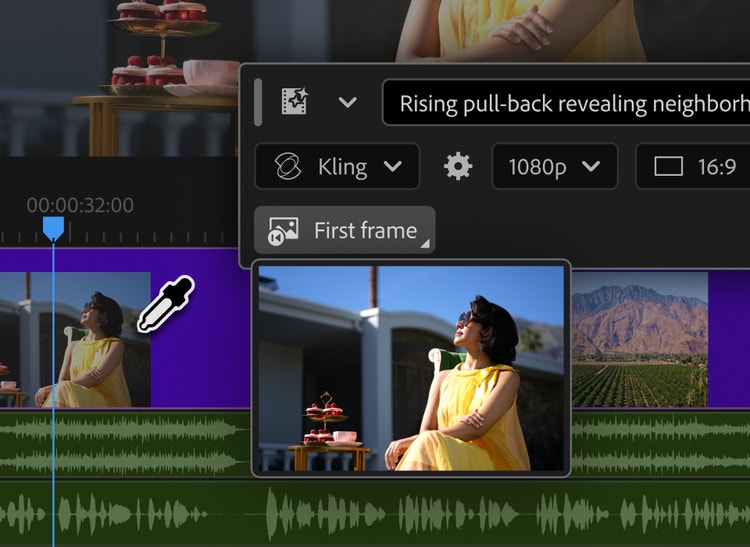
Unlock smart features designed to help you edit faster and push your creativity further.
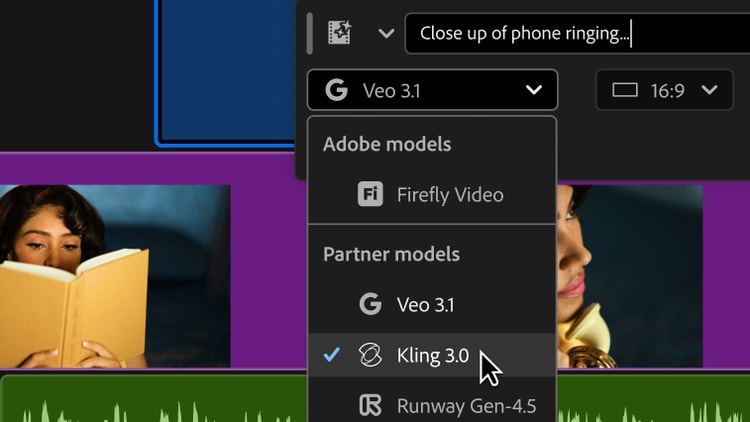
Generate the video and sound effects you need right from your timeline. Use your sequence as reference and get closer to your vision from the first prompt.
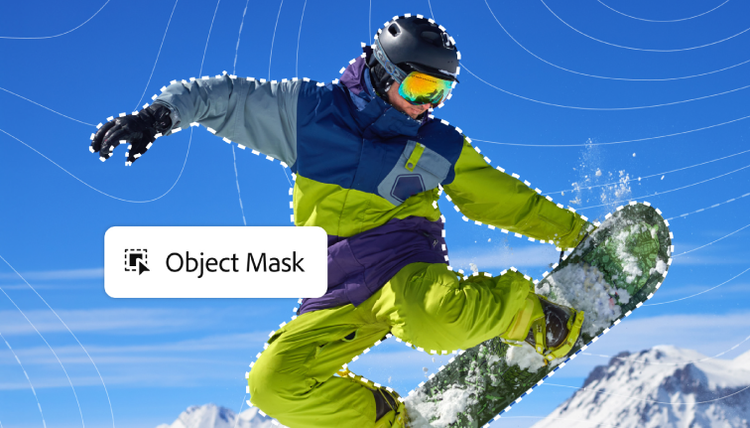
Say hello to Object Mask and goodbye to hours of painful rotoscoping. Just hover over your subject, click, and watch as AI accurately masks and tracks it.
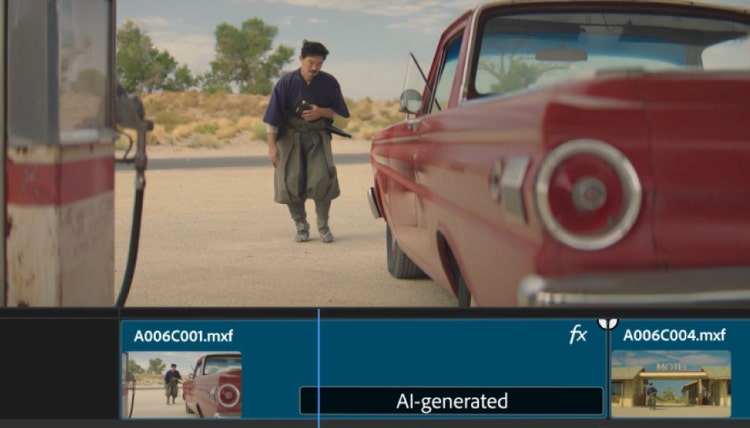
Generative Extend lets you grab, drag, and extend clips using Adobe Firefly — right from your timeline. Add a few frames, lengthen ambient sound, and eliminate awkward cuts.
AI is changing the game for film and video creation — speeding up transcription, editing, color, audio, captioning, and delivery workflows. Whether you work on short social videos or feature-length films, AI functionality will shave time off your editing process and open the door to new creative possibilities.
Spend less time on tedious tasks like creating transcripts, changing color levels, adjusting audio, and reframing videos for social channels — and more time getting inspired and telling a story with stunning video projects.
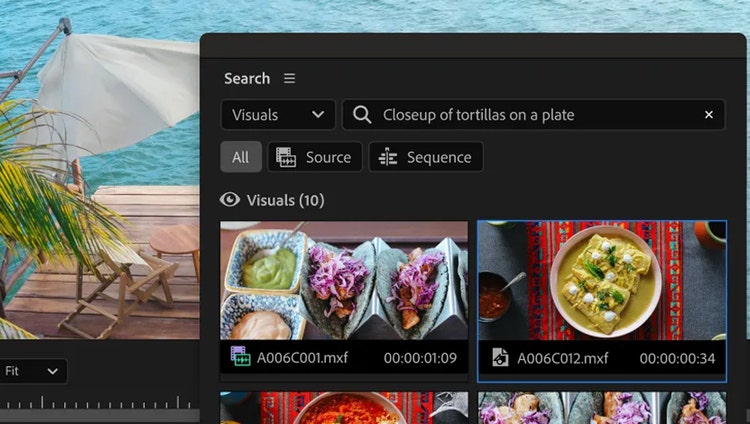
Meet Media Intelligence, powering your Search panel in Premiere. Describe anything you need to find, using everyday language, and clips matching your description are at your fingertips. Search hours of footage in seconds — just describe it and find it.
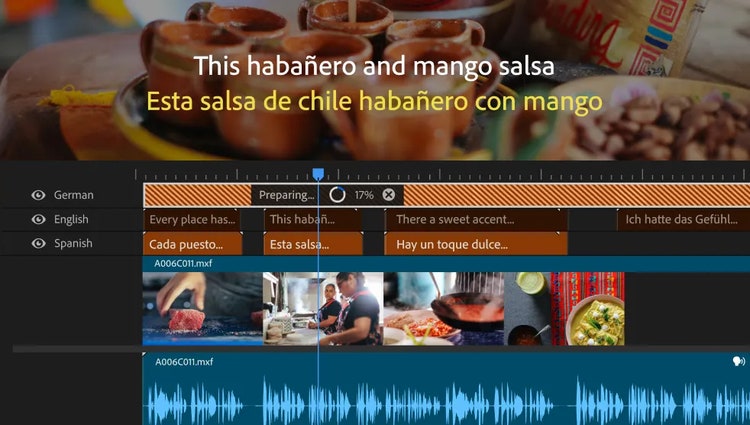
Auto-translate your captions into 27 languages with AI, display multiple languages at the same time, and quickly customize to reach more viewers, followers, and customers. Grow your global community with Premiere.
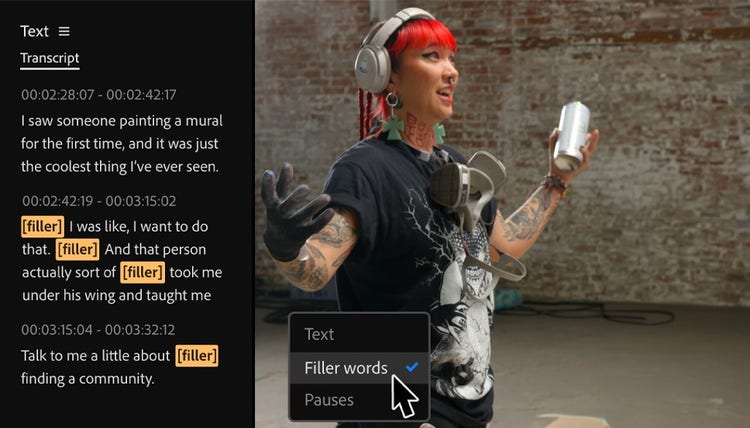
Auto-generate your transcript, highlight text to add clips to your timeline — then refine, reorder, and trim clips just like you’d edit a text doc. And for further refinement, clear all awkward pauses with bulk deletion and use filler-word detection to remove unwanted filler words.
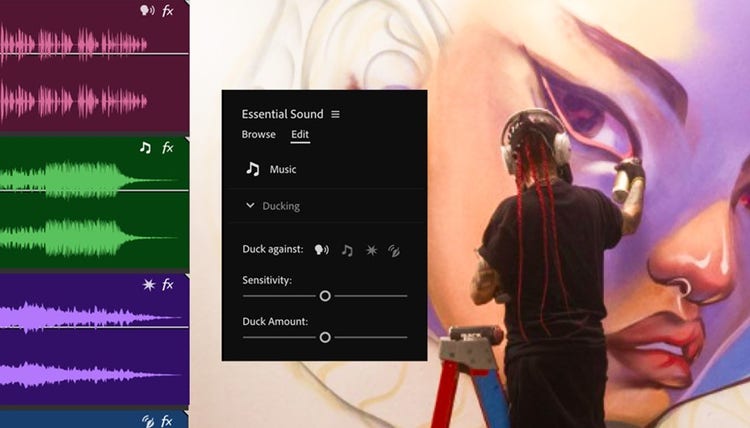
AI automatically recognizes if your clips are music, dialogue, sound effects, or ambiance and adds an interactive badge. Just click the badge to get instant access to the most relevant tools for that audio type.

Creating captions and transcripts used to be an expensive and time-consuming task. Now you can do it in a click with Speech to Text. This feature automatically generates accurate transcripts in over 18 languages, distinguishes between speakers, and creates captions that match the cadence and speech patterns in the video. Adding captions makes your videos more accessible and engaging on social media, where many users watch content with no sound.
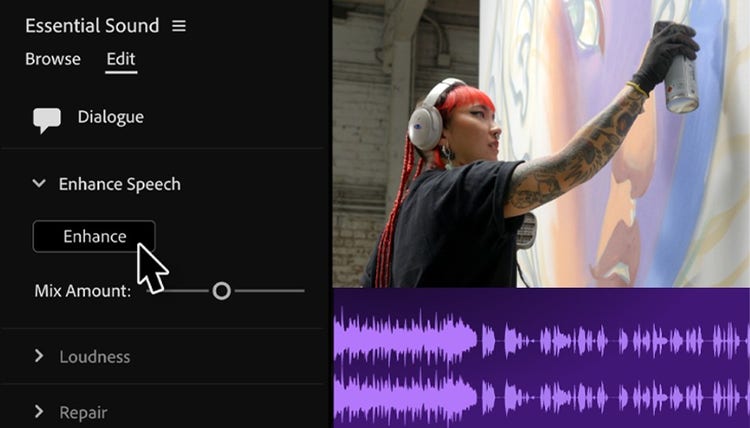
Remove distracting background noise and improve the quality of your dialogue with AI-powered Enhance Speech to make your dialogue sound as if it were recorded in a professional studio.

When you need to create a new edit of a longer video, separating it back into the original shorter clips is the first step. Finding the scene transitions and placing these cuts manually can be tedious, but with Scene Edit Detection, Premiere will automatically cut your scenes for you. Right-click a clip on your timeline, select Scene Edit Detection, and choose whether you’d like to add cuts, create a new bin of sub-clips, or place clip markers at each cut point.

Apply color corrections in just a few clicks with smart Auto Color features. Make basic corrections like exposure, contrast, and white balance faster than ever. Polish your footage in the time it takes to move a slider and hit play. Then, get down to the work of creative color grading.
Morph Cut transitions add visual continuity and help clips flow seamlessly from one into another. Clean up awkward pauses or choppy cuts in interviews or talking head videos with an advanced combination of face tracking and optical flow interpolation, which smooths transitions and adds visual continuity. Make it all come together with transitions that look like one smooth take.
Instantly match the colors in two different video clips in your sequence with Color Match. This helps eliminate discrepancies between the colors in different shots of the same scene. Correct for saturation, white balance, and brightness between different takes, and weave separate shots into a single, unified scene. Maintain a set look for your footage, and enable Face Detection to pay special attention to skin tones and expressions.
Keep your soundtrack and visuals on beat. Retime music to match the timing of your video as you edit. Instead of spending hours manually syncing video and audio, tap into the power of AI to keep what’s on screen and what’s coming out of the speakers aligned, all while preserving the impact of the soundtrack.
Ensure dialogue and background audio are in perfect harmony. Manually adjusting background sound levels whenever someone is speaking takes a lot of time. Auto Ducking automatically creates audio keyframes that lower music and sound effects during dialogue. Then, those same features bring the soundtrack back up when no one’s talking.
A horizontal 16:9 aspect ratio is a common default for many cameras and devices. But the vertical 9:16 aspect ratio is popular on social platforms. Changing from one to the other can require time-consuming keyframe motion edits to keep moving subjects visible. Auto Reframe solves this by instantly identifying the focal point of action in your shots and keeping it visible as you change aspect ratios. This is especially handy if you’ve created a wide video but want to post a clip of it on social media platforms formatted for square or tall aspect ratios, like Instagram or TikTok.



Visualize shots and effects ahead of the shoot, generate assets missed in production to complement your edit, and eliminate tedious tasks to stay focused on your creative ideas.


