Photoshop Creative Boost: Elevate Your Design Process

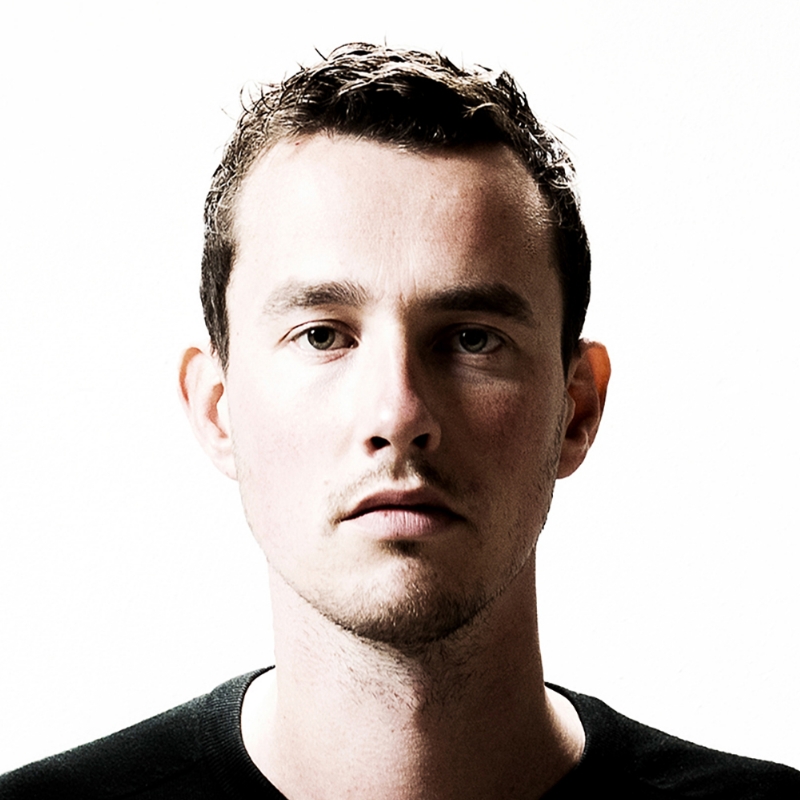
[Music] [Rob de Winter] Hey, I'm Rob de Winter, an Adobe-certified Instructor from the Netherlands, and in this Adobe MAX session, I'll show you how to unlock the creative potential of the latest Photoshop features and speed up your workflow with smart, time-saving techniques. And I'm going to show you a lot of things in just 15 minutes, so let's open Photoshop and get started. Let's start with this photo of a beautiful snow scene. I think this scene needs a little bit more snow. And what you can do, of course, is download an overlay from a stock photo website, but of course we can also generate something. And in this case, I'm going to use the Generate Image feature in the Toolbar. When you click this button, you can fill in a prompt something like, for example, snowfall with realistic snowflakes falling, isolated on a black background. And that's really important - isolated on a black background - because I'm going to remove all the blacks or make all the blacks transparent by using a blending mode. For the rest, I'm not going to fill in anything. So, I'm going to leave it as it is and click Generate, and then Photoshop will generate three variations of a snow overlay.

And I really like this result immediately - it's a nice snowstorm. This one is a little bit off, I think. And this one is also really nice, but I think I like the first one most. And what I'm going to do right now is change my blending mode in the Layers panel to Screen, and then you will see that this overlay is set nicely on the image. And of course, what you also can do is use an adjustment layer to make the snow a little bit more blue. But yes, we have a lot of things to do in this 15-minute session. So, I'm going to move on to the next exercise. This is a photo of my bike. And I deliberately tried to make it as difficult as possible to make a selection of this bike, because I want to remove the background and use this bike in another scene. But of course, usually it's very difficult to select the spokes, for example, in the wheels or all the tiny details in a bike. And usually what you can do is use the Remove Background feature in Photoshop. But when you use Remove Background right now, when you have the default settings, Photoshop will just calculate the selection on your computer, and your computer doesn't have that much processing power. So, what I most of the time do nowadays is changing my preferences in Photoshop and change my selection method to Cloud selection, and that makes a much better selection when you create a selection, because it has a lot of power in the cloud to create your selection. When you are on macOS, you can go to Photoshop, and then Settings... And when you are on Windows, you go to Edit, Preferences..., and then we go to Image Processing... And when you click on Image Processing by default, your selection method is set to Device, but when you set it to Cloud, it will select much better details.

So, when you click OK, you don't have to restart Photoshop, you can just go to the Remove background button or maybe Select subject button, Photoshop will search for the main subject in the scene and then calculate a much better selection. And as you can see, this is really amazing. It selected these spokes really well and all the details of my bike, you can even see all the mud selected. It's a bit dirty.

And also, when I show you the layer mask, you can see how well it is selected. It's really amazing. And it saves you a lot of time when you have clear subjects in your image. So, what I want to do now is, of course, my original setting was already beautiful, but I want to regenerate a new background. And of course, you can use this fantastic Generate background feature that will generate a completely new background. But what I also like to do is show you a new feature in the Generate Image box. That's a feature where you can guide your results with a Composition reference. So, in this case, I drew a new landscape behind my bike, exactly fitting the perspective of my original image. And I'm going to use this image, so just a simple drawing made with my Brush Tool. And I want to use this image, as a Composition reference. And then Photoshop will make a landscape that looks a little bit like this. So, what I did is save this image. I hide my layer of the bike, save this image, and then I can use it later on in my Composition reference box. And what I also wanted to do is guide my style because when I have a composition reference, I still have to explain, okay, I want to have a sandy road, and I want to have mountains, and I want some flowers. So, what I did is already find an image that looks like the image that I want to generate, but of course, the outlines are completely different, but it has the flowers, and it has the sandy road I want. So, I'm going to use both of the images. Now, what I'm going to do is hide the landscape guide layer here. I just click it, and now I'm going to generate a new background by clicking on the Generate Image button in the Toolbar and then pasting in the prompt, green flower meadow with hills and a sandy road, sunlight coming from behind the hills. I want to generate a Photo. And now the magic begins, you can choose a Style reference. So, the Style reference will be my image of the landscape, so this will be the style of the image, and then go to my Composition reference. This is new in the newest version of Photoshop. You can click Composition and then choose another image that's your guide layer. So, this image will be the guide layer of your image. And Photoshop will see the lines and will see the depth and then create something else based on this. So, I'm going to use this, click Open, and I set the Strength slider all the way to the right to make it look as much as possible to this guide layer. Now I'm going to click Generate and now Photoshop will generate my new background. And this is amazing, isn't it? It looks exactly like the style I created, it also used my drawing. I will show you the difference. So, this is my landscape guide, and my newly created background looks exactly like what I wanted to make with the sandy road. And I have two other variations. And I think I like this one most. But the only thing is that my bike doesn't blend into the situation that well. And what I usually do nowadays is make a selection around the bottom of my subject, so in this case, the bike and also on the road, to blend the two images together. And one important thing is to select the bike layer, of course, because otherwise Photoshop won't see the bike layer if you still selected the background. So, you really need to click on the topmost layer or the bike layer in this case, I'm going to make a selection with my Selection Brush, and then I'm going to paint a brasso - that's a combination between a brush and a lasso - and I make this selection exactly on the area where I probably want to generate a shadow, and also where I want to blend the bike into the background. The only thing I need to do right now is click Generative Fill and then fill in the prompt, something like soft shadow, and then click Generate.

This is a bit messy, but let's see what the other variations look like. This is also a nice one. I really like this one. So, I'm going to use this one. Maybe change the Opacity a little bit, I make it a little bit softer, like this. And of course you can also blur it. But this is fantastic, isn't it? It looks amazing.

Let's go to the next exercise because now we're going to look at the new feature, named Adjust colors. And Adjust colors is actually just a Hue/Saturation layer, but it updated a little bit. And if you quickly want to select the colors in your image, like the most prominent colors, you can just click Adjust colors and then Photoshop will find all the most prominent colors in the image. So, what you can do is click on one of the circles to change the Hue to change the color, but you can also change the Saturation or Lightness. And if you want to make a purple wall - I think I like that - what Photoshop actually does is add in a Hue/Saturation layer. You still see the same Hue, Saturation sliders, but Photoshop also selected the color range here in these bars.

And you can see now that we changed all the blue colors, that's the topmost bar, and it changed into purple. And when you move these bars around, you can still change the area that Photoshop will change. But this is a faster way to do this.

Now I also want to change the reds in the color. So, let's click this and then change the reds to something else. But now we have a little problem and that's that we've also changed the skin tone of this woman. And we can prevent that, of course, we can mask it out in the layer mask in the Layers panel. But we can also say, okay, let's just move this area a little bit more to the left, I think in this case, that will work, and then you will see that the skin becomes a bit normal again. Maybe I need to adjust this little bar. That's the overflow area, but I think this is perfect. But of course, her lips are still yellow. And we can change that also by painting it out in the layer mask, of course, but this is also a good way to show you a new other feature, and that's the Select details feature in the Object Selection tool. So, once you click the Object Selection tool in the newest Photoshop version, Photoshop will start searching for people in this image. And that's really cool. It doesn't only find all the people in the image, but it will also find all the details like mouth, accessories, upper clothes, hands, and when you click Select people, it will show all the faces of the people available in this image. And in this case, we only have one woman in the image. And when you click the person, it will select the entire person by default, but you can also go to Hair, you can go to Eyebrows, Eyes, Iris, Nose, Mouth - that's what we're going to change - Accessories. And when you click Mouth, or when you click something else, you can also select Facial skin, for example, when you click Apply, it will select all the things that you selected in this field. But now in this case, I'm only going to select the Mouth and click Apply. And what we can do right now is do anything with this selection. In this case, I want to add a new Hue/Saturation layer. So, I'm going to my Adjustment Layers button here in the Layers panel, click Hue/Saturation... and then change the Hue of the mouth, and maybe we can make her lips a little bit purple or something like that. I really like that. Yes, I think this is beautiful. But let me select something else, too. I still have my Object Selection tool selected, go to Select people, select the person that I want to select, and in this case I want to change the accessories, in this case her cloth that she has on her arm, click Accessories then click Apply. And of course, when we create a new Hue/Saturation layer, we can change the colors of the entire cloth. So, what I want to do is select some colors in this selection. And by default, when you look in the Hue/Saturation layer, you only see the default colors, like the reds, the yellows, the greens, but you can also select the Prominent Colors, and then Photoshop will show you the prominent colors in this image again. And in this case, I want to change the greens. So, I'm going to select the greens in the Prominent Colors bar and then change the greens in her cloth to something else, like blue. And let me change the Saturation a little bit. Of course, you can also change some other colors like yellow, but this is a really powerful and fast feature to use in the new Photoshop version. I'm going to show you something else in this image. That's the last one. In this case, I already prepared this, I made a text on the beach, and what I want to do is generate something with Generative Fill that looks like this text, but then as if it's written in the sand. And you can do this by making selections. But when I make a selection with the Selection Brush with an Opacity of 100%, then Photoshop will just randomly generate something like writing in the sand, and then it doesn't look at all like the layer below. So, what I want to do right now is make my selection a little bit more transparent. And the more transparent the selection becomes, the more your variations, the generative results, will look like the layers below.

And I found out that most of the time when you set the Opacity to something in between 30% and 40%, you will get the best results. But sometimes you have to try a little bit, to get the best results. So, now I'm going to set my Opacity to 28%, then make a brasso selection, so a brush/lasso selection with my Selection Brush around the area that I want to generate, and then when I click Generative Fill and then fill in a prompt, something like, writing in the sand, and then click Generate, then Photoshop will look at the layers below and create something based on that.

It's a bit strange here. We can of course remove that, but let's look at the other results. This is amazing, isn't it? It's really funny. And this was the last exercise. Thanks so much for watching. I hope you enjoyed this session and feel inspired to start experimenting yourself. If you have any questions, feel free to follow me on LinkedIn or Instagram and have a lot of fun watching all the other Adobe MAX sessions. Bye-bye.

[Music]

Session highlights

Photoshop Creative Boost: Elevate Your Design Process - OS100

ON DEMAND

Closed captions in English can be accessed in the video player.

Share this page

Speakers

  • Rob de Winter

    Rob de Winter

    Adobe Certified Instructor, Adobe Community Expert, DWM Trainingen

Featured Products

About the Session

Unlock the full creative potential of Photoshop and accelerate your creative process with cutting-edge techniques. Adobe Certified Expert and author Rob de Winter will guide you through innovative, time-saving workflows designed to help you boost your creativity and work smarter. From generating overlays for custom brushes to seamlessly blending objects with Generative Fill, you'll discover how to push your creative boundaries and work more efficiently than ever. Get ready to transform the way you work in Photoshop.

You'll learn how to:

  • Generate and customize overlays to create unique Photoshop brushes
  • Use cloud-powered selections to make your work more precise
  • Remove distractions effortlessly with powerful removal techniques and best practices
  • Create realistic blends and seamless compositions using Generative Fill
  • Design creative compositions by controlling AI-generated content with transparent selections and guide layers
  • Explore Generative Fill layers for greater flexibility and control

Technical Level: Intermediate, Advanced

Audience: Art/Creative Director, Educator, Graphic Designer, Print Designer

This content is copyrighted by Adobe Inc. Any recording and posting of this content is strictly prohibited.

Adobe Firefly

Jump-start your genius with Firefly creative AI.

Imagine and then create images, vectors, audio, and videos. Explore and visualize ideas early in the process with Firefly Boards.