Dream Bigger with Adobe Firefly.
Imagine, experiment and create with generative AI in the Firefly web app. New to Creative Cloud, now available for commercial use.


AI prompts are the commands creators give to generative artificial intelligence tools, known as gen AI, to generate content. Let’s consider this in the context of art. Creating AI art requires two things: the aforementioned generative AI technology and the person who tells the technology what image to make. The most common way for people to instruct AI art generators is with written descriptions, known as text prompts or simply as AI prompts.
While prompts for art can be short – leaving most of the choices to the AI – it can be more fun to describe what you want in detail, with specific guidance on composition and tweaks and refinements. This can also help ensure the output is as close to your creative vision as possible. It can be easy, too – Adobe Firefly has an AI image generator you can use to write prompts in simple, everyday language.
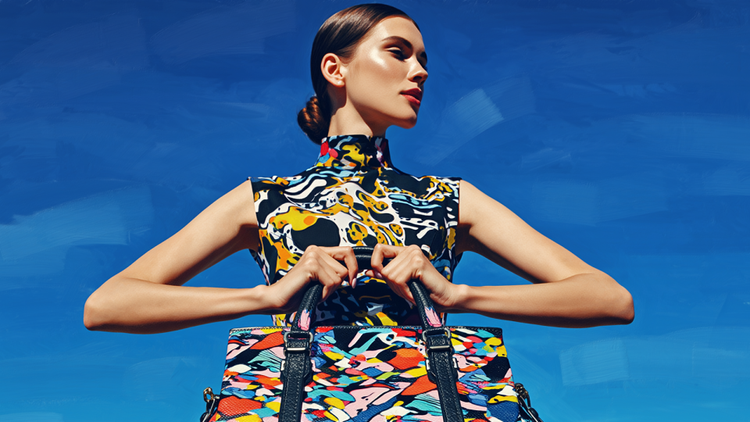
Prompts: A portrait of a person (Subject) standing against a clear blue sky (Background), holding a colourful hand bag in both hands at chest level. the scene has a painterly, hyper-realistic (Image type) aesthetic with soft brushstroke texture, rich saturated colours, and clean modern composition. The person wears a high-collared (Style), patterned outfit with bold abstract colours (Colour) that complement the hand bag design. lighting is bright and natural (Lighting), creating soft shadows and a serene, minimalist atmosphere.
Whether you’re aiming to create a conventional scene, abstract art, character creation or graphic design, take your AI art prompts to another planet with descriptors such as:
If you use Adobe Firefly as your preferred AI art generator, you’ll find many descriptors are built-in to the tool already for you to explore at your leisure. You can also specify the image’s aspect ratio in Firefly. Options include square (1:1), landscape (4:3), portrait (3:4), and widescreen (16:9).
Here are some more examples of cool prompts for AI art:
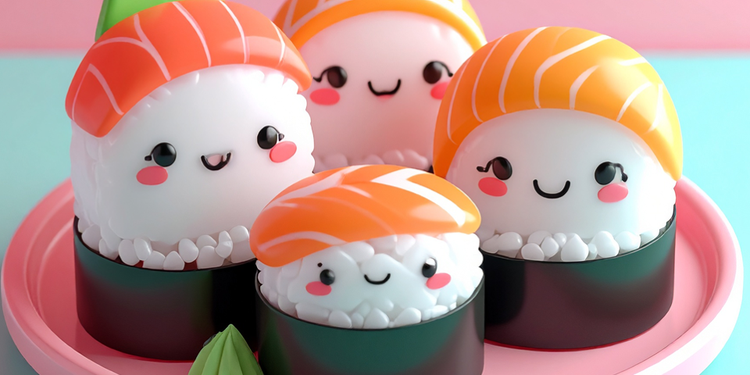
Prompt: A stylised 3D render of a sushi platter with kawaii faces, done in toon shading. Flat pastel tones, bold outlines, and simple gradients make it look like a 3D cartoon straight out of an anime cooking show.
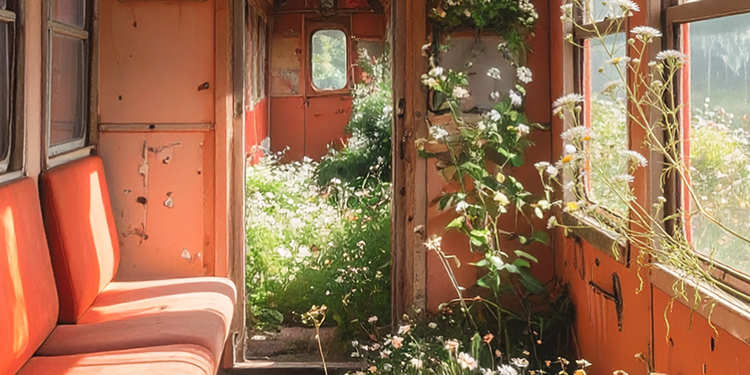
Prompt: The image portrays an abandoned train interior overgrown by vegetation, illuminated by soft natural light, with a warm and bright atmosphere created by the blend of its aged aesthetic and floral intrusions.
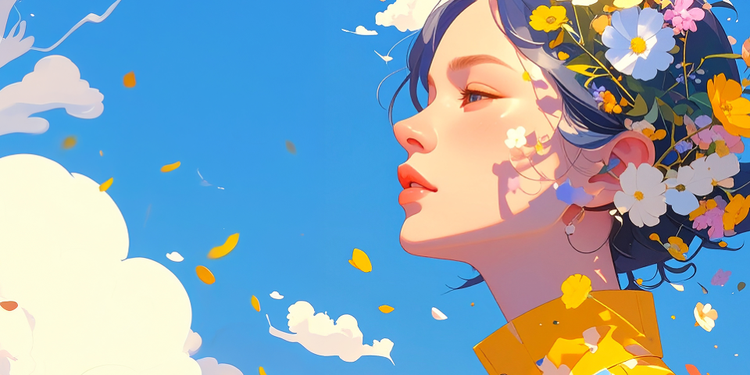
Prompt: A vivid artistic depiction of a person in a yellow garment blending with floral and abstract elements against a simple blue backdrop.
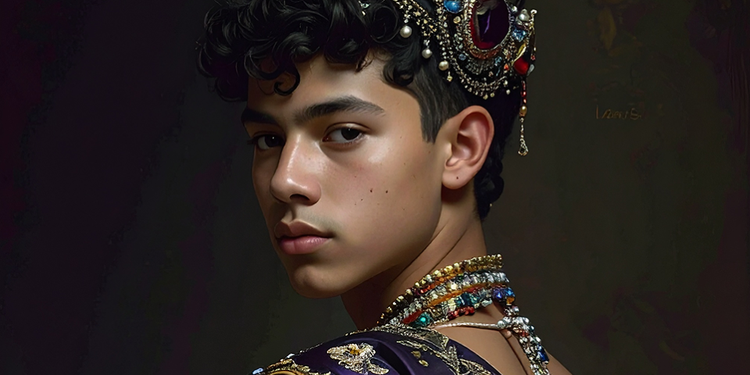
Prompt: Otherworldly teenage boy dressed in ornate silk clothing and dripping in ornate luxurious jewels, luxurious jewelled headpiece, looking over his shoulder to the side of the camera, dark background, oil painting.
Firefly has all the tools you need to perfect your art prompts and refine your work, as well as the top AI models from Adobe, Google, OpenAI, Runway and more.
Here are five tips to help you achieve your boldest visions – and remember to check out our Ultimate Guide to Adobe Firefly [link to new guide to be added] for more practical ideas and advice.
Experiment with Firefly Boards.
Quickly visualise ideas with the Firefly Boards mood board maker. Use customisable templates, upload or generate images, and remix ideas. By creating a digital mood board in Firefly Boards, you can test out different AI art prompt examples and capture inspiration when it strikes.
Be specific.
The more detail you add to the AI art prompt, the closer the output will be to your creative vision. If you want to produce a painting of a cat on a sofa, specify the breed or colour of the cat and what you want the cat to be doing, for example, purring or sleeping.
Name the art style.
If you have a particular vibe in mind, make sure you include this in your art prompt. The output will be wildly different depending on if you specified ‘photography’, ‘cyber punk’ or ‘illustration’.
Consider the colour scheme and lighting.
You can also go one step further and specify the lighting you would like in your creation. Is it ‘sunset’ or ‘sunrise’? Or ‘morning’ or ‘evening’? You can also specify a colour scheme for your artwork. With gen AI tools you’re like your own personal art director.
Apply Prompt Enhancement feature.
When using the AI art generator in Firefly, you can turn on the Prompt Enhancement feature to improve your art prompts automatically. This feature refines your prompt in the background by making it more detailed and descriptive, which contributes to generating richer and more diverse images. See here for guidance on how to activate this tool, or learn more about prompting best practice in the Ultimate Guide to Adobe Firefly.
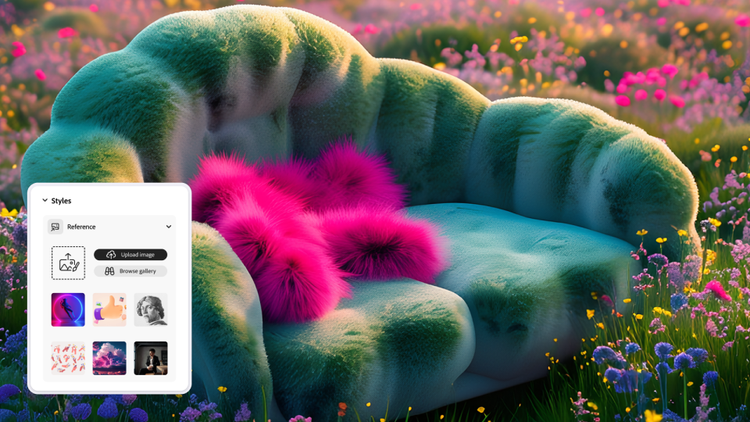
Prompt: A surreal fantasy landscape with a plush (Image type), moss-covered sofa and seat cushions, shaped with soft organic forms, sits in the middle of a blooming meadow (Subject). The meadow is filled with dense, bright wildflowers that are vivid pinks, lilacs, soft purples, and fresh greens—glowing as if lit from within (Colour). The sofa has fluffy, bright pink pillows, looking impossibly soft (Style). Golden-hour lighting with warm highlights and gentle shadows, a pastel gradient sky fading from peach to lavender (Lighting). Hyper-detailed textures, cinematic depth of field (Action), whimsical fairytale atmosphere, dreamy, ethereal, vibrant colour grading, maximal saturation, soft focus background (Background), high fantasy editorial style, magical realism.
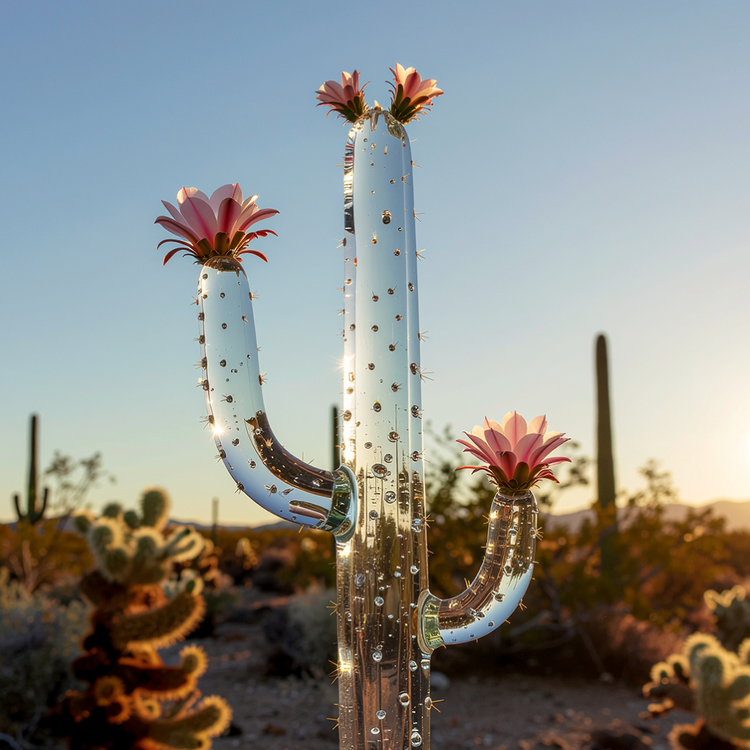
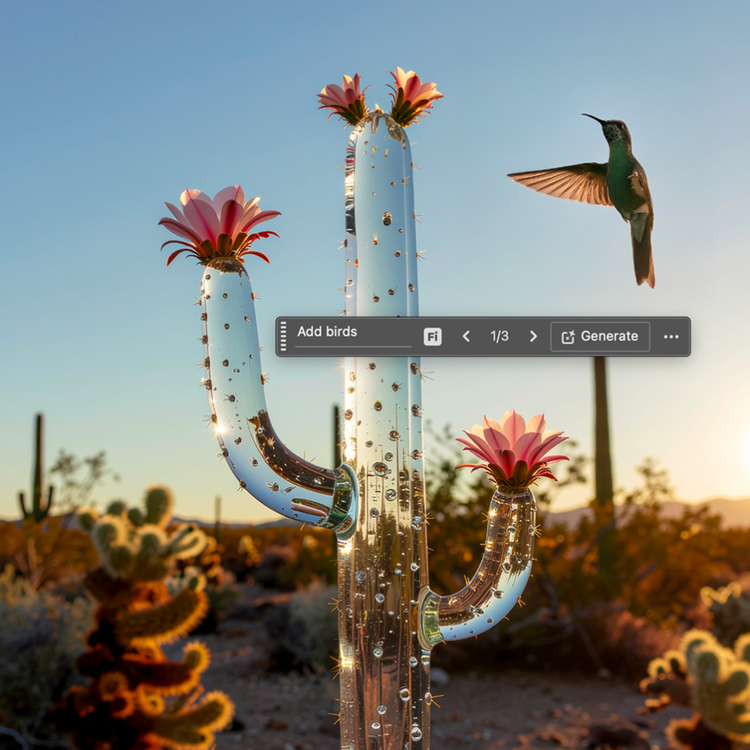
No matter how skilled you are at writing text prompts, it’s tricky to generate an image that’s perfect on your first attempt. This is where Generative Fill comes in. It allows you to add or remove content from your images using simple text prompts.
In Firefly, you can select part of the image and describe with a new text prompt what the AI art generator should do within that selection. You can also use Generative Fill on images that aren’t AI art, either in Firefly or in the Adobe Photoshop desktop and web apps.
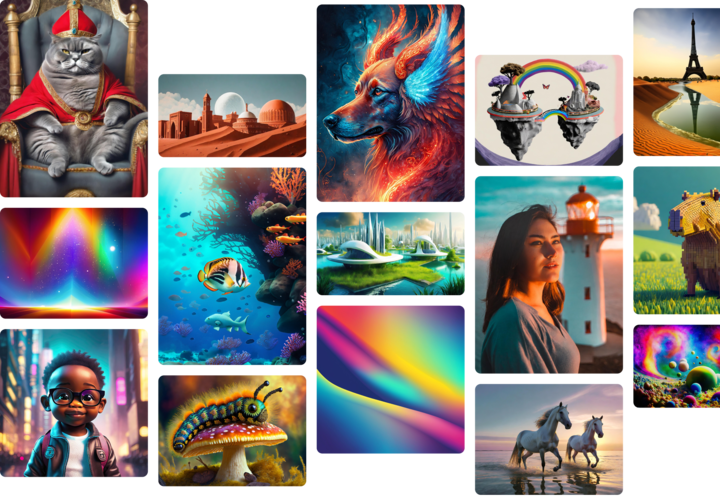
Tap into the Firefly community to remix other creators’ images, share your own and find inspiration.

Dựa trên địa điểm của bạn, chúng tôi cho rằng bạn có thể thích trang web Việt Nam hơn, ở trang này bạn sẽ nhận được nội dung, dịch vụ và giá theo khu vực.
Based on your location, we think you may prefer the Vietnam website, where you'll get regional content, offerings, and pricing.


