Photoshop Illustration: Crafting and Designing Characters

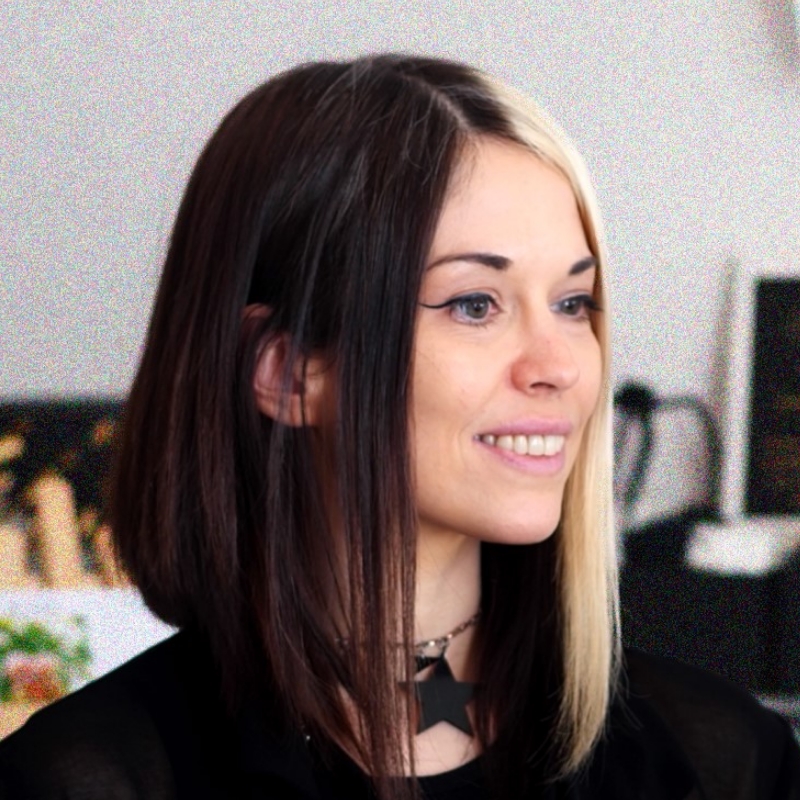
[Music] [Renée di Cherri] Okay, so if you're here to talk about Photoshop Illustration with me, you're in the right place. If you're not here for that, I'm still glad you're here. So we're still going to hang out for the next hour and talk about how to make characters in Photoshop. If you're not wearing the headphones, you're not going to hear me. So I just want to make sure there's a couple people it looks like you're not wearing them, or maybe it's just blended in the background. Before I get into my session, I actually want to invite you to sign up for the Photoshop Beta. You get tools before anybody else does. So if you take a little shot of this, you can sign up later. You can just take a photo, sign up later and join the beta and you'll learn all the new stuff before anybody else has it. It's pretty cool, and you help the team out by giving your feedback, so please give feedback. It really actually does matter. They listen to it. Even if it doesn't feel like it, even if you don't see that immediately, I promise you there are people in Adobe, wringing their hands, worried about your feedback. There really are. Okay, so me, I am Renée di Cherri. I'm both an artist and a speaker. I love teaching and I love drawing. I started traditionally, like most artists, with watercolor and things like colored pencils, and then I moved on to digital art and started illustrating in Photoshop in about the year 2000, if you can believe it, that was a long time ago now. I have a bachelor's in Animation and Visual effects, so I also love cameras and all sorts of cool 3D and stuff. I worked for Autodesk on the Sketchbook Pro team for many years, and then I moved on to Adobe, where I launched Adobe Fresco as the Product Marketing Manager. I love photography, I love doing video, I love illustrations, I love 3D, I also love dogs. So if you want to send me photos of your dogs, I'd really appreciate it in advance. Any dog, I love them all. I love cars, and philosophy, and cameras, and crazy fashion. So that's just a little bit about who I am and what you're going to learn today. Oh, yeah, I've got some of my art too, if you want to see it. Yeah, just a couple little pieces here to give you a taste. I like drawing things that are cute and creepy, all at the same time. So today, we're going to run through these main four topics. We're going to talk about how to customize Photoshop for illustration specifically, we'll talk about using thumbnails and reference for your art, we will use layers to your MAX advantage. It's a MAX joke. It's not very funny. Sorry. And then we'll use brushes tactically to save time. I wish I had enough time to go over brush creation for you. I don't, but I'll give you a little bit of an idea of how you can save time by using brushes for repetitive things.

So let's start out with a little bit of history. Photoshop is not a drawing app. You can make amazing drawings in it, and you can do just about anything in Photoshop, from photo editing to photo bashing to drawing straight on. You can even do 3D in Photoshop now, but it didn't start out as that. In 1987, Thomas Knoll got an Apple Macintosh Plus, and I don't know if, I don't know, I'm dating myself now because I'm a lot older than I look, but screens back then, color screens [CURSING] really bad, so they actually used monochrome screens for a long time because the clarity of the pixels was just like, not there. And so they'd edit color photos using gray-scale, which sounds insane, I know, but it's totally true. So when you see this screenshot right here on the right-hand side, that was the literal beginning of Photoshop. All that black and white. So if you think about it, you are not using a drawing app when you use Photoshop at all, but you can draw. So I want you to realize that you should set it up in the right way for yourself, like it's not set up for you to actually make beautiful artwork. You have to back into it. You have to know a couple little tips and tricks, and that's what I'm going to share with you. Of course, Photoshop is great though, right? And it became the multifaceted tool that we all use today. So first, the thing that I want to tell you about is a drawing tablet. Now on this screen, we have a bunch of different ones. We've got a Huion, we've got a Xencelabs, we've got a Wacom. Some of them are screens, some of them aren't. It doesn't matter. Do you know what matters? What matters is that guy right there. You need that guy. You need to have a pen. And I'm going to show you why. So when I've got my arm out like this, if I'm using the trackpad or a mouse, I turn my arm. My radius and my ulna, which are the two bones that are in my arm are now in constant tension. And this is what causes RSI, this is what causes carpal tunnel. Sometimes it's genetics too though, so don't do this for hours. You shouldn't even be doing it with your regular computer if you can. And if you're like me, you can't do it anymore. I absolutely cannot use a mouse, and I shouldn't use a trackpad. I'll get pain almost immediately. But when I draw with a pen, your arm no longer has to turn like this, it goes straight up, your radius and your ulna are stacked together, and they're not in a tense place. So if you want to draw in Photoshop, you have to get a tablet. It doesn't matter what kind, it doesn't matter how expensive, just don't hurt yourself with a mouse or with a trackpad. This may seem basic to you, but I really care. Do not draw without one.

Next, let's talk about workspaces. So when you open Photoshop up, it's just like this, right? This is the essentials. And it's not necessarily the best for drawing, I think. So I tend to edit it and change it around. And up here, if you open up the options, there's a Workspace options under the Window, there is a Painting option. I don't really like it. It's not my favorite. I actually do even more than that, and my Photoshop tends to look like this. And if I could point out a few things for you, we've got bigger colors over here on the left hand-- I'm sorry, on the right-hand side, got bigger layers also on the right-hand side. And I've got my color picker just ready to go. And those are the things that I really need for my workspace. And once you set it up for yourself, you can save it, and then you can keep it for later. And actually, let me switch to Photoshop and let's poke around a little bit with the Workspace.

I'm going to make this big so we're full screen. All right, again, like I said, the Workspace is right here and we're in that default. Let's take a look at Painting. So Painting's okay, it's not terrible. It opened up my Brush panel, which is helpful, but I actually want these to be big. So I would encourage you as you're trying to set up your workspace, definitely open up these options because I've got more options here. I can do a larger thumbnail of all of these guys. Actually, I think I might have. Is it already at large? Yeah, that's actually okay. But I can move these guys around, I can set them up to be whatever I need them to be so that I can have the colors I want ready. Down here in this option box, I've actually got the option to make it bigger here. So we can go to Panel Options, and we can make this thumbnail larger so I can actually see it. And you can change if it shows just the contents of the thumbnail or the whole composition. So it's up to you how you want to work, but I definitely like a much bigger one. You can see this dragon, we're going to talk about that later. I love having a bigger space here and a bigger space here to just grab all my colors.

One last thing is that these swatches are really cool. I thought there was a way to make it bigger. Oh, Large List, that's it. Oh, no, that's not it. I thought I could make my swatches bigger, but maybe I fibbed to you. This is my favorite part of this actual panel, here the Swatch panel. It'll show me all my recent colors that I just used. So if I go ahead and select a different color, it's actually going to keep adding those up, and I use that constantly with between that and the color picker, those are some of my important things that I have to do to set up my Photoshop documents. Once I like my workspace, you can actually save it and I have mine saved right here. RDC Painting. Here's the one that I had saved. So you're going to do that under Window, Workspace, and you can do New Workspace. So before you get started painting, I don't know what preferences you want, but I know that you should set them and you should save them so that you can have a nicer workspace because the essentials is crowded and it's just not the best.

Once I've got my workspace all set up, now I want to talk about hotkeys. Now there are a million hotkeys. And so all I've got here are the ones that I have to use for painting. You might want more, you might use less, you might not use any of them. But take a photo of this one. This is my bare minimum for an illustrator that you've got to use to be able to move stuff around and work quickly. If you are constantly tapping each menu, it's just tiring, and you're stressing your arm out because you don't want to do that constantly, right? So if you can just have your hand on a keyboard and your other hand with your stylus, then you can just work this way and try not to have to go digging in menus. Of course, this is not an exhaustive list. I can't go through all of them, but I hope this helps you out, that these are the basics that I want. So of course, you need to move, right? So Spacebar and zoom. And then brush. B is for brushes, right? And you can change the size of your brush up and down with the bracket tools. Just hitting the D key makes your colors. If you're in the Brush tool, just hitting D will make your colors black & white, which is helpful if you're painting different masks and stuff. And then of course, you need that Alt key for selecting color, and the X button will switch the front and the back. Let me show you really quickly what that actually does.

So right here, I've got my tiny little colors. And if I hit X, they swap back and forth. So if you know you're painting with two colors, it's a super quick way to just get it done.

All right, now let's talk a little bit about thumbnails and reference. We'll first go over reference.

So why? Why use it, right? And definitely why use photo reference like real reference as opposed to AI? Symbolic drawing is the reason you want to use real reference. And let me explain to you what symbolic drawing is. You do know what it is, just maybe you haven't heard this term for it. So this is a house, but it's not. No house looks like this, right? Like this is not really a house. But you know because we use symbols to communicate and to communicate in shorthand to each other about things, that this is supposed to be a house, but a house looks like this and that's actually a lot different. And if you're drawing something, even if you think you know it really, really well, there might be tiny details you don't notice. So if we look at these two side by side, I mean, they're both are red house and there's trees. But look at how the trees just blend into each other. It's not just one chilling out by itself. And look at how the eaves of the house. They've got different materials in them. So there's the roof and then there's the eaves there, that's white. None of that is in the symbolic drawing. And so even though symbolic drawing is cool and it's how kids learn to draw, getting reference can make you draw better and more accurate and include details that are very important to your final artwork. So no matter what, you're going to want to get reference.

And these are my main reasons. Combine unexpected subjects for more unique art is the one that we're going to go on to next. So I want to pitch to you this cute little idea. So Second Sparks, it's like a dog rescue, but it's a dragon rescue. So this is a fake video game that my friend was making. And so I made some artwork to go along with it. I told you, I love dogs, right? So this is going to be a little rescue organization, but for dragons. So here is the pitch. "Adopt, don't shop in this casual strategy game for all ages! These rescued dragons are looking for their forever home. Can you match the rescued dragon with the right family?" And the characters that my friend wanted were going to be unique with charm, right? They had to be really charming looking and different, different types of dragons. We wanted a little bit of a hint of a dog-like breed, and they can be imposing, but they don't want to be scary. This is supposed to be a fun casual game.

So why I'm showing you this is I need to find reference that works for this, right? What is reference that works for dragons? Obviously, we have to do something that's out there already, whether it be scales of a real lizard or other people's dragons, but there's so many and you can get lost finding reference. So you have to limit yourself. You have to make that choice and say, "I'm only going to do this type." And that's up to your own personal decisions and up to the brief, right? I'm giving you this design brief because I'm taking this in and trying to go, "Okay, what reference is going to work for this?" I don't think I can go to Game of Thrones and look at their dragons because they're spooky looking, right? That's not going to be good. So the first thing that I thought of was this sculptor named M. Peña, and she does these amazing dragons. Her company is called Windstone. And these are actually paint your own. So she'll paint them and they're all beautiful. But what I love about these that are blanks is that I can see the really beautiful texture of the scales. And these are cute, friendly dragons, right? It's not some scary monster, and that's going to fit with my game. So I decided for my reference, I would ignore all other dragons and just focus on hers for the texture and the shape of these scales.

For the dogs, I wanted to do some cute weird dogs that are very different, right? So I love bulldogs. I love that they think they're like pretty little princesses, even though they're all big, that's my favorite part is their sweet attitude. So I picked these bulldogs, I went to Adobe Stock, and I started looking through different dogs. I made sure they were real dogs, so that I could look at the wrinkles, the textures, the way they're sitting and their poses. Those are the things I'm taking in to make sure that I'm getting accurate drawings out of this reference. I also looked at Borzois. I love Borzois, they're so weird and they look like dragons already to me, right? They're already a dragon. So I tried to pick different things because when I pitched this to my friend, I want it to be interesting. So I wanted to make sure I picked dogs that were not alike. If I picked a Doberman Pinscher and then a Poodle, those are actually the same shape, if you think about it. They've got like the deep chest and like the tiny little butt, so that wouldn't work. So I went ahead and I picked the Borzoi and the cute little bulldogs. Now for the color, I decided I wanted to try something unique and use poison dart frogs as my inspiration for the color. So I didn't just use one piece of reference, right? I thought about the texture of the scales and the dragon aspects, and then I thought about the dogs and the shapes of dogs and their poses, and then the poison dart frogs for the color reference because they're just so unique and cool. So those are my three different levels of reference that I used to create these characters. What's next after I got my reference is to make thumbnails. Now there's no wrong or right way to make thumbnails. What's important is that you understand it, and that your art director or whoever you're showing will get it, right? So if I look at these little squares, these are 30-second, not even 30-second, these are like 10-second scribbles, but all I'm trying to do is get a pose and get shapes down. And then I want to do a bunch of them. This is only three because I picked the ones that I thought looked the most different, but I do like 20, 30, and I just pick the ones that I like the most. Usually the ones that I like the most are the ones that are going to have a lot more difference between them. They're not going to look the same. Now I think I failed, honestly, on the Bulldog Dragon. He looks the same. They're all the same little lumpy guy, but it's fine. I wanted to share that with you so that you could see sometimes it's not going to be perfect, but I do like the Borzoi one, so I went ahead and-- Oh, yeah. Sorry. Again, thumbnail best practice is that they're quick to create, they're detailed enough to sense the final. So I'm going to need to be able to show this to a director or somebody that I'm working for so that they can see and envision the final.

They need to be different enough to be useful in a group so you can point them out like, "No, not this one, definitely that one." And again, just make sure that they're understandable.

I like making sure that they have emotion in the pose and they tell the character's story simply, they need to be different and they start as a solid foundation for your final piece of artwork. And actually, I've got a couple other thumbnails in this deck. I hid them, so let me go ahead and show them. Here are some thumbnails that I did. Oops. No, no, no. That will it not let me share them. I'll just make it big.

So I did these as like a final piece, right? So these are meant to be evocative of a final image instead of the dragon ones, which are just a character, right? This is just drawing a singular character. But here are some thumbnails that I showed camera angle and where the characters are in the scene, and I gave a sense of lighting. That's fine. That might be good for your thumbnails. It's really up to you and whatever your design brief is. Here's another option for thumbnails that I did for an outfit, so it doesn't really matter about the details. What I'm trying to do is balance the rhythm of the outfit. All of these could be different colors, they could be different textures. That's not the point. This is just a way that I was able to communicate to my director, "Here's my ideas." So it doesn't matter how you do your thumbnails, just do them and do a lot of them and you're going to be better off, I promise. Once I've got my thumbnails done here, let me make this big again.

Oh, that's right, Fresco. Have you guys used Fresco yet? So the cool thing about using Adobe Fresco with Photoshop is that it shows up in both places. So I actually did my thumbnails in Fresco because I just did. So here they are over there in Fresco, and then I can just transfer them over to Photoshop. Actually, I don't transfer anything, I'm misspeaking. It automatically transfers for you. So when you open up Photoshop, it's right there. So if you're not using Fresco with Photoshop, you should be, just try it out. And Fresco is fully free now for anybody to use. They're not costing anything. You just got to sign up with your Adobe ID, so check it out. All right, so here's my thumbnails again. And I really like that one. I think it looks snooty and skinny and Borzoi like. So I'm going to actually render this one up. I'm going to create my final art from this.

I literally take that thumbnail and I make it huge, and then I sketch over it, and then I do loose linework and then I do final linework. And this is why I do this. Have you ever drawn a sketch and then tried to finish it and it didn't look anything like your sketch, and then your heart breaks and you're just miserable? Yeah, it [CURSING], right? And I hate it so much.

I literally keep these all in a layer. So you see there's my layer stack, literally keep them together. And I flip back and forth constantly between them to be like, "How did I kill it? How did I murder my sketch?" Because I'll murder a beautiful sketch and it's the worst. So this is my method. It doesn't always work, but it definitely helps me out and it keeps me on my toes checking my sketch constantly and checking my thumbnail. Of course, you could stray very far off of your thumbnail or sketch if it's the right thing for your artwork, you should do it. But this is the way that I keep myself on track.

All right, now let's talk about using layers to your MAX advantage. So I use a method called flatting. Have you guys ever heard of flatting? Yeah. So it's just using flat grays to color everything in your artwork. So I've got my final line art. I drew it from my thumbnail, and all I do is fill in the entire space with color. I start with gray over here on the edge. Now on this next one, I've added a lighter gray on the little flangey bits, and then a darker gray for the nails and for the wings. It doesn't matter what color you're picking. You could also worry about the colors and think about your value structure in this stage if you want to. But really, what this does is gives you a visual representation of each part of your image and sets you up to color them super fast.

Now what I've done in this first part when I flatted, you can see at the bottom here, I've got the entirety of the dragon and it's all gray. And I Control+Clicked on the border to use a clipping mask. And then I filled in the light gray and the dark gray. And that's okay to do that, but I have found that if I do that too much, then I lock myself into a corner with changing stuff in the future because I've got all of these clipping masks attached to one thing, and they're all messy on the edges. And let me show you what I mean about messy on the edges because I'm not sure if all of you have used clipping masks, so let's grab that. All right, so here's actually literally that Borzoi Dragon. And if I scroll down to where all the layers are clipped and I unclip them and I'm doing that by hitting Control-- I'm sorry. Option, I mean, look at that. Because I was all messy and lazy and I just scribbled on it. Of course, on the edges that show up, I was careful, but I wasn't careful everywhere else. And what that means is, it's just all messy down there. And if I want to change it later, I've backed myself into a corner because I can't actually just select the wings and change their color. So one of the things that I do with flatting is I actually make clean pieces of each clipped mask, and then I save those for later. So I duplicate them and I save them for later. Let me roll through it first in the keynote, and then I'll show you exactly what I mean. So I've got all these layers, they're all clipped, and they're messy on the edges, but my clipping mask is helping me by saving me, right? So what I do is I select that back layer which is clean, right? It's just the whole of the dragon, and then I Shift+select all the other pieces and I delete them so that I have no clipping masks. And I'm going to go through Photoshop really quickly to show you what I mean. So let's hop over to Photoshop and I'm going to unclip my masks. So here's my background layer which is just that whole gray. I did spend the time on the edges to make sure it's nice and clean. So what I want to do is Command-Click into it and it's selected it. You see that. You can see my selection, you can see the crappy mess that's on the outside. So if I invert my selection, which is up here, now I have everything else selected, which means I can go in to this wing layer and I can delete that.

And now I know that those wings. If I Control+Click on these wings, I definitely only have what's inside of there. And what that allows me to do is save that as a selection for later. Now I can just go crazy and do whatever the heck I want, but I actually do this where I clean up each of my flatted clipped layers and I save them. I don't work on them because I don't know if I'm going to use those later. Actually, let me select this one again, select that outside, and then I'm going to invert the selection. We're going to delete all that yucky stuff right there. There we go. Now I know that these three layers don't go outside my dragon, and they're actually those exact pieces in case I need to use them later. And I'll show you how I might use them later. Let's go back to the keynote. So yeah, now I've got all of these options down here. So, oops, let's hit play. Make it big.

So that I can use them any time I want in my-- I can Command-Click inside the layer preview to load it if I'd like, and I save them. So I make a folder on the bottom and I call it saved, and I just duplicate all of them and keep them for later. I'll show you why.

All right, so let's talk about using brushes for your advantage before we get into more of the layers. You want to use brushes that have built-in texture that's similar to your reference. So the reference that we had for color were those poison dart frogs. So I'm going to look at that reference and try to find something that feels like that. I always try to blend multiple colors at once. I never just use one color. Even if it's just a tiny shade different or a tiny tint different, everything you see in the real world is literally more than one color. And so if you want any amount of realism, you want to use multiple colors. Even the black of these curtains are multiple layers of black. It's not just one and it's not the shading either, it'll literally be the color of it. And then I create a stamp brush for repetitive elements. So it could be feather, or grass, or anything, but in our case, of course, it's scales. And I'm going to use my reference for that as well. So here's our poison dart frogs again. And so I'm going to go into the Photoshop brush list, and I'm going to look for brushes that look similar to that.

I'm going to lock the transparency of my layer. So if you haven't used this tool, it's pretty helpful. So I made all my clipping layers and I hid them, but I duplicated them. So now I'm working on my actual working layer, and I'm going to lock the transparency. It's a small change there. You see those little locks that pop up. What that means is that flat color I laid down, now I can't draw outside of it. I can only draw on top of that flat color. And that means I can get messy again. Just like I don't have to worry about nothing with my clipping masks, I can just go messy and fill it in with some of the texture brushes that I think match my poison dart frogs. So I went ahead and picked this. And you can see there's a similarity there, right? There's the different colors of blue that are in the poison dart frog. There's a light and a dark blue. And then I've left speckles, I've left that texture. And I did that using some of these brushes. Here, let me pull open my brushes. Here we go. I use the bonus chunky charcoal the Pastel Palooza, and then I blended them together using this foliage and scratch. And you can see how it really mushes the colors together and makes it look a lot like that poison dart. Now because I had all my flat pieces, you can see it was really quick for me to just fill it up with color and get there very fast, right? So I lock that transparency so I don't have to worry about coloring in the lines, and I just fill it with color really fast. That's how I get my base colors done. Once I get my base colors done, I'll do a pass of shading.

And so here's my shading and texture. So I've got a shadow layer that I've added on top there, and then I do a second shadow layer. So I've got one that's like, the term, there's a 3D term that I'm not coming up with now, where you just get the stuff that's inside of the cracks, right, just the really deep, dark ones. And then I do a second pass where I go over and I get the bigger forms, and then I add the lighting. And now you can see in that last one, I've started to add the scales. So how I did the scales was like this. I looked at the reference that I showed you earlier, and I've got it down there in the bottom right corner. It's this like their raised texture, just like you might see on a snake or on a lizard, but the thing that really called out to me is that it's not completely covered, even in my reference, the scales fade in and fade out in a natural way, and I wanted to try and capture that. So instead of outlining all of the scales in dark, thick, black, I went ahead and made a soft brush, stamping these scales across all of it, and I followed that stamp brush as I was actually coloring in the colors. So I followed it along the neck and along the face, and I just mimicked what I saw in the reference from that sculptor.

I like to add dark scales with overlay, so if you remember, you check out the frog. He's got these cool dark spots on him. So once the brush laid down all of the cool scales, I just followed the pattern of the scales that got laid down, and I started filling it in with an overlay blending mode to get that cool texture. And why I did that is I didn't have to pick a different color. It was going to respect the shading I had already laid down.

Layers in general are like transparent pieces of paper that just stack up and it's literally like one goes on top of the other and that's it. A blending mode shakes that up and it makes them interact in a different way that's algorithmic. So the overlay intensifies and darkens. I don't know the actual mathematical equation of why it does that, but what I knew is that it was going to keep my shading. So I'm still using the same color in that middle section where you see that dark stripe, it's all the same blue that I used. It automatically darkens and lightens because I already did my shading, so I don't need to worry about that part.

And then there's my final. I've gone around and I've shaded the tail and I've shaded in all the little scales.

And let me show you some of the final touches that I did for my dragon.

So I don't know if you're like me, but for me, I cannot pick colors to save my life. I can't. So I did a global edit at the end, and you can see the difference between the colors I picked on my own on the left and the colors I liked on the right once I actually edited it. So please, if you don't feel like your colors look good, don't feel bad because I edit every single thing before I send it out the door and make sure that it's got different colors. So here I am, using a Hue/Saturation to tweak everything that's in there. So I brightened it up, I gave it a little bit more of a teal intensity and I even changed the hair. If you notice the hair or whatever that stuff is, I made it a little bit more, I don't know, warm, gave it a little bit of warmth.

If you want to select something, this is going to happen to you. And here's one of the reasons why I keep all of those selections for later. So remember I'm keeping those selections hidden and saved. What if your art director comes up to you and they're like, "Hey, I love it. The wings have to be gold." And you're like, "Oh, my God, it's so many layers to go through." And you don't want to deal with it, but because you saved your flatted layers, you can just Command-Click inside that layer preview because you got them all tucked away at the bottom, right? And then I can make an adjustment layer that goes on top of everything and only hits those wings and I can make them gold. And you can see it's made a mask for me automatically, and I've tweaked it with the color balance, and I'm doing that on top of my entire layer stack and doing it confidently because I saved that piece as an actual selection so that I wouldn't get in trouble later on.

Of course, I like to go through and do a bunch of delicate details. And so there's this new tool that I wanted to show you in Photoshop. It's called the Adjustment Brush. So you have adjustment layers. And an adjustment layer, it's stacked in your layer stack, and it will affect everything below, or it'll affect what it's clipped to, or in the mask you can paint. But what this does is it actually saves you, and it just like goes immediately to painting those delicate details that you might want. And so it's down here, I've got it open and it's got like that crazy volcano going on. And I was actually going to show you some of the stuff that I like to do with it. So let me go ahead and open up Photoshop and let's get that Borzoi Dragon.

Not this one. Let's do the one that's actually all colored so that we're working with something that's all colored up.

All right, and I'm going to minimize this, and I'm going to make this big. I'm going to check to make sure I'm in my space, I'm in my workspace. All right, and so let's move around this. And actually, before I even start, I'll just talk about it. So I laid down those scale brushes as you can see, and I followed the neck just like I saw in my reference, and then this is my overlay blending mode. And even though, if I go to this layer and turn the blending mode.

Actually, I don't even know if it's just one layer.

Let's see, is it this one? It is. So I just do normal. You'll see. Look at that. That's just one solid color. But like I said, Overlay makes it look like it's actually shaded in there because it's respecting the shading I already did. So if you're looking for blending modes and you're not sure which one to use, I like Overlay for shading and I also like Multiply for shading. So that's my tip to you for those. Now let's go ahead and go up to the top and let's do an Adjustment Brush.

Here's my Adjustment Brush right here. You can see it's got that same little mountain guy.

I've got this toolbar chilling here. I don't know if you guys have seen the quick toolbar. He's fine, but he's not what we need right now. So I'm going to go ahead and hide it. And you can bring that back anytime you want up here in the Window. It's right there. Contextual Task Bar. If you want it back, that's where it comes back. All right, so I've got this the Adjustment Brush which is brand new up here in the top. This is where you can actually choose what type of adjustment you want it to do. So we can do any adjustment level you like.

I don't know, maybe we could try a color balance level, and then you can use any brush type you want. So if you've got favorite brushes, you can actually use. We could add some scales because we've got the scale brush that follows along. We could play around with that and see if we could change some of the colors of the scales up. Let's give it a shot.

All right, so when I lay something down, it immediately gave me a layer. And I'm in that layer and I'm painting. Let me do that one more time just to make sure that you saw it. I'm going to hit Undo, and I'm in the Adjustment Brush. And as soon as I try to draw here, it just popped open that layer down there. Now of course, this needs to be edited for the Properties panel. You can't really see what's going on, on this layer until we actually change something about it. All right, so let's go ahead and see what we can do with this Color Balance layer.

If I think all I need is black or white because it should just change the color balance, I'm not seeing a bunch with this one. Maybe we should try a different one. Let's try Hue/Saturation. It might be intense and it might not be a real world example for you, but it'll probably be brighter so that we can actually see what's going on with this Adjustment Brush Tool. So let's go ahead and select it. Let's change it, and we'll go to Hue/Saturation.

And if I lay this down, there we go, now we can change this to something crazy. Oh, there we go. I'm getting purple. It might be subtle on your end. So let me go ahead and grab something where you can really see it.

There we go. So that's too big. Obviously, I'm going to undo that. And I'm going to make it a lot smaller because maybe I just want to try to make some of these scales purple. And of course, now that I've made them purple, I can actually change my mind. I've got my properties right here, and maybe I'm thinking gold, right? Because if we zoom out and we look at my whole dragon, it's got a gold orangey vibe to it. So let's do that. Using the Adjustment Brush and using the scales that I've already drawn, I can just quickly add some color.

And this is new in the last version of Photoshop. So they wanted me to make sure that you knew it existed. You can even use it if you'd like for shading as well. And the nice thing about it is because you're creating an adjustment layer, you can change it at any time. So you're not laying down real pixels, you're working non-destructively. So if I just hide this, it's fine, right? It's gone. Or again, I can change this to be any color I want. Maybe I want them to be dark instead. Or maybe I want them to be a different color altogether. And that's the power of using adjustment layers in your work, is that you can do just about anything you want with them.

Please give me a rating because it really helps us. I'm going to always improve and I so appreciate your time. Thank you so much for coming today.

[Music]

In-Person On-Demand Session

Photoshop Illustration: Crafting and Designing Characters - S6308

Sign in
ON DEMAND

Closed captions in English can be accessed in the video player.

Share this page

Speakers

Featured Products

Session Resources

Sign in to download session resources

About the Session

Join artist Renee di Cherri as she lets you peek under the hood of her illustration files and shows you her time-tested tricks to developing eye-catching, evocative illustrated characters in Photoshop. Discover key tools and techniques that will help you streamline your illustrations and take them to the next level.

In this session, you’ll learn how to:

  • Build and save a workspace perfect for drawing
  • Build a colorful mood board for reference and inspiration for character costume pieces, fabric textures, dynamic poses, and more
  • Find and refine Photoshop brushes for perfect strokes to add textures, lighting dimensions, and tiny details that make your characters stand out
  • Quickly thumbnail unique character silhouettes to save time, and explore options, details, and poses
  • Sketch on the go with Fresco and refine your artwork in Photoshop with lossless roundtripping between the two apps

Technical Level: Intermediate

Category: Inspiration

Track: Graphic Design and Illustration

Audience: Art/Creative Director, Graphic Designer, Illustrator

This content is copyrighted by Adobe Inc. Any recording and posting of this content is strictly prohibited.


By accessing resources linked on this page ("Session Resources"), you agree that 1. Resources are Sample Files per our Terms of Use and 2. you will use Session Resources solely as directed by the applicable speaker.

Not sure which apps are best for you?

Take a minute. We’ll help you figure it out.