Color, Materials, and Finish Design with Substance 3D

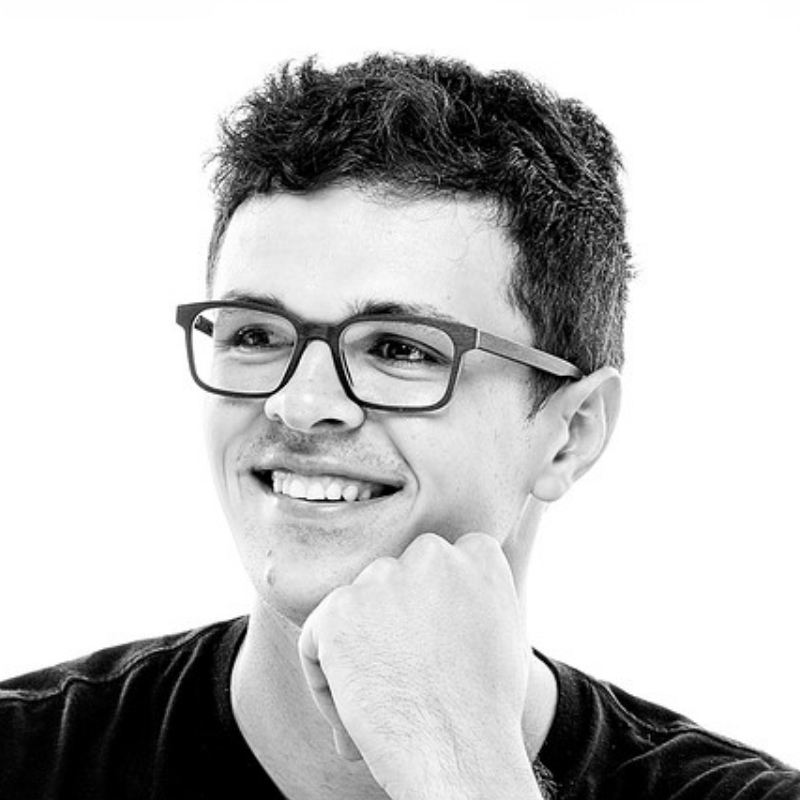
[music] [Nick Sharma] Hey, everybody, I'm Nick Sharma, Senior Industrial Design Evangelist here at Adobe. And today, we're going to be talking about how we can work on our color material and finish-based projects or CMF-based projects using the Adobe Substance 3D Suite. So in this session, we'll talk about how we can capture materials using Substance 3D Sampler. We'll apply those materials onto our model using Substance 3D Painter. And then finally, we'll light and render out those final models using Substance 3D Stager. We'll do a little bit of editing in Photoshop at the very end, and then we'll go ahead and wrap it all up. So let's go ahead and talk about the industrial design process and a little bit about CMF workflows to get started. So let's go ahead and work on this road bike here. We're going to follow the industrial design process loosely. And here I did a quick sketch of what I wanted the bike to look like, modeled it using Fusion 360 and ZBrush. And then finally, we're going to be 3D printing a few samples out just to get an understanding of the fit and feel and the finish of the form, what you'd do in the normal industrial design process. Once we have that, we're going to start with our real work for the session and work on our CMF palettes. So the CMF palettes, these are really good examples of how we can get inspiration for color, material, fit, and finishes along with graphics and other applications for the bike itself. This can go ahead and all accumulate into a final CMF palette, one that I created digitally here. And then that can then form how our final bike, all the colors, the graphics, the materials will look and feel at the very end of our process.

Once we have a direction based of our CMF explorations, we're going to go ahead and start to source materials so we can use for this project. Working in this design capacity, you might want source materials that can actually manufacture. And here we have this leather that I might use for my handlebar grips. I'm going to be capturing this leather using an HP Captis, which captures material in a very high fidelity manner, and it gives us our PBR-based or physically based rendered materials. This includes information like color, height, normal, and roughness, which we'll talk about in the session today. But you don't need a Captis to capture your materials. You can use any camera. So if you have your phone, a DSLR, a drone, anything that you can use to capture an image, you can use to capture the material and then process it further in Sampler. So let's go ahead and start talking about Sampler itself. Let's hop right into the program and start to manipulate this leather and get it working for us for our road bike here. Before we go too much further, I want to highlight what a PBR material actually means. PBR stands for Physically Based Renderer. And what's happening is your computer is taking multiple 2D images with specific information related to each image, compiling them together, and then using that compiled information to render out your 3D material. Each 2D image references or dictates a certain aspect of your material. And we're going to be talking about these five here: color, normal, metallic, roughness, and height, quite a bit in this demo. So here we are in Adobe Substance 3D Sampler, and we're going to be working on one of our materials that we scanned in the HP Captis.

If we rotate around this model, we can see that we have a few issues in the material. For instance, the tiling, we have a few things to fix there, and the roughness values are a little intense we should be able to dial those down a bit so it's not as glossy and reflective. To do that we're going to manipulate our individual channel maps. So here I'm clicking through a few different common PBR-based channels, our color, normal, roughness, metallic and height channels. There are many more channels that compose a PBR-based workflow.

But from the beginning stages here, these five are very common and they'll let you really drastically change the look of your materials with a few short edits. So what I'm going to be adding in, you saw me add that Equalize layer down there. Equalize takes an image and looks at the grayscale map overall and balances it out, so there's no hotspot, there's no high contrast areas where there's a lot of highlights or shadows on the actual channel map. Because I'm working on just the Roughness channel map here, I'm only affecting the Roughness channel. I'm not actually affecting the height, the color or any of the other properties. So I'm only really affecting that roughness value. Now I could go ahead and change the other values if I wanted to so I could go affect the channels in the height area. Or maybe I want to affect the Normal channel itself. But right now I really want to just dial in the Reference channel here. So I'm going to be tweaking this. This gives me a really good baseline to work from. And there's a few things we can do a little bit later on. For right now, this is a little bit better from our raw scan itself.

What I'm going to do next is I'm going to go ahead and add another layer here and we're going to work on fixing this tiling issue. So to fixing the tiling issue, there's a few different tools, but Make IT Tile and Tiling are my favorite. For this demo, we're going to stick with Tiling. And what that's going to do is it's going to help us by fixing those seams. And the way we're going to be doing that is we're just going to crop in on our 2D plane here. And we're just going to identify a clean swath that we can actually use, and the program itself will do its best to take that and make a seamless tile out of it for us. So it takes a lot of the guess work, it takes a lot of the manual cleanup work that we would have to have done traditionally out of the equation. And we can just have a computationally-driven fix for our tiling issue. And you can see here that it looks a lot better right out of the box. So we have our tiling issue fixed, we have our roughness issue fixed. I'm actually going to go through and tweak the roughness just a bit more. What I'm going to do here is add in a brightness and contrast layer. And this works very similarly to the brightness and contrast, filters and Photoshop, if you're familiar with those. Contrast just affects the shadow of the highlights and brightness overall lightens up that individual map. What's nice about this is that I can identify just a single channel to work from. So again, I'm not affecting those other channels, like I mentioned previously. I'm only affecting the Roughness channel here. So with that further tweak, my roughness is looking much much better, really accurate to what I had originally scanned previously. And now what I can do is I can go ahead and start to change this material itself. So we have really good baseline here, really good foundation, this looks a lot better. I also changed the viewer setting here so I'm actually going to click that rounded cylinder so we can actually see my material on something more representative of the bike handlebar grips. And now that I have the material finalized, I'm actually going to go into my Layer tab, I'm going to add the embossment, I'm going to start adding some unique details that would only be applied onto my road bike here. So embossment adds an embossment onto the material itself, fairly simple there. But what we can do here is we can change the shape of the emboss pattern. We can change the tiling amount, the scale of that embossment, and a few other things along with it. Here we have a bunch of preset embossments that we can choose from. And what's happening is that this embossment is affecting the height map, which is what's driving that embossment overall. And I can use the emboss intensity, bevel intensity, and grain intensity here to make small tweaks to that embossment detail without having to go into channel maps and affect something like the Height channels, like I had to do previously with the roughness of channels. I want to go down here into my Properties and change the shape scale, which is going to affect how large the circular pattern is. And I'm going to go down here to the Tiling and change how much this shape is being repeated across the overall material and both the X and the Y direction. And I'm fairly happy with the overall textural grip that I have created here. Now I'm going to go into my Layers tab and use a colorize filter to actually change the overall color of this material. Again, the colorize filter by default, if you take a look at the input channel there, it's only affecting the color information. So I'm not actually affecting the roughness or the height. Although, the colorized filter could, and you would override the entire channel with a singular color if that's what you want to do. One other way to apply color to your material is using color variations. Color variation is a really interesting layer as it allows you to apply multiple colors onto your material instead of doing uniform application. As we see here, we have Color 1 and Color 2, which we can recolor individually. And if we want to, instead of having our program automatically pick colors for us, we can go down here to Color Select and manually select different regions or parts of our material that we scanned and apply colors to those regions individually. This is really good if you have a warp fabric or fabric that has really bold graphic shapes. You can use the manual selection, identify those shapes, and recolor them later after the effect. So Color Variation is super, super handy for changing colors on your material. Now that my material here is looking really nice and the details for the grips are in place, I'm going to go ahead and get ready to export this material out. Couple of things I want to add or adjust though are the ability to expose my parameters, which will let me change properties about this material in any 3D program that I choose. So here I want to click on expose the parameter for the color option along with exposing the embossment intensity and the bevel intensity of the actual embossment itself. And a few other areas on the embossment details to actually go ahead and give me the controls that I need later down the line to make further tweaks and adjustments to this material. The little pin icon where it says expose a parameter, you can use out any layer and any effect in Sampler. And when you export out the material, you'll have those abilities and those controls to enhance or alter those parameters, again, in any 3D program. So I'm going to go into my Height channel here and make a few small tweaks using a normal to height adjustment layer here. I'm going to change the midpoint and range, which will give me a little bit of wiggle room on the embossments that I can go ahead and tweak further if I need to make those adjustments in Stager or Painter. Now I have those parameters exposed. I'm going to go ahead and rename this material. Just going to call this Leather Grip. And I'm going to go ahead and get this material ready to export by going over here on the right-hand side, clicking Export Material and sending that into Painter. Now one quick advance note for those of you who are working with materials daily is that you can add additional metadata information to this material. Metadata is additional facts, details, and information about any asset you're working on or materials, and can help you in your 3D workflows. So you can add description information to this material, categorize to this material, figure out who the original author of this material was, along with additional information, like the physical size of this material and other tagging information. This can be really, really helpful if you're dealing with hundreds, if not thousands of materials on a daily basis, especially for companies who are working in the fashion, automotive, or other industrial design focused segments. You can use this information in the metadata tags here and create your own information or your own tagging system so that when you're using a digital asset manager or DAM system, you're able to identify and locate this material quickly. This is again really helpful if you're dealing with large vast amounts of materials information. We're going to go ahead and export this material out. And for this demo I already hit Send to Substance Painter, but if I need to export this material out for additional programs or I want to dictate the actual channels I'm exporting out, I can do that in the export as tab here. Now we're here in Substance 3D Painter and we're going to bring in that material we created in Sampler, and explore how we can edit that material using those parameters that we exposed previously. And set up a system so we can change our color weights for our bike really quickly in order for us to visualize them later in Stager. So I'm going to zoom in on my handlebars here and we have a pretty nice material already applied, but I'm going to swap this out with the material that we just created. So over here, I'm going to turn off my layers. This first Fill layer, that's the actual overall wavy texture and that Plastic Grip is the overall just plastic material that I've applied. Now I'm going to go down here into my Assets tab at the very bottom, and I can go ahead and search for my material. Here I'm using the top left hand corner. I can switch to my assets. So these are materials I have downloaded or created myself, and I can search for grip, which is going to pull up the material we just made in Sampler. I'm going to drag and drop that material onto my handlebars. And once it's loaded up, I'm going to go ahead and change the tiling amount so it looks a little more accurate to what we'd actually be getting on our bike itself. That tallying amount we can find over here in the bottom right-hand corners, the Properties window. And I can either set it by physical size or I can set it by tiling. So I can actually use either option, especially if I have physical size dictated across the entire model and the materials. We can make sure everything is one to one. Right now though I'm going to just dictate it by custom size. I'm going to change the size width here and get something a little more accurate to what we would see on the bike. Now you might notice that the height on the grips is a little intense here. We can change it in a few different ways. Here in the Shader Settings the displacement affects universal displacement for every material across the model. But if I want to tweak an individual material, I can switch the layered channel to height and I can use the little slider here. Normally if you're familiar with Photoshop that'd be the opacity amount. You can think about intensity. And I can use that slider to adjust the intensity of the height map. Here I can also use the embossed properties that we exported out. Again that was from the exposed parameter that we did in Sampler. If I want to make further tweaks in the parameters or I can use it in the Layer tab system there. There are a lot of ways to achieve the same result here in Painter and across the entire Substance Suite. So whatever system works for you, please follow that system and if the results look close to what you're going for, they probably will get you something similar to what you would achieve elsewhere. So I'm going to go ahead and change the color of the handlebar grips. I'm going to click on that color option that again we exposed out of the Sampler. And here I'm going to be using the Colorize tool and painter to adjust the colors. Down here in the Swatches, I have a bunch of swatches that I've saved previously. And you can use these swatches to make sure that the color coding across the entire model is up-to-date and accurate across all parts of your model, which we'll take a look at a little bit further in the video itself. I clicked on the Frame, Texture Set and in that frame I have a folder with two different materials or two different layers stacked upon one another. The first one is the metallic_powder_paint. That's just giving me really nice details, metallic flake in the paint itself and it's similar to what we'd see in a car paint. And the other layer is what we're going to be working with today, that's the Base Paint. The Base Paint is just a fill layer that we have hidden all the channels of except for color. And it's taking that color information and it's applying it to the metallic powder paint below. So I can click on the base color and I can change it using any swatches here. I can use the Hue slider there up at the top to actually change color if I want to. But what's going to happen, and you might notice it already, is that when I click on the different swatches, all the other parts of my bike model are actually updating the colors as well. The way that we're doing this is if I click on this option here, I can see that I have a live instantiation across the model. What that means is that this layer is live-linked across multiple places on this model and the way that we're going to set this up is if we right click on any layer that we have and click on instantiate across texture sets, we can select the individual parts of our model that we want this layer to be basically copied and pasted to. But the instantiation process will make sure it's live-linked. So again, anything that we change to the master layer, it's going to affect all of the other layers that we have decided to actually instantiate it to. You can see that there. We instantiated this material over to the hardware. And so now if we go ahead and change this one more time, it's going to affect all the layers that we previously selected along with the new hardware layer. This is really good because you can go ahead and make drastic changes across the entire model without having to worry about the individual properties of every single channel. So again, this is only affecting the color information, but it's going to apply the same color to plastic or metal or any other type of material and keep the rest of the channel properties or material properties intact. Let's say, I don't want this entire bike to be one singular color, I want to have a color pop like on the seat post here. I can just go ahead and turn the eyeball off on that base paint instance on the seat post and I can go ahead and make a new fill layer, turn off all of the material properties except for color and that color fill layer is only going to add additional color information onto that seat post itself. It's not going to be instantiated unless we right click and tell it to do so. So we're able to go ahead and change the colorways on the bike drastically. Again if I wanted to do this further, I just click on that frame layer, change the color on that frame, and everything will be updated live, or if I want to go tweak one additional component, I can just turn off that essential layer and then change the colorway if I need to. So we have our bike, we have our beautiful colorways, let's go change the graphics up a little bit though. On the frame layer itself I have this Graphics Frame layer. In the Graphics Frame layer the way I have this set up is I have a color layer. And if I go ahead and change swatches you can see that there. But the color layer has a mask being applied to it. In that mask itself we have a fill layer that has our graphic being applied into it. So the fill is affecting the entirety of the frame itself and its revealing only the color information that we had because the graphic is in that fill underneath the mask. If I grab different graphics I can update this live and instantly here. So I can change the graphics while keeping the color of the original layer intact and get some nice unique new finishes and again we can export all of this with a couple clicks of a button in a little bit. All right, let's follow along with this entire process starting from Adobe Illustrator. So here we have a couple of different graphic patterns and I have even more artboards in this file. But what we can do with the new Illustrator integration is that if we file and save this project out as an Adobe Illustrator project. We're able to drag and drop that Adobe Illustrator file directly into Painter and use that as our reference and our guide for our actual masks. What that means is that when we use our Illustrator file as a mask, we'll get all of our artboards all in the same place. So we're going to drag and drop the Illustrator file here into Painter. When I do that, we're just going to organize this file. I'm going to tell this to go into my Alpha's folder, and I'm going to bring this into my entire library. That means it's going to be saved permanently. You'll see that that Illustrator file is loaded up here. And what I'm going to do is we're going to start and recreate this entire process. I'm going to turn off the graphics I already have. I'm going to make a new paint bucket layer. And I don't need all the extra information, I just need that color information here. And I'm going to use the graphics from my Illustrator file to drive the mask. So the color from the main layer is giving us that color information, and the mask, we're using the Illustrator file to drive the mask. So I'm using the masks. I'm going to increase the time here. And down below in the file type settings, we can actually change the artboards out. So this is all those artboards I had previously in Illustrator. They're all going to be displayed here. So instead of having to drag and drop multiple different images here one at a time, I can actually just flip through all these results until I find something that looks good to me. And once I find something that looks good, I can go back to that original layer and then I have the full control to change those colors. So that's the step by step process on how to actually create that graphic pattern and with the integration it's really fast.

The other thing that I have here is a 3D linear gradient to fade away that entirety of the graphic. And what the 3D linear gradient is using is the position information from the bike itself. We can see that up here in the top right hand corner of our viewport. But we have this 3D linear gradient multiplied into that Fill layer to give us a nice quick fade, our graphics which again we can update anytime by clicking on that Fill layer, dragging in a different graphic and use that as a mask for our color layer. Now once we have a good effect overall, I'm going to go back to my original graphic that we had before. And we're ready to export out this bike for rendering. We can use the Send to function again just like we did in Sampler. But this time we're going to send the entire bike here over into Stager. It's going to take the entire bike with all the graphics and colors that we have set up already and send it directly into Stager one to one. Here we are in Adobe Substance 3D Stager. This will be the last program that we're working with today. And Stager, for those of you who are coming into it for the first time, is a very intuitive rendering tool that lets us get really accurate, really clean renders of our models without having to do a ton of extra work. So what I'm going to do is I'm going to go over here to my Environment tab in the Scene menu and I'm going to turn off the lights. I'm going to set up my own lights so I can control the lighting situation on this product or this bike really cleanly. And to do that I'm going to go into my Light tab on the left hand side here and I'm going to add in an Area Light. As the name implies the Area Light fills a large area with light and it's good for getting a overall light situation organized without having to deal with pinpoint accuracy like the spotlight would or the point light. So I'm going to go ahead and adjust the height and the width of the light here. And you can see it's not doing too much until I click up the Exposure. But even then, it doesn't look like it's doing too much to the model itself. We're getting some intense light, filtering in and hitting the bike itself. But it's not going to look as accurate until I hit Ray Tracing up here in the top right hand corner. Ray tracing takes a little moment to kick in, but once it does, we're going to get much more accurate lights and shadows being balanced across the model itself. And when we go ahead and update the light now, we're going to get much more accurate representation of how lights and shadows should work. So we can see on the wheel itself that shadow is being popped into place. If we copy and paste the Area Light, we're going to rotate it by about 180 degrees to the opposite side here. And we can flip it to help frame the bike and we can get some two key lights on both sides of the bike. The way I like to approach lighting is to think of it almost like painting the model itself. So I can go ahead and use my lights to highlight the angles, the curves and the other unique features of my product or the model I'm working on to illustrate or to make them pop out and show off the detail that I have embedded into the model. So I'm going to be using the two lights on the side, one at the top and I'm going to use one at the back to add in as a rim light to make sure that all parts of the frame are nicely lit. We're getting some beautiful highlights using our rim lights and our key lights along with that top light that we've already positioned. And if we need to make any changes, we can click on the lights themselves or click on them in the scene graph and make any further changes in the positioning, the length, or the intensity of the lights. So you can see in the parameters, I have the exposure and the intensity along with that width and height that we can change. I'm going to add one more light in as our fill light, just to make sure that the colors of our bike pop out a bit more. So I have this fill light, I'm going to position it just where I need to. And once I have that light positioned out, I'm going to adjust the exposure and the intensity just a bit so that the bike can look the best that we can absolutely make it.

I'm going to do a couple of further tweaks on the positioning and the rotation of that light. But we're going to go ahead and get all the lights situated and address the other two areas that we need to fill a niche up with. And that's going to be the actual cameras themselves along with some rendering tips. So I'm going to tweak my intensity of my environment light just a bit, just to add in a little more fill everywhere so that purple really pops. And up here in my viewport, I'm going to click on the little camera icon and that's going to add in a new camera. This new camera is going to be really handy for orthographic renders because we can set up as many cameras as we want and render them all out at the same time. In the properties down here for the camera, I'm going to go to my Output size and we're going to set it at 3,840. So that's going to be a 4K image size. And once I have the output size dictated, I'm going to go into my Transform option for my camera properties. I'm going to make sure that it's perfectly 90 degrees to the bike itself. So I'm going to hit negative 90 degrees and the Y-axis on that rotation. And knowing that my rotation is now set to 90, it is perfectly parallel to the bike. I want to make a few couple tweaks to light and we're going to come back in just a second to add in those additional cameras. Now let's go ahead and set up our orthographic views. So what we're going to do first is we're going to go ahead and and switch to my Viewport camera. We're going to rotate to the front of the bike here. And if I hold down shift, they can snap that Viewport camera to a 90 degree snap. So we're getting a nice clear front view. And we'll go ahead and add another camera. This will be our front view camera. We're going to switch back to that viewport one more time. We're going to add in a top view camera. And that will leave us with a nice three set orthographic view for our bike itself. We can go ahead and add in as many cameras as we want. But for the purposes of this demo and the purposes of this MAX session, we'll keep it to a nice simple side view, top view, and front view for our bike. So the last thing we want to do is change the background color. Those of you who are working in CMF roles know how drastic color can actually influence other colors. So we can adjust the background to amplify or mute the color of our bike if we need to. However, don't worry too much about coloring the background itself because what we're going to do is export or render these images out as a Photoshop file. And when we do, we'll be able to get this bike and the renders set up with masks already set up in Photoshop so that we can swap out the background in Photoshop as we need to. It's super handy, so we have to go re-render out the bike itself again, or any of our other models. We can just have the bike with the mask in Photoshop and make tweaks and adjustments there. It's really fast and really efficient. So let's go ahead and do that. In the top left hand corner here, we can click on the Rendered tab. We're going to go ahead and select all of the cameras, that side view, top view, and front view. And we're going to go ahead and make sure that we dictate the export size. So we're going to set it at 3,840. And we're also going to go ahead and make sure that we're exporting out as a PSD or a Photoshop file. That PSD will give us the mask that I mentioned previously and we'll go ahead and name the files themselves. And on the left hand side, the preset, that's the quality of the render. I'm going to switch that to high and set the resolution to full and render this out with my GPU to get fast, nice renders. And we're going to click the Render button here on the bottom right hand corner. It's going to take a little bit to render out all three of those camera views. But when we do, we'll have the Photoshop files ready to go and we can add them in Photoshop. Okay, in Photoshop, this is going to be the last little part of our session. We're going to go and look at the mask. It's going to be down here on our Layers tab. So we have our material mask, object mask, and the depth mask so we can go ahead and edit the renders out further. And we can hide the background and we can just get the object itself. If we zoom in here, you can see the transparent background in Photoshop. So like I said, don't worry if your background color isn't quite what you're looking for. You can go ahead and edit it further in Photoshop or you can just swap out the background entirely with something else, or any of the Photoshop tools to make further adjustments to the render. There's a lot of information today and hopefully, you're able to find a couple quick tips and ways you can go ahead and explore colorways really quickly using the Substance Suite and get really nice and beautiful accurate CMF explorations done fast in 3D.

If you need any additional help, feel free to contact me on this contact form. Again, I'm reachable on any of the social platforms or you can message me through email. Happy to help and provide further information or talk about other use cases in industrial design or start your own CMF workflow explorations using the Adobe Substance 3D Suite.

Online Session

Color, Materials, and Finish Design with Substance 3D - OS101

Sign in
ON DEMAND

Closed captions in English can be accessed in the video player.

Share this page

Speakers

Featured Products

Session Resources

No resources available for this session

About the Session

Explore the 3D workflows for CMF (Color, Materials, Finish) design in the industrial, automotive, and packaging industries. Join Nick Sharma, senior industrial design evangelist at Adobe, to discover how your CMF designs can be faster, more accurate, and more useful with Substance 3D. Nick will cover the basics of using Substance 3D Sampler, Painter, and Stager; highlight unique challenges and solutions in CMF design; and show how to speed up your design workflows. For this session, some 3D experience is helpful but not required.

You’ll learn how to:

  • Scan and capture accurate 3D materials from a supplier book using Sampler
  • Set up colorways and apply photorealistic materials to a product model with Painter
  • Explore multiple colorways and apply unique finishes
  • Export 3D assets and use Stager to create final product renderings

Technical Level: General Audience

Category: How To

Track: 3D

Audience: Art/Creative Director, Game Developer, Graphic Designer, 3D, Illustrator

This content is copyrighted by Adobe Inc. Any recording and posting of this content is strictly prohibited.


By accessing resources linked on this page ("Session Resources"), you agree that 1. Resources are Sample Files per our Terms of Use and 2. you will use Session Resources solely as directed by the applicable speaker.

Not sure which apps are best for you?

Take a minute. We’ll help you figure it out.