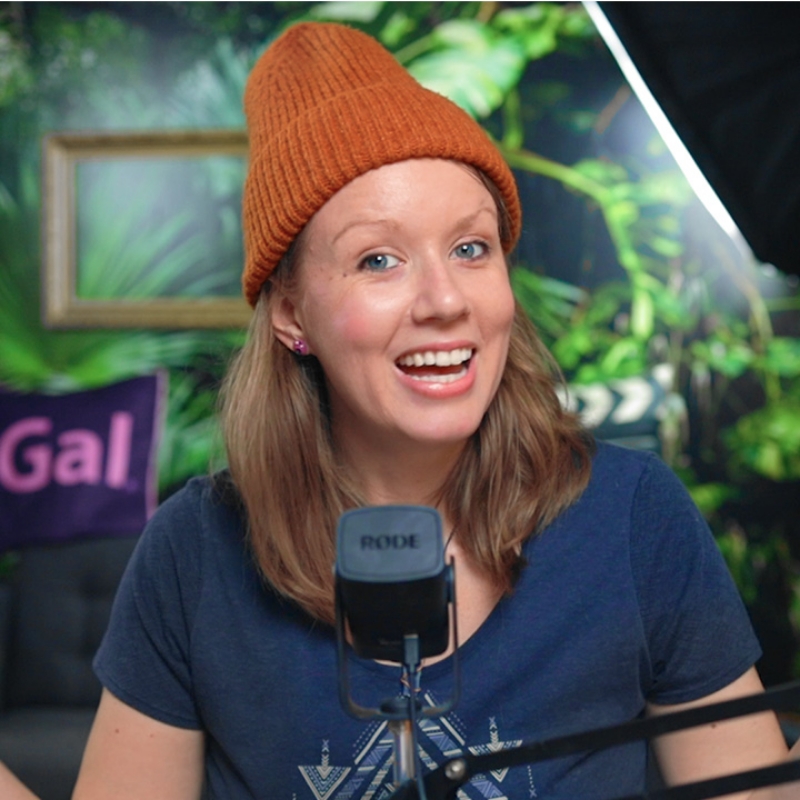
[Music] [Dave Leopold] Hi. My name is Dave Leopold, Director of Strategic Development at LucidLink. And I'm so excited to be speaking with Kelsey Brannan today, the mastermind behind the Premiere Gal YouTube channel. Now she shares incredible tips, tricks, techniques, and recommendations to build the skills of video editors and creatives across the globe. And it's no wonder she has over half a million subscribers and they keep coming back for more. Kelsey, thank you so much for being here today. [Kelsey Brannan] Thank you for having me. I'm excited to chat about all things at YouTube, workflow, editing, and it's going to be fun. Yeah. Now before we dive right into Premiere Gal, I'd love to get a bit of your origin story. You know, how did you get started in editing? Well, I was one of the lucky ones, and I kind of fell in love with video editing since I was in middle school-ish. I was always negotiating with my teachers, "Can I use this video camcorder to do a video book report instead of a written one?" Of course, I would still have to do the written one, but I just had a lot of fun with it and I loved how video is so communal and you can share things and you can create experiences not only producing the content but also with the audience as well. And you create that connection and I was lucky enough to find my way to YouTube eventually even though when I was in middle school, this was in the early 2000s, YouTube didn't really exist yet at that time. So from there I went on to-- I was lucky enough to go to a high school that had a media academy that was a public high school and I got to learn video editing there and then I discovered I can go to college and go to university for this stuff and worked my way through eventually. I did a master's program where I studied documentary filmmaking landed my first gig as a shreditor, a shooter, editor, producer and there I did short documentaries at the State Department of all places because I was in DC at the time. And I did short documentaries about international exchange students who had this transformative experience. And while I was doing that I got to work with a lot of embassies abroad and do trainings on how to do video captioning. And remember, this was like in 2015, 2016 vertical video was exploding. Everybody wanted to learn how to do it, who maybe didn't have a background in video. And I truly, truly loved the teaching component. And at that time people were starting to have careers on YouTube and I was like, I can create a YouTube channel teaching what I love and do it on the side of my full time job and see how it goes. So that's what we did. And here we are eight years later. The dog is excited too. And it's our job now. So that's the origin story of Premiere Gal and how it came to be. That's awesome. It's so great to be able to take a passion and not only be able to teach it and share your knowledge and experience with everyone, but actually turn it into a career and a business. Can you talk a little bit about the business side of Premiere Gal? Yeah. Well, if you're a YouTuber, you know that Google pays you. You split the revenue share because you get those pre-roll ads that are coming in. Now that's not enough to cover everything. We also have sponsorship deals that we work with. So we do direct video integrations. We do affiliate marketing, which is essentially, if you recommend a tool, you can put your affiliate link and say, "Hey, viewers, if you want to use my link, you can get like 20% off," and then you make a commission of each sale when somebody uses that link. So it's an interesting approach. And then we also have created a couple of our other products. We have our own video editing keyboard, which is super cool. It's a wireless Premiere Gal themed editing keyboard with all the Premiere Pro shortcuts. And we recently came out with our first extension panel that has over 1,600 different effects. And so people can buy that toolkit to get a bunch of presets preloaded that just make it quicker to get content out. And I think that covers it all. We have those four different areas. Yeah. And so do you remember your first Premiere Gal video? I do. And it's cringey. But basically, I was surprised at how well it did. And that was like, "Okay, this could work out." And it's all SEO-driven. It's all search-driven because YouTube is owned by Google. So if you search how to do something in Premiere Pro and if you label your video correctly, it'll pop up. So my first video was how to create captions in Premiere Pro. And this is the very beginning, like really bad iteration of the first iteration of captioning in Premiere Pro. And so I did that. I didn't even have a camera on. I just used my laptop microphone and I wasn't talking like how I normally talk. I was like, "Hey, everybody. Welcome to Premiere Gal." Some sort of weird audiobook. And I was like, "Gosh. This is cringe. Why does it still exist?" But it's also so cool to see how far we've come from that moment. And so at what point did you realize that not only was this growing, but you actually had to build out more of a team that this might be something bigger than just one person could take on? At the time when I first started, I was still working full time, so I would come home and be more excited to work on Premiere Gal projects. And I would be up to like 3:00 in the morning doing projects and then wake up at 8:00 AM to go to my full time job. And that was slowly burning the candle at both ends. I wasn't going to survive doing that. Of course, it still took a couple more years after that because I just had to come up with a better structure. Once I decided, "Okay, I'm going to leave my full time job and take a leap of faith and make this happen," then I had a whole bunch more time to not stay up till 3:00 AM. But I still needed to build up my relationships for those first couple years work with sponsors that trusted me and invested in me, and then after that I was like, "Okay, now I can start to focus more on producing content and have more free time to do other things in my life and hire other people to come in." And the past three years have really been that stage of really expanding the team.
Trusting in those other editors to put their own creativity and touch on the content, and I think it shows in the most recent content that we've done. Yeah. And I'm curious, though, where is the rest of your team? Well, let's start with where are you, and then find out where the rest of your team is. Actually, my editors are one is Swedish, and the other is Thai. And actually, the Swede is now living in LA, and I live in Europe now. And we all connect to each other, but we're never here in-person. Right? But it's cool. So we've had to figure out how to use tools that we can easily share things. And the key thing was, like, how do we open up a Premiere Pro project and have everything be online? And that's where LucidLink came in. They made it super easy for us to instantaneously make those transfers. So if we had a quick turnaround, you can get those files almost instantaneously. Yeah. For anyone who's not familiar with LucidLink, basically, it's a shared hard drive that lives in the cloud, but you access it like it's local. So if you've ever plugged in a USB drive and used files, that's exactly what it feels like. So you don't need to download any files. You don't need to replicate or make your own copies. So you're not filling up your own internal hard drives. You don't end up with that stack of hard drives on your desk. And it just makes it easy to work with everyone. Yeah. Kelsey, I'd love to take a look and see what some of your workflows look like if you'd be willing to share that with us. Absolutely. And actually, I just filmed a video, and I have the SD card right here with the footage on it. An SD card normally costs, I don't know, like 30 bucks, but now with the footage on it, this thing is worth a lot, right? I'm going to pop in my SD card. So you can see here I have my SD card that just came up. So I have my MP4 files here. Now with LucidLink right now they're in a transition stage of going to a new version of the desktop client. But when you use LucidLink, you essentially get access to your file space and you log in. You can see this is my current file space with the current version of the desktop client. Coming at the end of October, early November, there's going to be a new iteration of this desktop client. And as you can see it's a refreshed modern version. You can see I created a sample of video editing workspace here. That's what it's going to look like. You can see that it looks a lot nicer right here, but they both function the same. So over here in my finder, you can see that I have gal-edit-eu, and this is where I have all the files that my team can access. As you can see here, I have an interesting structure. I have recurring assets and these are all the assets that me and my editors use often in our projects. So we have things like our color grading template. We have some extensions in here. We have different graphics. We have a lot of different sound assets that we use all the time. But the users here is for my main editors and myself. So Jiva has his own folder and I have all of the different projects broken up into different folders. Same with Rikard and occasionally I edit as well. This project is a Jiva project, so I go straight into Jiva's project here and we already have a project here called 3D Camera. And the reason why I have it organized like this is it just helps in the long run if you need to find something. So we have a folder just called Project, which is where we save all of our project files, the Premiere Pro project in the After Effects, anything like that. And media is where we put my talking head footage and any B-roll that we use and output is where we put any exports and our thumbnail for YouTube once we have that. So inside the media folder, this is where I started a footage folder and you can see I already put my a Rode mic. You can see right now I have my USB microphone, which is great. And now as I showed you before, let's open up my SD card. And let's just drag in this media.
And as I do this, you can see that this little blue arrow icon is uploading, right? And what it's doing is it's uploading the clips. It's going to be about two minutes to our elusive link file space. So Jiva will see this instantaneously. If he was on the call right now, once this finished uploading, he would actually see it and be able to actually play the file. So all of the footage just was uploaded into our file space here. And you can see if I right click on any of these files, I can go to Pin and pinning is essentially just housing these assets into my LucidLink cache. That will just be there so that way you don't have to rely on the Internet streaming to be able to edit, right? So it'll pin and be saved there and not have to worry about any streaming lagging or anything like that. So I can pin it here and when I do that, essentially LucidLink is like, "Hey, you're about to pin 3 gigabytes of data to your local cache. Would you like to continue?" Yes, I would. And as that happens, you can see it just had a little down arrow right there and then it has a green pin. So now this is pinned to my cache, which is great, but we can also pin it inside of Premiere Pro. So as part of my workflow, I act as an assistant editor for my editors now because I essentially set up the timeline for them, just to make it a bit easier, just to get everything synced. So let me show you how that works. So let's create a new Premiere Pro project. I'll just call it V1, and this is called 3DTitles. This is a brand new project. And let's go to choose location, and I always save it inside of my LucidLink file space in Jiva's folder, inside the project panel here. So I'll just choose this and click on Create. And the great thing about saving your project inside your LucidLink Filespace as well as having your media there is that you don't have to re-link again. Your file paths remain the same. So anyone who's used to getting a project handed off to them, plugging in a drive, or receiving a project by email even, you spend so much time re-linking all your files. You don't need to do that anymore because nothing's moving. Everything's in the same place. Exactly. What I generally do is I just take all of my assets here, and I just drag and drop them into my project panel. And the way I start a new sequence is I actually right click on the first clip here and a new sequence from clip. And the reason why I do new sequence from clip, it actually creates a new sequence based on my clip settings. And I'm wearing the same thing here because literally I just recorded this so this is actual real footage here. So first of all I'm going to take my audio from my road and bring it in here and lasso and select it and I'm going to Synchronize this because I record to audio sources, which I recommend to do just in case one fails. So now that I synchronized my first clip with my first audio clip, I'm just going to go through and do that to all the different clips, and Dave's going to tell you where to find the LucidLink panel. Yeah. Thanks, Kelsey. So the the LucidLink panel directly integrates with Premiere Pro and now also with After Effects. So you can do pinning based on clips and sequences and now compositions as well. And it's great to also do all of your exports directly into LucidLink, because it's an infinite drive. And so you never run out of space for any of you After Effects people. You never have to hear that sheep sound again when you run out of space on a hard drive. But the panel works both in Premiere and After Effects. It's found in the Adobe Exchange, and it is free. So feel free to download it and use it. It's really helpful for a lot of these workflows. So on that note, I finished synchronizing my clips. And now with the panel open, so if I click on these three dots I can now pin all the clips inside my sequence. And the reason why this is useful is that way you're not pinning all of the media to your local cache and you may not use all of it, right? So this is just a more efficient way of working so you can see that it started to pin this and it tells you how much data is actually pinned. And so now that it's pinned, now it's just going to be much smoother to play back, right, because it's not relying on the streaming. So one last thing that I do is part of my ecosystem because right now I'm going to talk about time efficient tools that we use as completing our efficient workflow is I do have a color grade template that we use that uses magic bullets Colorista which is great for doing a guided color correction of your scene. And then I use Cosmo is like skin smoothing. It's optional. It does require a little bit of render time, but we really would just want to make everything look as great as possible here. So we save this as a template inside of recurring assets, which I showed you earlier. So again I'm on my LucidLink Filespace, Color _template and I'm going to open up my color grade. And I actually saved our template as 2 Adjustment Layers. And the reason why I use adjustment layers is because if I click on this and go to Effect controls, you can see we have a lot of different luminary color effects and Colorista and Cosmo is a part of that. And then on this one, we have a gamma compensation LUT which just essentially make sure that when you export the colors look the same in Premiere Pro, in the export as they do in Premiere Pro. So I can copy these adjustment layers and then I can essentially just paste it on top of this footage. And you can see it just looks a lot brighter and looks nicer in my opinion. I think there's a level of subjectivity to color grading of course. So if everything looks good I just lasso and select these clips, and I nest it.
And the reason why I nest it is because I can call it like TALKING HEAD_GRADE and that way it's all one nice clip, right? Because as you start stacking video clips, it can get a lot of layers, right? So this is just making it more concise, all one layer. So that's color grading. There's also a few other tools that I can talk about here that we use. We use our Premiere Gal Toolkit, and it looks like this. It's in an AtomX panel, and it's a package that has a bunch of different presets that we made. We have different social media elements in here. We have titles. And all of these are designed just as MOGRT's motion graphics templates. So you can go in and customize the font and the color to be your own and you don't have to deal with any animation. It's the animations already here, which is great. We have transitions which are really, really popular. Just so you know, add that extra flare on your videos. There's so many in here. There's over 354. So this is great. We developed this for editors. There's a few other tools that we use, that come in handy. For example, if I want to zoom in on my face rather than key framing, I can just create a cut point here, press C and click. And if I zoom into my timeline, you can see we have our cut point. And rather than clicking on this clip and doing the motion key framing here I can just literally zoom in. It's not the best still frame of myself but this is what happens when you edit and just zoom in slightly here.
And now it goes from this wider shot to me being zoomed in, all of a sudden this is a jump cut. But to make it more smooth I can go to Effects and use the film impact Motion Tween.
There we go. And drag it between these clips and it creates the smooth-- 3DTitles. Zoom in. I would actually prefer to realign this clip and reposition this one slightly so maybe make it like a 110. Maybe 105. Just want to get a little bit of room because I wasn't completely centered in this shot. So we just want to center this and then zoom in because I have a little bit of black on the side so maybe 110 is okay. So that way the motion is more on the nose. 3DTitles. So we'll do occasional zoom ins just to make it a little bit more dynamic and this is a huge time saver for us because we don't have to deal with creating a keyframe, zooming in, easing in, easing out. You know if you've done it before. It's just a big pain in the butt to do that. I don't really do a lot of the film impact time-saving tools, this is what I give to my editors to use. We also use some captioning tools. Right now we currently use Brevity, which is another panel. We've also used FireCut. It also has a similar workflow. But essentially this just allows us to add some cool poppy animating captions in the very beginning intro. So if we click on Captions here, you can see that we have these different styles to choose from that are animating. And these are based on popular things that you've seen on social media, right? So this is another tool that we use. And then editor goes in and polishes it off. Once we're done and we're ready to publish a video we basically just upload the video on YouTube. And then I use a tool called vidIQ to help me as I was saying before optimize my video for search. So this video we published yesterday and it's performing quite well. It's getting close to 10k views and what vidIQ does it actually gives you more insights than you would get with your normal analytics. So you can see in the last 48 hours I've had 28,000 views, also a pretty interesting insight in the last 48 hours just a 110 short views. So YouTube Shorts obviously doesn't work well on my channel which is quite interesting to look at. And it shows you the average minutes watched, like a nice little snapshot here. But this is where all my data is, right? So this is the title, this is my description that I include and over here is my score. So vidIQ helps you get a higher SEO score based on what keywords and description keywords that you use. So you can see that tag volume is 4/5, which is pretty good. And you want to get 5/5. So I try to get a 100/100 but sometimes you just can't do it, and that's all good. But down here is where the cool things are. So these are the tags and down here I can boost my tags which I've already done and it gives you a search ranking which is pretty cool. So I try to choose keywords that are over 50 and ranking, so I could go in and add a little bit more because technically I can use up to 500 characters. So if I wanted to, I could add this keyword because it's pretty high in ranking and hit Save. So that just is a way for me to make sure that I'm getting the reach that I want to. What I love about this is on your channel-- I mean, first of all, creatives are being asked to do more and more within the process of content creation than they ever have before. An editor doesn't just edit. You need to do the color. You need to do the audio. You need to do the motion graphics. So you're not only teaching the basic skills on your channel, but you're also going the next level up and showing, once you've mastered that, how do you do it super efficiently, what are the tools that you can use, what are the techniques, how do you collaborate with others. But what I love about this right here, this conversation is you teach all that stuff on your channel. Right now, we're learning really how to put this YouTube channel or business together too. So what advice do you have for people who have a passion but don't necessarily know how to turn that into a channel? Yeah. I mean, you don't have to have a full business plan in the beginning. Right? I certainly did not. That first video that we talked about before where I didn't have the camera and I used my laptop mic. I didn't know that it would be at my business. I knew that I was interested in it. So just focus on little things that you can do in the beginning.
Purchase a website domain.
Get a logo designed of what you want to do. Start sketching out some ideas. And luckily in today's age, there's so many resources now on how to create a YouTube channel. There's like entire YouTube channels just on this, so it can really help kick start you. I wish that I had that in the beginning because I didn't know about all this SEO stuff. This is something that I learned over time, but now this is such a huge part of YouTube and it's transformed YouTube in a way where it's all about trying to optimize your videos. But remember that if you have a good story people are going to watch. You don't necessarily need to make short content for the sake of making a shorter video because people have such short attention spans these days. I'm like, "No, I will sit down and watch a 50 minute podcast if it's interesting," right? So I think that that's a fallacy. That's a myth that needs to be demystified. So don't get too worried about the SEO. Make content that shows your passion and people are going to watch. I talk about this all the time, but I watch YouTube channels about this guy who trims cow hooves for a living and he has two million subscribers. But he's so passionate about this. And it's so interesting that I'm watching this even though I'm never going to go out to a farm and trim a cow hoof. I mean, maybe in the future, we don't know. Never say never. Never say never. But it's just interesting and also create to-do list because you can get easily overwhelmed with task management. And I actually use this tool that I forgot to talk about earlier when I was talking about a team, I use Taskade. And essentially you can create task and you can assign projects to different editors. So you can see that this was actually done. I don't know why I didn't check these off. But it's nice to have a checklist and due dates here that I can assign to different people to just know, like, "Okay, we did that." Cross it off the checklist, it's done and it's not in my brain anymore, it's here in a sheet. And having Slack or another communication tool with a remote team is also really useful. We use that. So I can just be like, "Hey, it's up on LucidLink. Ready to go." Yeah. And I think there's probably a lot of people out there too who think that if they're going to be starting their own online presence, whether it be YouTube channel or another platform, if you're a content creator, there's this sense that you need to go viral to be a success. Yeah. Can you tell us your thoughts on that? Yeah. I would say that if you're like a MrBeast of YouTube right now, who is the biggest creator on the platform, he essentially makes every video go viral, right? But he's consistent in that. So I would say it's not like his videos are viral, he's just consistent now. So if you can get that consistency over the years and not have burnout, then that's what you need. And in my case, I feel like we've hit that sweet spot of finding that balance where we have a good workflow that works and we try to get projects done more in advance so we can see longer-term, how we're building on our projects and also plan for things that actually work, while also maintaining a little bit of room for spontaneity too, which is important in the tech space, especially because they call October, Techtober. It's when all of the tech stuff is happening. So you have to be prepared to make content on the go, in the moment occasionally but having a wider map just like a bigger organization has where you have goals for that year, I think can help you not get overwhelmed by the day to day task. So for us, we don't want YouTube to be a moment for us. We want it to be a career and we want it to be something sustainable. And that's why I say that idea of not going viral because it can be overwhelming to people in the beginning. Yeah. And I think that you've really built it up in a steady and really smart, efficient way. When people are starting to put their content out there and they reach that point where they say, "Maybe this is a little more than I can take on just for myself. Maybe I need some extra help. I need some collaborators." Do you have any advice on how to find collaborators? Yes. So YouTube is its own creator economy now. So if you are looking to create a YouTube channel specifically, there are people that specialize in YouTube editing now, and you can actually see what editors edit for other people. And that's what I did is I found a few other creators who were freelancing, on contracts for other YouTube creators who aren't working for them full time. And I reached out to them because I liked their editing style. So look for other content that's out there and see if those people are available. And that's what I did. I reached out and had a couple of video calls. We-vibes nicely, and I said, "Let's trial it out. Let's do a video together." And if it works out, then there we go. Yeah. That's great. Thank you, Kelsey. This has just been so much great information. It's inspiring. It's helpful. It motivates us all to move forward. Anyone who has not seen LucidLink before or tried it out for yourself, you get a two-week free trial. If you go to LucidLink.com, test it out, get some friends, get some collaborators, see if it works for you. We also will be sending out, if you registered for this event, we'll be sending out a PDF, that Kelsey put together of all the products that she mentioned so that you have that reference. You don't need to go through the video again bit by bit to write all that down. Kelsey, this has been great. I have to imagine you're going to get a ton more subscribers to anyone who hasn't already checked out Premiere Gal. Check it out on YouTube, subscribe, find those videos, get your skills up and keep making great content. Kelsey, thank you so much for joining us today. Yeah. Thank you for having me. And remember, if you guys are there at Adobe MAX, go check out the LucidLink booth and say hello. I know I can't be there, which is a bummer, but it's going to be awesome. So, yeah, it's pretty amazing, the ecosystem that Adobe has created and it's so cool how LucidLink can seamlessly fit into that. So thanks for watching everyone. Great. [Music]