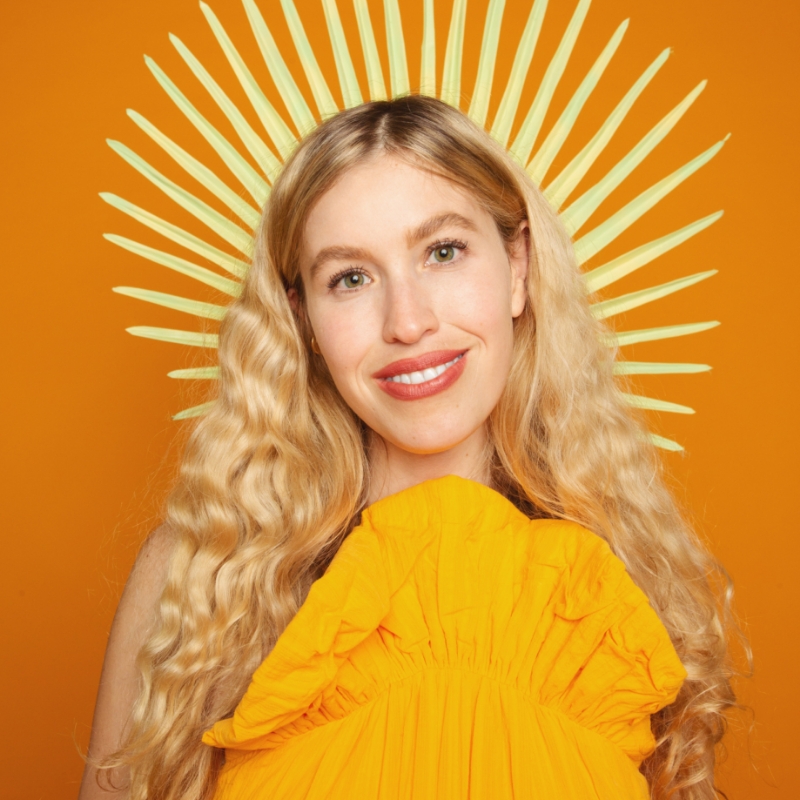
Portrait Photography Editing with AI

[Music] [Anna Alexia Basile] Hi, everyone. My name is Anna Alexia Basile. Thank you so much for joining me for our session today on Portrait Photography Editing. We will specifically be discussing how we can really be supported with AI in the process of these edits because now, with Adobe, we have all of these incredible capabilities that essentially save us a ton of time. So let's jump right in. As I mentioned earlier, my name is Anna Alexia Basile. I'm a San Francisco based fashion, travel, and commercial photographer. I am really attracted to monochromatic spaces, really well defined shadows. I love shooting a lot of self-portraiture, and I feel really excited and creatively charged by color. It's one of those things that I tend to seek out in the world all of the time. And when I see it, I'm just sort of magnetized to it. And so a lot of my work really involves color and really examining the human form. And so portrait photography is something that I inevitably end up spending quite a bit of time on. And so I'm going to show you a little bit behind my workflow for how I would quickly color correct an image, how I would use AI to help me maximize my edits with these incredible masking features, and then also how I sort of clean up an image or add a little bit of pizzazz to kind of take it to that next level. So let's jump right in, and we are going to start with Lightroom.

So once we're in Lightroom here, this is a portrait that I took of one of my friends for her upcoming book that has already come out. I'm super stoked on it. But we took these photos of her, and as you can see, there, it's really simple. We're sort of working with like a plain white background and we're really focusing on her. This is one of the other images that I took as well. As I move through here, I'm going to do some quick color corrections, and then we'll go into AI masking to really maximize the image. So I'm just going to start off with increasing the exposure a little bit, bringing in highlights, maybe adding a little bit of contrast. But we don't want to have too many shadows. So bringing out the shadows a little bit. And then what I immediately noticed in this photo is that my gaze is completely drawn to her eyes. And Akila has these absolutely gorgeous eyes, but they're sort of getting a little bit lost. Their color isn't necessarily coming through. And so what I'm going to do is I'm going to go over here to my masking feature. And you're going to see that down here in the bottom, there's this little section that says People. So right now, Lightroom is looking for where folks are. A lot of the times, you might think, "Oh, it might not identify the person if their whole face isn't exposed. Maybe it's not recognizing them because it doesn't see two eyes." Not true. It completely recognized her. So we're going to click on person. And as you can see, it immediately highlighted all of her, right? Like, we sort of saw that her entire person was highlighted red. We have that gray, red overlay that makes it really clear for us to see. But I'm actually not trying to make edits to her entire person. The first thing that I noticed when I look at her is that I really want to bring out her eyes. So here, when I sort of toggle over iris and pupil, you can see that it highlights the section where it's recognizing the iris and the pupil to be. That looks really good to me. I'm going to check that. I also am going to select the eye sclera. I did not know the word sclera before these masking features on Lightroom, so thank you for that. I'm going to click on that there. And then I also, just in general, kind of like to play around with editing skin a little bit just to give people a really nice look. So here, I'm going to select her facial skin, her body skin. Her eyebrows are looking great to me. I think the lips are also looking pretty fantastic, but let's just select that on the hair just for fun. So I selected the things that I imagine I may be making edits to, and then, I make sure that down here I have selected Create 6 Separate Masks because I want to be able to work on each feature selectively. And then I'm just going to click on Create Mask. So once I've selected create mask, you can see that I have all of these masks that have been auto-selected for me in here. And for those of you that were masking and making these selections before this feature came out, you recognize how much time this saves you, right? Previous to this, we had to go in and literally paint in a mask around someone's face. I mean, think about how we sort of get around, like, the detailing of the hair going around the eyebrows. I mean, this is pretty accurate. So I would say that Lightroom did a really fantastic job. You would probably want to go in and rename your mask. So let's do face.

So for face here and then right here, we have body And then Mask 3 is that crazy word.

Eye sclera. And then for Mask 4, we will rename that to-- We'll just do Iris for short. And then Mask 5, we'll rename to lips.

And then Mask 6 is hair. Perfect. All right. So we've renamed our masks. So now let's go back down to the face and see how it's sort of missing a little piece of her face here. If that happens and you notice that the selection isn't, you know, perfectly accurate, exactly what you want it to be, no problem. All we are going to do is make sure that the mask is selected and then we're going to add to it. I'm choosing to add to it with a brush. And so I come in here. I can change the size of my brush. Once I feel like it's in the right place, I'm just going to paint in around her nose just to make sure that we have all of her face. If for whatever reason you were thinking that there was maybe a certain section where you accidentally did too much, like, say, I did that, what you could do is, again, making sure that the mask is selected, all you do is you click on Subtract, go back to Brush. And then here, I can just subtract that section that I didn't mean to include in my mask. So these are some really fantastic functions here. So the first thing that I really came here to do was to really bring out her eyes. So I am going to start out by brightening her eye sclera just a smidge. Not too much because we don't want it to look super fake. And then I'm going to zoom in to get a good look at her eye. And then when I click on the selection for her iris and her pupil, Akila's eyes are naturally quite green. And for whatever reason, it's not coming through in this particular image. And so I really want to highlight that. So I'm going to bring the tint down a little bit just to get her really beautiful green color to come back in. And, again, you don't want to do anything that's too crazy because maybe it'll come off looking fake, and we want to try to sort of strike that perfect balance between something that has been edited and something that just is edited but still looks realistic and believable. So I'm going to go in there, sort of play around with what it looks like to add a little bit of contrast. Feel like maybe just a smidge. And then if we increase it to make it a little bit brighter to help her eye pop here, and then maybe we just decrease the temperature to give that nice green tone. So now if we want to take a look at it, it looks completely different. So here I'm just going to show you the before and after for her eye adjustment. And let's go to this. So this is the before and that is the after. So we're really brightening that eye sclera, which creates contrast with the iris, we can bring out that green. And now we're ready to work on the rest of the image. So because her hand is in front of her face, it's catching a little bit more light on the strobes than the rest of her. And so I'm going to go in here and choose her body. And I don't want it to be as bright as it currently is right now. So for body, I am going to subtract by going in here. I'm just going to brush out this part of her body because I'm really only trying to work with her arm here because that is what's closest. So I'm deleting...

This section of the mask.

And...

Let's see. I'm just going to do some loose adjusting here since we're doing this...

All at once, and I don't want to make you wait too long. But here we're just going to go in, I'm deleting this part of the mask so that I can really hone in on her hand, which is catching a little bit too much light for my liking. So I'm increasing my brush size just a tad to make this a little bit faster. And once we feel like it is in a good place, I'm going to just remove some of this from her nose. There we go. So once we feel like it's in a good place, I can make my adjustments. So I'm going to come in here, bring down the highlights a little bit, maybe decrease the exposure. We want to make sure that we're maintaining as much of her natural skin tone as we can. And I am going to warm her hand up a little bit.

Brighten that just a tad to keep it consistent. And that is looking pretty good to me. So now if we wanted to maybe bring out a little bit of the color in her lips, we would be able to really easily do that here by selecting the lip color. We can add in a little bit of magenta to bring in that nice pink color. We can add a little bit of warmth to sort of, you know, give the illusion that she's wearing more of like a coral peachy lip. But these incredible AI masking features that allow us to really move a lot quicker when we are editing portraits. So if we wanted to do something with the hair, she has really gorgeous hair. I might increase the exposure a tad and then bump up the contrast just a little bit to create definition. And she's looking really fantastic to me. So the only other thing right now that I would say is that in this shoot I shot maybe, I don't know, I ended up editing probably close to 25 images of Akila. So now that I've done all of these edits, rather than having to do this process over and over again for each photo, I can simply just copy and paste these edits. So here, I am going to close out of my masking, and then I'm going to copy. And here, I would like to mask-- I'd like to copy the adjustments for the hair, the lips, the iris, the eye sclera, and we didn't do anything to the face. I'm not going to do the body because her hand might not be in front of her face for the other ones. So we're just going to click Copy. And then when we go to her next image, we can paste them and it will actually paste your AI masking settings for Akila to maximize it. So here, it's a different image. We're a little bit further away from her. So we can bring down the exposure a little bit. But otherwise, it completely made the adjustments to her eyes. She is looking absolutely fantastic. And now what we can do is use AI masking to create another mask. This time we're going to select the background. And here, we can make adjustments to our background. So it did a really good job here of selecting, hopefully, it's against a white background. And so I just want to make that white background pop here, then we can go in and crop, edit out a little bit of that seamless backdrop, and we're pretty much good to go. I mean, maybe here I would bump up the clarity just a smidge to get her to pop, but she's looking absolutely fantastic. And here's the difference between the before and after. Big difference. Big, big difference. So we've used AI masking features to really get facial features to look the way we want them to. We've also used AI background features as well to get that background to pop. And we've saved ourselves a ton of time by copying and pasting. So the next thing that we will take a look at here is this image here. So for this photo, this is another one where I come in, I want to make a couple adjustments. I really want the model's outfit and just she's kind of occupying and creating this, like, white shape within this blue environment. And so in here, I would come in. HSL is one of my absolute favorite sections here. I love color grading. And so over here, maybe I'll mess around with the hue of the blue a little bit. Might make it like a tiny bit cooler. And you can see those adjustments are being made to the couch. I do want to keep the saturation pretty strong. We want it to feel blue but not overly. So once we're in there, now I had to sort of lighten the image to have the model reading quite bright. But what happened in the process of doing that was that the background got a lot brighter. And so what I'm going to do is I'm going to go back in and select the background again. Except this time, what I would like to do is make the wall a little bit darker just to see how it looks and then sort of decide where I want to go from there. So I'm realizing that actually what's bothering me is not so much the wall. It's the couch. I want the couch to be a little bit brighter. So what I'm going to do is subtract the wall and the floor from this mask, from this AI mask so that then we can go in and only edit the couch. So again here, I'm being pretty loose with my edits. I'm more just trying to illustrate the concept to you all and get through as much as we can. So don't judge me.

So here we've gone in, we've made a loose selection of the couch. I now can increase the exposure, get a little bit more information coming through on this gorgeous velvet couch. I might bring out the shadows a little bit. That is already feeling so much better. And with all of this stuff, there are million different ways that you can do the same thing in all of our Adobe programs. But sometimes it's helpful to see all of the different ways and then see whatever makes the most sense for you. So I'm feeling pretty great about this image here right now. Let's play around with another one. So here, this is my friend, Michael. He is an interior designer and also does a lot of really gorgeous landscape work. These are some portraits I took in his studio of him. So I just went in immediately straightened out the image because that is what my Virgo brain wants. I'm going to make some light edits here, just increasing the exposure. This was shot with natural light. So we have a window, window light coming in here. I'm noticing that it's quite dark at the bottom. So I'm going to go back here to my masking, and I'm going to select Linear Gradient. And from here, I just want to create a little bit of a lighter base just so that it feels slightly more consistent and not as contrasty. So that's feeling pretty great to me. Now what I want to do is select Michael. So I'm going to do select People, wait for Lightroom to detect him, and then I'm going to do what we did with Akila earlier, which is that I'll select the features that I want to zhuzh a little bit. So in general, I tend to do face skin, body skin, eyebrows unless it's something super bold, I tend to leave out. I'll do eye sclera, iris, and pupil. His lips are looking fine. He doesn't need lipstick today. Hair looks great. Facial hair looks great. Clothes are looking good to me. So again, we make sure that we're creating four separate masks.

And we will create a mask here for each of these features. So I would like to start here with his body skin. What I was noticing previously was that his body skin was reading a little bit magenta. So let's go in and neutralize that by selecting the body skin, and then we'll neutralize the magenta by adding in the opposite, right? So we'll add in a little bit of green. So here I'm adding in a little bit of green. We're getting a little bit more of like a golden skin tone and that is already feeling way better to me. Then we're going to go to his face skin. And in here, you'll notice that we don't really have everything selected because it was looking at his facial hair. So let's go ahead and add in just a little bit here. So we're going to just kind of go where his facial hair is. That looks pretty good to me. And in here, I just want to add a little bit of warmth to match the rest of his body. So I'm adding, I'm increasing the temperature just slightly. We might add in a little bit of green. That is already looking so much better to me. Now if you can't already tell, Michael has insane piercing blue eyes. And so let's go in and make sure that we're really noticing them. So I'm decreasing the temperature here. This really is what his eyes look like in real life. And so then we're going to go into the eye sclera and just increase the exposure slightly. Sometimes you'll notice that the eye sclera could be reading a little bit warm and so you might want to decrease the temperature a little. I don't really feel like I need to do that here because the rest of the image is pretty warm. So now when we take a look at this image, again, we've just saved ourselves so much time by making these selective facial feature, body feature masking using Lightroom that are just allowing us to go in and make these edits a lot quicker so that we have more time to do all of the other things that we want to do. I was going to use this photo to show you how to make adjustments to the background, even though we've kind of already done that for the most part, but I'm just really quickly going to show you. So here, again, this is a really busy photo. There is a lot going on, but it did such a good job of recognizing where our subject is. Maybe here we missed the mark a tiny bit. So we can just go in and really easily brush this in. And now when we want to make any adjustment, say that we want to make the background a little bit darker to create more contrast, we can easily do that here. No problem. So these selective AI masking features are incredible. They have been so game changing for me, and I have really loved using them over the last year. I feel like it's improved my workflow drastically. There's one more thing that I'm really excited show you all, and that is how to just clean up an image using Generative Fill. So here, this is a portrait of myself and my husband. We were at a wedding, and someone took this beautiful photo of us. However, again, Virgo brain, I'm like, Mm, don't love the dark hole. Mm, don't love this orange wire. Mm, there could be more flowers over here. Ugh, this grass, you know, promise, I'm not trying to be overly critical. This is just kind of how we think about images when we're looking at them and when we imagine how we can make them better. So here, I am just going to make a super loose selection for where I would want there to be more flowers. And here, I automatically get this prompt for Generative Fill. I just don't even type in a prompt because as you can see around it, there are a lot of really gorgeous photos. So instead, I'm just going to click on Generate. And from there, we wait for Photoshop to come up with a couple different versions of options that will fill in that space. So here, boom, it already did it so perfectly. You can cycle through various versions here, decide which one feels the best for you. Honestly, these all look so great to me. I think my favorite one is the first one, just because it maintains that green down here and still gives us a lot of flowers down there. So the other thing that we can do is...

Try adding in a little bit more green grass here. Let's see if this works. With Generative Fill, especially when we're not giving it a prompt, sometimes it does a really great job of recognizing what it is that we are trying to sort of accomplish and get rid of, and other times, not so much. But here, again, I think it did a really fantastic job. So I'm feeling really good about this. I like version two. Let's just, for fun, see what it looks like when we try to fill in this space because we're getting pretty close on time. And I wanted to show you all this process because my workflow is typically color correction, maybe AI masking. If I'm doing portraits, especially in bulk, it just saves me so much time. But then this is kind of the final process for really cleaning up an image and getting it to exactly where I want it to be. Okay, it didn't give us more flowers, but it did sort of fill in a little bit of that dark hole. If we're feeling like it's not perfect, we can always have it generate more options until we feel like it gets to the right point. But this is really just sort of my final step in getting rid of any sort of, like, weird things that I didn't have control over. I can't have more flowers go there, I couldn't move the extension cord for the wedding. But I can use Generative Fill after the fact to create different variations that sort of feel and look a lot better. So let's say that this is the one that I prefer the most. And then we can go in here and just super quickly and easily get rid of that orange cable. With more time, I would come in here as well, and I would just clean up that last patch of grass. But this is just a really wonderful way of, again, completing those final steps, putting the cherry on top of your work to really have it feel finished and polished and complete and ultimately really reflect your vision. So here, we can cycle through these versions. This is looking great. Thank you so much, everyone, for joining today. I hope that you are walking away with some really great ideas for how to use AI to improve your workflow, save you a bunch of time, and really create space for you to spend your time being creative and doing the things that you love. If you would like to get in touch with me, you can find me on Instagram @annaalexia or you can check out my website at AnnaAlexiaBasile.com. Thank you so much for joining, and enjoy the rest of your session. [Music]

Online Session

Portrait Photography Editing with AI - OS709

Sign in
ON DEMAND

Closed captions in English can be accessed in the video player.

Share this page

Speakers

Featured Products

Session Resources

No resources available for this session

About the Session

Join renowned fashion, travel, and commercial photographer Anna-Alexia Basile as she delves into the cutting-edge AI masking features that revolutionize portrait editing. Discover how these powerful tools can help you achieve precise and efficient edits, freeing up more time for your creative pursuits. Whether you’re a seasoned professional or an enthusiastic beginner, this session will equip you with the skills to elevate your photography and streamline your workflow. Don’t miss this opportunity to learn from one of the industry’s leading talents and take your editing to the next level!

Technical Level: General Audience

Category: How To

Track: Photography, Education

Audience: Art/Creative Director, Educator, Photographer, Post-Production Professional, Web Designer, Social Media Content Creator, Marketer

This content is copyrighted by Adobe Inc. Any recording and posting of this content is strictly prohibited.


By accessing resources linked on this page ("Session Resources"), you agree that 1. Resources are Sample Files per our Terms of Use and 2. you will use Session Resources solely as directed by the applicable speaker.

Not sure which apps are best for you?

Take a minute. We’ll help you figure it out.