How to create a custom pattern brush in Photoshop Elements
Turn any shape or graphic into a repeating brush pattern you can paint onto photos in any color, size, or spacing. Once you’ve created it, your custom brush is saved and ready to use whenever you need it.
What is a custom pattern brush?
A pattern brush in Photoshop Elements is a brush that paints a repeating shape or graphic instead of a solid stroke. Rather than drawing a plain line, it stamps your chosen image at regular intervals as you paint — creating a trail of snowflakes, stars, leaves, hearts, or any shape you define.
The custom part means you’re not limited to the presets that come with Photoshop Elements. You can take any image or graphic you have — a simple black-and-white shape works best — and turn it into your own unique brush in just a few steps. Once created, it’s saved to your brush library and available any time you open Photoshop Elements.
Time required: About 10 minutes. Skill level: Beginner to intermediate.
Before you begin, make sure you have:
- Photoshop Elements installed and open on your computer. Don’t have it yet? Start a free 7-day trial.
- An image or graphic to use as the basis of your brush. A solid black shape on a white background works best — a star, leaf, snowflake, paw print, or any simple silhouette.
- A photo you’d like to paint the pattern onto, or a blank canvas to experiment on.
Step 1: Open your shape image in Advanced mode
Open the image or graphic you want to use as your brush shape in Photoshop Elements. Go to File > Open and navigate to the file on your computer. Make sure you’re in Advanced mode — you’ll find the mode selector at the top of the screen.
Step 2: Add a solid color adjustment layer
With your image open and selected, click the New Adjustment Layer icon at the bottom of the Layers panel — it looks like a half-filled circle. From the menu that appears, choose Solid Color. A color picker will open. Select pure black and click OK.
This converts your shape to solid black, which is what Photoshop Elements uses to define the brush tip. Make sure the adjustment layer is set to a blending mode that covers the image beneath it — Normal at full opacity works well.
Step 3: Define the brush from your selection
Go to the Edit menu at the top of the screen and select Define Brush from Selection. Photoshop Elements will capture the current state of your image and prepare it as a brush tip.
If you don’t see “Define Brush from Selection” in the menu, make sure you’re in Advanced mode and that the image is open and active. The option only appears in the Edit menu when Advanced mode is active.
Step 4: Name your new brush
A dialog box will appear asking you to give your new brush a name. Type something descriptive — for example, “Snowflake,” “Leaf,” or “Star pattern” — so you can find it easily later. Click OK to save it.
Your new brush is now saved to your brush library and will appear in the brush picker whenever you select the Brush tool in Photoshop Elements.
Step 5: Adjust and paint with your brush
Select the Brush tool from the toolbar on the left. In the Tool Options bar at the top, click the brush preset picker and find your new brush by name. Once selected, you can adjust the settings:
- Size: use the size slider or the bracket keys.
- To decrease: -[
- To increase: ]
- Spacing: controls the distance between each stamp of the shape as you paint
- Color: set your foreground color to whatever you want the pattern to be painted in
Click and drag on your photo or canvas to paint with your new pattern brush. Each stroke will lay down repeating stamps of your shape.
Step 6: Save your work
Once you’re happy with the result, go to File > Save As and give your edited photo a new name. This keeps your original photo safe and untouched.
Pattern inspiration
Here are a few examples of what’s possible with custom pattern brushes — from playful to romantic to bold.
ROADTRIP RAINBOW

WHIMSICAL DESERT
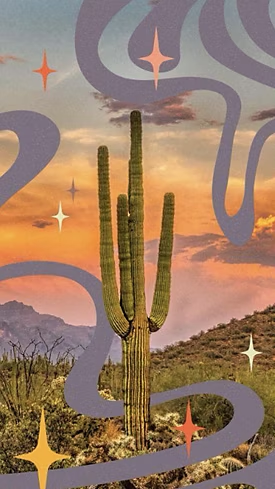
ROMANTIC RAIN

Looking for an easier starting point?
If you’d rather not build a brush from scratch, the Pattern Brush guided edit in Photoshop Elements has dozens of ready-made pattern presets you can apply directly to your photos. Open it from the Guided mode panel under Fun Edits. It’s a great way to explore what pattern brushes can do before diving into creating your own. Watch video | Play Photoshop Elements pattern brush guided edit video
Helpful hints for better results
Simple shapes make the best brushes
The cleaner and simpler your source shape, the more versatile your brush will be. A solid silhouette with no fine detail — a star, a leaf, a heart, a raindrop — will look good at any size. Highly detailed shapes can become hard to read at smaller sizes or when spaced close together.
Adjust the spacing for different effects
Tight spacing creates a dense, overlapping pattern. Wider spacing gives each shape room to breathe and reads as a more scattered, airy effect. Try dragging the Spacing slider to both extremes to get a feel for the range before settling on a setting.
Paint on a separate layer
Always add a new layer before painting your pattern onto a photo. This gives you full control over the result — you can reduce the opacity of the layer, change the blending mode, or delete it entirely without touching the original image underneath.
Try the Pattern Brush guided edit first
If you’re new to pattern brushes, the Pattern Brush guided edit in Guided mode is a great place to start. It includes dozens of preset patterns and walks you through the process step by step — no brush creation required. Once you’re comfortable with how it works, creating your own custom brush will feel much more straightforward.
Common questions

You may also like
