Adobe Lightroom

[Deepa Subramaniam] I'm sure I'm not alone in saying that I love taking photos to capture and share the moments that matter the most to me. And this is where Lightroom really shines. Lightroom was purpose-built for digital photography workflows. And over the last decade, Lightroom has led the industry with trailblazing innovation like introducing HDR editing and advanced color grading, fine grained subject selection, and innovating on a host of AI-based features. And all of this innovation is available to you through the full Lightroom ecosystem on desktop, web and mobile. So, to share how powerful photo editing can be across multiple services, along with a ton of new Lightroom features, please welcome Lucy Street. [Applause] [Lucy Street] Thank you, Deepa. Hello, I'm Lucy and I'm so excited to share with you some of my favorite features in Lightroom. I'm from Wales, I live in the beautiful Welsh countryside. I also love to travel and just take photos of my adventures. Let's get into it. Starting off in my camera roll, it's very messy. I've got selfies, I've got food pics. I've got way too many screenshots. But I also have this photo. Now I love the composition, but the colors are just completely washed out. I could make some basic edits right here in my photos app, but I'm not basic. So, I'm going to share this straight to Lightroom mobile. And just like that, I'm ready to get started. The very first thing I like to do is Auto tone. See, it's already made such a difference and it's just a great starting point. From there, I can go in and make some more tweaks. This is looking good, but I feel like the sky is still missing a little something. That's why I'm going to go to Quick actions, which is going to give me specific suggestions based on my photo. I'm going to hit Sky. It's detecting and masking the sky for me, because what else is it going to be doing? And then I have a selection of Adaptive presets that are being applied to just the sky. I think blue drama looks nice, and I can tweak that to get the exact look that I want. Nice. Here's the before and the after, and I was able to get here in just a few steps thanks to Auto tone, Quick actions, and Adaptive presets. That's a landscape photo. Let's see what we have when we get the squad together. Again, same thing, Auto tone. And when I'm working with a photo with people, I like to work from the background forwards. So, I'm just going to start to bring some depth in here.

Nice. Perfect. Now I'm ready to retouch the people. Well, brand-new to Lightroom mobile today is Individual retouch. Not only is it identifying every single face in the photo, but also every single feature. Alice, right, let's brighten those clothes. Nice. Kelly, what should we do to you? Brighten those clothes, fix that hair. Stunning. Paul, you get the same. Woah, jump scare! That's me. You know what? I love the laugh. Whiter teeth, yes, please. Smooth the skin, nice. Do my hair as well. Perfect. Here is the before and the after. And we're ready to share straight to Instagram from Lightroom mobile.

Yes. [Applause] [Lucy Street] So, next up, we're headed to the beach. And I'm absolutely obsessed with this photo. But I feel like the blues could just be a little bit bluer. So, I'm going to go in and add a mask based on the color range, find that blue and just pump that up. Nice. But if I zoom in, I've got these people, they're kind of messing up the vibe. Embrace this, yes, brace yourselves. Who is this? Could somebody come and get your dad. He's messing up my photo.

But that's okay, because in Lightroom mobile, I have Generative remove. So, I can just brush over both of these people, making sure to get that shadow. You don't need to be too precise. It's going to look at the colors, the lighting. Woah, straight away. [Applause] [Lucy Street] You can… yes! And you can see just how well it's recreated the ripples in the water and the rocks. And here's the before and the after. Peace is restored. But I know what you're thinking. That's a little bit of a safe option, so I have something better. What if I had this photo? Now, the idea is nice, I love a little glass of champagne. But the hand and the glass is just completely out of focus. So, I was about to bin this. But let's see what I can do with Generative remove. Again, really loosely brushing over the whole arm and the glass. And it's got a lot to work with here. I've got the sky, I've got all the trees. Oh, perfect. If I hit Refine, I've got three different options. I think that one looks good. Stunning. Here's the before and the after. My photo is salvaged thanks to Generative remove. And remember, I did this in just one swipe all from my phone. Magic. [Applause] [Lucy Street] Those are some of my favorite features on Lightroom mobile. But sometimes I just need a bit more screen space. That's why I'm going to head over to Lightroom on the web, where I have all of the power of Lightroom straight from my browser. I've got all my albums ready to go and I have this shot. Now, this is looking nice, but everything is just a little bit too in focus. So, I'm going to go down to edit, and we're going to add a Lens Blur. Because it wouldn't be a Lightroom demo without a good old Lens Blur, would it? And perfect. And if I toggle on Visualize Depth, I can see exactly what's been identified in the foreground and the background, and we can wiggle a few of these about, change the amount. That Bokeh Boost, and the effect. And that's exactly what I wanted. And that's Lens Blur. But remember I'm not in some beefy app, I'm literally just in my browser. And I can share a link to this individual photo. But I'm working with a client and they're a little bit fussy. So, I have an album full of options. That's okay. I can share this whole album either with a link or a QR code, and they don't even need to have Lightroom to be able to see the album. That's Lightroom web, and I have one last goodie for you before I go. And I had to end with a shot of Wales for this one, didn't I? Yes, woo! Now sometimes I want to be able to isolate and edit certain areas. Well today, brand-new to Lightroom desktop is Select Landscape. It's going to detect all of the different elements within my photo. How about we select Sky, Vegetation, and Water, hit Create, and it's created those three masks for me. Look at the detail. If you know me, you will know that I do not have the patience to do that myself. So this is perfect. And how about we make the grass a bit greener? What should we do with the sky? Should we make this a bit… Ooh, make it a bit more dramatic, ooh. And the water. You know, I'm going to make this a bit more blue. Perfect. Here is the before. We've got a lovely autumn day. And we've transformed it to summer. The summer days we wish we had more of in Wales. And I was able to do this in just a few clicks, thanks to Select Landscape, brand-new to Lightroom desktop today. That is it for me, thank you very much. [Applause] [Deepa Subramaniam] Thank you so much, Lucy. Lucy showed how easy it is to make your photos perfect in Lightroom mobile with Quick actions retouching with automatic facial detection and Firefly-powered Generative remove. She also showed how you can take your edits even further in Lightroom web and create and share albums with the memories that matter most to you and the new Select Landscape AI masking feature in Lightroom desktop makes creating masks for landscape elements like water and plants absolutely effortless. Everything Lucy showed is available today in the latest ecosystem release of Lightroom. If you care about your photos, I promise, Lightroom is for you.

Keynote

Adobe Lightroom - GS1-9

ON DEMAND

Closed captions in English can be accessed in the video player.

Share this page

Speakers

About the Session

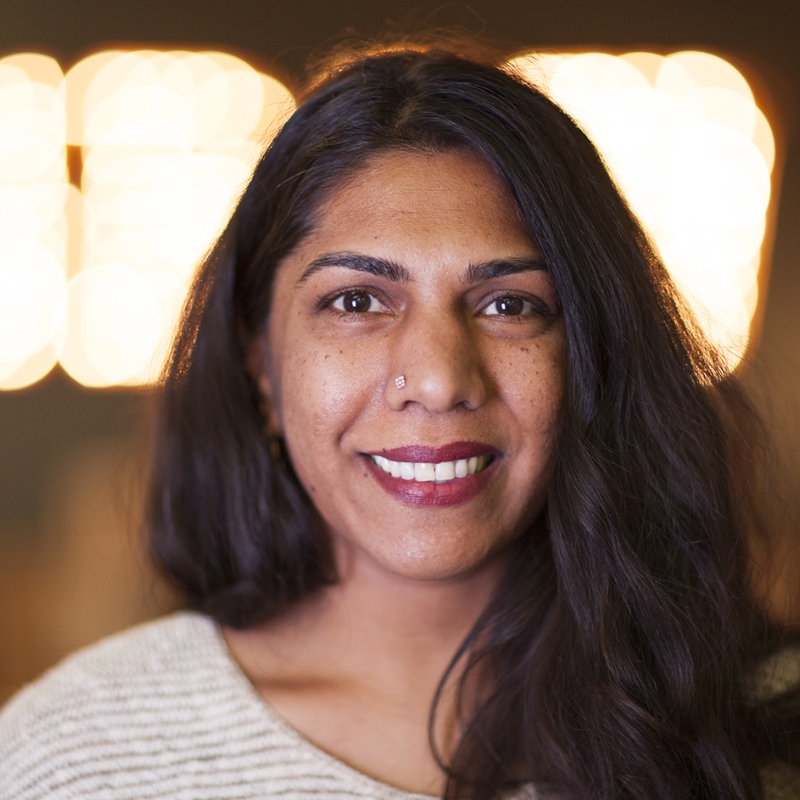
Lucy Street explores the power of photo editing across mulitple surfaces with Adobe Lightroom and the Generative Remove tool on mobile.

Technical Level: General Audience

This content is copyrighted by Adobe Inc. Any recording and posting of this content is strictly prohibited.

Adobe Firefly

Jump-start your genius with Firefly creative AI.

Imagine and then create images, vectors, audio, and videos. Explore and visualize ideas early in the process with Firefly Boards.