

Adobe Firefly
The next evolution of creative AI is here for all your ideas, with image, video, audio and vector tools.


JUMP TO SECTION
What is an image-to-video prompt?
Example image-to-video prompts you can try
How to customise your own image-to-video prompts
Tips for better image to video prompts
Benefits of using image-to-video prompts
How image-to-video AI generation works
An image to video prompt is a set of instructions used to transform a static image into a moving video using AI. Instead of starting from scratch with text alone, you begin with an existing visual (like a photo, illustration, or rough sketch) and guide the AI on how that image should come to life. The result is a short video where elements appear to move, the camera shifts perspective, or the scene evolves over time.
Good image-to-video prompts clearly explain three things: what should move, how the camera should move, and the overall mood or style of the video. Below are simple examples you can customise for social media, marketing, and creative projects.
Use subtle movement for portraits to make the video feel natural and realistic.
Prompt example:
“A young woman standing on a rooftop in Mumbai at sunset. Soft wind moving through her hair. Slow cinematic camera zoom in. Warm golden lighting. Natural facial movement. Realistic motion.”
Wide landscape images work well with cinematic camera movement and environmental effects.
Prompt example:
“A scenic view of the Himalayas during sunrise. Slow aerial camera movement moving forward through the mountains. Clouds drifting naturally. Soft sunlight passing through mist. Cinematic travel film style.”
Food videos look more engaging when prompts include steam, lighting, and close-up movement.
Prompt example:
“Close-up of hot butter chicken served on a restaurant table. Steam rising naturally from the dish. Slow camera pan from left to right. Warm restaurant lighting. Shallow depth of field. Commercial food photography style.”
Product videos perform better when prompts focus on lighting, rotation, and premium presentation.
Prompt example:
“A luxury smartwatch placed on a dark reflective surface. Slow rotating camera movement around the product. Soft studio lighting reflections. Clean premium advertising style. High-detail cinematic motion.”
Nature scenes often look more realistic with gentle environmental movement.
Prompt example:
“A tiger walking through a forest during early morning fog. Leaves moving softly in the wind. Slow handheld wildlife documentary camera style. Natural lighting. Realistic cinematic motion.”
Illustrated scenes work best when prompts describe mood, atmosphere, and stylised movement.
Prompt example:
“Anime-style street scene in Tokyo during rain at night. Neon lights flickering softly. Camera slowly moving forward through the street. Reflections on wet roads. Atmospheric cinematic animation style.”
A strong image-to-video prompt is usually short, clear, and focused on movement. Instead of writing long paragraphs, describe the subject, motion, camera movement, lighting, and style in simple language.
You can use this formula when creating prompts:
Subject + motion + camera movement + lighting + style
Example:
“Street food vendor cooking noodles, smoke rising, slow zoom in, warm evening lighting, cinematic documentary style.”
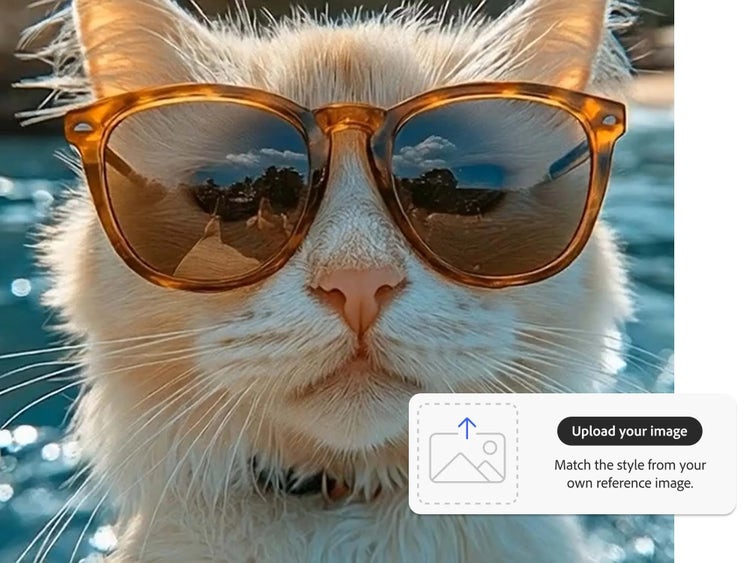
When you use an image-to-video tool, the AI analyses your uploaded picture as a dynamic scene rather than just a static image. It identifies objects, examines their placement, and predicts how they could move. The system then relies on its learned knowledge to create a series of frames, resulting in motion that appears smooth and realistic.
Here’s what’s happening behind the scenes:
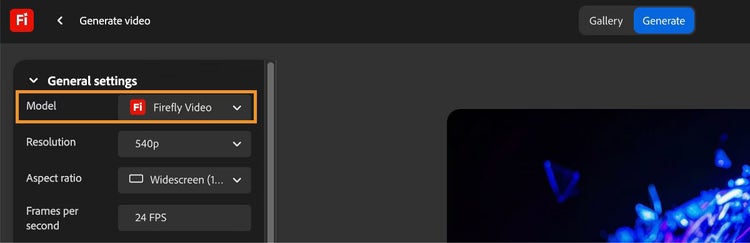
Turning a static image into a video is straightforward with modern AI tools. Here’s a simple, step-by-step walkthrough using Adobe Firefly as an example:
With the right image-to-video prompts, you can turn static visuals into engaging AI-generated videos for social media, marketing, storytelling, and creative projects. Experimenting with different styles, camera movements, and motion effects can help create more dynamic and realistic results.
Based on your location, we think you may prefer the United States website, where you'll get regional content, offerings, and pricing.

