How to write a postcard in 6 simple steps.
Learn how to write a postcard, what to include and how you can design your own here on Adobe Express.
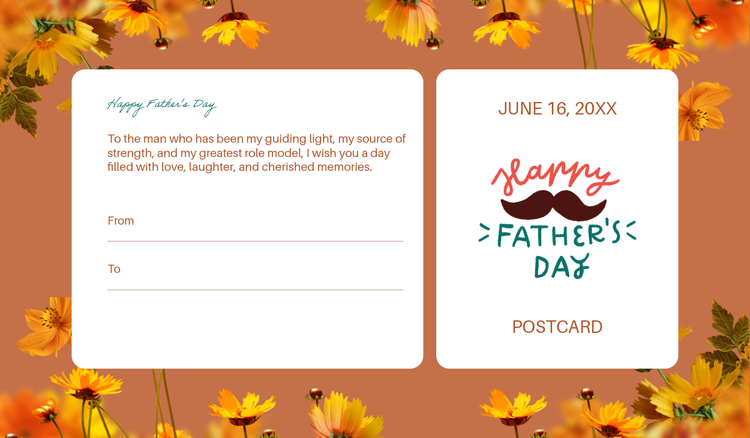




The British postcard dates back 155 years and from when the first was sent in 1870, to now, a postcard has always been a special way to share a message with friends, family and customers.
Whether you’re on holiday and want to give an update on your incredible travels, or you want to send a postcard instead of a birthday or Christmas card – knowing how to write a postcard for different occasions can make each message a special one.
Read on to find out how and what to write on a postcard with helpful tips from Adobe Express.
1. Pick a postcard format or template.
Back in 1870, you would have needed to venture to a store to pick a postcard to send. But now, you can head to the Adobe Express site and choose a postcard template to customise. There are thousands of free templates – all you need to do is know what to write on the postcard.
When it comes to choosing a postcard template, you should consider a few things, such as cover photo, orientation (landscape or portrait), and the message you want to send.
2. Customise the front of your postcard.
Once you’ve chosen the template you want for your postcard, you can now get to customising it. With Adobe Express you can choose which areas you want to amend and personalise it to your needs. If, for example, you might want to change the destination on the postcard template – you wouldn’t want to send a postcard that says “Rome” if you’re in Paris.
As well as the text, you can make other customisations, including:
Free postcard design ideas from Adobe Express.
recipe
3. Add the date and location to the back of the postcard.
If you’re at a special location or celebrating an important day, you’ll want to include this on your postcard. You should date the postcard so that when the recipient looks back on it in years to come, they know how long ago it was sent. If you want to send yourself a postcard for your memories, you can have the date and location featured so you know when and where you wrote the postcard.
4. Craft your message on the left-hand side.
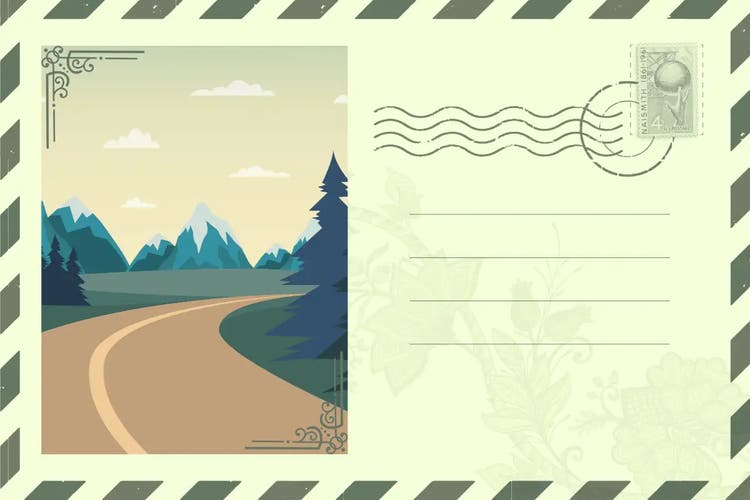
Next, write your message on the left-hand side of the postcard. There might be a line down the centre so you know where to stop, but this might not always be the case. Be sure to leave enough space on the right, that’s where the name and address will go.
For your message, write from the heart. Use it as an opportunity to update the recipient, what did you do that day? What’s your next plan? Be sure you only use the space assigned on the postcard and don’t take any space from the address (that can’t go on the front, the postal service might miss it!).
Use a ballpoint pen so the writing is clear and legible. A felt-tip pen can go blotchy, especially if it gets wet, and don’t forget your postcard has no envelope to protect it from the rain.
5. Fill in the recipient’s name and address.
On the right-hand side is where you’ll add the recipient’s name and address. You can even add a return address (usually yours) so that if it fails to get delivered, it will be sent back to you.
6. Print and post – or download and send.
Now it’s time to send. You have a few choices here.
- Print and post it. Grab a stamp, stick it in the right-hand corner and send it on its way.
- Download it and send. This way is much quicker and can be sent via email, text, WhatsApp, or even posted on social media.
4 editable postcards for you to write and send.
recipe
How to bring your postcard to life.

Generate your own card templates with AI tools from Adobe Express.
It’s never been easier to create fun postcards to send – whether you’re on the go or in your hotel room. With AI tools from Adobe Express, you can make the perfect postcard in seconds. Simply enter your prompt, find the perfect template and customise it to exactly what you want. Edit text, fonts, colours and even add branding – all without needing to be skilled in design at all.
Create your perfect postcard using the AI card maker today.
You might also like...