How to make a bar chart with two sets of data.
Discover how to compare two data sets in one bar chart, and create impactful visuals for reports and presentations.
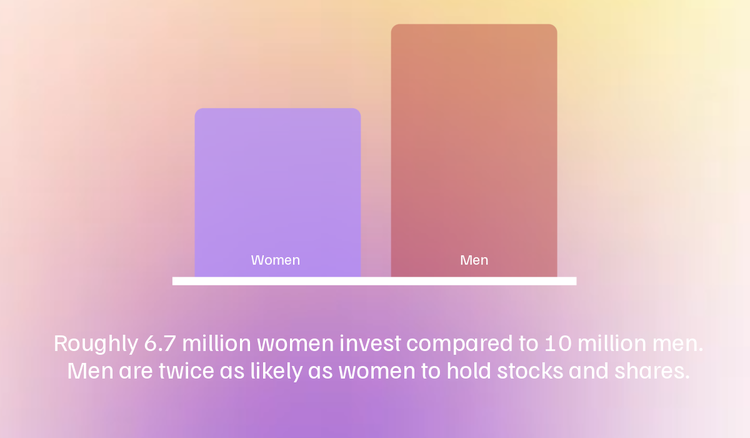




From monthly sales to campaign performance and even customer engagement, bar charts are a powerful way to visualise comparisons over time. A dual bar chart does just that. It’s easy to read, quick to build, and brilliant for pitches, reports, social posts and more.
In this Adobe Express guide, we’ll see how you can compare two sets of data at a glance and enhance your business reports with stacked bar charts.
What is a bar chart?
A bar chart is a visual tool that displays data using rectangular bars, horizontal or vertical, to represent values. Each bar’s length corresponds to its numerical value, making it easy to spot differences at a glance.
Bar charts are ideal for comparing categories, trends or changes over time. They’re especially useful in business, education, and marketing. For example, you can use them to compare sales figures, show survey responses, and track social engagement metrics.
Thanks to their straightforward design, bar charts can be easy to interpret. They typically follow a simple style: evenly spaced bars along one axis, clear labels, and contrasting colour choices for clarity and visual appeal.
You could use bar charts with two sets of data in:
- Infographics. Illustrate comparisons visually.
- Worksheets. Add visual data elements to tasks.
- Presentations. Highlight key figures in a pitch deck.
- Business reports. Show month-on-month or year-on-year trends.
recipe
How can you create a bar chart with two sets of data?
Bar charts are great for comparing figures. And this works even better when you can compare two sets of data in one go. If you’re after dual data visuals, here are some bar and chart formats you can adopt:
Stacked bar chart.
A stacked bar chart builds on the traditional bar chart by dividing each bar into segments, with each section representing a sub-category. These segments are color-coded to show how different parts contribute to the total.
For example, if you're tracking monthly revenue, a stacked bar can show how much came from online sales, in-store purchases, and partner channels—all in one bar. This format offers a clear visual of both the total and its breakdown.
Stacked bar charts are great for showing part-to-whole relationships across categories. They’re commonly used by small business owners, marketers, and educators to present layered data clearly.
Grouped bar chart.
A grouped (or clustered) bar chart compares multiple data sets within the same category by placing bars side by side rather than stacking them.
Each group represents a single category—like a year or product type—while each bar shows a different data set, such as sales by region.
For instance, a retailer might use a grouped bar chart to compare in-store and online sales each month. This layout makes it easy to spot trends and differences between variables.
Grouped bar charts are ideal when you want clear comparisons without combining values into a single total.
What are the benefits of a bar chart comparing two sets of data?
Bar charts that compare two data sets are a clear and efficient way to present complex information. Instead of using multiple graphs, you can streamline your visuals into a single, easy-to-read format.
They can help with:
- Reducing the number of graphs you need to create or present. By displaying two data sets in one chart, you reduce the number of visuals needed, saving time and effort.
- Making data comparisons easier for viewers. Side-by-side or stacked formats help audiences quickly compare values across categories.
- Cutting down file sizes. Fewer charts mean smaller file sizes for your reports or presentations.
- Cleaner presentations. A combined chart keeps layouts tidy and professional.
Best practices when using a bar chart to compare two sets of data.
To make the most of bar charts that compare two data sets, keep your layout clean and your design purposeful.
Here are some key best practices:
- Use different colours for each data point or segment. Make sure each data set has a clearly defined colour to avoid confusion.
- Ensure each axis is properly labelled. This keeps things as clear as possible.
- Keep spacing and bar designs consistent. This helps viewers understand what the chart shows at a glance.
- Cite your data sources. Especially in client reports or formal presentations.
recipe
How can Adobe Express help you create charts and graphs?
Whether you’re reporting on KPIs or building a pitch deck, Adobe Express helps businesses of all sizes to create clear, engaging charts with no design experience needed.

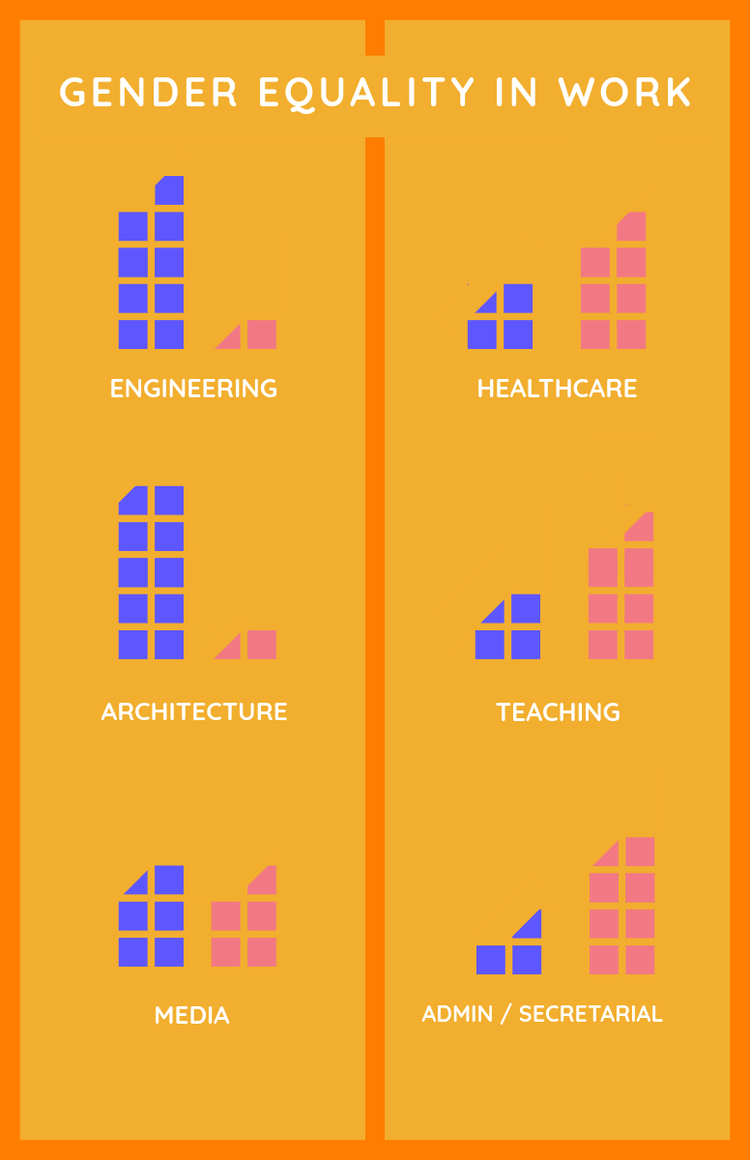
Try the free chart creator tool.
Design bar, line, and pie charts in minutes. With Adobe Express’s free chart maker, you can customise colours, labels, and data values in just a few clicks.
Get inspiration from chart templates.
Need a head start? Choose from ready-made chart templates tailored to reports, presentations, or social posts. Just pick one to edit and get started.
Add your charts to infographics.
Bring your data to life by embedding charts directly into a custom infographic. Perfect for reports or client deliverables.
Bring your charts to life with our free AI presentation maker.
Adobe Express now includes a powerful AI presentation maker that helps turn your data into polished, on-brand presentations in seconds. Whether you’re showcasing a bar chart comparing quarterly performance or visualising customer trends, simply enter your topic and let AI create slide layouts and suggested copy. You can then drag and drop in your charts, tweak the design, and download it all in one place.
You might also like...