How to address a postcard.
Learn how to address a postcard and explore how you can make your own easily with Adobe Express.
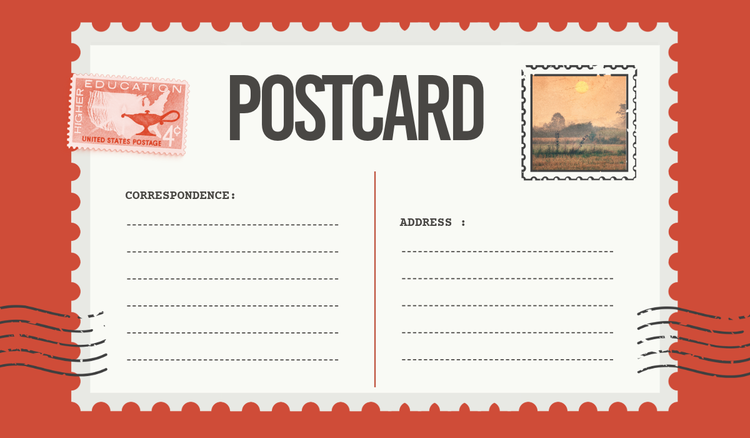




Perhaps you’re on holiday and want to share a memory, or maybe you want to thank your guests for attending an event? Either way, sending a postcard shows people you are thinking of them and making one yourself adds a personal touch.
Ready to design and post your own? Learn how to address a postcard with this handy guide from Adobe Express.
1. Where to put the address on the back of the postcard.
Turn your postcard over and the space where you should put the address on a postcard is usually on the right-hand side. Be sure to include the full address and if you’re writing the address by hand, ensure it’s legible. The personal message will then go on the left-hand side.
2. Write the recipient’s name on the first line.
Write the recipient’s name on the first line of the address section. Doing this ensures it reaches the right person – useful if they share accommodation with others. Use their correct titles, for example – Mr, Mrs, Dr etc., if it’s for a formal/business purpose.
3. Add their full address line by line.
Write their address line by line neatly underneath their name. This can include house/flat/building number or name, street, city, region, county, and postal code – each on a separate line. If you’re sending it overseas, add the country in capital letters on the final line.
Editable postcard template ideas.
recipe
4. Include the send date in the top-left corner.
This is optional, but you can write the date you sent the postcard in the top-left corner of the message section. It’s a way to date your message, which is useful if you expect the reader to keep and look back at their old postcards. It’s especially great when you’re travelling or celebrating a special occasion like birthdays or anniversaries, for example.
5. Add your location directly underneath.
Another optional decision but you can choose to include your location just below the date. It’s a fun way of letting the reader know where you’ve been. Whether it’s a famous landmark or the name of the city or region, they’re great to look back on with nostalgia, especially if you’re on an exciting trip.
6. Finish with a postage stamp.
Put a postage stamp in the top right corner of the postcard. Ensure it’s fit for purpose, i.e. domestic or international. Choosing the right stamp will ensure your postcard arrives on time and in the right place.
More editable postcard template ideas.
recipe
How can Adobe Express help you send a postcard?
No design experience? No worries. If you’re looking for a quick way to put your designs on a postcard Adobe Express is the answer. With intuitive tools, you can produce your own postcards from scratch and edit them as you like. Like so:

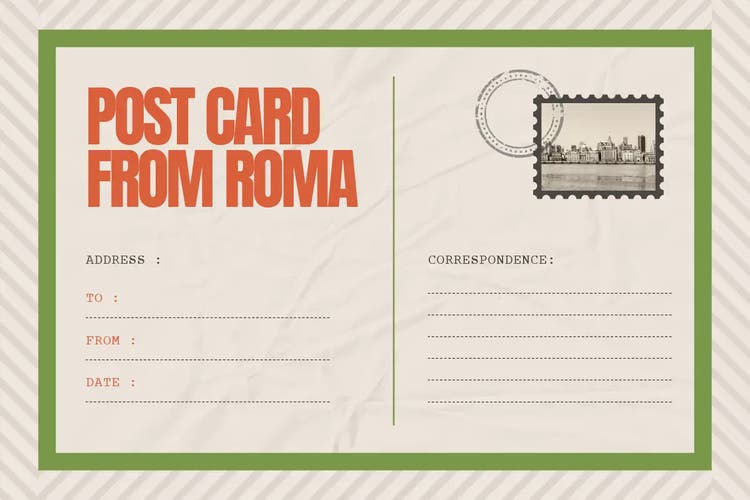
Make a postcard from scratch.
Find postcard design ideas and inspiration.
Edit photos to elevate your postcard design.
Get tips for writing a postcard message.
Customise with a photo collage.
Add the perfect message to your postcard design with AI text effects.
Bring your postcard to life with Adobe Express’s AI Text Effects tool. Simply enter your prompts and watch the AI bring your creation to life – all in a flash. This lets you create your own texture, styles, and themes to match your design. If you’re on a beach holiday, why not create a sandy sea-shore style text theme for your postcard?
You might also like...