How to write a table of contents – with templates and examples.
You’ve done the hard work, now it’s time to wrap things up with a table of contents. Learn how to format your table of contents with examples from Adobe Express.
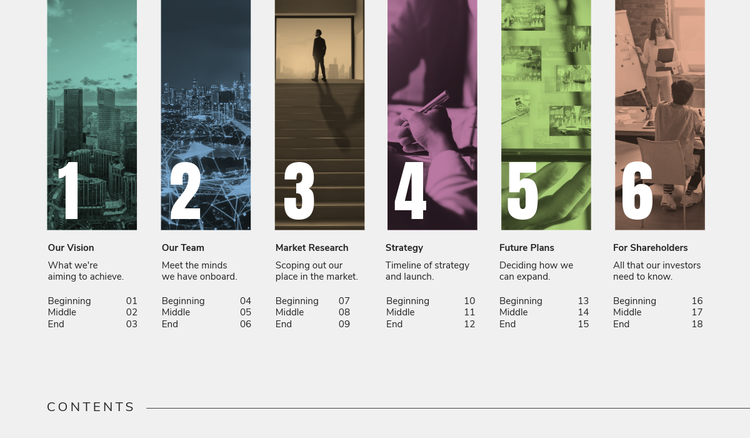




Including a table of contents in your project isn’t just practical – it’s that finishing flourish that ties everything together (and it’s immensely satisfying). Everything is in its place, and readers now have an overview of your paper. It’s an essential part of navigating a document, saving time and effort so people don’t need to pour through the pages to source information again.
Let your readers know what they’re in for, learn how to add a table of contents to your next project with Adobe Express.
What is a table of contents?
A table of contents is a guide to a book or document – a list of sections and sometimes subsections with page numbers provided for ease of navigation. Usually, it’s the first thing a reader will see after the title or cover page in something like a dissertation.
Contents pages can come in a range of different formats, depending on what your document is and how you want to present it. With digital documents, you may also opt to include interactable links.
recipe
What to include in your academic table of contents.
While your exact document may vary, you should generally look to include the following in your table of contents:
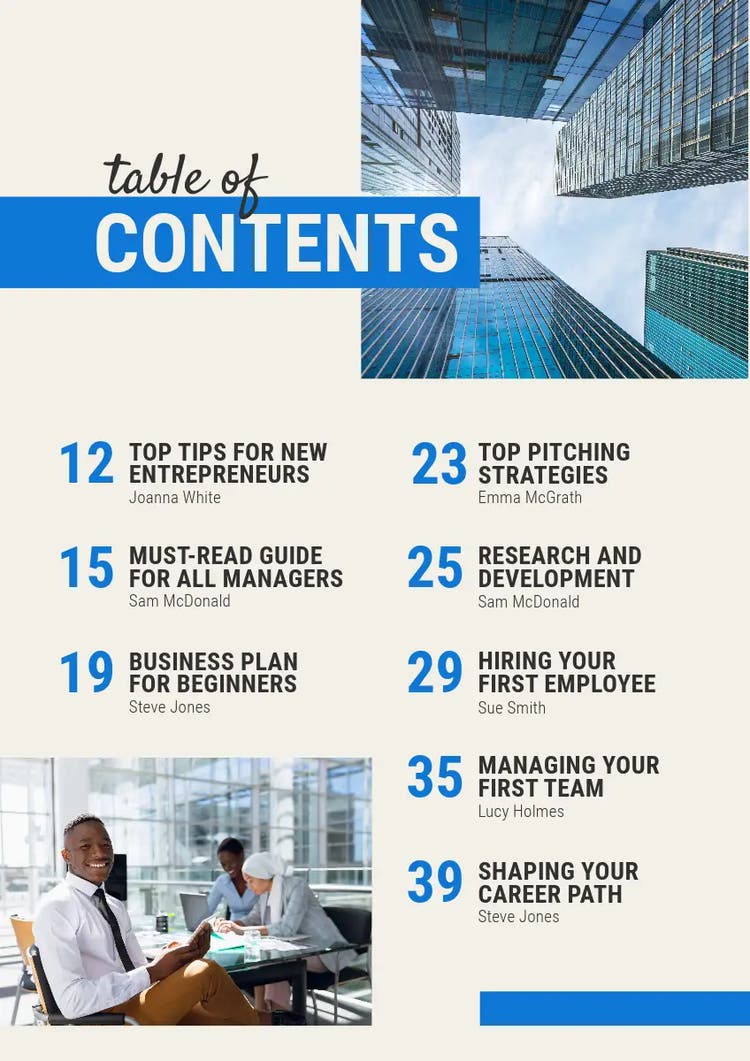
- Chapter titles. Your table of contents is going to be a bit cryptic if you don’t include chapter titles. If your chapters are comprised of many sections, it’s okay to include sub-titles too – just clearly designate them under the main chapter title.
- Page numbers. A table of contents that tells you what is included isn’t completely useless, but without page numbers it’s not particularly practical.
- Dot leaders. Dot leaders aren’t required, but they help people track the chapter title to the page number on the same line. You could consider lines as well, but if your page numbers are spread apart from the chapter title some form of guide is always welcome.
- Author names, if required. If your document is a collection of works from different authors, then your table of contents should include their names – usually alongside the title.
- Descriptions, if required. Some tables of contents include descriptions, usually italicised. If the title doesn’t sufficiently explain what is in that section, you could put a short description on the line beneath the little, then add the page number and dot leaders from the description to the page number.
- Appendices. Unlike tables of contents, appendices come at the end. While appendices can seem like a table of contents, they serve a different purpose. It’s a good idea to include your appendices in the table of contents for people who want to look at it.
- Tables and figures. Any additional tables and figures can be included in your table of contents, but if it gets unwieldly you might want to put them in a different section.
Table of contents format options.
Tables of contents can come in a lot of different forms. The one you decide to use will depend on the type of writing you’re doing – an essay may not need as much detail as a dissertation or academic research paper, for example. Or maybe your paper just lends itself better to other styles.
Whatever the reason, here are some tables of contents format options:
Simple single-level table of contents.
In academic writing, a single-level table of contents is ideal for MLA-style documents and clearcut essays or dissertations. Think of this as your most standard table of contents – title, dot leaders, and page numbers. As an example, one of your titles could be “Introduction”, “Chapter 1” (or a title), and “Conclusion”.
Subdivided table of contents.
Think of subdivided tables of contents as a single-level table, but with more detail. Alongside the core features, this type of table of contents will also include key subheadings for each section or chapter. This can make it easier to sift through topics in a particular chapter. Subdivided tables of contents could be suitable for something like a research report.
Multi-level table of contents.
Multi-level tables of contents use a hierarchical structure, listing their main headings, subheadings and, maybe even sub-subheadings – though it’s not limited to three levels. This can allow for pin-point information sourcing and could be incredibly useful in dense papers or organisational documents. In some cases, multi-level tables of contents will use dropdown headers, italics or spacing to differentiate sub-sections.
Graphic table of contents.
Graphic tables of contents are eye-catching, fun to design, and creatively clear, but may not always be a fit for academic writing. While they may use principles from the previous types of tables of contents, the way they’re displayed can range from quirky, to minimalistic, to graphically captivating. Graphic tables could help something like a product brochure stand out.
Editable table of contents examples.
recipe
How to make a table of contents in 5 steps.
Making your table of contents is easier if you consider what you need beforehand, so you can gather the necessary information. If you’re on a time-crunch, you’ll appreciate not having to rush this finishing touch.
1. Insert a page for your table of contents after the cover sheet.
Most research papers, thesis, or dissertations should come with a cover sheet – it’s right after this that you should place your table of contents. You don’t need to do this in retrospect either, if you’re worried about messing up page numbers.
2. List out the chapters and sections in chronological order.
Not every piece of academic writing is written in order (many people start writing an essay with the main body before the introduction), and sections may grow, evolve or change as you write. However, your table of contents must be in chronological order, or it’ll become difficult to navigate. Try to reflect any changes to the structure of your work in the table of contents. Because things can change, it’s often worth waiting until the end to fill in the table of contents.
3. Add the relevant page numbers.
Ensure you add the correct page numbers, rather than vague guesstimates and be mindful if those pages have changed due to formatting or editing.
4. Update the format to align with your style guide.
Once you’ve got the core information for your table of contents such as page number and titles, you want to be sure to format in line with your style guide. At this stage, you should be aware of the style you’re using so it’s best to search the guidelines. For example, MLA referencing may use a simpler table of contents compared to something like Harvard.
5. Include jump links to make the table of contents more interactive.
Help readers get to where they’re going with interactive jump links. With digital documents, you can link titles or page numbers to specific headings anywhere in the document – that means no endless scrolling (and a reduced risk of RSI from scrolling past thousands of words).
How to insert a table of contents with Microsoft Word.
Inserting a table of contents into a Word document is simple – just follow these steps:
- With your document open, go through your main titles and label the headings. To do this, go to your main headings and label them “Heading 1” and subheadings “Heading 2”. Current versions of Microsoft Word have these heading formats in the Styles section of the Home tab.
- Next, insert a new page after your cover page and add your title for your table of contents. This could be in a bigger font, underlined, bolder and/or centred, just to ensure it stands out a bit.
- Once that’s done, place your cursor where you want your table of contents to go. Then, in the References tab, find and select Custom Table of Contents.’
- Earlier, we established our heading styles – now, you can select which heading style levels will be included in the table of contents. Don’t worry if things aren’t perfect, you can make small adjustments if needed by clicking Modify.
- When you’re happy with your table of contents, click OK and it should be automatically generated, saving you time aligning things and dealing with formatting mishaps from doing it manually.
recipe
How can Adobe Express help you create a table of contents?
Dealing with your own academic writing tasks? Use Adobe Express to make things a bit easier, so you’ve got more room to focus on what counts the most.
1. Plan out your research approach and contents.
Plan out your research concepts with the Adobe Express concept map. Visualise ideas with ease to make sense of your thoughts, inspire yourself and discover connections you didn’t see before.
2. Add different icons and imagery to key sections.
Sometimes, academic writing calls for images. Bring in icons or imagery for different sections and support your paper with the Adobe Express image editor.
3. Get tips on how to start your essay.
The hardest part of any essay is getting started – but not with Adobe Express. Read our guide to on how to start an essay today.
4. Add a cover sheet to your research paper or thesis.
We’ve got you covered, with the Adobe Express cover page creator. Give your dissertation the finishing touch it deserves.
5. Work out how to format your footnotes.
Give your readers a bit of context, without slowing your piece down. Discover how to write footnotes properly with Adobe Express.
How to bring your table of contents to life.

Support your academic papers with the Adobe Express AI Presentation.
Support your research papers and discover the capabilities of Adobe Express’s AI Presentation Maker. Realise incredible presentations easily, and support your written work and assignments without getting bogged down in the design.
Customise your presentation with tools like Generative AI, stock images, and a suite of AI tools to add your own unique touch. Whether a deadline is looming, or you just need a touch of inspiration, the AI Presentation Maker offers everything you need for effortless slide creation.
Try Adobe Express today, and experience how AI can support your academic tasks.
You might also like...