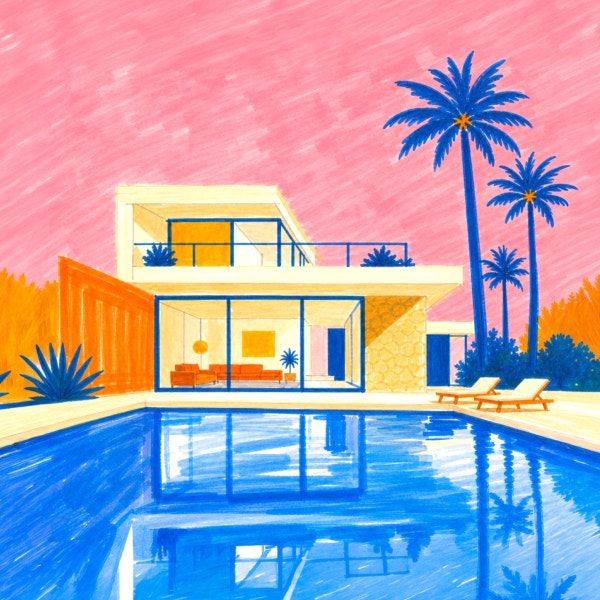
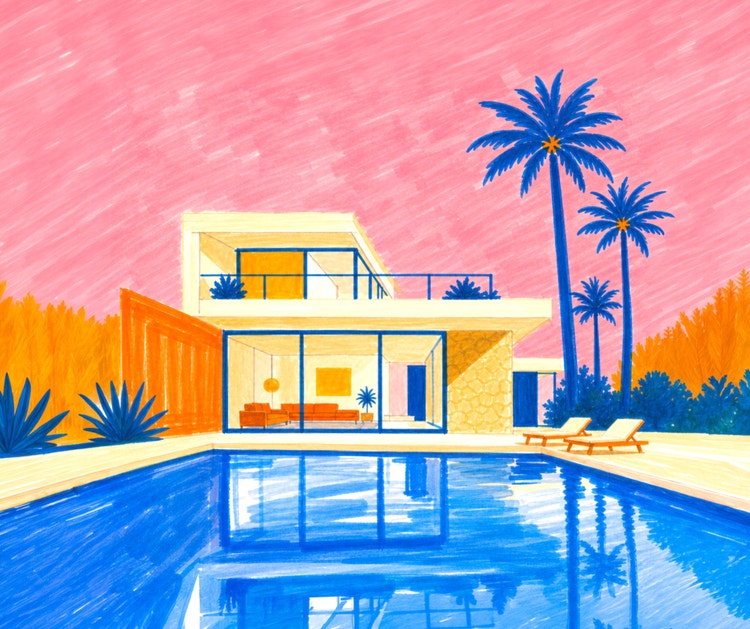
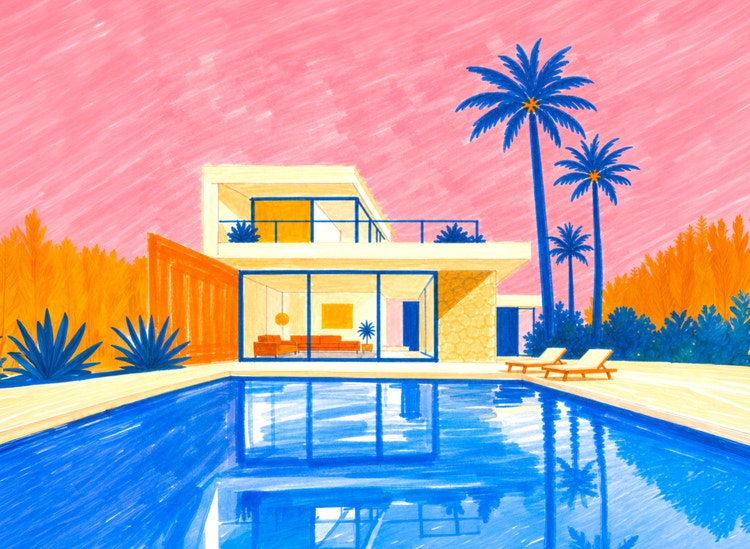
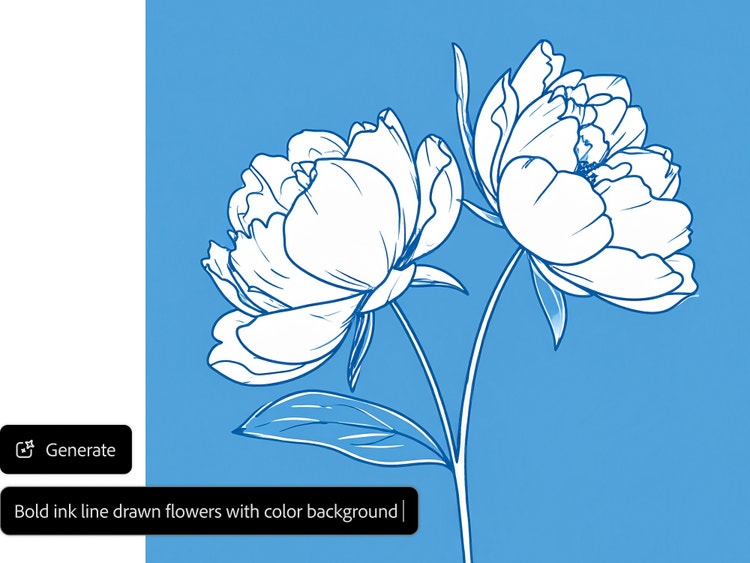
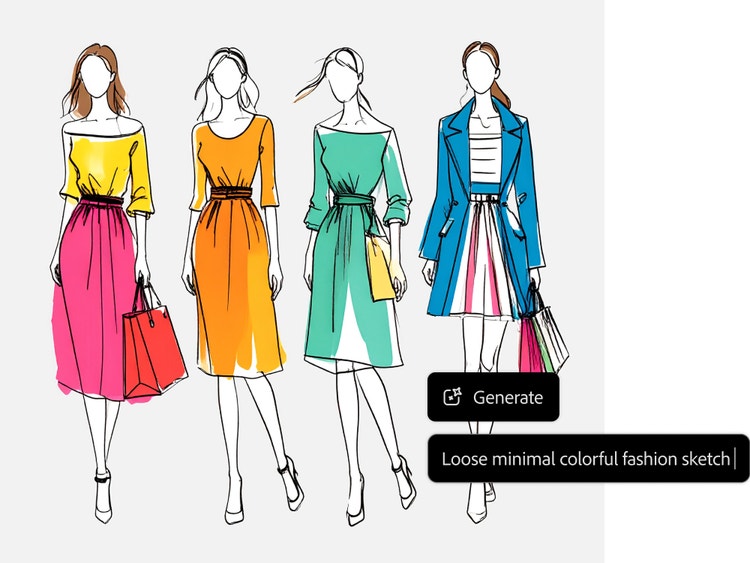
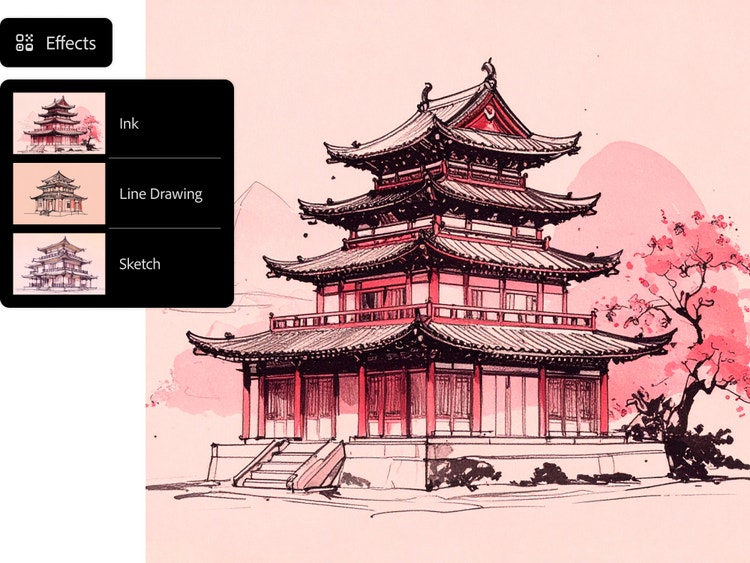
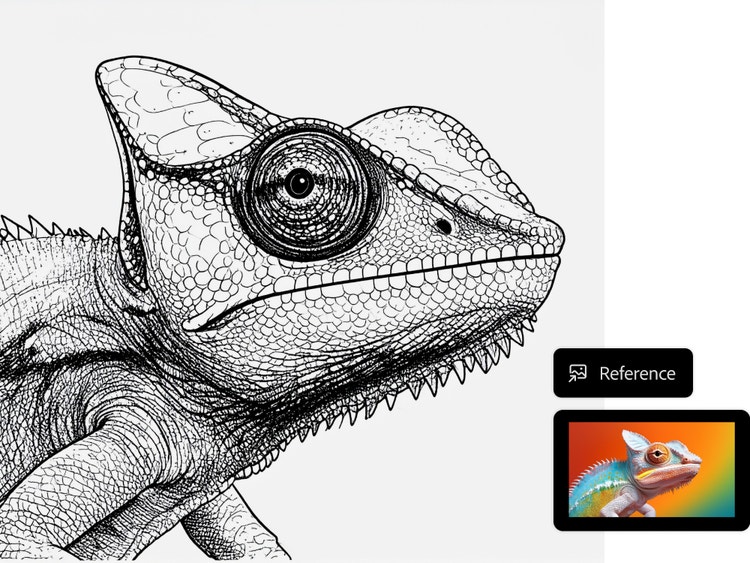
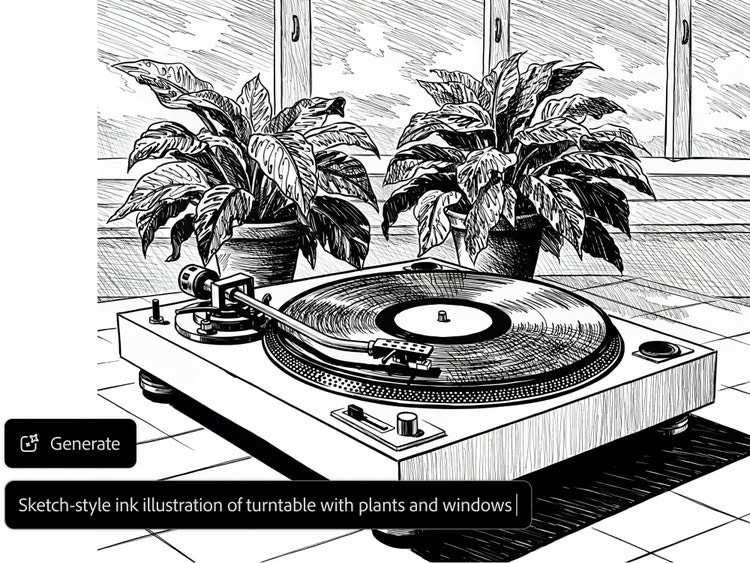
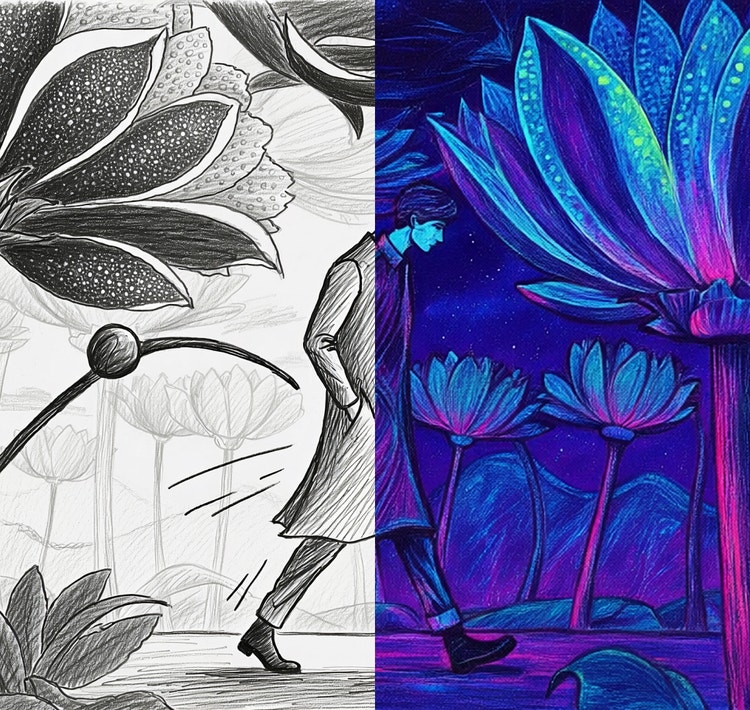
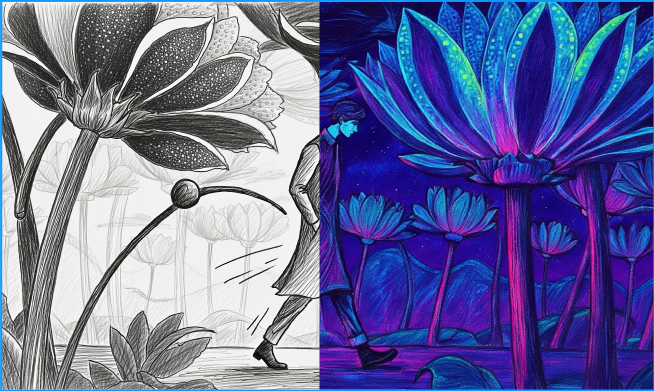
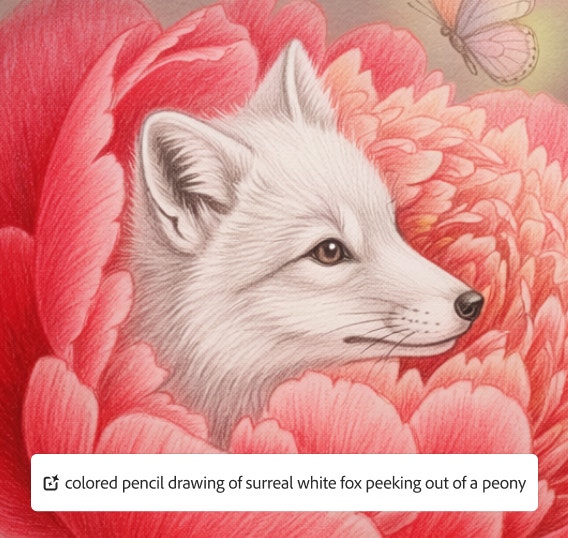
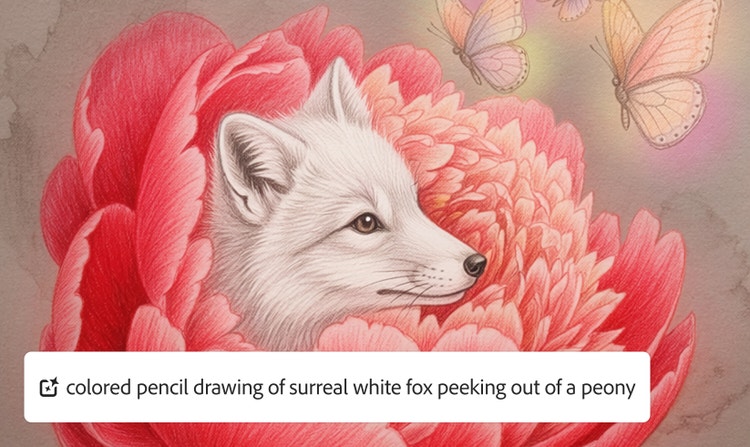
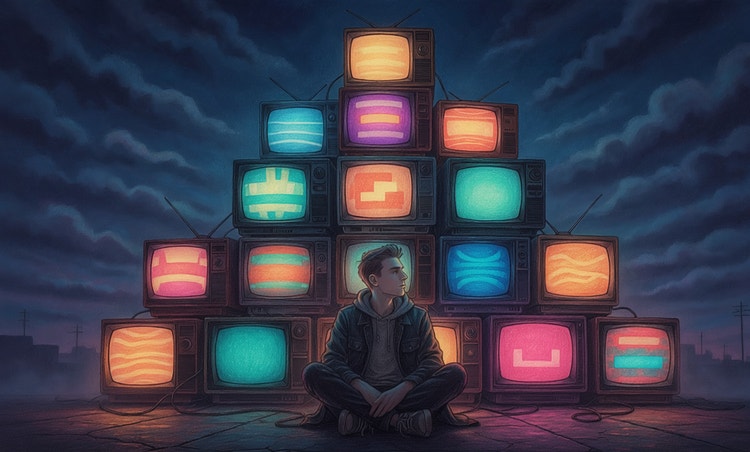
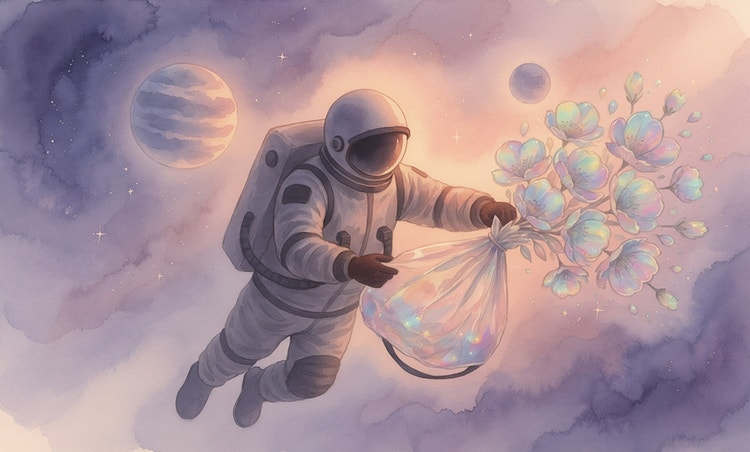
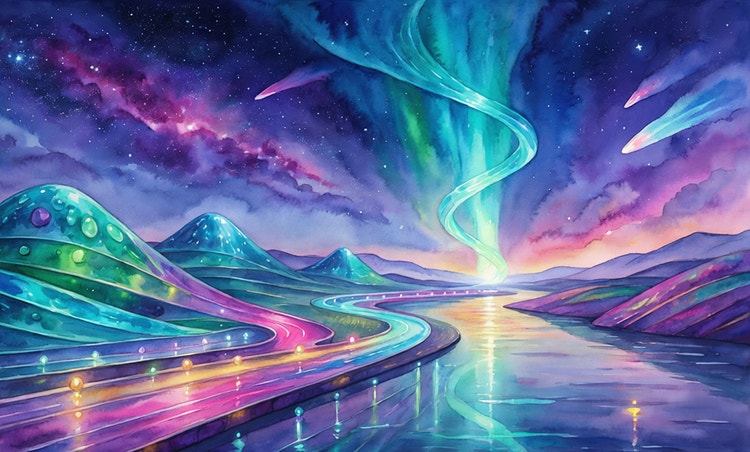
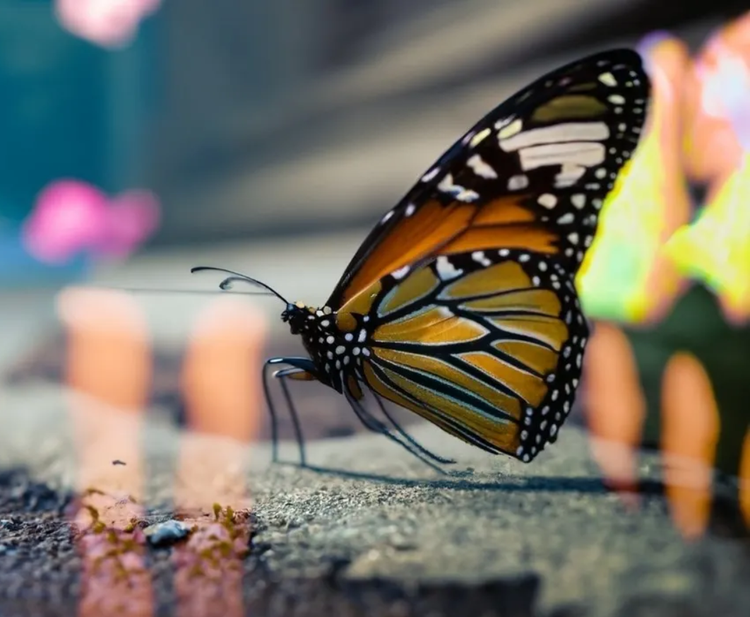
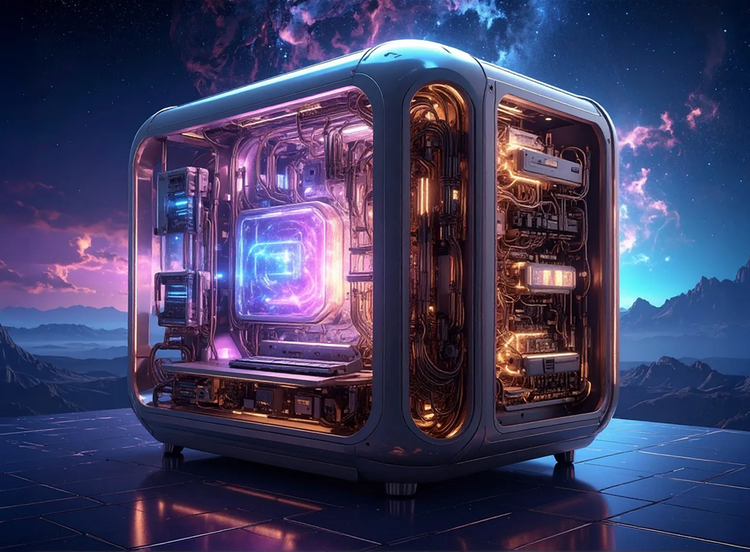
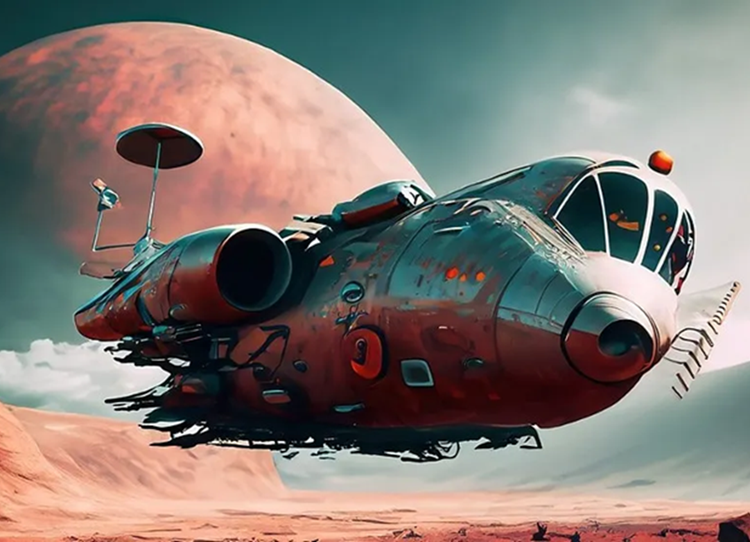
The Generate Image function of Adobe Firefly can be used in many ways, including as an AI drawing generator and an AI art generator. When using Generate Image as an AI drawing generator, the goal is to craft prompts and adjust settings to produce results that resemble hand-drawn sketches. When using Generate Image as an AI art generator, the goal is to produce images that are more polished, from hyperrealistic portraits to artworks that look like oil paintings.
You can turn any photo into a sketch by using the Reference Image function within the Generate Image workspace. Upload the image you wish to turn into a drawing, adjust your settings, and try a simple prompt such as “turn reference image into a sketch.” Refine your prompt and settings until you get a result you like.
You can generate many styles of drawings with Generate Image. You can include detailed descriptions of art styles within your prompt, and you can save time using options from the Effects section. Choose from art movements like Art Deco and Impressionism, from themes like Concept Art and Comic Book, and many more.
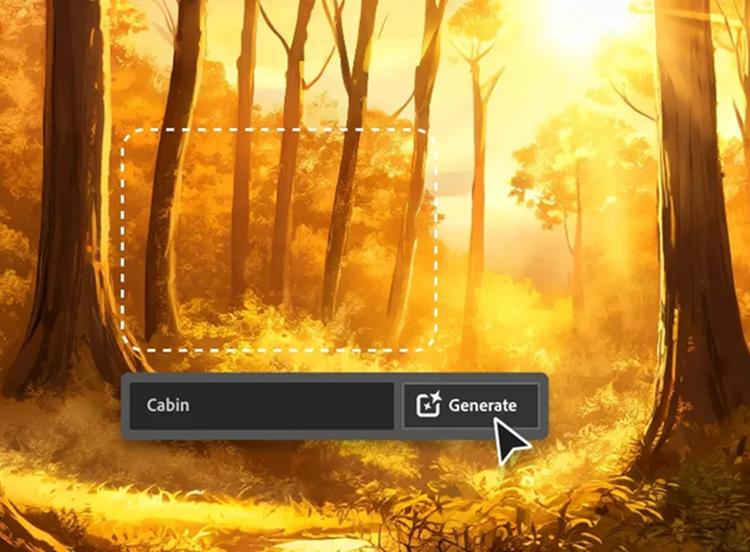
There are many ways you can customize drawings using Generate Image in Firefly. You can use detailed prompts with descriptive words and phrases. You can upload or select a reference image to generate similar artwork. You can choose from different styles in the Effects section. And you can continue experimenting and editing your image after generating it with tools such as Generative Fill, which allows you to add, remove, and replace content within an image. Use any combination of these techniques to get just the look you want.
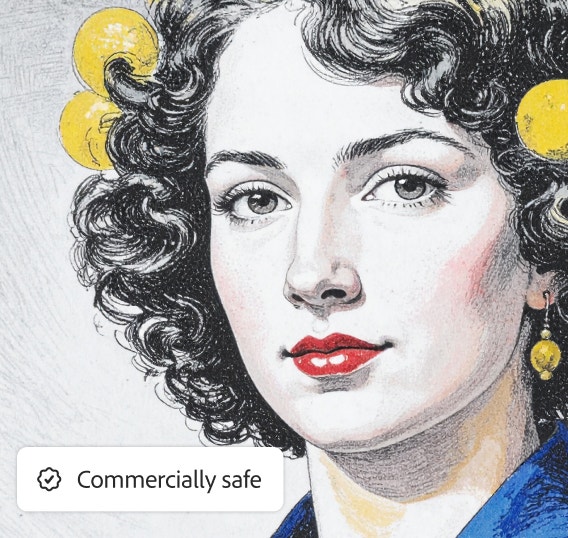
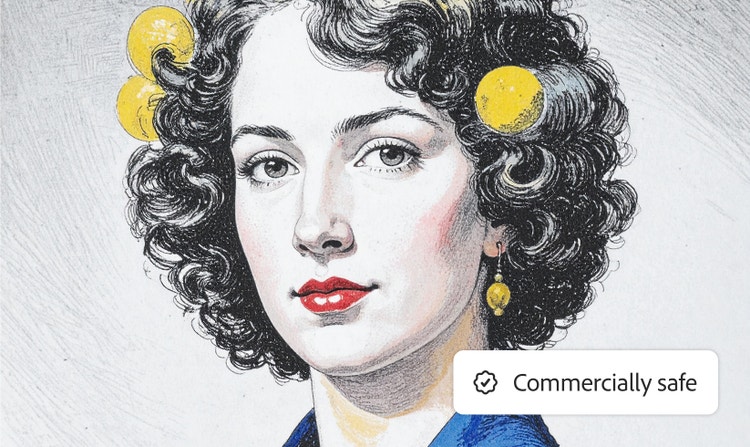
Yes, you can use the sketches generated by Firefly models for commercial use, provided you adhere to the Adobe guidelines and the content is produced using the commercially released version of Firefly. All Firefly tools are designed to be safe for commercial use, as they are trained on Adobe Stock, licensed content, and public domain materials.
Absolutely not. The best AI drawing generators are designed for everyone, regardless of skill level. You don't need to know how to draw; instead, you simply use everyday language to describe your vision. The AI handles the complex rendering and artistic execution, empowering anyone to go from a simple idea to a high-quality sketch or illustration instantly.
Adobe Firefly offers
several plan options to suit every creator, from individuals to students and teachers. These plans provide a variety of features, credit amounts, and payment schedules. You can also get started with free access for users with an Adobe account, which includes free daily generations to create AI drawings.
The AI drawing generator can create virtually any style you can describe, and Firefly includes pre-selected popular styles that make it easy to start exploring. These include realistic pen-and-ink sketches, quirky doodle art, detailed anime illustrations, and professional concept art for fashion or design. You can also upload your own images to transform them into new artistic styles.
Start with specific details across the key creative categories: Subject, environment, style, and lighting. By providing this comprehensive guidance, you harness the power of the AI to quickly generate professional, high-quality images that match your precise vision. You can also click the Prompt Features button in the toolbar and turn on Prompt Enhancement, which automatically expands your text into a more detailed prompt.
An AI drawing generator uses a specialized model that processes your input. You simply provide a text prompt or upload a reference image as input. The AI then analyzes your words and instructions, instantly generating a brand-new visual output that follows your guidance for style, composition, and color. It transforms your idea into a finished drawing in seconds.
Absolutely. We believe the creative process doesn't end with the initial generation. Once your drawing is created, you can easily refine the results by tweaking the original text prompt or using built-in editing features to adjust colors, composition, and style.
Yes. Drawings generated by Adobe Firefly models are specifically designed to be safe for commercial use.
The best generator aligns with your creative goal. We highlight powerful partner models, such as Gemini 2.5 Flash Image and GPT Image, which offer diverse capabilities and styles. You can leverage these models directly within Firefly, as well as seamlessly integrate them across the Adobe ecosystem (including Adobe Express and Photoshop) without interrupting your workflow.
We believe the best AI drawing generators prioritize control and speed. Adobe Firefly makes this easy by providing superior creative control over lighting, style, and composition. It is designed to be commercially safe, trained on licensed content, and offers seamless integration across the Adobe ecosystem, including Photoshop. You can easily create sketches, doodles, or unique art from a reference image, moving your finished work directly into your professional workflow.
Yes, you can use the Adobe Firefly AI drawing generator for free with an Adobe account. If you have a free account, you’ll get free daily generations to explore features like Generate Image and Generative Fill across a range of drawing styles. Learn more about
using Adobe Firefly for free. Upgrade to a paid plan to access additional features and higher-volume generations.





 image
image video
video