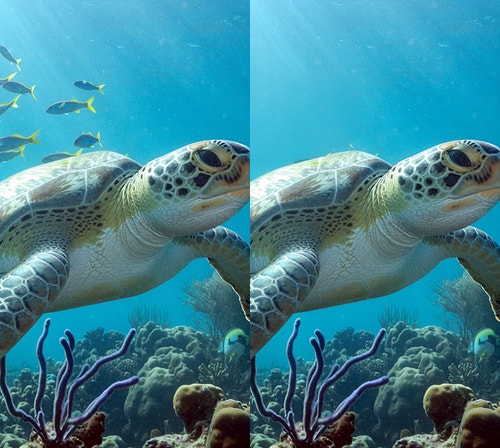
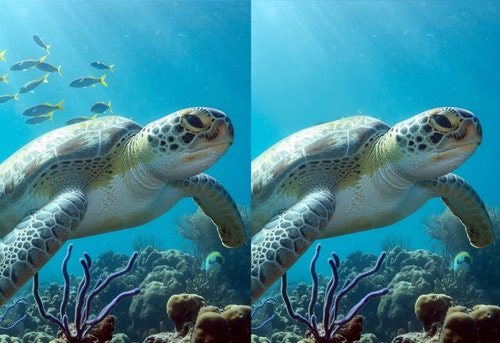
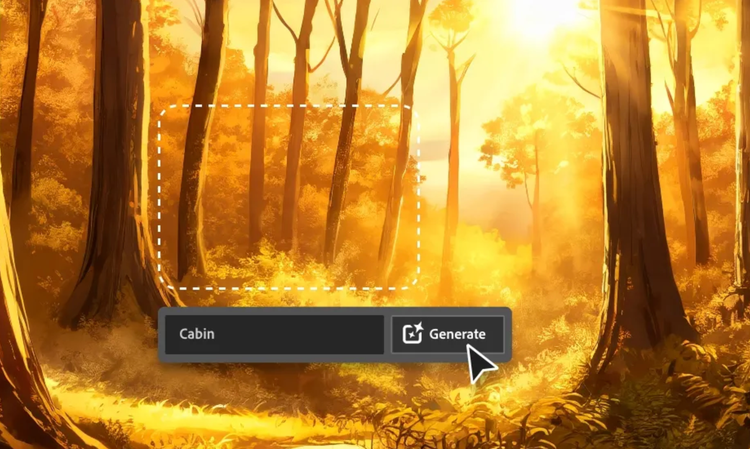
With Generative Remove in Firefly, you can remove photobombers, crowds, and other distracting people from busy backgrounds. Also, get rid of unsightly objects in landscape settings like signage, trash cans, and wires. Into food photography? Take out spills, stains, and other distractions so all that’s left is the perfect shot.
Firefly generative AI models are commercially safe. The Adobe Firefly generative AI models were trained on licensed content, such as Adobe Stock, and public domain content where copyright has expired. For partner models, you are responsible for determining whether the model is appropriate for your project.
The best remove object AI tools helps creators go from prompt to polished image fast, without sacrificing creative control. Adobe Firefly and Adobe partner models make this easy with intuitive features like our object removal brush and prompt-to-image tools.
Using Firefly Generative Remove, you can easily select and erase an unwanted person in seconds. Firefly automatically erases the person and fills in the area with natural, context-aware results, keeping your visuals clean, polished, and true to your creative intent.
You can easily remove text from a photo by selecting the text with the object removal brush and clicking Generate. Firefly automatically erases the text and fills in the area with natural, context-aware results, keeping your visuals clean, polished, and true to your creative intent.
An AI photo eraser erases objects from images and fills in the area with natural, context-aware results, keeping your visuals clean, polished, and true to your creative intent.
The best way to remove objects from an image in Firefly is to go to the Firefly image editor, choose Generative Remove from the Quick Actions Menu, select the unwanted object with the brush tool, and click Generate. Firefly will immediately erase the object and fill in the space with context-aware results.
No, you do not need any design skills to remove an object in a photo in Firefly. Generative Remove makes it easy — just select an object with the brush tool and click Generate.
Yes, you can use the Adobe Firefly remove object feature for free with an Adobe account. If you have a free account, you’ll get free daily generations to erase unwanted elements from images using AI-powered tools. Learn more about
using Adobe Firefly for free. Upgrade to a paid plan for higher-volume use and access to additional features.