



Combine GIFs for free.
Tell a story by combining multiple GIFs into one video file. Compile the best of the internet and then download it as an MP4 that can be edited, enhanced, and shared widely. Create something new today in Adobe Express, your quick and easy create-anything app.
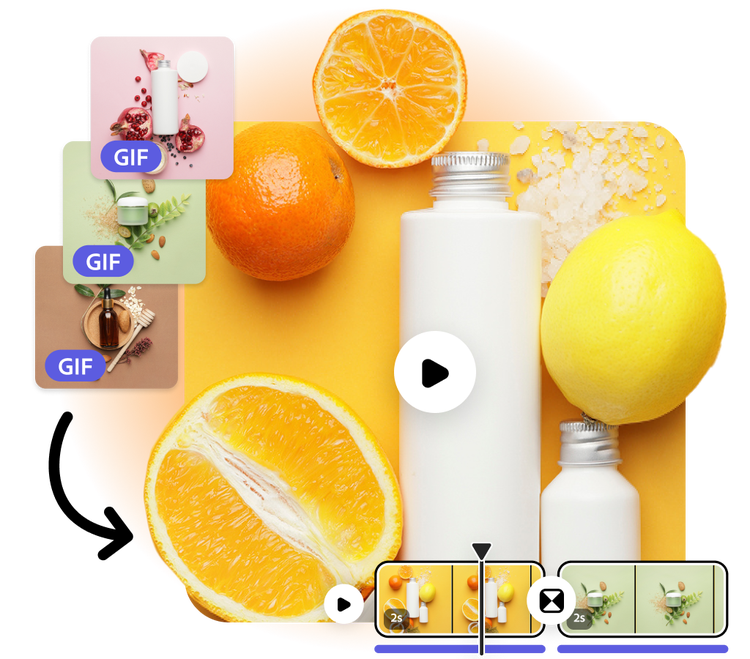
1. Upload.
Drag and drop your GIFs into the combine GIFs maker. Click each GIF and select Add as a scene to make them play sequentially.

2. Customize.
In the Adobe Express editor, you can customize your new GIF video by adding text captions, animations, audio effects, or any other design elements that fit your vision.
3. Share.
When you’re done editing, save and download your new file as an MP4. Share it across your favorite social channels or store it in your device for future use.
Turn a short clip into a feature.
Though GIFs can be a quick way to show your audience your latest seasonal offering or how to log-in to their account, combining it with other GIFs allows you to do so much more. Make a complete how-to video by bringing each GIF into one place. Best of all, MP4 files load faster than GIF files, making them perfect to use on a website or embedded in an email newsletter. Adobe Express makes combining your GIF to an easily shareable video a breeze.

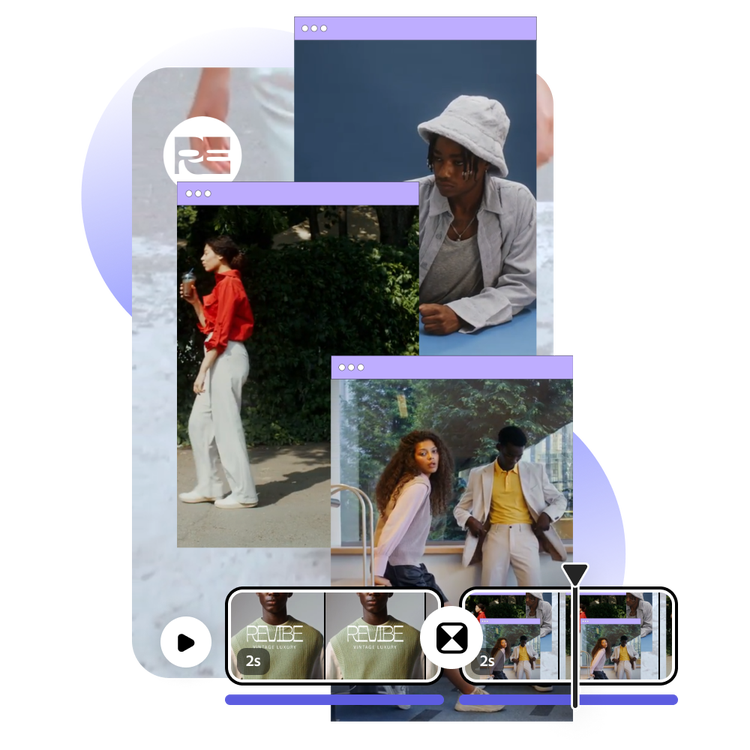
Edit your new GIF video, no experience needed.
After combining your GIFs, it’s easy to add professional-quality edits. Add AI text effects, swap out the background for something more eye-catching, and add seamless transitions between each GIF. Captivate your audience with effects that look like they came from a boutique video production company. Combining GIFs into one video unlocks tons of creative possibilities in Adobe Express.
Combine GIFs for a custom look and feel.
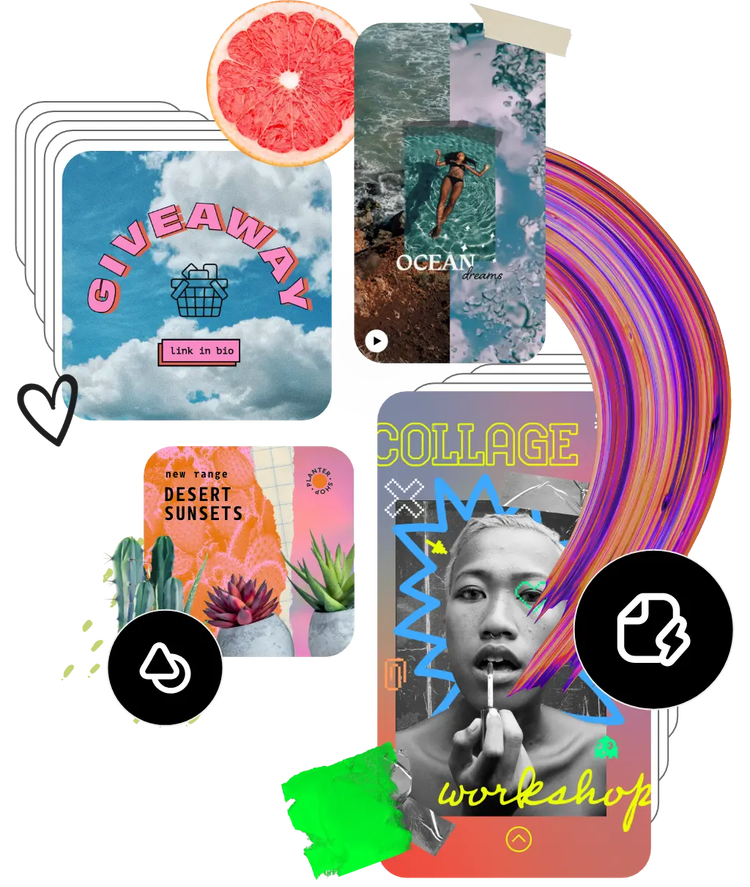
Elevate your business promotions by combining your own content with trending GIFs in Adobe Express. Create a highlight reel of all the milestone GIFs you shared throughout the year. Or combine user-generated GIFs into a short video to show your audience that you value their input. Then share your new eye-catching videos on social media, in emails, or on your website.
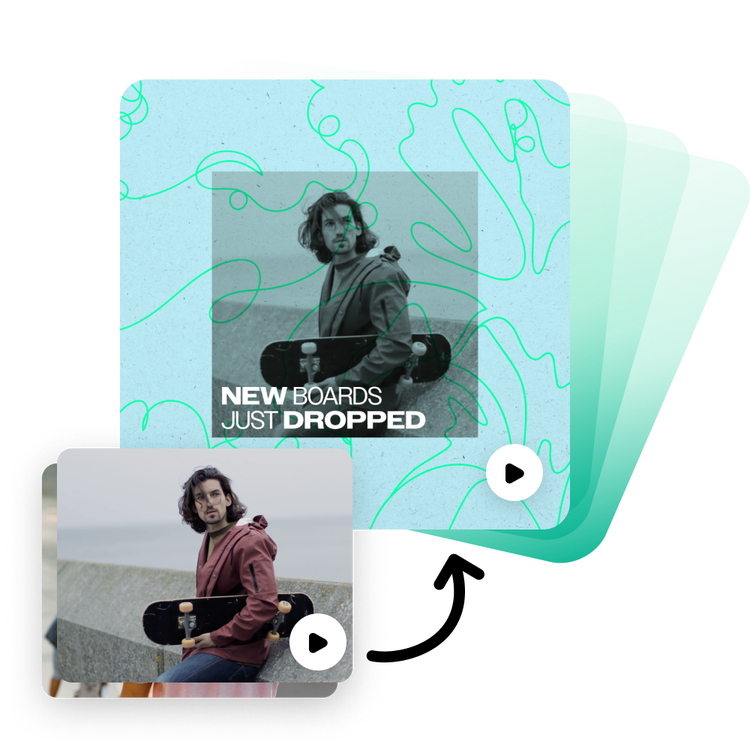
In Adobe Express, your video can go anywhere.
Do you have a vision for where your new video will be seen? Instagram, TikTok, or YouTube for example. After you’ve combined your GIFs and edited your video, Adobe Express makes it easy to resize the video for different uses. Don’t fuss over remembering specific platform dimensions. We have you covered.
Frequently asked questions.
Can I edit my GIFs before combining them?
Yes. Upload your GIF to Adobe Express if you need to isolate a specific frame. Cut it down to the exact scene you want, download it, and use it in your Adobe Express designs. Then, customize your creation with text, icons, color schemes, and more. You can also customize after you’ve combined with your other GIFs.
What file formats are supported for combining GIFs?
In Adobe Express you can combine your GIF into an MP4, PNG, or JPG, depending on your project needs.
Will the quality of my GIF be preserved?
Yes, Adobe Express is designed to maintain the high quality of your animation during the combining and editing process. Your final video will retain clarity and detail, ensuring it looks professional and captivating.
How quickly can I create a short video using the Adobe Express combine GIFs maker?
Combining GIFs is incredibly fast. Once you've uploaded your GIFs you can save the new file instantly as an MP4. Additionally, you can take some extra time completing any editing and customizing you’d like in Adobe Express before finalizing. Either way, the combine GIFs maker is a time efficient tool for creators of all skill levels.
Can I get Adobe Express for free? If so, what’s included?
Yes, we have a free plan available for anyone. Enjoy everything you need to stand out, including thousands of templates, hundreds of Adobe Stock images, photo editing and effects, and much more. Visit our plans and pricing for details.

