



Free Screenshot Capture for Windows.
Take a screenshot capture on Windows using shortcuts you already know and use Adobe Express Photos to annotate with text, shapes, and arrows right in the app. Crop it, mark it up, and share it without opening a second tool.
Now available on Windows only.
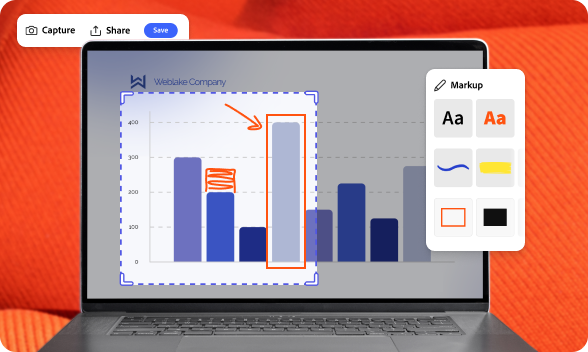
1. Download Adobe Express Photos.
Go to the Microsoft Store and search 'Adobe Express Photos' to download the free app to your Windows device.

2. Capture a screenshot on Windows.
Open Adobe Express Photos from your desktop or enable shortcut permissions and use PrtSc or Win+Shift+S. Capture a selection of your screen, your full screen or an entire scrolling webpage in one click.

3. Annotate, crop, and share.
Add text, shapes, arrows, or highlights directly on your screenshot. Crop it, auto-enhance it, and share it straight from Adobe Express Photos.
Screenshot your whole screen, a selection, or an entire webpage.
Adobe Express Photos gives you three ways to capture. Select any area of your screen with a drag, take a full-screen snapshot with one key, or screenshot an entire webpage - including content below the fold - in a single image.
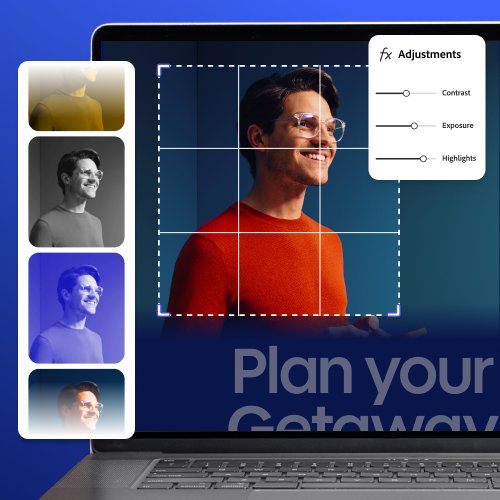
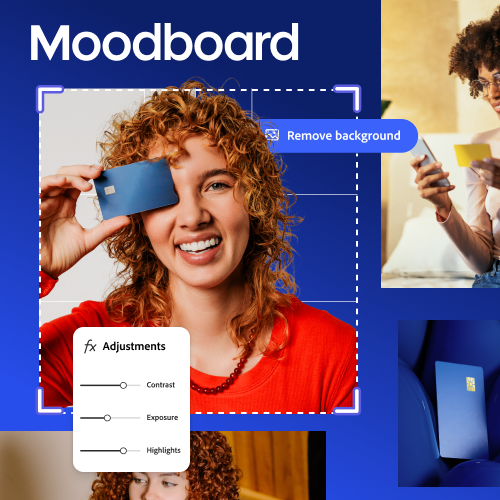
Go beyond basic screenshot annotation.
Adobe Express Photos gives you annotation tools like adding typed text labels, arrows, shapes, and highlights directly on your screenshot - clear, legible markup that communicates what you need.
Built for the way people actually use screenshots at work.
Adobe Express Photos is built for every screenshot workflow from client feedback to bug reports to training guides. You can do the following:
• Annotate a design for client feedback
• Screenshot a workflow step-by-step for a training guide
• Capture a bug with the exact screen state and send it straight to your dev team
• Highlight a data point from a dashboard before your next meeting
Everything your team needs to communicate clearly, in one Windows app.
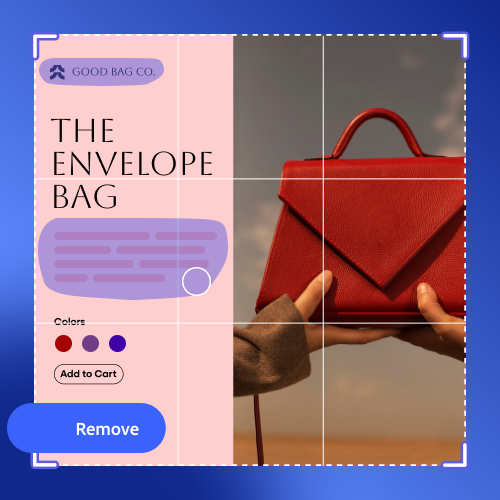
Turn to Adobe Express for polished designs.
Take your images even further with Adobe Express. Once you've edited a photo in Adobe Express Photos, send it straight into Adobe Express to build something more - a social post, a sales flyer, a presentation. Thousands of templates, your brand kit and direct social posting, all connected.
Frequently asked questions.
What types of screenshots can I take with Adobe Express Photos?
Three types: a selection of any area of your screen, a full-screen snapshot, or a full-page scroll capture that screenshots an entire webpage — including everything below the fold — in one image. All three are available from the same app using keyboard shortcuts you already know.
What shortcuts open Adobe Express Photos on Windows?
Once you've installed the app from the Microsoft Store, both shortcuts can automatically route to Adobe Express Photos instead of the default Windows tool. You will have the option to revert to the default Windows tool.
Can I add text to a screenshot on Windows?
Yes — Adobe Express Photos lets you add typed text labels, arrows, shapes, and highlights directly on your screenshot, making it much more useful for feedback, documentation, and training guides.
Does Adobe Express Photos work on Windows 10 and Windows 11?
Adobe Express Photos is a free download from the Microsoft Store and is compatible with Windows 10 and Windows 11. Download Adobe Express Photos from the Microsoft Store.
How do I share my screenshot?
Sharing your screenshots is easy. Click Share to copy the image to your clipboard, send directly to your contacts, or open in another app. Click More and Save as to export the screenshot to your device.
What file formats can I export my screenshot in?
Adobe Express Photos supports exporting as PNG or JPG. The app also opens over 20 different file types, so you're not limited to a single format when working with existing images.

