



Screenshot full pages in one click.
In Adobe Express Photos, you can capture an entire page or document in one shot, then instantly annotate, edit, and share it—making it easier to communicate complete visual context.
Now available on Windows only.
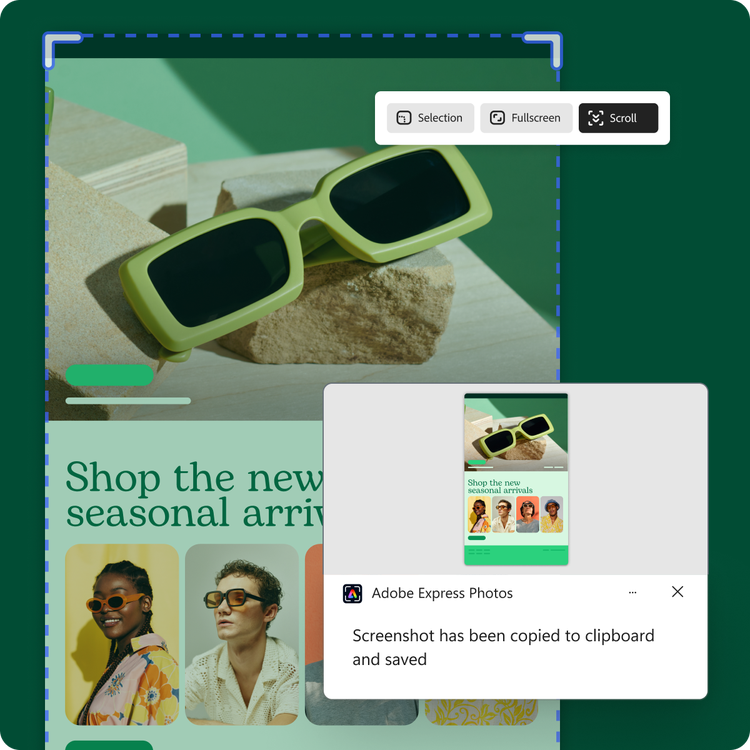
1. Download Adobe Express Photos.
Go to the Microsoft Store and download Adobe Express Photos to your Windows device.
2. Take a scrolling screenshot.
Navigate to the content you want to capture and press the Print Screen key (PrtSc) to open the app—this automatically opens screenshotting in Adobe Express Photos. Click Scroll to start the screenshot capture and Stop Capture when you’ve finished. Markup your screenshot directly from the app.

3. Continue editing.
Save your full page screenshot image, or share directly via email, Microsoft Teams, WhatsApp and more.
What can you capture with a full page screenshot tool.
With Adobe Express Photos, you can bring the receipts. Whether it’s a hilarious group chat you want to immortalize, a massive spreadsheet of data or a web page worthy of your portfolio, the scrolling screenshot capture feature allows you to screenshot longer content in seconds—no need to stitch together multiple screenshots. Just start capturing, scroll, and stop. Then add any necessary annotations without opening another app.
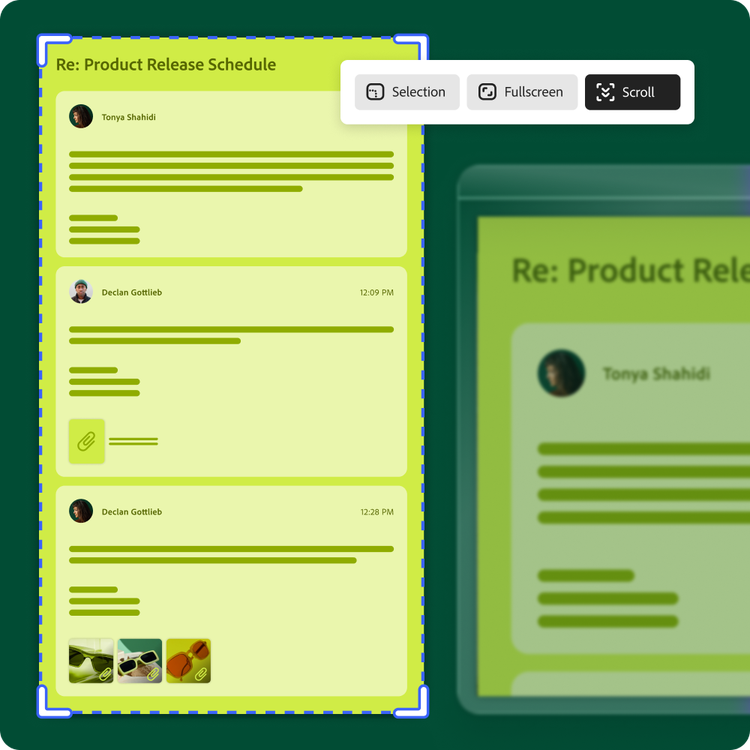
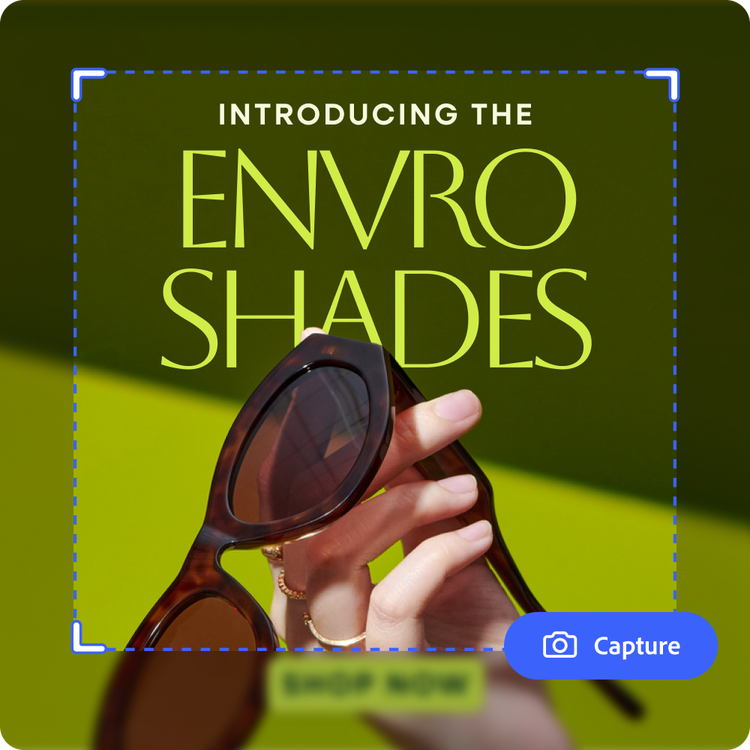
Easily capture full screen and full page screenshots.
Gone are the days of taking multiple screenshots and editing them together to create one full image. Adobe Express Photos is a one-stop shop for screen captures. You can also make selective screen grabs or take a standard full screen shot in one click. Simply download the Adobe Express Photos app from the Microsoft Store and press the PrtSc shortcut on your Windows device to start capturing.
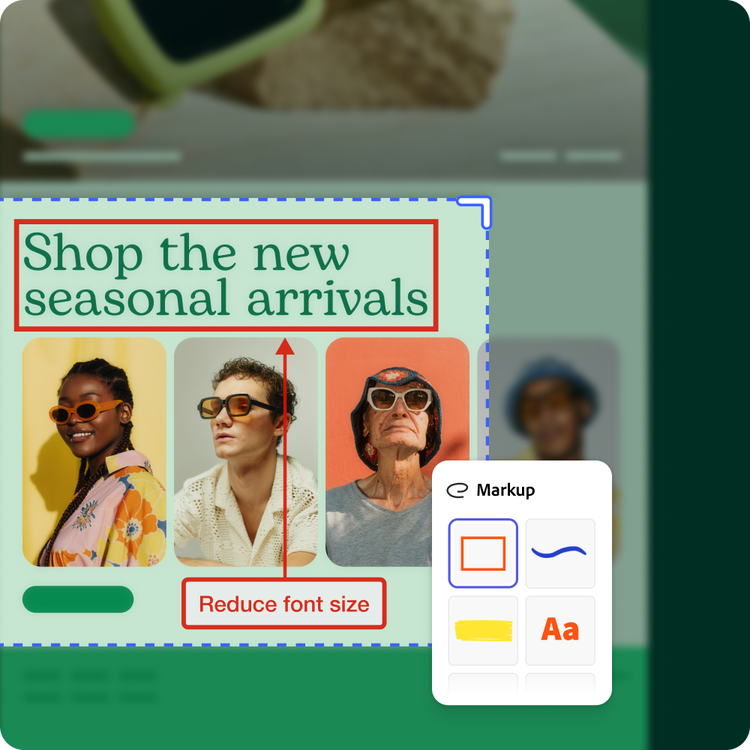
Edit and annotate your full page screenshots in Adobe Express Photos.
Adobe Express Photos offers easy-to-use image editing and markup capabilities—so you can capture and annotate your screenshots in a single app. Crop, straighten, enhance, or even add text, shapes or draw on and highlight your screenshot. Check out the inspiration tab to see all you can create.
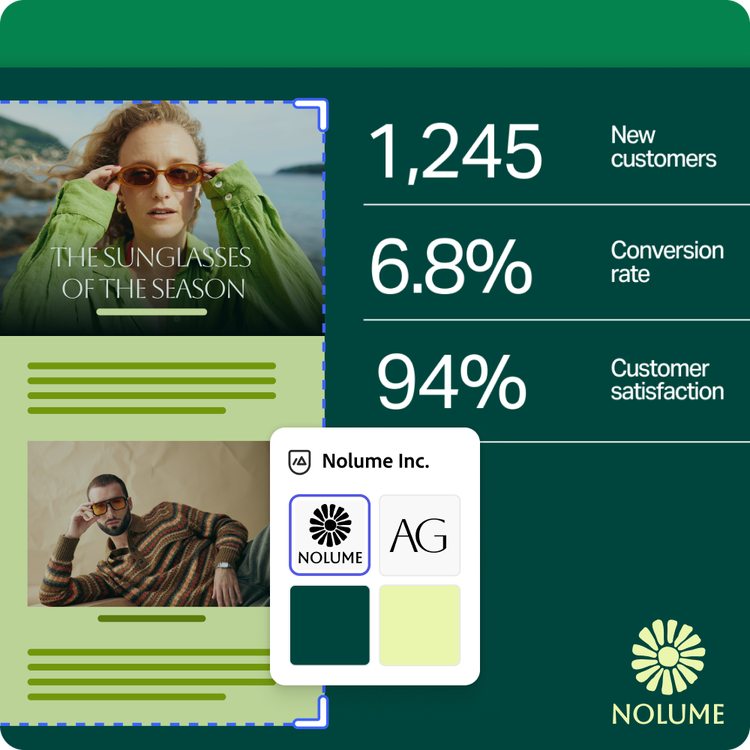
Easily add scrolling screenshots to presentations.
Capture a full page scrolling screenshot and instantly bring it into Adobe Express. Whether you're sharing website designs, analytics dashboards, research findings, or online articles, you can place your screenshot into thousands of professionally designed presentation, video, and social media templates available in Adobe Express. Add your own text, design assets, and animations to create polished, on-brand content that looks professionally designed—without starting from scratch.
Frequently asked questions.
How do I download Adobe Express Photos?
Downloading Adobe Express Photos is easy. Just go to the Microsoft Store and search for Adobe Express Photos. You will be instructed to download the app directly to your device.
How do I take a scrolling screenshot in Adobe Express Photos?
Once you download Adobe Express Photos, you can take screenshots—including scrolling screenshots—using the PrtSc shortcut on your Windows device. Then hit Scroll to capture the entire page. Either hit Scroll Capture or wait until Adobe Express Photos has captured the entire page.
What can I capture with a scroll capture tool?
You can capture entire webpages, documents, chat conversations, dashboards, and other scrollable content as a single image. Instead of taking multiple screenshots and stitching them together, the tool automatically captures the full content from top to bottom.
How do I export my scroll captures?
Sharing your scrolling screenshot captures is easy. Click Share to copy the image to your clipboard, send directly to your contacts, or open in another app. Click More and Save as to export the image to your device.
What Windows versions does Adobe Express Photos support?
Adobe Express Photos is compatible with Windows 10 and Windows 11. Download it directly from the Microsoft Store on your device.
Can I get Adobe Express for free? If so, what’s included?
Yes, Adobe Express has a free plan that includes core features like photo editing tools and effects and thousands of free templates. Learn more about our plans and pricing.

