



Free MP4 compressor.
Reduce file size so your videos upload faster with our quick and easy MP4 compressor.

Drag and drop a video
or browse to upload.
File size can be up to 1GB
 Free to useNo credit card required
By uploading your video, you agree to the Adobe Terms of use and Privacy Policy
1. Upload.
Drag and drop your MP4 file into the compressor tool. Or upload from your device.

2. Compress.
Drag the slider to compress your video. As you do so, the estimated output file size is updated in real time.

3. Continue editing.
Your compressed MP4 video is ready. Save it, share it, or keep editing it to make it your own.

Say goodbye to lengthy upload times.
Deliver a smoother viewing experience with efficiently compressed videos powered by modern codecs. Reduce upload times, instantly download your optimized file, and publish it wherever your audience watches.
Make space for more content.
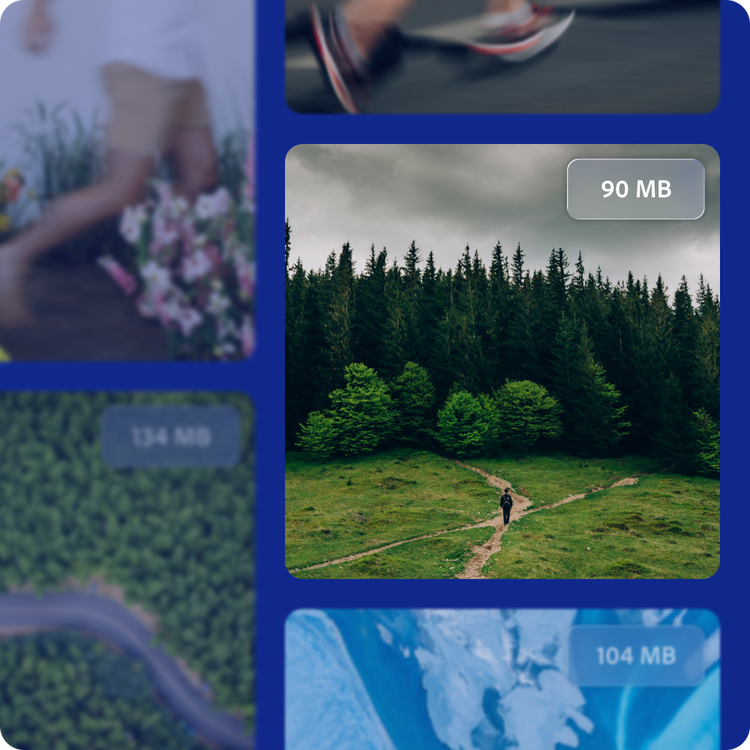
Whether you’re using the latest videography equipment or taking advantage of the high-tech capabilities of your smartphone camera, there’s no question that video files can take up space. That’s where the Adobe Express MP4 compressor comes in. Turn a 1 GB drone video into a 90 MB MP4 ready for Instagram upload. Even in the more manageable size, the video maintains as much visual sharpness as possible.
Compress and enhance your videos in one place.
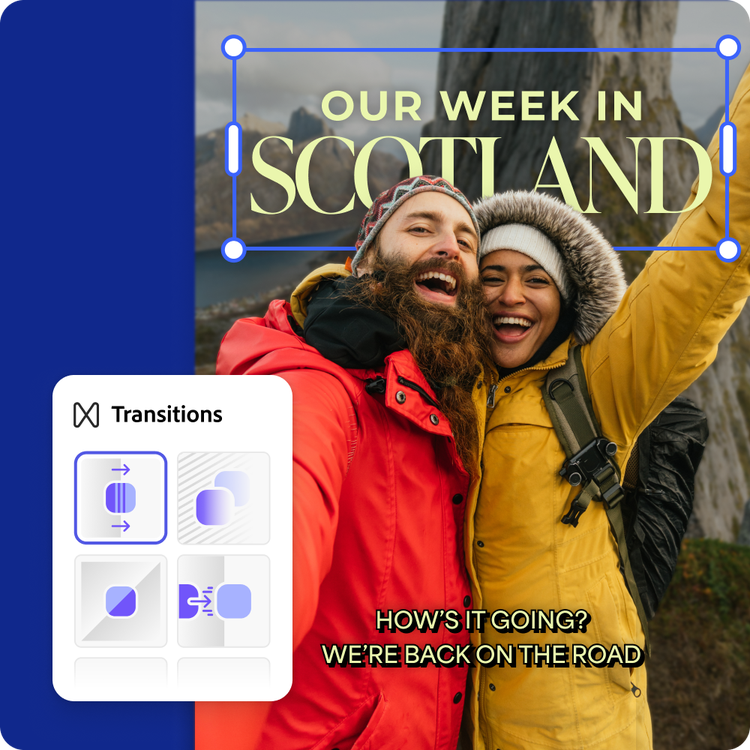
Whether you’re a marketing manager or a traveler with stories to share, compiling and compressing videos is simple with Adobe Express. Take it further with video editing tools anyone can use. Add captions, transitions, and animations for a professional-quality touch.
Hundreds of thousands of templates and assets to start customizing today.
Turn your newly compressed video into a sizzle reel, commercial, or short social video. Explore our template library to get started. Then, add other pre-loaded design assets, fonts, icons, or images to customize your video project. You’ll walk away with a truly unique video, ready to share.

Compress large videos to store and send.
Videos can take up a lot of space. Adobe Express has an easy tool to compress the size of your videos without compromising on the visual quality, built with compression technology. Instantly turn your favorite clips into files that are web- and storage-friendly. Say goodbye to slow website load times and irksome device storage space warnings.
You’re in control of the amount of compression applied to your MP4. In Adobe Express, you can also convert your video files. Turn your MP4 into a smaller GIF or an Apple-friendly MOV. Perfect your videos with the final destination and audience in mind. Just upload, compress, and share.
Tailor videos for every channel.
Not every video is created the same way, nor should it be shared the same way. With our MP4 compressor, you can reduce bitrate to shrink file size while still maintaining the video quality that works best for your purpose. The compression tool takes around approximately 0.25x to 2x the clip duration, depending on the resolution, frame rate, and bitrate.
Simply upload your video file, and the compressor will optimize the bitrate and turn out a file that is ready to share. Need more finishing touches? You can keep editing in Adobe Express. Add audio, transitions, and text. Adjust the timing, trim, and so much more. Creating a captivating, useful video is easy to do, without any video editing expertise needed.
Frequently asked questions.
What is the difference between an MP4 and MOV?
MP4 and MOV are all media file formats, with MP4 being the most common due to its ability to store high-quality visuals in a smaller file size. It also works on most devices and websites. MOV files are often larger, higher quality files, commonly used for professional video editing.
What is the maximum supported MP4 file size?
The Adobe Express video compressor supports MP4 files up to 1 GB in size and video resolutions from 480p up to 4K. The video compressor will give an estimated output file size as you adjust the compression slider.
Why does compression degrade video quality?
Compression is the act of making a file smaller. With video, this is done by removing some of the visual data through reducing details, colors, or motion. Ideally, it’s done subtly and is not noticed by the viewer. Higher levels of compression create smaller files, but often result in videos that appear blurry, pixelated, or distorted.
Can I compress videos on my phone?
Absolutely. This MP4 compressor works on both web and mobile, so you can compress your videos anytime, anywhere.
Can I use Adobe Express for free? If so, what’s included?
Yes, we have a free plan available for anyone. Enjoy everything you need to stand out, including dozens of quick action tools, thousands of templates, photo editing and effects, and much more. Explore our plans and pricing for details.

