

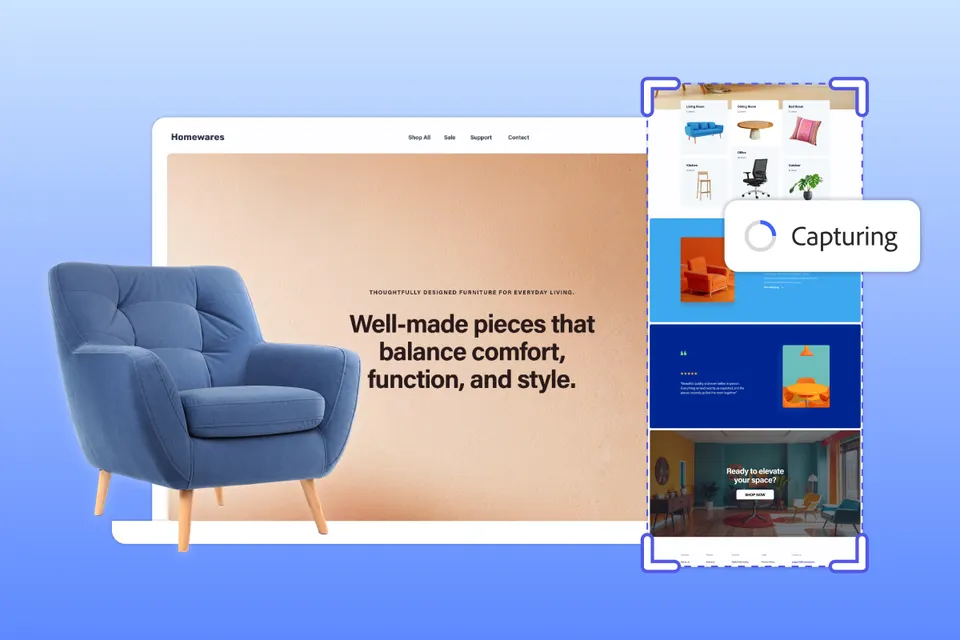
Capturing a long webpage, document, or chat thread usually requires stitching together multiple screenshots because standard screenshots only grab what’s visible on your screen. But full-page screen capture is possible. Even better, taking a scrolling screenshot on Windows is really easy. You can capture an entire webpage in one continuous image without any manual work with Adobe Express Photos, a scrolling capture tool for PC.
Here, you’ll learn how to take a scrolling screenshot on Windows with Adobe Express Photos, which makes the process fast and flexible. And it’s free.
Why standard screenshots aren’t enough
On any given day, you probably take a handful of screenshots to share with coworkers and colleagues, and they’re super handy at getting your message across. But they fall short when you’re dealing with long content. And when they fall short, it’s really frustrating. We’ve all been there — say you’re trying to document a workflow or save a full article with your team — inevitably, it forces you to struggle to stitch several screenshots together. This can get tricky fast.
Since a typical screenshot only captures what’s visible on your screen (as its name implies), you have to zoom out until you can barely read the words. Or, capturing long pages requires multiple screenshots that are inelegantly stitched together, and often details get cropped or missed. It’s just messy.
That’s where full-page screen capture helps. The Adobe Express Photos Scroll Capture tool automatically scrolls down the page for you, grabbing everything in one seamless image, with no zooming, editing, or stitching required.
What is a scrolling screenshot?
Full-page capture for Windows results in a single image that includes all the content on a page. Instead of just grabbing what’s visible on your screen, it will automatically scroll through the totality of the content and capture everything from top to bottom to produce one continuous, high-resolution screenshot.
Imagine capturing entire webpages, full articles, long documents, lengthy conversations, dashboards, and more, and saving it into a clean, easy to share format. It’s especially useful for documentation, collaboration, and record-keeping.
How to capture a full page on windows
You don’t need any complicated workflows, just download Adobe Express Photos from the Microsoft store on desktop. Here’s a step-by-step guide to using Adobe Express Photos:
Step 1: Open the page you want to capture
Step 2: Hit the Print Screen (PrtSc) Key to open Adobe Express Photos
Step 3: Select “Scroll” from the floating toolbar that appears on your screen
Step 4: The app automatically scrolls and captures the entire page
Step 5: Fine-tune the selection or add text, shape, highlights (if necessary)
Step 6: Paste and share instantly
With Adobe Express Photos, you can choose exactly what you want to grab, whether it’s a full-page capture, a scrolling section, or just a very specific part of the page. You can keep your screenshots clean, focused, and free from distractions.
There’s also a built-in markup feature, so you can also add text notes and callouts, highlights, and shapes to guide attention.
Finally, you can save and share in multiple image formats, including PNG, JPG, PDF, and more.
Top use cases for full-page scroll capture
Archiving long articles
Save academic pages, reports, and news articles for offline reading without broken sections or missing context.
Documenting conversations
Capture entire Slack, Teams, or Discord threads in one image. This is ideal for project reviews, legal records, and HR documentation.
Design and UI audits
View a full landing page from header to footer in a single screenshot. Designers can use this for spotting layout issues, spacing problems, and content inconsistencies.
Saving recipes and tutorials
Keep instructions, images, and step-by-step guides together in one continuous file. This is great for cooking recipes, DIY projects, and training materials.
If you’re still stitching together screenshots, you need a Windows screenshot for long pages. Scroll capture in Adobe Express Photos saves time and eliminates friction from your workflow. You can take a scrolling screenshot on Windows in seconds. Plus, it’s free to use with no browser extensions required.


