



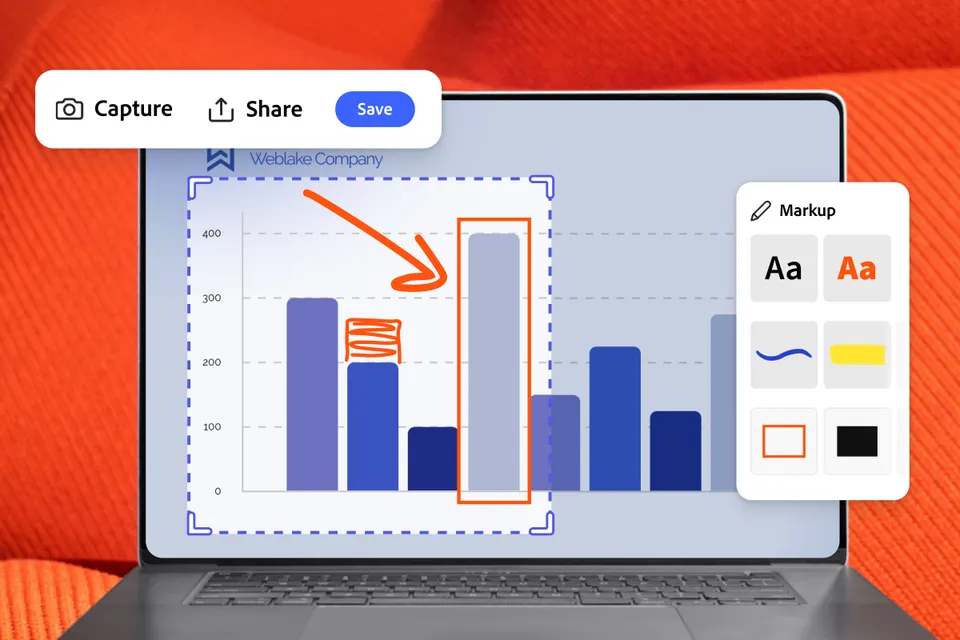
As teams increasingly work digitally (like 99.9% of the time), more valuable new information is on screens and being able to quickly record that information has become a superpower. Whether you’re a content creator, educator, entrepreneur, or simply someone with a computer, screenshots are invaluable. And with Adobe Express Photos, a fast, flexible screenshot tool for Windows, it’s easier than ever to transform these screen captures into eye-catching, shareable content.
How do you take a screenshot on Adobe Express Photos? It’s easy! Just hit the Print Screen Key to open the screenshot bar or right click at the bottom of the task bar to capture a screenshot.
Here are a few practical and creative ways you can use Adobe Express Photos to crop, stylize, and elevate your screenshots to turn them into social-ready posts, professional presentations, collaboration tools, and more.
1. Content creation & social media
Screenshots are often sent directly to teammates for quick communication — to highlight issues or confirm completed tasks, but you can get way more creative. Capture parts of a webpage, app, or design and turn them into polished social media graphics. Or, screenshot a review then add branded backgrounds or your logo for a social post. Try turning quotes, comments, or milestones into Instagram Stories or TikToks with bold type and gradient overlays.
Examples:
- Embedding screenshots into newsletters or print publications using tools like Adobe Express
- Adding screen capture with annotation to inclusion in marketing materials.
- Creating step-by-step guides by placing screenshots alongside text instructions.
- Using screenshots in slides for webinars, demos, or client presentations.
2. Design inspiration
Building mood boards is even easier with Adobe Express Photos because you can screenshot color palettes, typography examples, layouts, or UI elements then arrange them in a collage to share with your team. You can capture entire webpages in a screenshot, too. For UI/UX references, it’s easy to capture navigation flows or other interface elements and annotate with arrows and labels to make feedback clearer.
3. Professional presentations
Screenshots are used in presentations to visually support ideas, showcase designs, or provide examples. Simply drop screenshots of charts, diagrams, or even report snippets into slides and add framing, icons, and title bars to make these ready for webinars, demos, and presentations.
Examples:
- Adding screenshots to slides for webinars, demos, or client presentations.
- Using screenshots with annotation to illustrate key points or provide visual aids during meetings.
4. Collaboration
Screenshots are often sent directly to others for quick communication, feedback, or confirmation. Capture an entire scrolling webpage with a screenshot, instantly mark it up or redact sensitive information, and share it in seconds — all in one screenshot tool. You can also quickly share a design or webpage with comments and highlights with your team (when it would otherwise be long, rambling messages). These could also be before/after comparisons that visually document progress in projects at a glance.
Examples:
- Sending annotated screenshots via email to highlight issues or provide feedback.
- Sharing screenshots with teammates to confirm completed tasks (e.g., ad placement, signed documents).
- Providing screenshots as reference points for discussions during meetings or collaborative projects.
5. Education
An ideal use is to create how-to blog posts, onboarding docs, or internal training with the screenshots of each step of a process from websites. All you have to do is add captions, numbers, and callouts for easy-to-follow instructions. You can also create a reusable template with numbered steps and branding to speed up future guides.
Examples:
- Creating step-by-step guides for internal teams or clients by placing screenshots on a canvas alongside text instructions.
- Using screenshots in formal and informal training materials, such as one-pagers for login instructions or multi-page tutorials.
- Including screenshots in quality assurance reports or bug documentation.
6. AI analysis
Screenshots are great to include with prompts in AI tools for analysis, translation, summarization, or optimization. You can use them as a base for language translation, spell checking, or generating animations. They’re also a great inspiration for creating mock-ups.
Examples:
- Using screenshots to share design mock-ups or examples with clients or team members.
- Submitting screenshots to AI tools for spell-checking, design optimization, or generating animations.
- Providing screenshots to AI for tasks like troubleshooting, proofing, or for document interpretation.
7. Personal organization
Save important information like receipts, itineraries, receipts, and event details. Just screenshot them and organize them into neat layouts. Or, if it’s resolution season, collect screenshots of goals, products, or destinations and design a vision board.
Examples:
- Taking screenshots of slides, charts, or visuals during online meetings for later reference.
- Using screenshots as a visual aid for personal notes or reminders.


