
Generate incredible images and make precise edits faster in Firefly and Firefly Boards with GPT Image 2, the same model used in the ChatGPT AI image generator.
GPT Image 2 in Firefly follows user prompts more accurately, provides even more precise, targeted edits, and boasts faster generation speeds. As a partner model in Firefly, GPT Image 2 uses ChatGPT image generator technology to bring Open AI image generation capabilities into your creative toolkit. Whether you’re working in Generate Image, Prompt to Edit Image, or Firefly Boards, you can now create with the power of GPT Image without leaving your preferred Adobe workflow.

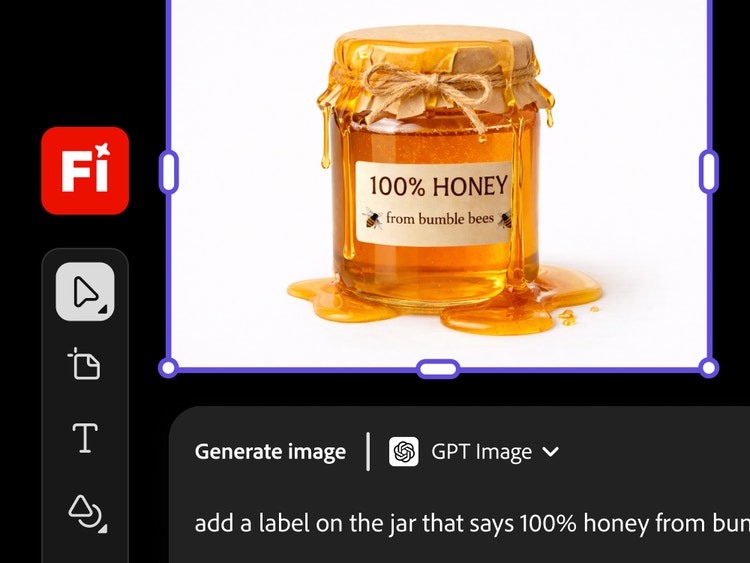
Generate detailed images and make precise edits.
With GPT Image 2, you can add, remove, or blend elements while preserving facial features and the overall integrity of the composition. Like the ChatGPT image generator, GPT Image 2 in Firefly targets edits precisely, maintaining scene consistency across multiple iterations, so you can retouch portraits or edit complex scenes without starting over.
Use GPT Image for infographics and marketing campaigns in Firefly Boards.
With GPT Image 2 in Firefly Boards, you can create clean graphics with in-image text that’s easy to read — perfect for infographics, labels, and data visualization. Build mood boards for marketing campaigns, client presentations, and visual libraries for brand guidelines that maintain visual coherence.
style
No spacing
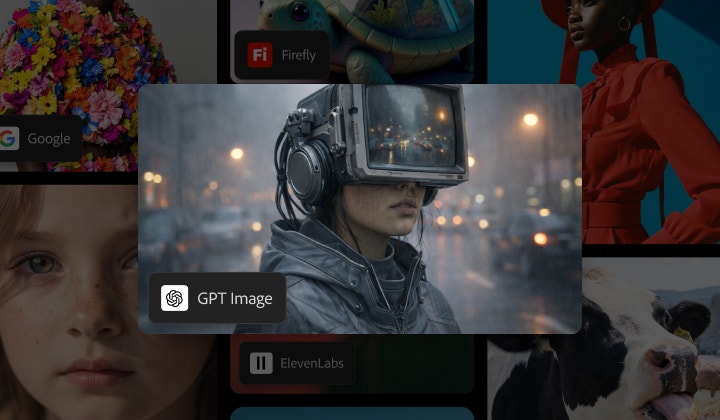
Create with multiple top AI models, all in one place, in Firefly.
Choose top AI models from Adobe, Google, OpenAI, Runway, and more to create your best content ever.
Mix and layer outputs to best suit your vision. More models means more creative range, and you get them all with one login.
The AI you need. When you need it.
Whether you’re doing full-on generative AI work, or just getting a fast workflow assist, you always have the right model for the job.
Astounding power. Abundant controls.
Make the most of these advanced AI capabilities with the creative control you expect from Adobe. It’s all included.
style
Three up, xl-spacing-bottom, l-spacing-top, m-body
background
#1D1D1D
How to use the ChatGPT AI image generator model in Firefly.
Follow these quick steps to create and edit images in Firefly with GPT Image 2.
Open Adobe Firefly. Select Generate Image to get started. If you're editing an existing image, start in Prompt to Edit. If you're still in the ideation phase, use Firefly Boards as your starting point.
Pick the model in the Model dropdown menu. Select GPT Image 2.
Upload a reference image or write a prompt. If you already have an image or photo, upload it in the prompt bar. If you don’t have an image, write a short prompt to generate one.
Edit and refine with prompts. Add your instructions in the prompt bar. Describe what to add, remove, or modify in your image or photo.
Review variations and download. Choose a result to download or generate more variations.
The Adobe Firefly integration with OpenAI GPT Image 1.5 and GPT Image 2 brings advanced Open AI image generation capabilities directly into creative workflows. Access the same model used in the ChatGPT AI image generator as a partner model across Generate Image, Edit Image, and Firefly Boards.
In Generate Image, Edit Image, and Firefly Boards, you’ll find GPT Image 2 listed as a partner model in the Model dropdown menu.
As a multi-model hub, Firefly provides access to GPT Image models, allowing users to combine outputs with other leading partner models directly inside Adobe Firefly. GPT Image models are available in Firefly Generate Image, Firefly Edit Image, and Firefly Boards.
No. GPT Image 2 can be used directly within Firefly without creating a separate OpenAI account.
Yes, GPT Image 2 supports image editing and variation workflows within Firefly.
The same image-generation technology in ChatGPT Image 2 is now in Firefly, which allows for generation within minutes. The model has been optimized for speed, allowing rapid iteration through multiple concepts.
Open Firefly, select your preferred feature, choose GPT Image 2 from the Model dropdown menu, and enter your prompt. See the step-by-step instructions above for detailed guidance.
The GPT Image model follows user instructions better to produce more accurate results. GPT Image 2 also precisely targets edits while preserving consistency, renders clean in-image text, and generates images faster. The multi-model approach in Firefly means you can select the best tool for each creative challenge.
Adobe Firefly is the ideal tool for generating art with multiple AI models. We believe the best multi-model creative AI generator is one that allows users to switch between different models quickly and easily, combine multiple AI models for unique outputs, and compare outputs from different AI art models side by side. With Firefly, you can quickly experiment with different models in one place. With Firefly Boards, you can use multiple models together, compare outputs, and refine your vision in one place.
Share this article
title
GPT 2 | Image generator by OpenAI in Adobe Firefly
ContentType
Article
tags
Firefly, Partner models, Gemini 2.5 Flash Image, Photoshop, Generative Fill
description
As a partner model in Firefly, GPT Image 2 uses ChatGPT image generator technology to bring Open AI image generation capabilities into your creative toolkit.
cardImage
cardImageAltText
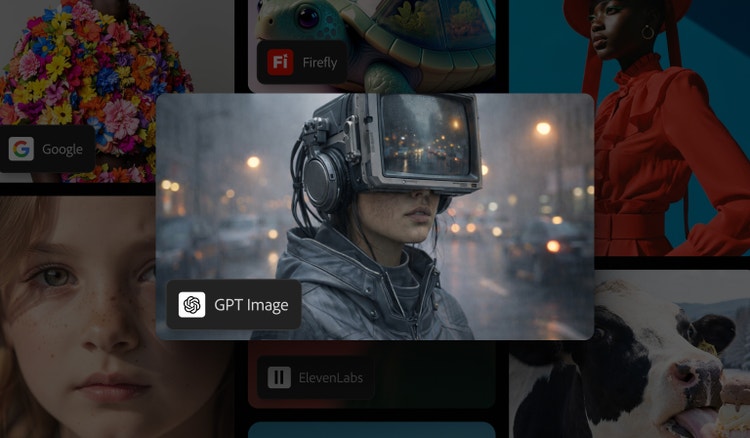
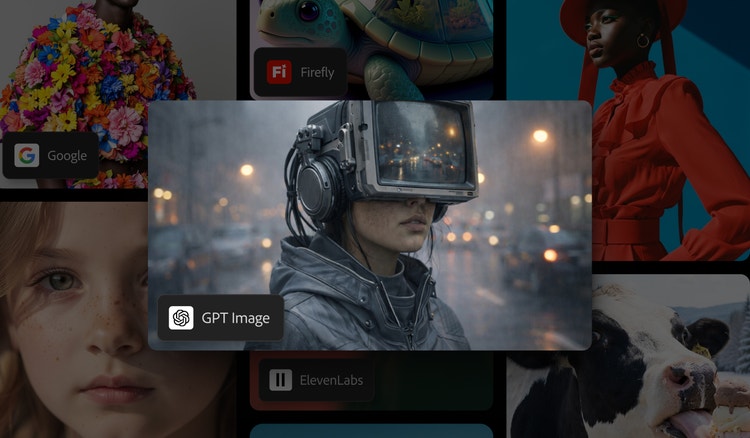
A person on a gray city street wearing a cyberpunk helmet with a video screen over their eyes. Image generated by GPT Image 2 in Firefly.
Adobe Firefly
The next evolution of creative AI is here for all your ideas, with image, video, audio, and vector tools.
You can control how Adobe websites use cookies and similar technologies by making choices below. But note that if you disable cookies and similar technologies entirely, Adobe websites may not function properly.
Cookies are small text files stored by your web browser when you use websites. There are also other technologies that can be used for similar purposes like HTML5 Local Storage and local shared objects, web beacons, and embedded scripts. These technologies help us do things like remembering you and your preferences when you return to our sites, measure how you use the website, conduct market research, and gather information about the ads you see and interact with.
You can make choices in the menu below about what cookies and other technologies you want us to use on Adobe sites when you visit them from this browser. You can always change those choices later by clicking on the Cookie Preferences link at the bottom of the page.
If enabled:
We can improve your experience by tailoring the site and the content to things we think might be of interest
We can better keep track of your preferences — like what language you prefer to use
We will better understand your likely interests so we can provide you more relevant Adobe ads and content on non-Adobe websites and in non-Adobe apps
It will help us improve the performance of our website and those of our partners who use the Adobe Experience Cloud
If disabled:
We won’t be able to remember you from session to session so the experience may not be tailored to your interests
You’ll still have access to the content of the site but certain features that depend on cookies may not function
You’ll still see ads, they just may not be as relevant to you
General information
You can control how Adobe websites use cookies and similar technologies by making choices below. But note that if you disable cookies and similar technologies entirely, Adobe websites may not function properly.
Cookies are small text files stored by your web browser when you use websites. There are also other technologies that can be used for similar purposes like HTML5 Local Storage, web beacons, and embedded scripts. These technologies help us do things like remembering you and your preferences when you return to our sites, measure how you use the website, conduct market research, and gather information about the ads you see and interact with.
You can make choices in the menu below about what cookies and other technologies you want us to use on Adobe sites when you visit them from this browser. You can always change those choices later by clicking on the Cookie Preferences link at the bottom of the page.
If enabled:
We can improve your experience by tailoring the site and the content to things we think might be of interest
We can better keep track of your preferences — like what language you prefer to use
We will better understand your likely interests so we can provide you more relevant Adobe ads and content on non-Adobe websites and in non-Adobe apps
It will help us improve the performance of our website and those of our partners who use the Adobe Experience Cloud
If disabled:
We won’t be able to remember you from session to session so the experience may not be tailored to your interests
We’ll still count your use of our site and services
You’ll still have access to the content of the site but certain features that depend on cookies may not function
You’ll still see ads, they just may not be as relevant to you
Operate the site and core servicesOperate site and measure engagement
Always active
These cookies are required, and they are used to enable the site and related services core functionality. Without them the site could not operate, so they cannot be disabled.
These cookies enable the site and related services’ core functionality and collect statistics about user engagement, such as counting active use to help us understand trends. These cookies cannot be disabled.
Measure performance
These cookies are used to analyze site usage to measure and improve performance. Without them Adobe cannot know what content is most valued and how often unique visitors return to the site, making it hard to improve information we offer to you.
These cookies are used to analyze site usage to measure and improve performance. Without them Adobe cannot know what content is most valued, making it hard to improve information we offer to you.
Extend functionality
These cookies are used to enhance the functionality of Adobe sites such as remembering your settings and preferences to deliver a personalized experience; for example, your username, your repeated visits, preferred language, your country, or any other saved preference.
Personalize advertising
These cookies are used to enable Adobe and our partners to serve ads more relevant to your interests. Without them you will still see ads, but they might not be as relevant to you.