


Remove a white background from any photo.
The background remover in Adobe Firefly detects the edges of your subject and removes a plain white backdrop behind it. What's left is a transparent cutout you can place on any color, image, or scene.



Replace a plain white background in any photo with a backdrop from another photo, or a scene you generate with a prompt.

By uploading your image or video, you agree to the Adobe Terms of Use and Privacy Policy and confirm you are 18 years of age or older.
Do more with this image.
Product photos, scans, and ID-style shots often come with a plain white backdrop that limits where you can use them. With an Adobe Firefly account, you can clear that white background and get a transparent cutout ready to drop into a new design, listing, or scene for free.
The background remover in Adobe Firefly detects the edges of your subject and removes a plain white backdrop behind it. What's left is a transparent cutout you can place on any color, image, or scene.


Once you upload your photo with a white background in Adobe Firefly, you're just one click away from a crisp cutout ready to drop into a listing, a slide deck, or a print layout.
Removing a white background is often just the start. Use the background generator in Adobe Firefly to describe a new scene with a prompt, or place your cutout onto a solid color or existing image instead.


The background remover in Adobe Firefly makes clearing a white background straightforward. Upload your photo, click Remove background in the left sidebar, and download your new image as a PNG file with a transparent background, ready for any project.
Log in to Adobe Firefly with your Adobe ID, or create a free account if you don't have one.
Hover over Image in the Quick Actions menu in the left sidebar, and click Edit image.
Upload your own photo that has a white background, or choose one you already generated in Adobe Firefly.
Select Remove background from the Quick Actions menu in the left sidebar to remove the white backdrop.
Click Download in the top right corner to save your image as a PNG with a transparent background.

Fine-tune the edges left behind after removing a white background, swap in a new backdrop, or place your subject into a different scene, all inside Adobe Firefly. Small adjustments are easy without starting over.


Adobe Firefly pairs its own models with top partner models from FLUX, Google, OpenAI, and others in a single studio. Try a few, then refine the one that fits your style with precision tools.


Adobe Firefly covers the whole arc of a creative idea in one place. Describe what you want, choose a model, adjust the details, and land on a finished image without switching apps.


Move fast when speed matters and dial in every detail when precision matters. Firefly gives you the quality, speed, and flexibility to create your way without the complexity.
"I love anything that helps me stay in the creative flow and background removal in Firefly does exactly that. The cutouts are super clean, which is especially helpful when you work in a fast-paced agency environment with tight deadlines. Being able to prep assets in seconds and stay focused on the creative work instead of jumping between tools makes a huge difference."

"As a content creator and designer, I'm always shooting, and because I often build my work from my own photos and stills, I'm forever trying to lift the subject cleanly off its background. I've used a lot of tools for this, and Remove Background is the most reliable. It always delivers a crisp cutout in one step, which has meaningfully sped up my process."

"Creating YouTube thumbnails is so much faster now that I'm using the Firefly Remove Background tool. With a single click, I now have ready-to-use cutouts of myself. No more slowly cutting myself out of old photos manually!"

"I like layering different portraits and adding text behind images but my curly hair can make that a nightmare. I used to manually key my green screen and switch between different software. Now I can generate and remove backgrounds in Firefly and it creates a much cleaner look in a couple of clicks. I haven't used my green screen in months and I've canceled all my other subscriptions!"

"I basically live with a camera in my bag and I am constantly editing or creating bits on the go or having to work around a super tight deadline, so being able to remove the background seamlessly in my work with literally one click is an absolute game changer, and all the outlines are super clean, too!"

"I used to manually cut subjects out of my images. This was a tedious job and often looked unnatural because of fine details like hair or fur. Remove Background gives me a clean, precise cutouts in seconds, so I can spend my time and energy where it actually matters: the composition."



Learn how to use generative AI to boost productivity and discover new possibilities while maintaining creative control.
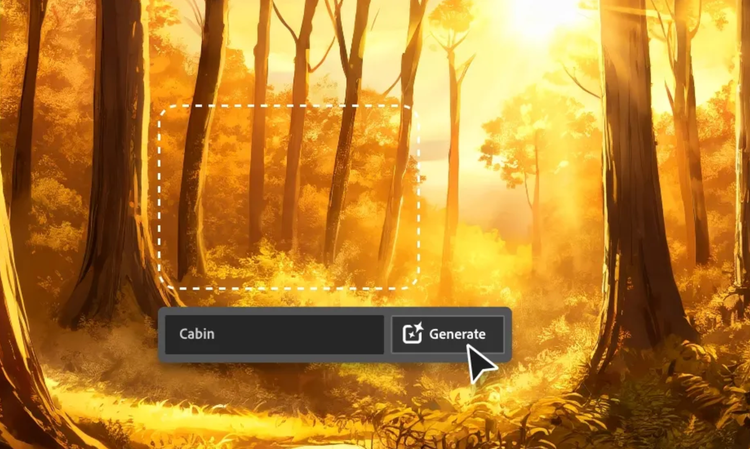
Generative AI is all over the headlines, and that’s not empty hype. This new technology is likely to be part of your life soon. Learn how generative AI works and start streamlining your workflow.

Learn about the AI tools available to graphic designers and how they can help you be more productive and take your work in surprising directions.

The best prompts for AI aren't always obvious. These tips get you to your destination in record time.

