Easily get a transparent cutout with Adobe Firefly.
A busy or cluttered background can throw off an otherwise great photo. Adobe Firefly removes it for free, leaving a clean, transparent cutout you can drop into a new design, listing, or scene.
The background remover in Adobe Firefly makes it simple to create cutouts with clean edges from any image. Upload your photo, let Adobe Firefly remove the background, and download your new image in moments. Your image downloads as a PNG file with a transparent background, ready for any project.
Create transparent backgrounds and download in moments.
Upload your image, click Edit, and click Remove background in the left side bar. That's it. Two clicks and you have a cutout ready to use anywhere.
Do more with your transparent background image.
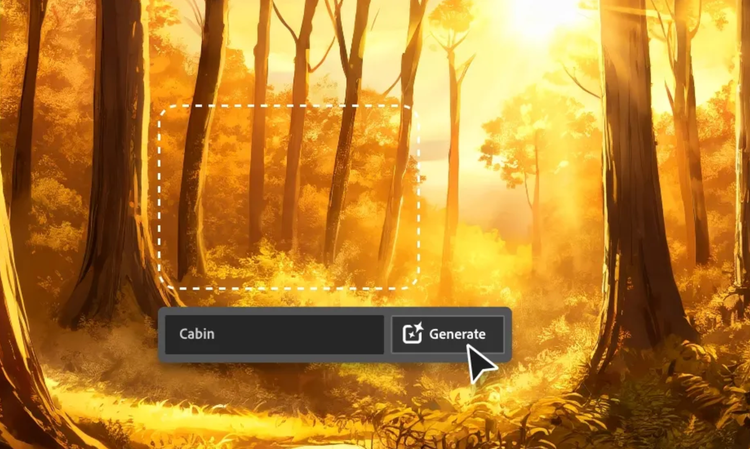
Use the background generator in Adobe Firefly to describe a new backdrop with a prompt, or apply a filter for a different look.
How to get a transparent background with Adobe Firefly.
Log in to Adobe Firefly with your Adobe ID, or create a free account if you don't have one.
Hover over Image in the Quick Actions menu in the left sidebar, and click Edit image.
Upload your own JPG, or choose an image you've already generated in Adobe Firefly.
Select Remove background from the Quick Actions menu in the left sidebar.
Click Download in the top right corner to save your image as a PNG with a transparent background.
Why use Adobe Firefly as a transparent background remover?
Adobe Firefly uses AI to isolate your subject and clear the background from any photo for free, with no manual masking required. Whether you're cleaning up a product photo or building a social post, Adobe Firefly removes the background with speed and precision.
Adjust edges, swap in a new background, or place your subject into a different scene, all inside Adobe Firefly. Small tweaks are easy without starting your cutout over.
Top AI models
Adobe Firefly combines its own models with partner models from Google, OpenAI, FLUX, and more, all inside one creative workspace. Compare results, pick the right one for your project, then polish your project with precision tools.
Your complete creative space
Adobe Firefly carries this cutout from a first upload to a finished image. Refine the edges, swap in a new background, and iterate, all inside Firefly.
Built for creators
Get fast results when you need them, using intuitive tools that automate common image edits. Dial in the details with precision tools when details matter. Firefly adapts to the way you create.
style
two up, s spacing top, l spacing bottom, show-2-desktop, static-links
"I love anything that helps me stay in the creative flow and background removal in Firefly does exactly that. The cutouts are super clean, which is especially helpful when you work in a fast-paced agency environment with tight deadlines. Being able to prep assets in seconds and stay focused on the creative work instead of jumping between tools makes a huge difference."
Andrea MarquezArt Director @ ANDSIOSA
"As a content creator and designer, I'm always shooting, and because I often build my work from my own photos and stills, I'm forever trying to lift the subject cleanly off its background. I've used a lot of tools for this, and Remove Background is the most reliable. It always delivers a crisp cutout in one step, which has meaningfully sped up my process."
EnContent Creator / Designer @en.somniac
"Creating YouTube thumbnails is so much faster now that I'm using the Firefly Remove Background tool. With a single click, I now have ready-to-use cutouts of myself. No more slowly cutting myself out of old photos manually!"
Greg PreeceContent Creator & AI Educator
"I like layering different portraits and adding text behind images but my curly hair can make that a nightmare. I used to manually key my green screen and switch between different software. Now I can generate and remove backgrounds in Firefly and it creates a much cleaner look in a couple of clicks. I haven't used my green screen in months and I've canceled all my other subscriptions!"
Fia Houston-HamiltonCreative Director & Writer @ Figure It Out With Fia
"I basically live with a camera in my bag and I am constantly editing or creating bits on the go or having to work around a super tight deadline, so being able to remove the background seamlessly in my work with literally one click is an absolute game changer, and all the outlines are super clean, too!"
Maria PearlCreative Director/Graphic Designer
"I used to manually cut subjects out of my images. This was a tedious job and often looked unnatural because of fine details like hair or fur. Remove Background gives me a clean, precise cutouts in seconds, so I can spend my time and energy where it actually matters: the composition."
Upload your photo to Adobe Firefly and select Remove background from the Quick Actions menu. Adobe Firefly will isolate your subject and download the result as a PNG file, since PNG is the format that supports transparency.
Yes, Adobe Firefly uses AI to trace fine edges automatically, including hair, fur, and semi-transparent materials. For the sharpest results, start with a photo that has clear contrast between your subject and its background.
Yes. Once your background is gone, use the background generator in Adobe Firefly to describe a new scene with a prompt, or drop your cutout onto a solid color or existing image instead.
Your image downloads with a transparent background by default, saved as a PNG. From there you can layer it over any color, photo, or scene you choose in Adobe Firefly or another editor.
Yes. Adobe Firefly works well for product photography, clearing a busy or inconsistent background and replacing it with a clean studio backdrop, a lifestyle scene, or a solid color that matches your brand.
Yes, the background remover in Adobe Firefly works well for portraits, headshots, and social content too, not just product shots. Fine details like hair and flyaways stay intact, so your cutout is ready for a profile picture or a social post.
The best background remover gives you a clean, precise cutout along with the tools to finish the image, not just an isolated subject. Adobe Firefly does this and brings together top AI models in one studio, with tools that take you from a plain cutout to a finished, polished result.
Adobe Firefly models are trained on licensed and public-domain content, so you can remove backgrounds and edit images with confidence, knowing you can apply your results to professional projects.
You can upload JPEG, PNG, or WEBP files up to 40MB to the background remover in Adobe Firefly. Your image always downloads as a PNG, since that format preserves the transparent background you just created, so going from a JPG to a PNG with the background removed happens in the same step.
Yes, you can use the background remover for free with an Adobe account. A free account gives you access to free daily generations, so you can try Adobe Firefly without a paid plan. Learn more about using Adobe Firefly for free. Paid plans are available for higher-volume generation.
You can control how Adobe websites use cookies and similar technologies by making choices below. But note that if you disable cookies and similar technologies entirely, Adobe websites may not function properly.
Cookies are small text files stored by your web browser when you use websites. There are also other technologies that can be used for similar purposes like HTML5 Local Storage and local shared objects, web beacons, and embedded scripts. These technologies help us do things like remembering you and your preferences when you return to our sites, measure how you use the website, conduct market research, and gather information about the ads you see and interact with.
You can make choices in the menu below about what cookies and other technologies you want us to use on Adobe sites when you visit them from this browser. You can always change those choices later by clicking on the Cookie Preferences link at the bottom of the page.
If enabled:
We can improve your experience by tailoring the site and the content to things we think might be of interest
We can better keep track of your preferences — like what language you prefer to use
We will better understand your likely interests so we can provide you more relevant Adobe ads and content on non-Adobe websites and in non-Adobe apps
It will help us improve the performance of our website and those of our partners who use the Adobe Experience Cloud
If disabled:
We won’t be able to remember you from session to session so the experience may not be tailored to your interests
You’ll still have access to the content of the site but certain features that depend on cookies may not function
You’ll still see ads, they just may not be as relevant to you
General information
You can control how Adobe websites use cookies and similar technologies by making choices below. But note that if you disable cookies and similar technologies entirely, Adobe websites may not function properly.
Cookies are small text files stored by your web browser when you use websites. There are also other technologies that can be used for similar purposes like HTML5 Local Storage, web beacons, and embedded scripts. These technologies help us do things like remembering you and your preferences when you return to our sites, measure how you use the website, conduct market research, and gather information about the ads you see and interact with.
You can make choices in the menu below about what cookies and other technologies you want us to use on Adobe sites when you visit them from this browser. You can always change those choices later by clicking on the Cookie Preferences link at the bottom of the page.
If enabled:
We can improve your experience by tailoring the site and the content to things we think might be of interest
We can better keep track of your preferences — like what language you prefer to use
We will better understand your likely interests so we can provide you more relevant Adobe ads and content on non-Adobe websites and in non-Adobe apps
It will help us improve the performance of our website and those of our partners who use the Adobe Experience Cloud
If disabled:
We won’t be able to remember you from session to session so the experience may not be tailored to your interests
We’ll still count your use of our site and services
You’ll still have access to the content of the site but certain features that depend on cookies may not function
You’ll still see ads, they just may not be as relevant to you
Operate the site and core servicesOperate site and measure engagement
Always active
These cookies are required, and they are used to enable the site and related services core functionality. Without them the site could not operate, so they cannot be disabled.
These cookies enable the site and related services’ core functionality and collect statistics about user engagement, such as counting active use to help us understand trends. These cookies cannot be disabled.
Measure performance
These cookies are used to analyze site usage to measure and improve performance. Without them Adobe cannot know what content is most valued and how often unique visitors return to the site, making it hard to improve information we offer to you.
These cookies are used to analyze site usage to measure and improve performance. Without them Adobe cannot know what content is most valued, making it hard to improve information we offer to you.
Extend functionality
These cookies are used to enhance the functionality of Adobe sites such as remembering your settings and preferences to deliver a personalized experience; for example, your username, your repeated visits, preferred language, your country, or any other saved preference.
Personalize advertising
These cookies are used to enable Adobe and our partners to serve ads more relevant to your interests. Without them you will still see ads, but they might not be as relevant to you.