



Sharpen your photos for free in minutes.
Enhance your photos using the Adobe Express sharpen image tool. Add clarity to lo-res images, out-of-focus photos, or blurry images.
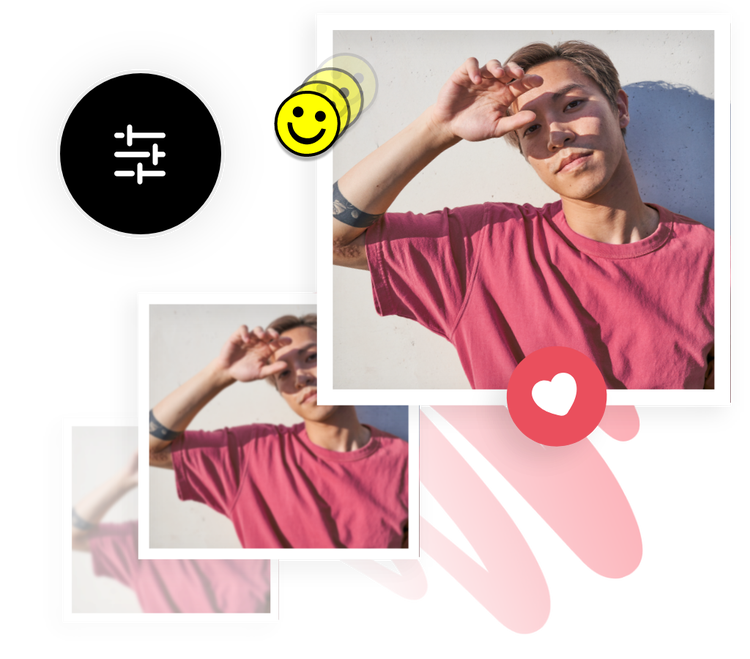
1. Upload.
Upload your desired image from your own photo library or select a stock image to feature in your design.

2. Sharpen.
Select your photo, then open the Adjustments menu. Use the Sharpen sliding scale to add definition to your photo.

3. Continue editing.
Instantly download your design to share with your friends, family, and followers in minutes, or keep editing.
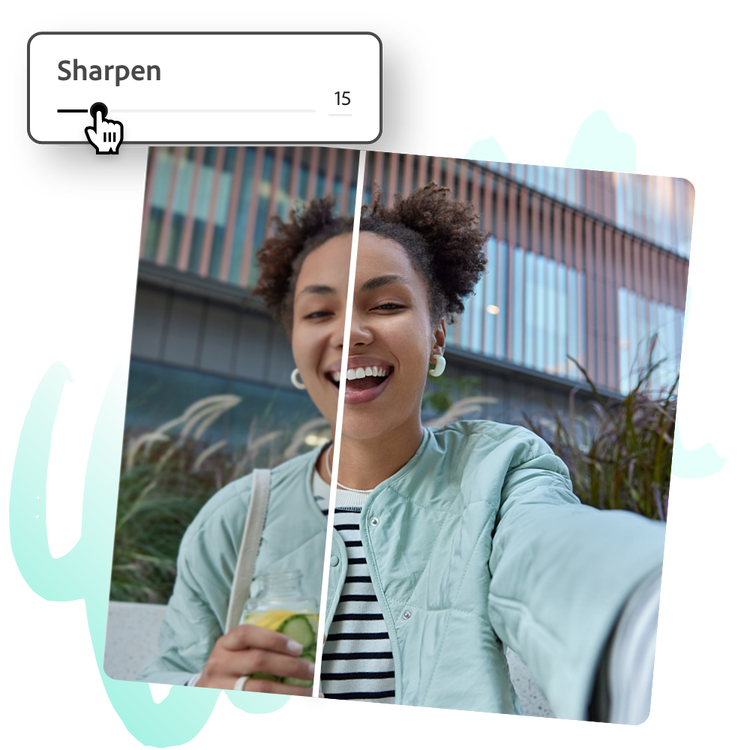
Sharpen your image in seconds.
Launch the free Adobe Express app on your desktop or mobile device to get started sharpening your image. Open your image in the editor, then tap or click on it to open the image editing menu. Select the Adjustments option and then use the Sharpen sliding scale to add clarity to your image.
Sharpen an image with precision.
Next to the sliding scale, you can enter in a numerical value to adjust the sharpening effect. This can be helpful when making precise edits or creating consistent edits across multiple images so they all receive the same amount of sharpening.
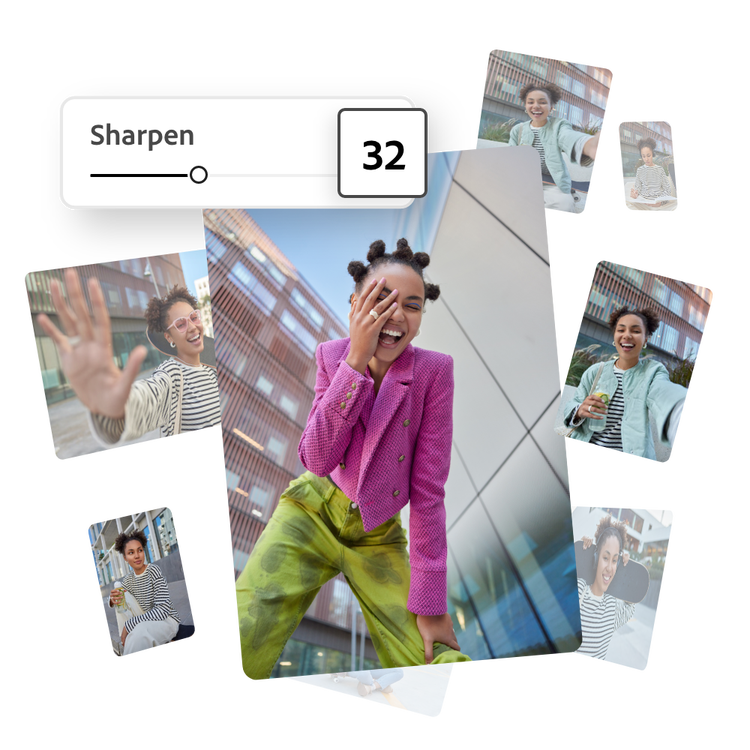
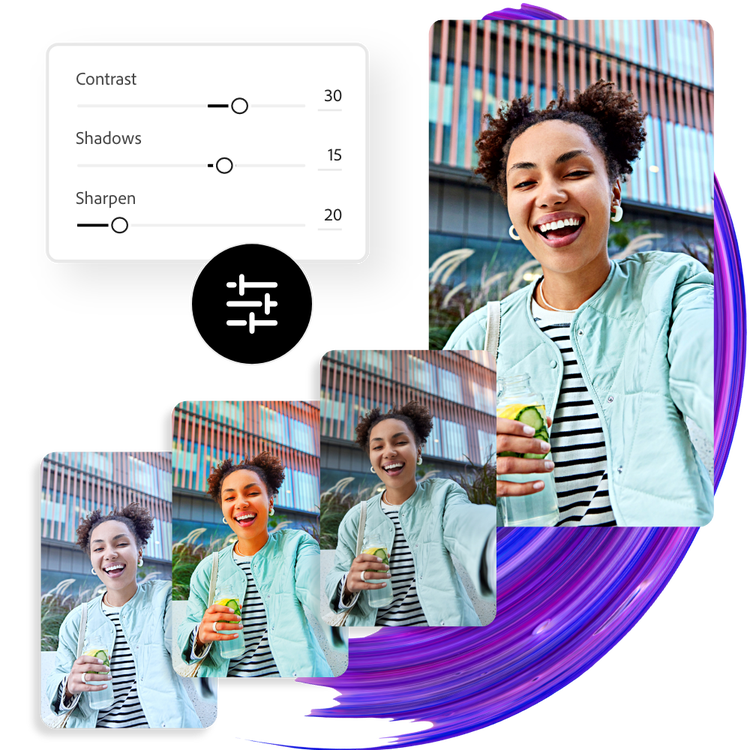
Customize your photo online to make unforgettable content.
Adobe Express makes it easy to achieve professional-quality image edits in minutes. Take time to explore the sharpen image feature, along with the other enhancement options, to start developing your very own editing style. With Adobe Express on your side, all you need to do is open the app to create unique and standout designs that will captivate your audience.
Tons of free templates, video, and audio assets to start from.
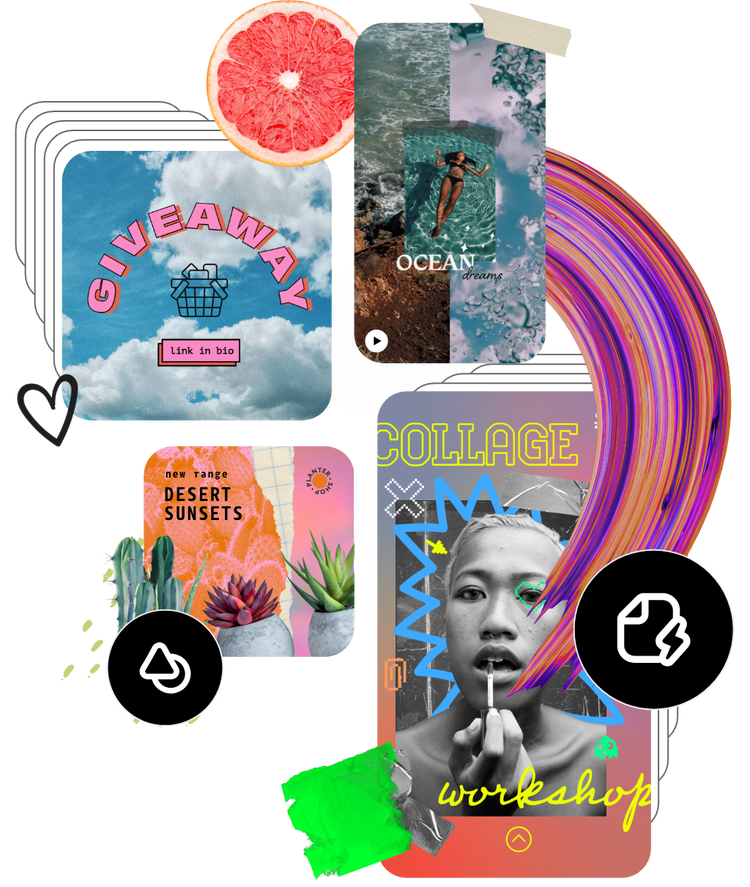
Turn your newly edited image into a stunning flyer, social post, album cover, profile photo, and unlimited other designs. Explore our template library to get started. Then, add other pre-loaded design assets, fonts, icons, or GIFs to personalize your image. There are endless creative opportunities to elevate your designs.
Frequently asked questions.
Can I sharpen a photo on my phone?
Absolutely. Download and launch the free Adobe Express app on your mobile device and instantly sharpen photos on the go so you can make standout content anywhere, anytime.
How can I sharpen a photo for social media?
Choose a canvas size based on your desired social media destination — you can do this by searching for a template using the platform as a keyword or using the Resize option to change the canvas size to preset, popular social media sizes. Then, add your image to your project, apply sharpening effects, and instantly download your finished work right to your device to share online.
Can I sharpen a specific part of the photo with Adobe Express?
For now, the Adobe Express sharpen image feature is applied to an entire image. You are able to customize the amount of sharpening by using the sliding scale for precision.
Does the size or quality change after sharpening the photo?
The size and quality should remain the same, unless you resize your image while editing it, or choose a canvas size that is larger or smaller than your original image. If you wish to maintain the same size of your image from the start, select the option to start from your photo.
Can I get Adobe Express for free? If so, what’s included?
Yes, Adobe Express has a free plan that includes core features like photo editing tools and effects and thousands of free templates. Learn more about our plans and pricing.

