





https://main--cc--adobecom.aem.live/cc-shared/assets/img/firefly.svg Adobe Firefly
Remove text from pictures with Adobe Firefly.
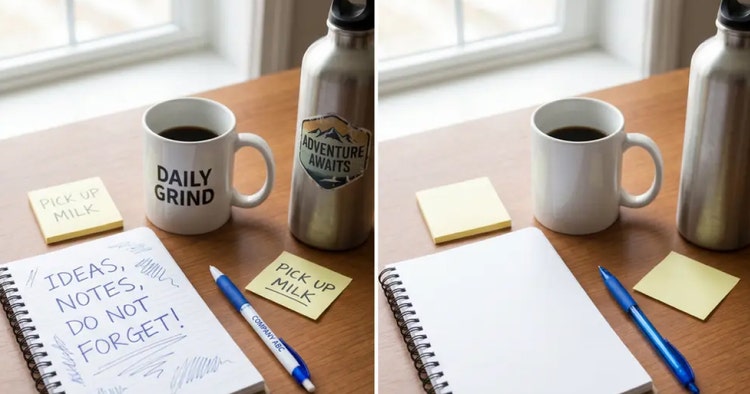
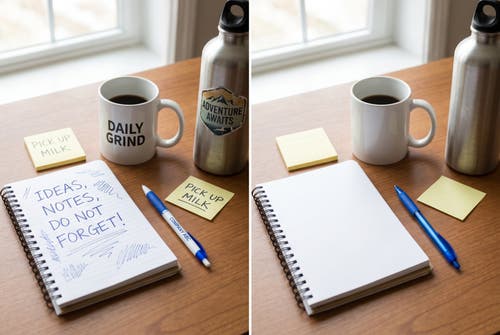
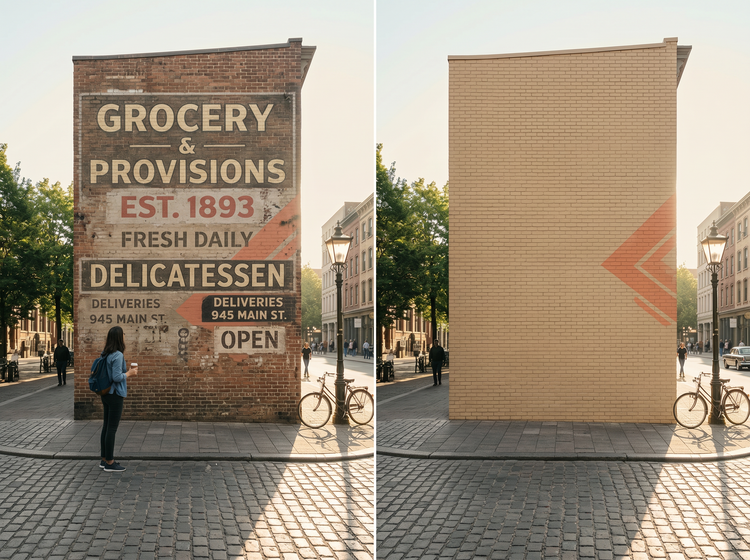
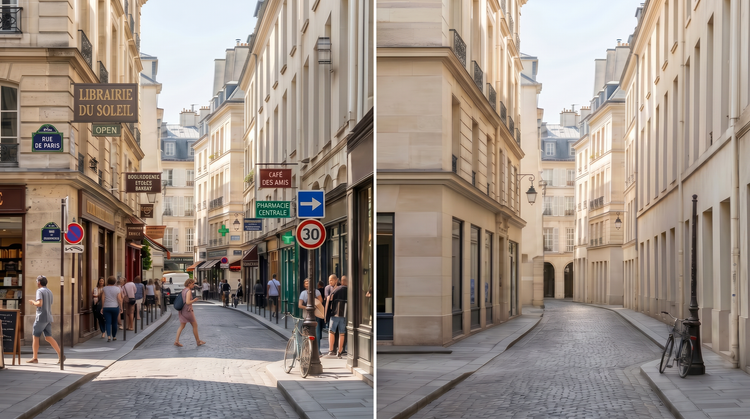
Paint over any text in your photo and let Adobe Firefly replace it with a fill that matches the surrounding area. Signs, labels, overlays, and stickers disappear cleanly.
Or tap here
File must be JPEG (JPG), PNG, or WEBP and up to 100MB.
By uploading your image or video, you agree to the Adobe Terms of Use and Privacy Policy and confirm you are 18 years of age or older.
Or tap here
File must be JPEG (JPG), PNG, or WEBP and up to 100MB.
By uploading your image or video, you agree to the Adobe Terms of Use and Privacy Policy and confirm you are 18 years of age or older.
Or tap here
File must be JPEG (JPG), PNG, or WEBP and up to 100MB.
By uploading your image or video, you agree to the Adobe Terms of Use and Privacy Policy and confirm you are 18 years of age or older.
- Unable to process the request
- Please upload a photo to get started.
https://main--cc--adobecom.aem.live/cc-shared/assets/img/product-icons/svg/firefly-80.svg
Adobe Firefly
The next evolution of creative AI is here for all your ideas, with image, video, audio, and vector tools.
Remove text from pictures without leaving a trace.
The Generative Remove tool in Adobe Firefly reads the textures, colors, and patterns around selected text and generates a seamless fill at full resolution. You get a clean result that holds up whether you’re printing, publishing, or sharing online.
Erase any text and fill the space naturally.
Select the text you want gone, whether it’s a watermark, a street sign, a price tag, or a label, and Adobe Firefly fills the area with content generated from the surrounding context. If the first result isn’t quite right, regenerate with one click until the fill matches your vision.

Get clean results that hold up at full resolution.
Context-aware generation means the fill isn’t just a blurred patch or a cloned sample. Adobe Firefly produces detail that works at full resolution, so you can zoom in, crop tightly, or use the image in print without artifacts around the edit. Use cases that demand clean output, such as product photography, real estate listings, and ad creative, are well within reach.
Stay in control of every selection.
Paint a rough selection over the text or use a precise brush to define exactly what you'd like to be removed. Adobe Firefly works with whatever detail you give it. Broad strokes work well on simple backgrounds. Precise selections give you sharper edge fidelity when the text sits on complex imagery. You can combine both in a single session, removing multiple elements before saving your final image.
How to remove text from a picture.
Step 1
Open Adobe Firefly.
Step 2
Upload your image.
Step 3
Select the text.
Step 4
Generate the fill.
Step 5
Save and download your image.
- How to remove text from a picture.
- Steps on how to remove text from a picture with Adobe Firefly
- PT5M
- firefly
Commercially safe output
Images edited with Adobe Firefly models produce commercially safe output, so you can use cleaned-up photos in ad campaigns, product listings, and client deliverables with confidence.
Top AI models in one place
Adobe Firefly brings together its own models and top partner models in a single creative studio. Whether you’re removing text, generating new imagery, or refining details, you’ve got the tools for the full workflow without switching apps.
Refine your results
Not happy with the first fill? Regenerate with one click. Adjust your selection and try again. Adobe Firefly gives you control over the process so you arrive at the result you actually want.
Seamless integration
Your edited images move easily into the rest of your workflow. Continue refining in Photoshop on the web, drop into an Adobe Express template, or download your image and keep editing it in any Adobe app.