


#000
https://main--cc--adobecom.aem.live/cc-shared/assets/img/firefly.svg Adobe Firefly
AI photo editor: Edit photos and images with AI.
Transform and enhance your photos with AI-powered editing tools and simple text prompts in Firefly.
Or tap here
File must be JPEG(JPG), PNG, or WEBP and up to 100MB.
By uploading your image or video, you agree to the Adobe Terms of Use and Privacy Policy and confirm you are 18 years of age or older.
https://main--cc--adobecom.aem.live/cc-shared/assets/svg/s2-icon-upload-20-n.svg Upload your image
Or tap here
File must be JPEG(JPG), PNG, or WEBP and up to 100MB.
By uploading your image or video, you agree to the Adobe Terms of Use and Privacy Policy and confirm you are 18 years of age or older.
https://main--cc--adobecom.aem.live/cc-shared/assets/svg/s2-icon-upload-20-n.svg Upload your image
Or drag and drop here
File must be JPEG(JPG), PNG, or WEBP and up to 100MB.
By uploading your image or video, you agree to the Adobe Terms of Use and Privacy Policy and confirm you are 18 years of age or older.
https://main--cc--adobecom.aem.live/cc-shared/assets/img/firefly.svg | Adobe Firefly logohttps://main--cc--adobecom.aem.live/cc-shared/assets/img/ff-lockup-f4.svg| Adobe Firefly
AI photo editor: Edit photos and images with AI.
Transform and enhance your photos with AI-powered editing tools and simple text prompts in Firefly.
Or tap here
File must be JPEG(JPG), PNG, or WEBP and up to 100MB.
By uploading your image or video, you agree to the Adobe Terms of Use and Privacy Policy and confirm you are 18 years of age or older.
https://main--cc--adobecom.aem.live/cc-shared/assets/svg/s2-icon-upload-20-n.svg Upload your image
Or tap here
File must be JPEG(JPG), PNG, or WEBP and up to 100MB.
By uploading your image or video, you agree to the Adobe Terms of Use and Privacy Policy and confirm you are 18 years of age or older.
https://main--cc--adobecom.aem.live/cc-shared/assets/svg/s2-icon-upload-20-n.svg Upload your image
Or drag and drop here
File must be JPEG(JPG), PNG, or WEBP and up to 100MB.
By uploading your image or video, you agree to the Adobe Terms of Use and Privacy Policy and confirm you are 18 years of age or older.
- File size larger than 100MB
- Unable to process the request
- We are unable to process this file type. Please try again.
- Only one file can be uploaded at a time.
- Image is smaller than the minimum dimensions (512 x 512 pixels). Please resize and try again.
cgen
promoid=QTV3NS2W&mv=other
- File size larger than 100MB
- Unable to process the request
- We are unable to process this file type. Please try again.
- Only one file can be uploaded at a time.
- Image is smaller than the minimum dimensions (512 x 512 pixels). Please resize and try again.
style
Dark, static links
#000
https://main--cc--adobecom.aem.live/cc-shared/assets/img/product-icons/svg/firefly-80.svg
{{nbsp}}
Edit photos with AI | AI photo editor: Edit photos and images with AI
https://main--cc--adobecom.aem.live/cc-shared/assets/img/product-icons/svg/firefly-80.svg
Adobe Firefly
Use everyday language to create extraordinary results with generative AI.
Edit photos with AI | AI photo editor: Edit photos and images with AI
https://main--cc--adobecom.aem.live/cc-shared/assets/img/product-icons/svg/firefly-80.svg
Adobe Firefly
Use everyday language to create extraordinary results with generative AI.
Edit photos with AI | AI photo editor: Edit photos and images with AI
https://main--cc--adobecom.aem.live/cc-shared/assets/img/product-icons/svg/firefly-80.svg
{{nbsp}}
Edit photos with AI | AI photo editor: Edit photos and images with AI
https://main--cc--adobecom.aem.live/cc-shared/assets/img/product-icons/svg/firefly-80.svg
Adobe Firefly
Use everyday language to create extraordinary results with generative AI.
Edit photos with AI | AI photo editor: Edit photos and images with AI
https://main--cc--adobecom.aem.live/cc-shared/assets/img/product-icons/svg/firefly-80.svg
Adobe Firefly
Use everyday language to create extraordinary results with generative AI.
Edit photos with AI | AI photo editor: Edit photos and images with AI
style
Sticky bottom, dark
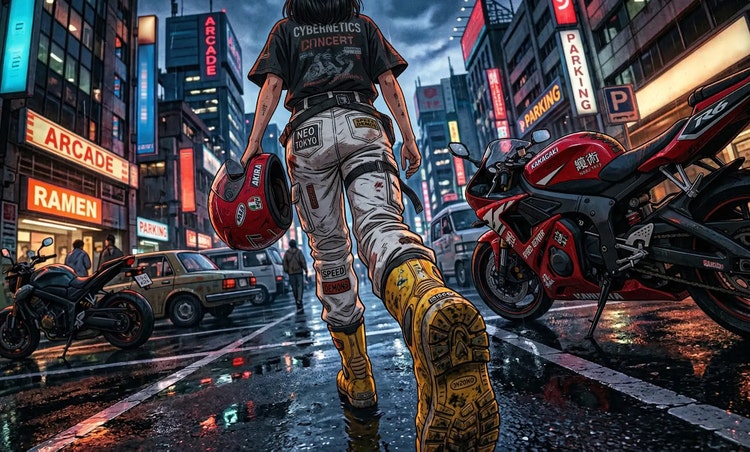
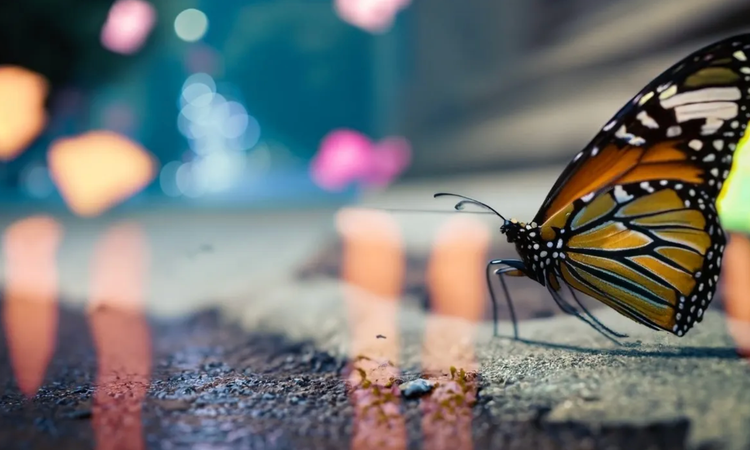
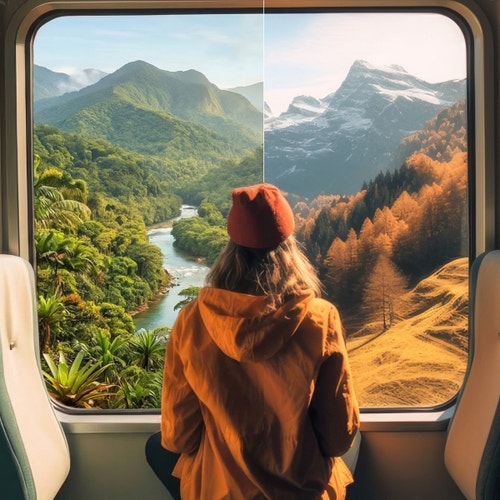
Smart photo editing tools powered by AI.
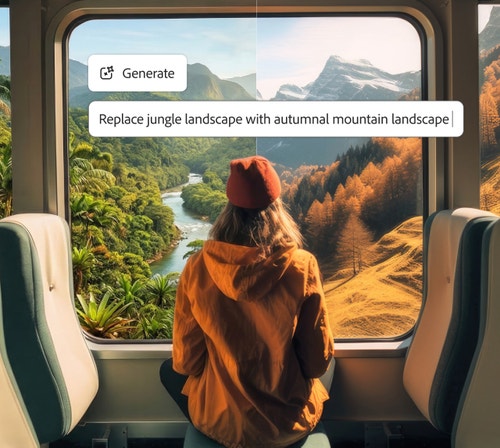
Experience faster, more intelligent editing with Prompt to Edit AI photo editor capabilities. Powered by generative AI, Firefly simplifies image enhancement — from auto-retouching and color correction to background removal and object replacement.
background
#FFF
style
xxl-spacing-top, xl-top-rounded-corners, static links
How to edit photos using the Firefly AI photo editor.
Step 1
Open Firefly to access Quick Actions and edit photos with AI.
To get started, log in to Adobe Firefly with your Adobe ID or create a free account if you don’t have one. Browse features and Quick Actions to edit your photo or open the Prompt to Edit feature directly in Firefly.
Step 2
Upload a photo.
In the Image module, you can either choose a previously generated image from the Generate tab, or click the Edit tab to upload your own images.
Step 3
Choose an AI model.
Select an image generator model from the dropdown menu in the prompt field. You can choose the Firefly image model, or partner models from Google, OpenAI, and more.
Step 4
Write a text prompt.
Type a clear description of what you’d like to change directly into the prompt field. Start with at least five words for the best results, for example, “remove the power lines from the sky” or “add warm sunlight and a soft glow.” You can include specific keywords like “vintage look,” “realistic lighting,” or “studio background” to the AI photo editor toward your desired style.
Step 5
Review edited results.
Click Generate and wait as Firefly edits your image in seconds.
Step 6
Refine, edit, regenerate.
Refine your image by tweaking the prompt or adjusting the settings for a fresh result. Use one of the additional AI photo editor features in Firefly like Generative Remove, Generative Expand, or Generative Upscale to expand your creativity.
Step 7
Download and share.
Once you’re satisfied with your creation, you can download it, copy it to your clipboard, or share it directly with others. Turn your AI-edited photo into eye-catching social posts, videos, flyers, and more.
- How to edit photos using the Firefly AI photo editor.
- Steps on how to edit photos using the Firefly AI photo editor
- PT5M
- firefly
Step 1
Open Firefly to access Quick Actions and edit photos with AI.
Step 2
Upload a photo.
Step 3
Choose an AI model.
Step 4
Write a text prompt.
Step 5
Review edited results.
Step 6
Refine, edit, regenerate.
Step 7
Download and share.
- How to edit photos using the Firefly AI photo editor.
- Steps on how to edit photos using the Firefly AI photo editor
- PT5M
- firefly
Generate now | How to edit photos using the Firefly AI photo editor
style
xl-bottom-rounded-corners
background
linear-gradient(180deg, #FFF 0%, #F0F0F7 27.32%)
background
#FFF
style
xxl-spacing-top, xl-top-rounded-corners, static links
#FFF
Professional-grade results
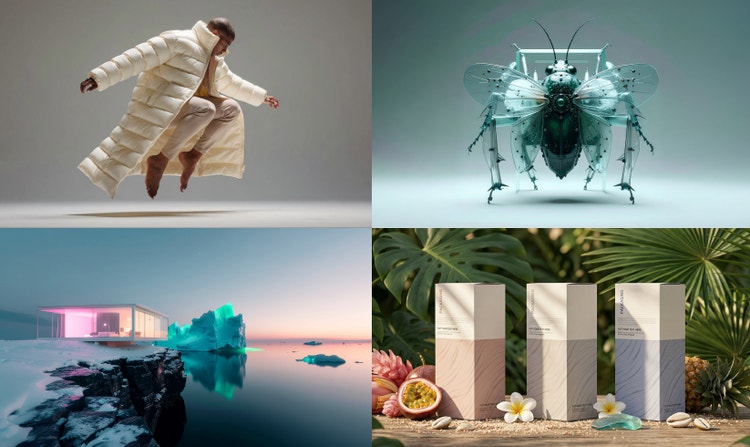
Firefly combines creative expertise with advanced generative AI to deliver stunning, high-quality images you can trust for personal and commercial projects.
Professional-grade results
Firefly combines creative expertise with advanced generative AI to deliver stunning, high-quality images you can trust for personal and commercial projects.
#FFF
Smarter creative workflow
Use natural-language prompts to enhance photos, remove distractions, or generate entirely new visuals in just a few clicks.
Smarter creative workflow
Use natural-language prompts to enhance photos, remove distractions, or generate entirely new visuals in just a few clicks.
#FFF
Flexible AI models
Choose between Firefly models for commercially safe, brand-ready results trained on licensed Adobe and public domain content, or explore partner models from Google, OpenAI, Runway, and more for faster style experimentation.
Flexible AI models
Choose between Firefly models for commercially safe, brand-ready results trained on licensed Adobe and public domain content, or explore partner models from Google, OpenAI, Runway, and more for faster style experimentation.
style
Three up, s spacing top, xxl spacing bottom, show-2-desktop
background
#FFF
#FFF
Creative control made simple
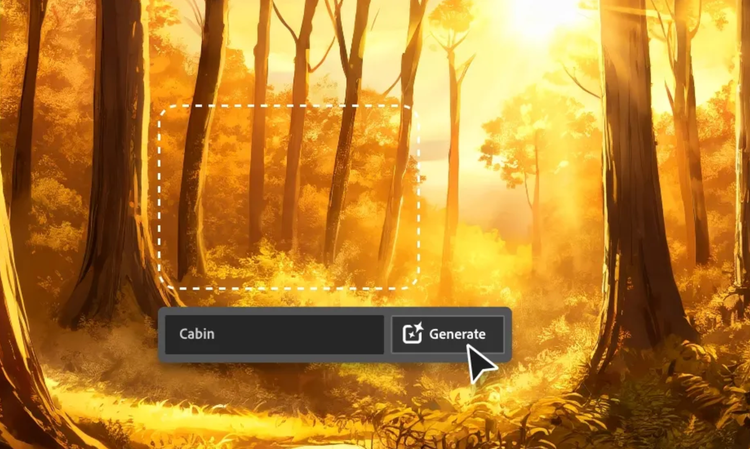
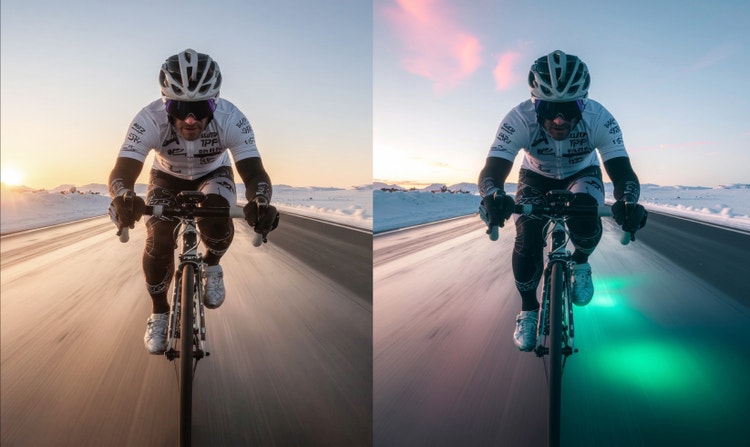
Fine-tune your image from lighting and composition to tone and texture with Prompt to Edit, Generative Fill, Generative Recolor, Replace Background, and one-click Quick Actions like crop or resize for instant polish.
Creative control made simple
Fine-tune your image from lighting and composition to tone and texture with Prompt to Edit, Generative Fill, Generative Recolor, Replace Background, and one-click Quick Actions like crop or resize for instant polish.
style
two up, s spacing top, l spacing bottom, show-2-desktop
background
#FFF
Edit photos with AI | Edit photos with AI - Why use Firefly for AI photo editing
background
#FFF
style
xl-top-rounded-corners, static links
See what you can do in Firefly.
A blank poster on a wall in an eclectic and colorful loft
A sleek white sports car is centered in a dimly lit, industrial setting
A female model with a short cropped haircut, bold green eyeliner, red, deep blue, and bold green palette
Discover even more features.
background
#F0F0F7
Generate Image AI video editor Character generator Image to image Scene to image Generative match Moodboard maker Storyboard generator AI portrait generator Nano Banana GPT Image Generate background
background
linear-gradient(180deg, #FFF 0%, #F0F0F7 27.32%)
style
xl-bottom-rounded-corners, spacing-bottom-180
Questions? We have answers.
What is an AI photo editor?
An AI photo editor uses artificial intelligence to simplify image editing and enhancement. With Adobe Firefly, you can upload or generate an image, then use intuitive prompts to remove objects, adjust lighting, change backgrounds, or refine color and composition easily.
What is the best AI photo editor?
The best AI photo editor enables users to quickly and easily make major transformations and quick edits, such as replacing a background or retouching the fine details of an image, with high-quality results. The Adobe Firefly AI photo editor is a strong choice for achieving such results without sacrificing creative control.
Do I need design skills to use an AI photo editor?
The Firefly AI image editor is built for everyone, so you can make professional-quality edits using simple text prompts without advanced photo editing skills.
Can I use Firefly photo editor capabilities on mobile devices?
Adobe Firefly works seamlessly across devices, so you can create and edit on desktop, mobile, or tablet, whether you’re using Mac, Windows, iOS, or Android. Start refining images on your laptop, then switch to your phone or tablet to keep editing on the go.
Projects sync automatically through Creative Cloud, making it easy to collaborate with teammates or clients and maintain a consistent workflow across platforms. Firefly also supports style transfers and other creative effects, so you can match looks or themes between devices without losing quality or context.
What types of photo edits can I make with AI?
With Adobe Firefly, you can:
- Use Prompt to Edit to add, remove, or replace objects and backgrounds.
- Clean up images with Generative Fill to remove unwanted elements.
- Transform photos into new styles or moods using image-to-image editing.
The AI photo editor gives you flexible tools to enhance, reimagine, and perfect any image.
Which AI photo editor gives natural results?
Adobe Firefly is built for realism and professional-grade quality. Its models are trained on licensed content to produce commercially safe, natural-looking edits that blend seamlessly into your images.
Which AI photo editor is best for beginners?
Adobe Firefly is ideal for beginners thanks to its easy-to-use interface and simple text-based editing. You can start creating right away, experiment freely, and refine results without advanced photo editing experience.
Is the Adobe Firefly AI photo editor free to use?
Yes, you can use the Prompt to Edit feature in Firefly for free ai photo editor capabilities with a Firefly Free plan. Free users receive a set number of limited monthly generative credits for both standard and premium features, and a paid subscription is not required.
Is the Firefly AI photo editor safe for commercial use?
Firefly generative AI models are commercially safe. The Adobe Firefly generative AI models were trained on licensed content, such as Adobe Stock, and public domain content where copyright has expired. For partner models, you are responsible for determining whether the model is appropriate for your project.
What is an AI photo editor?
What is the best AI photo editor?
Do I need design skills to use an AI photo editor?
Can I use Firefly photo editor capabilities on mobile devices?
Adobe Firefly works seamlessly across devices, so you can create and edit on desktop, mobile, or tablet, whether you’re using Mac, Windows, iOS, or Android. Start refining images on your laptop, then switch to your phone or tablet to keep editing on the go.
Projects sync automatically through Creative Cloud, making it easy to collaborate with teammates or clients and maintain a consistent workflow across platforms. Firefly also supports style transfers and other creative effects, so you can match looks or themes between devices without losing quality or context.
What types of photo edits can I make with AI?
With Adobe Firefly, you can:
- Use Prompt to Edit to add, remove, or replace objects and backgrounds.
- Clean up images with Generative Fill to remove unwanted elements.
- Transform photos into new styles or moods using image-to-image editing.
The AI photo editor gives you flexible tools to enhance, reimagine, and perfect any image.
Which AI photo editor gives natural results?
Which AI photo editor is best for beginners?
Is the Adobe Firefly AI photo editor free to use?
Is the Firefly AI photo editor safe for commercial use?
Share this page
style
xxxl spacing bottom
#F0F0F7
Explore more Firefly tools.
#FFF
What is Generative AI
Generative AI includes technologies like large language models (LLMs) and multimodal models that blend text, images, and more that let users creatively transform everything from design to video. Learn more about generative AI — how it works, what it’s trained on, and how it’s reshaping creative workflows.
Learn more | Learn more - What is Generative AI
#FFF
How does Generative AI Work
Generative AI is all over the headlines, and that’s not empty hype. This new technology is likely to be part of your life soon — if it’s not already. Learn how generative AI works and start streamlining your workflow.
Learn more | Learn more - How does Generative AI Work
#FFF
Revolutionizing Creation: AI Art Use Cases
Discover the many applications of AI art and how it’s transforming the creative landscape.
Learn how | Learn how - Revolutionizing Creation: AI Art Use Cases
#FFF
How to use AI image generated backgrounds
Learn how to capture audience attention using product photography with AI-generated backgrounds.
Learn more | Learn more - How to use AI generated backgrounds for product photography
style
Show-4-desktop, s spacing top, xxl spacing bottom
background
#F0F0F7
theme
doodlebug
title
AI Photo Editor | Edit photos online | Adobe Firefly
description
Edit photos instantly with AI. Enhance, retouch, and transform images in one click—no design skills needed. Fast, smart, and easy to use.
image
personalization
https://main--da-cc--adobecom.aem.page/products/firefly/features/ai-photo-editor.json