



Blur an image for free in minutes.
Upload and blur a photo online using the Adobe Express easy-to-use image blur tool.
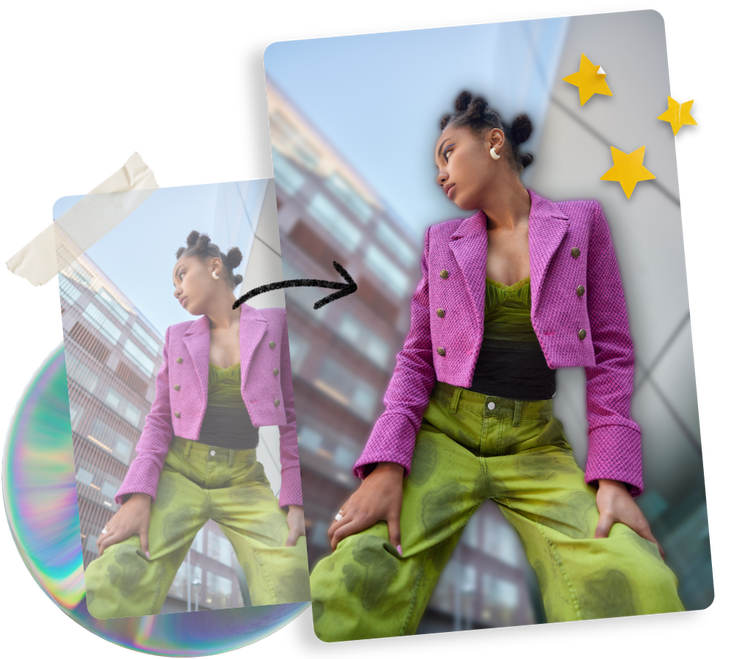
1. Upload your image.
Upload an image from your desktop or mobile device. Alternatively, browse thousands of free Adobe Stock images to find the perfect image to start editing.

2. Blur.
Select your photo, then choose the Adjustments option. Look for the sliding scale that says Blur and drag the lever to decrease focus and blur your image.

3. Continue editing.
Keep editing or instantly download your newly blurred image to share on your social channels or print it out at home.
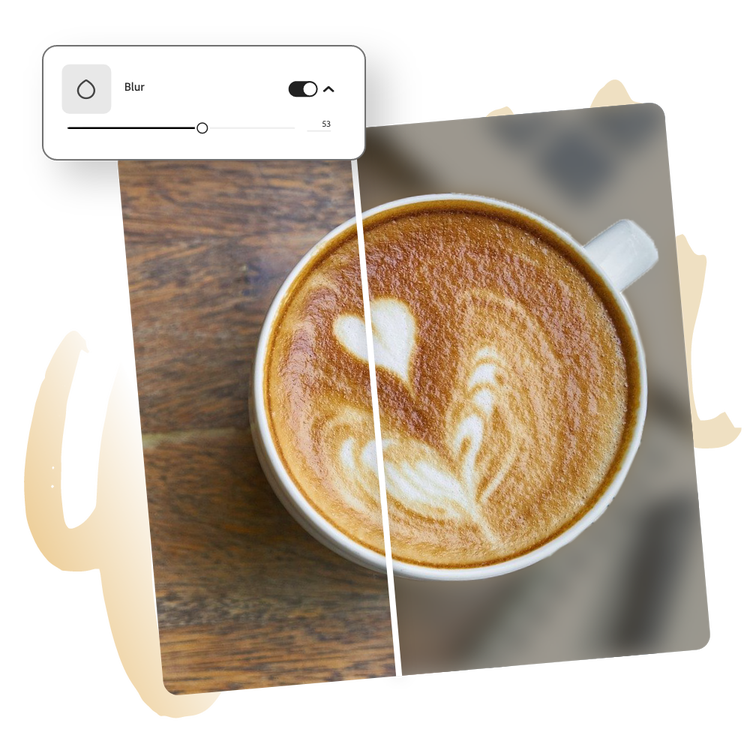
Blur an image in seconds.
Tap or click on your desired image and the image Adjustments menu will open. Choose the Blur option to add a blur effect and use the sliding scale to blur to your desired effect. You can also enter in a numerical value to get the perfect blur amount you’re going for, which is especially helpful when editing more than one photo for a consistent look and feel.
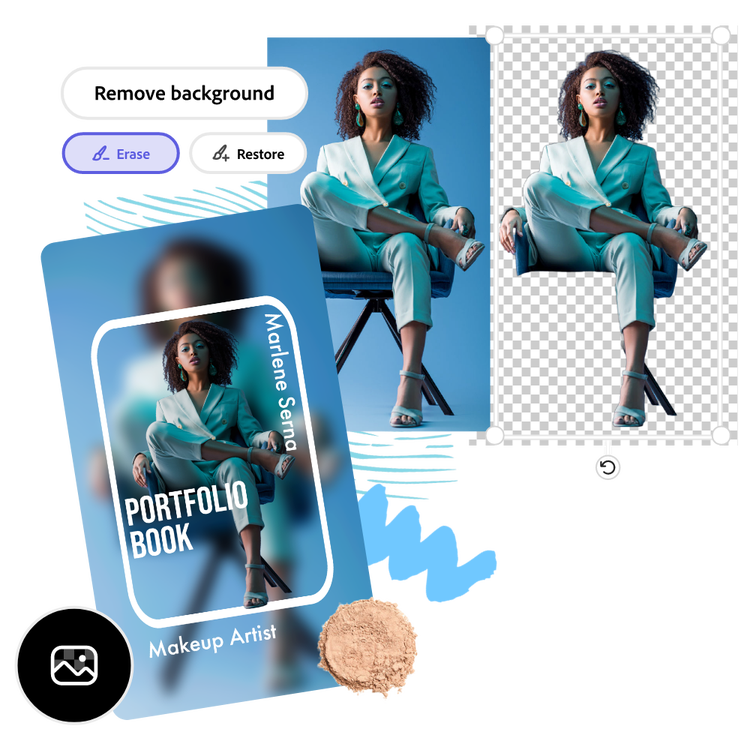
Blur the background to make subjects stand out.
Upload your image and crop it to fit your canvas however you’d like. Then, select your photo, duplicate it, and use the Remove Background feature to cut out only the subjects of your photo.
Select the image behind it and use the Blur effect to blur the background. Then, adjust the cropped image to make sure it sits perfectly aligned on top of the blurred image – and just like magic, you have a blurred background effect that puts the focus on your subject.
Personalize your blur effect to perfection.
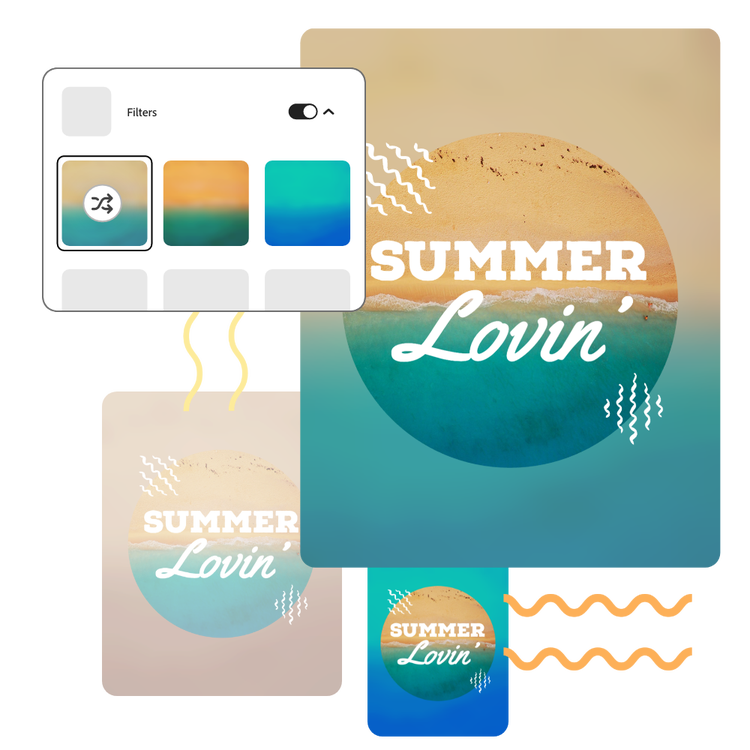
Continue to edit your blurred image by adding filters like Duotone or color overlays. Add a border or frame to emphasize the subject of your design further. Drag and drop icons, graphics, and text to your newly blurred image – then animate any element in seconds to captivate your digital audiences. Spend as little or as much time as you’d like making your design your own.
Customize your photo online with the blur tool, templates, and more.
Adobe Express makes blurring edits easy to do. Take time to explore this image editing option among an array of others to develop your style. With Adobe Express on your side, all you need to do is open the app to create unique and standout designs that will captivate your audience.
Frequently asked questions.
Can I choose or edit the place being blurred in photos?
The Adobe Express blur effect is applied to an entire image. There are ways to blur certain areas using layering, including the Blur Background effect.
How many blurring effects can I choose?
For now, Adobe Express features only one type of blurring effect. However, you can customize the level of blurring you want to apply to your image using the sliding scale.
Can I blur the photo on my phone?
Absolutely. Download and launch the free Adobe Express app on your mobile device and double tap your image to instantly add a blur effect so you can make standout content wherever you go.
Can I brighten photos with Adobe Express?
Adobe Express offers many different types of image enhancements, including the brighten feature. Easily brighten up dark images in seconds.
Can I get Adobe Express for free? If so, what’s included?
Yes, Adobe Express has a free plan that includes core features like photo editing tools and effects and thousands of free templates. Learn more about our plans and pricing.

