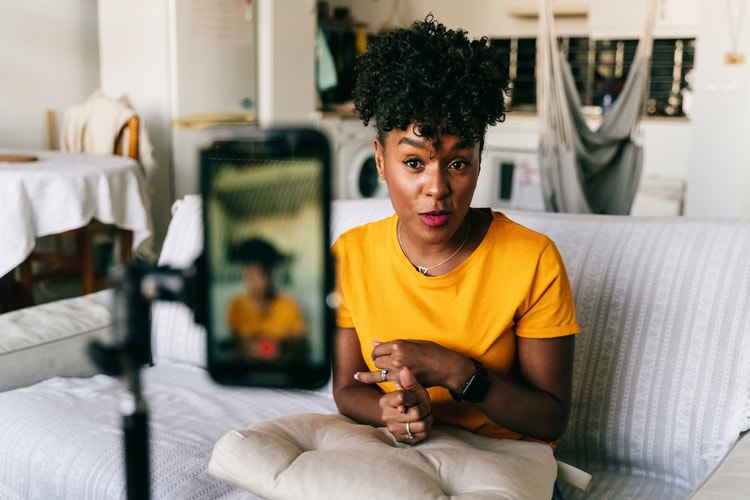
A livestream’s success depends on work that happens before and after a broadcast. Promotion gives people a reason to attend; replays and clips give the session a life beyond its original audience. Plan those parts first, then build an on-air format that welcomes participation without losing the purpose of the session.
Key takeaways
- YouTube recommends sharing your streaming link at least 48 hours before going live. Build the promotion schedule around that preparation time.
- Before selecting End Q&A, copy questions you want to revisit into a separate document or take screenshots. YouTube’s Live Q&A guidance says unanswered questions disappear from the list when the Q&A ends.
- YouTube’s Slow mode limits how often viewers can comment. Channel owners, moderators, and channel members are exempt.
What is product photography?
Product photography is the practice of photographing an item in a way that helps a customer understand what it is, what it looks like, and why it's worth buying. In ecommerce, that usually means a mix of clean standalone shots, alternate angles, images showcasing product details, and context photos that show scale or real-life use.
Effective product photography removes uncertainty. It makes the product easier to evaluate and the purchase feel safer, which is whyyou should emphasize clear, informative visuals. In fact, poor visuals can cost the sale. In a recent study, 45% of shoppers abandoned a purchase because of poor product content such as low-quality or insufficient images. If the photos are unclear, limited, or unhelpful, many customers leave rather than guess.
What does it take to go live on TikTok, YouTube, Instagram, and Twitch?
You need to satisfy each platform’s account and age requirements, then check monetization separately. Permission to broadcast doesn’t automatically include gifts, badges, subscriptions, or payouts. Start with the account you intend to use, not another creator’s experience. The table separates confirmed requirements from details still awaiting verification. A blank cell means the information wasn’t confirmed for this revision, not that the platform has no restriction.
Check the relevant feature inside your account before advertising it. An account may satisfy an age or follower requirement without completing the other steps needed to receive payments. Build the event around a demonstration, discussion, or useful answer that still works without paid features. Keep account permissions, audience participation, and income expectations separate, so an unavailable payment option doesn’t undermine the session you promised.
How do you keep a livestream audience engaged?
Keep viewers engaged by orienting newcomers, asking answerable questions, explaining transitions, and acknowledging contributions without abandoning the topic. Start with the outcome you promised, then briefly reset the context when the demonstration changes. Someone joining halfway through should understand the current task without hearing the entire introduction again. “We’re comparing two lighting setups; next we’ll fix the shadows” provides that context without interrupting the demonstration or delaying the next useful example.
Ask for a specific contribution rather than asking everyone to invent a topic. During a product-photo session, try “Which problem is harder for you: reflections or uneven lighting?” Follow the response with an explanation viewers can use. YouTube’s Live Q&A lets you collect and select questions from chat. Repeat each selected question aloud so the eventual recording makes sense without its original chat alongside it.
Explain transitions before making them. Tell viewers when you're switching cameras, reading comments, or pausing a demonstration to answer a question. Otherwise, an ordinary production task can look like a stalled broadcast. Leave room for replies instead of asking a question and immediately changing the subject. Plan places to read the chat, so participation becomes part of the session rather than a competing task.
Acknowledge useful contributions, then connect them back to the promised outcome. You can thank someone for describing a problem without turning the session into a private conversation that excludes everyone else. When a question needs a long or individual answer, save it for follow-up. The aim isn’t to respond to every message. It's to make participation useful to everyone watching, including people who never type.
Moderation, set up before you need it
Choose who will handle disruptive comments and test their permissions before the broadcast. YouTube distinguishes standard moderators from managing moderators, who have additional controls. Its moderation guide also covers blocked words, held messages, and timeouts. Match the setup to the event rather than assuming every session needs the same restrictions. A public launch may need more active monitoring than a small workshop with people you already know.
Write a short rule that separates disagreement from disruption: questions and criticism about the topic are welcome; harassment and unrelated promotion are not. Give the moderator a private way to contact the host when a decision needs attention. Avoid reading abusive comments aloud just to explain their removal. For educational sessions, remind participants not to post account credentials or private customer information that the demonstration doesn’t require.
What should you do after the stream ends?
Save and check the recording, prepare a replay that makes sense independently, and turn the strongest answers into clips and follow-up posts. Put editing time on the calendar before the broadcast and assign someone to record useful timestamps. YouTube recommends a local recording as a backup to automatic archiving. Open the saved file and check its sound before treating it as material ready to publish.
Give the replay a title based on its value rather than its original date. Use Adobe Express YouTube thumbnail templates to arrange the topic, subject image, and short title without designing the cover from scratch. Remove waiting-room material where editing permits, and make the beginning understandable to someone who missed the live introduction. Review captions and any personal information shown on screen before publishing the recording.
Choose clips that answer a complete question, including any qualification that makes the answer accurate. Adobe Express’s video resizer provides destination presets and framing controls for adapting a finished clip without rebuilding its composition. Check the crop and captions afterward. Turn a saved, unanswered question into a separate post, too. The audience has already identified something worth explaining; you do not need to invent another topic.
Which platform suits which host?
Choose YouTube for training sessions that will be organized into a replay library, Twitch for recurring live interaction, and Instagram or TikTok when you already have an audience there to invite. These are starting recommendations, not performance guarantees. In her 2025 guide to using YouTube, Lia Haberman recommends “a simple format and a consistent cadence.” Decide what you can sustain before investing in more equipment or another platform.
Instagram may suit conversations that extend an existing customer relationship, while TikTok may suit a live demonstration expanding on your short-form content. Twitch’s Engaging Viewers guide emphasizes welcoming viewers, interaction, and schedule reminders. Decide where people already expect to hear from you and what participation you can support. A larger potential audience doesn’t compensate for a format you can't deliver consistently.
For a business, distinguish an educational session from a selling event. The live-shopping research provides context for purchasing during and after broadcasts. Prepare product details and an accurate follow-up destination rather than assuming every viewer will buy while watching. The earlier Facebook Live guide covers preparation and presentation, but it shouldn’t replace current platform documentation for access, monetization, or recording rules.