Drag and drop your images to the image compressor. Or upload from your device files.
2. Compress.
Choose your file format, JPG or PNG, then drag the slider to compress your image. The preview updates instantly, so you can find the right balance between size and quality.
3. Continue editing.
Continue editing in Adobe Express by applying filters, cropping, and more. Or download your image to share anywhere.

Compress an image in no time.
The image compressor in Adobe Express delivers fast results. Just upload your image into the image compressor, then use the slider tool to land on the ideal size (up to 40 MB). Your image will be ready to use right away on websites, in newsletters, or anywhere else you want to improve user experience while still displaying your images.
Fine-tune your file size.
Upload your image to the tool and use the slider to fine-tune the exact size-to-quality ratio you need. That precision gives you the flexibility to fit any platform, project, or post.
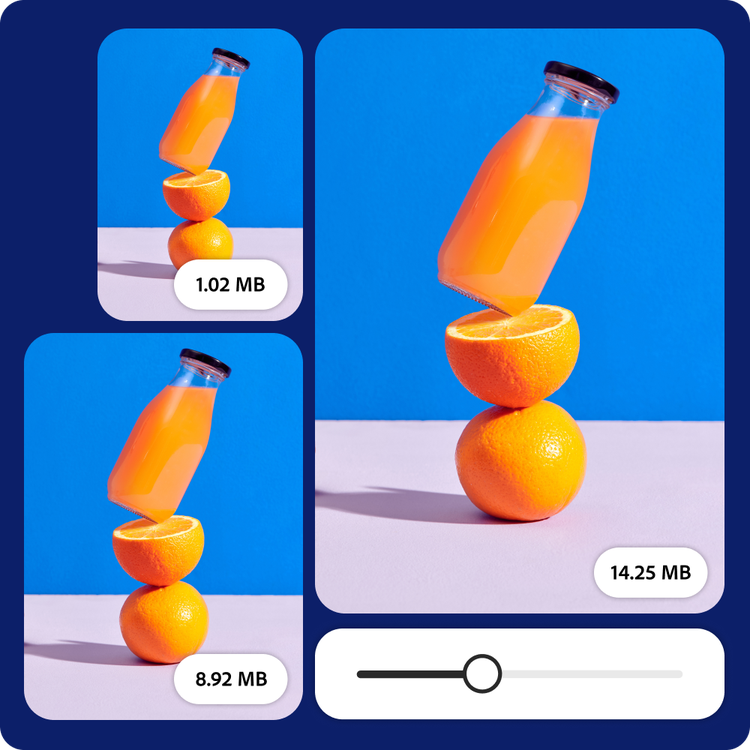
Streamline your workflow.
Streamline your workflow by compressing your images directly in Adobe Express without having to switch tools, no back and forth. Already working on an image in the editor? Compress it right there, without downloading and re-uploading. From there, click Open in Adobe Express to keep editing, or download the new image.
Customize your photos online with the image compressor, templates, and more.
Adobe Express makes it easy to edit and customize your photos. Explore templates, filters, and editing tools to match your style. Everything you need is in one app, so you can create designs that stand out.
An image compressor is a feature that reduces the file size of an image while trying to keep its visual appearance as close to the original as possible. This is done by removing unnecessary data or optimizing how the image is stored, which makes the file smaller and faster to load or share.
When should I use an image compressor?
There are numerous scenarios in which you could use an image compressor. For example, if you’re looking to speed up a website, save storage space, or make images easier to upload, download, or send—especially when dealing with large or high-resolution files. Avoid heavy compression if you’re working with images that need perfect quality (such as professional printing, detailed design work, or creating online ads). The Adobe Express image compressor makes it easy to strike that balance between size optimization and image quality.
What files are supported by the image compressor?
JPEG, JPG and PNG, images can be compressed in the image compressor. You can choose which file output you prefer. It doesn’t have to be the same as the file type you imported.
Will compressing an image reduce its quality?
Compression may reduce quality slightly, especially at higher compression levels. However, the slider lets you adjust the compression to find a good balance between file size and visual quality.
Can I get Adobe Express for free? If so, what’s included?
Yes, Adobe Express has a free plan that includes core features like photo editing tools and effects, as well as thousands of free templates. Learn more about our plans and pricing.
You can control how Adobe websites use cookies and similar technologies by making choices below. But note that if you disable cookies and similar technologies entirely, Adobe websites may not function properly.
Cookies are small text files stored by your web browser when you use websites. There are also other technologies that can be used for similar purposes like HTML5 Local Storage and local shared objects, web beacons, and embedded scripts. These technologies help us do things like remembering you and your preferences when you return to our sites, measure how you use the website, conduct market research, and gather information about the ads you see and interact with.
You can make choices in the menu below about what cookies and other technologies you want us to use on Adobe sites when you visit them from this browser. You can always change those choices later by clicking on the Cookie Preferences link at the bottom of the page.
If enabled:
We can improve your experience by tailoring the site and the content to things we think might be of interest
We can better keep track of your preferences — like what language you prefer to use
We will better understand your likely interests so we can provide you more relevant Adobe ads and content on non-Adobe websites and in non-Adobe apps
It will help us improve the performance of our website and those of our partners who use the Adobe Experience Cloud
If disabled:
We won’t be able to remember you from session to session so the experience may not be tailored to your interests
You’ll still have access to the content of the site but certain features that depend on cookies may not function
You’ll still see ads, they just may not be as relevant to you
General information
You can control how Adobe websites use cookies and similar technologies by making choices below. But note that if you disable cookies and similar technologies entirely, Adobe websites may not function properly.
Cookies are small text files stored by your web browser when you use websites. There are also other technologies that can be used for similar purposes like HTML5 Local Storage, web beacons, and embedded scripts. These technologies help us do things like remembering you and your preferences when you return to our sites, measure how you use the website, conduct market research, and gather information about the ads you see and interact with.
You can make choices in the menu below about what cookies and other technologies you want us to use on Adobe sites when you visit them from this browser. You can always change those choices later by clicking on the Cookie Preferences link at the bottom of the page.
If enabled:
We can improve your experience by tailoring the site and the content to things we think might be of interest
We can better keep track of your preferences — like what language you prefer to use
We will better understand your likely interests so we can provide you more relevant Adobe ads and content on non-Adobe websites and in non-Adobe apps
It will help us improve the performance of our website and those of our partners who use the Adobe Experience Cloud
If disabled:
We won’t be able to remember you from session to session so the experience may not be tailored to your interests
We’ll still count your use of our site and services
You’ll still have access to the content of the site but certain features that depend on cookies may not function
You’ll still see ads, they just may not be as relevant to you
Operate the site and core servicesOperate site and measure engagement
Always active
These cookies are required, and they are used to enable the site and related services core functionality. Without them the site could not operate, so they cannot be disabled.
These cookies enable the site and related services’ core functionality and collect statistics about user engagement, such as counting active use to help us understand trends. These cookies cannot be disabled.
Measure performance
These cookies are used to analyze site usage to measure and improve performance. Without them Adobe cannot know what content is most valued and how often unique visitors return to the site, making it hard to improve information we offer to you.
These cookies are used to analyze site usage to measure and improve performance. Without them Adobe cannot know what content is most valued, making it hard to improve information we offer to you.
Extend functionality
These cookies are used to enhance the functionality of Adobe sites such as remembering your settings and preferences to deliver a personalized experience; for example, your username, your repeated visits, preferred language, your country, or any other saved preference.
Personalize advertising
These cookies are used to enable Adobe and our partners to serve ads more relevant to your interests. Without them you will still see ads, but they might not be as relevant to you.