



Compress a PNG for free online.
Compress PNG images for free online—reduce your file size with Adobe Express.
Drag and drop an image
or browse to upload.
File must be JPEG, JPG or PNG and up to 40MB
 Free to useNo credit card required
By uploading your image you are agreeing to the Adobe Terms of Use and acknowledging the Privacy Policy
1. Upload.
Drag and drop your PNG to the image compressor. Or upload files from your device.

2. Compress.
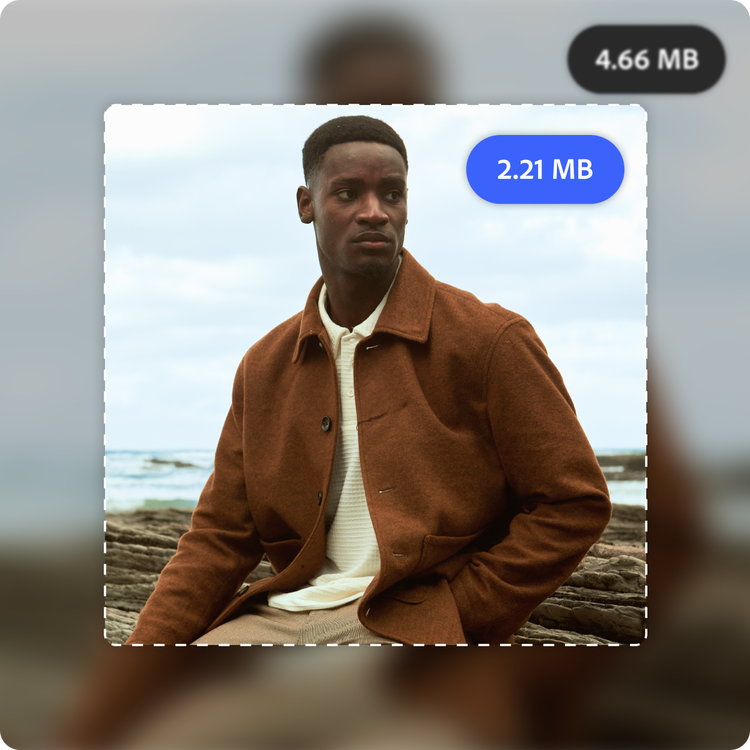
Select the file format you’d like for the image output. Drag the slider to shrink your file size. The compressor updates in real time so you can find the perfect balance between size and quality.

3. Continue editing.
Continue editing in Adobe Express by applying filters, cropping, and more. Or download your image to share anywhere.

Easily compress PNGs for quicker load times.
A heavy PNG, like a logo or product photo, can slow any corporate website or online shop page down. Upload your PNG into the compressor, then use the slider to fine-tune your file size while keeping the quality you need.
Edit and compress in one place.
Compressing your file is just the start. Click Open in Adobe Express to keep editing and try out customized templates, try new fonts, update text, and explore more design tools to bring your project to life. No downloads, no switching apps—just one place to go from image to finished design.

Streamline your workflow.
Compress your files without ever leaving Adobe Express. Upload from your desktop, or compress images you're already working on in the editor—no need to download first. From there, click Open in Adobe Express to keep editing, or download your new file.
Customize your PNG online with the image compressor, templates, and more.
Adobe Express makes it easy to edit logos, images and more. Explore templates, filters, and editing tools to match your style. Everything you need is in one app, so you can create designs that stand out.
Frequently asked questions.
What is an image compressor?
An image compressor is a feature that reduces the file size of an image while trying to keep its visual appearance as close to the original as possible. This is done by removing unnecessary data or optimizing how the image is stored, which makes the file smaller and faster to load or share.
When should I use an image compressor?
PNGs are known for high quality and transparent backgrounds, but that often means larger file sizes. Compressing them can speed up load times, save storage space, and make sharing easier, all while preserving transparency. Adobe Express makes it simple to find the right balance between file size and image quality.
What files are supported by the image compressor?
You can compress JPEG, JPG, and PNG files. The file you download doesn't have to match the one you started with.
Will compressing a PNG reduce its quality?
Compression may reduce quality, especially at higher compression levels. Use the slider to adjust the compression and find a good balance between file size and visual quality.
Can I get Adobe Express for free? If so, what’s included?
Yes, Adobe Express has a free plan that includes core features like photo editing tools and effects, as well as thousands of free templates. Learn more about our plans and pricing.



