



Add curved text to your design.
Become a typography master with the Text Warp add-on in Adobe Express. Create curved text that fits your design, whether you’re making a logo, album cover, stickers, or any other print or digital project. Get the curved text look you have in mind.
1. Launch Adobe Express.
Open Adobe Express on your desktop. Select the add-ons panel in the left menu and install the Text Warp add-on.
2. Generate your curved text.
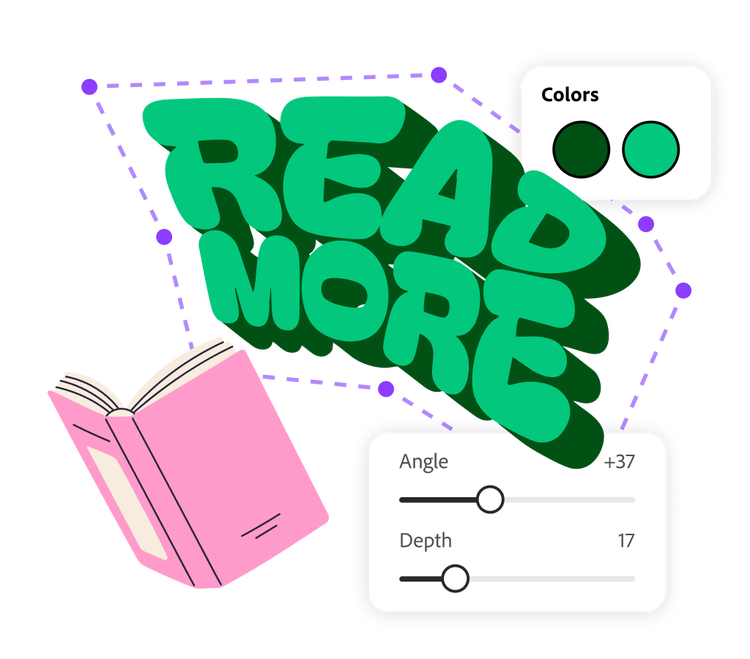
Type your text in the Text Warp add-on. Select your font type and color. Use the slider to customize the depth of the shadow and the angle of the 3D text. Then drag the corner points of the text in any direction you’d like to create a custom curve effect. Then Add to design.
3. Continue editing.
From the Adobe Express editor, you can place your curved text wherever you’d like. Continue to edit your project by adding images, graphic elements, and animations. When you’re done, save, download, and print right from the app.

Create text shapes to fit your design.
You may want curved text to fit around the ring of a coffee cup lid, wishing your cafe visitors a good day. Or maybe you want to add a playful curve to your child’s name for a special bedroom decal. With the Text Warp add-on in Adobe Express, you can get the desired curvature in a matter of moments. Just drag the edge points of the text in any direction and watch as the text responds in real time. Click Add to design when you’ve created the desired effect.
Add stylized text to images.
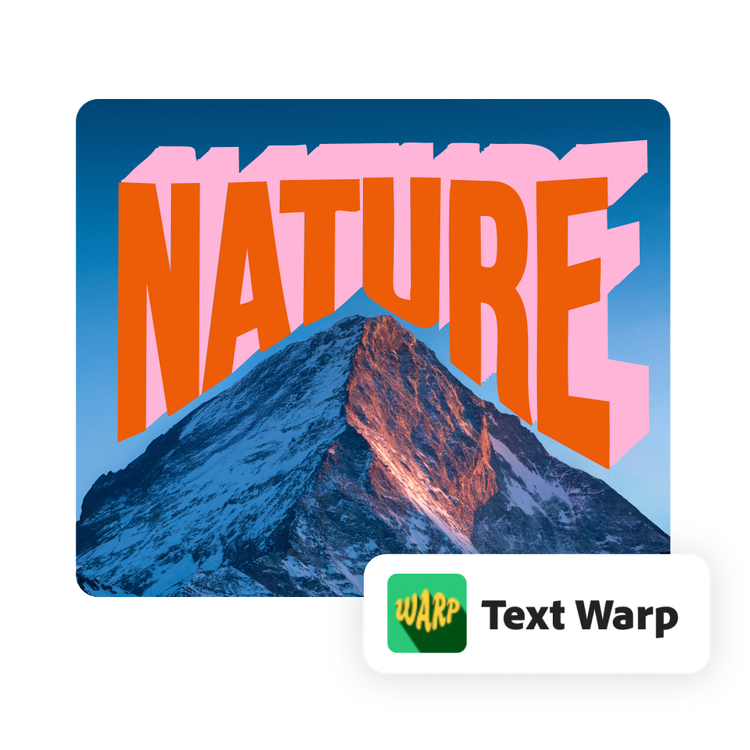
You can add context to your images easily with text. But your writing doesn’t have to be reserved just for caption space. Use curved text to hug a landscape or wrap around a cloud in your vacation photos. The Text Warp add-on makes styling photos for social media, slideshows, or scrapbooks easy and fun.
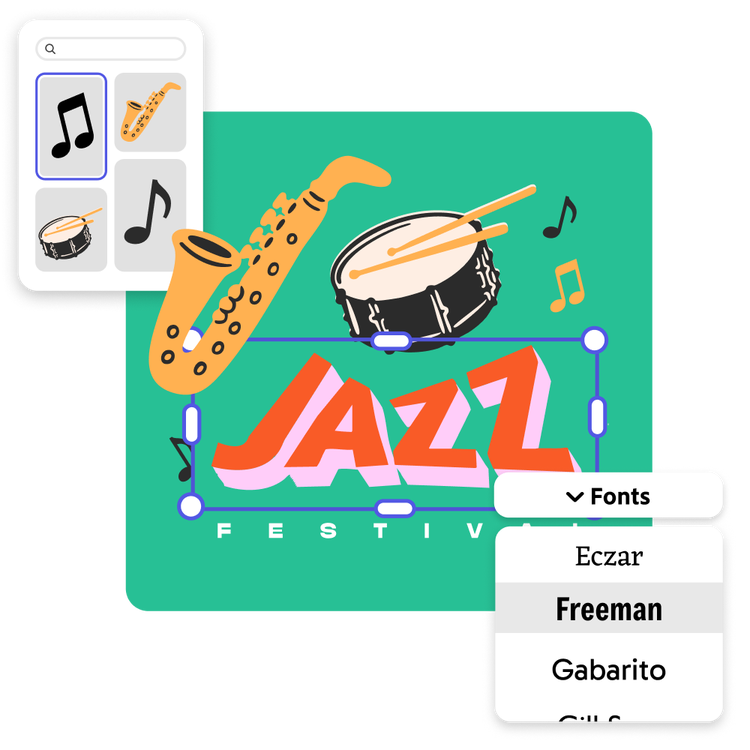
Make your design your own in the Adobe Express editor.
Add your curved text to presentations, web banners, flyers, and more. Keep editing in Adobe Express by adding animation to your text. Use generative AI features in Adobe Express to create artwork that matches your curved text look. All these design choices help customize your project to fit your needs.
Frequently asked questions.
How do I access the curved text add-on?
Accessing the curved text add-on is easy on desktop. In the Adobe Express editor, select “Add-ons” from the menu. Type “text warp” into the Search bar to find the third-party add-on Text Warp, then click “add” to install it.
Do I need to create a separate account with the third-party developer of the Text Warp add-on?
No. Once you add the Text Warp add-on in Adobe Express, it will be ready to use right away.
What other ways can I create stylized text in Adobe Express?
There are numerous ways to add stylized text in Adobe Express. Access thousands of Adobe fonts then customize with colors, effects, and shapes. Or use generative AI to imagine completely new text effects.
Can I use Adobe Express for free? If so, what's included?
Yes, we have a free plan available for anyone. Enjoy everything you need to stand out, including dozens of quick action tools, thousands of templates, photo editing and effects, and much more. Learn more about our plans and pricing.

