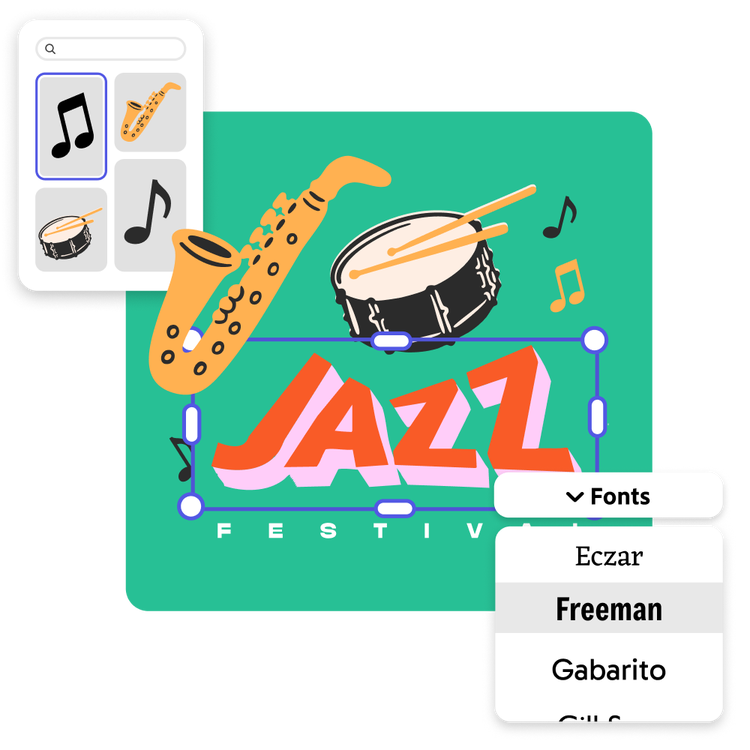
Become a typography master with the Text Warp add-on in Adobe Express. Create curved text that fits your design, whether you’re making a logo, album cover, stickers, or any other print or digital project. Get the curved text look you have in mind.
Open Adobe Express on your desktop. Select the add-ons panel in the left menu and install the Text Warp add-on.
2. Generate your curved text.
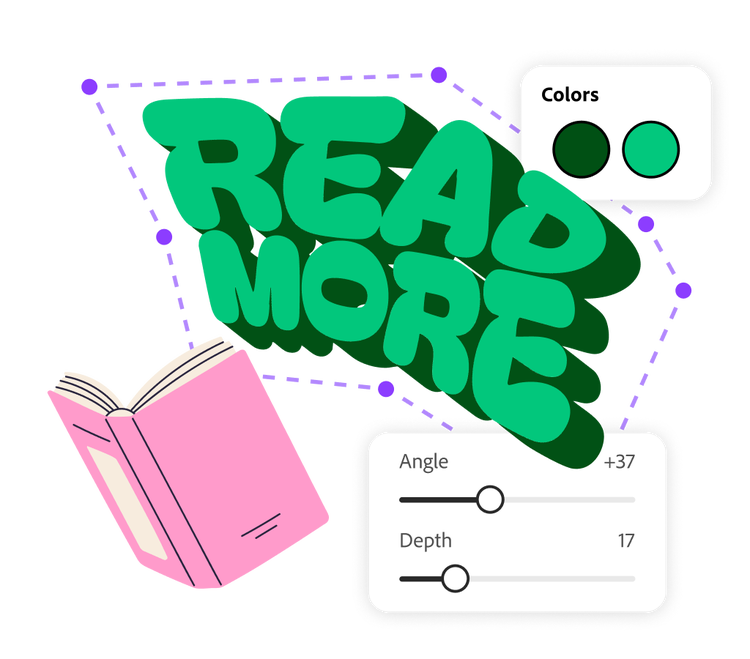
Type your text in the Text Warp add-on. Select your font type and color. Use the slider to customize the depth of the shadow and the angle of the 3D text. Then drag the corner points of the text in any direction you’d like to create a custom curve effect. Then Add to design.
3. Continue editing.
From the Adobe Express editor, you can place your curved text wherever you’d like. Continue to edit your project by adding images, graphic elements, and animations. When you’re done, save, download, and print right from the app.

Create text shapes to fit your design.
You may want curved text to fit around the ring of a coffee cup lid, wishing your cafe visitors a good day. Or maybe you want to add a playful curve to your child’s name for a special bedroom decal. With the Text Warp add-on in Adobe Express, you can get the desired curvature in a matter of moments. Just drag the edge points of the text in any direction and watch as the text responds in real time. Click Add to design when you’ve created the desired effect.
Add stylized text to images.
You can add context to your images easily with text. But your writing doesn’t have to be reserved just for caption space. Use curved text to hug a landscape or wrap around a cloud in your vacation photos. The Text Warp add-on makes styling photos for social media, slideshows, or scrapbooks easy and fun.

Make your design your own in the Adobe Express editor.
Add your curved text to presentations, web banners, flyers, and more. Keep editing in Adobe Express by adding animation to your text. Use generative AI features in Adobe Express to create artwork that matches your curved text look. All these design choices help customize your project to fit your needs.
Accessing the curved text add-on is easy on desktop. In the Adobe Express editor, select “Add-ons” from the menu. Type “text warp” into the Search bar to find the third-party add-on Text Warp, then click “add” to install it.
Do I need to create a separate account with the third-party developer of the Text Warp add-on?
No. Once you add the Text Warp add-on in Adobe Express, it will be ready to use right away.
What other ways can I create stylized text in Adobe Express?
There are numerous ways to add stylized text in Adobe Express. Access thousands of Adobe fonts then customize with colors, effects, and shapes. Or use generative AI to imagine completely new text effects.
Can I use Adobe Express for free? If so, what's included?
Yes, we have a free plan available for anyone. Enjoy everything you need to stand out, including dozens of quick action tools, thousands of templates, photo editing and effects, and much more. Learn more about our plans and pricing.
You can control how Adobe websites use cookies and similar technologies by making choices below. But note that if you disable cookies and similar technologies entirely, Adobe websites may not function properly.
Cookies are small text files stored by your web browser when you use websites. There are also other technologies that can be used for similar purposes like HTML5 Local Storage and local shared objects, web beacons, and embedded scripts. These technologies help us do things like remembering you and your preferences when you return to our sites, measure how you use the website, conduct market research, and gather information about the ads you see and interact with.
You can make choices in the menu below about what cookies and other technologies you want us to use on Adobe sites when you visit them from this browser. You can always change those choices later by clicking on the Cookie Preferences link at the bottom of the page.
If enabled:
We can improve your experience by tailoring the site and the content to things we think might be of interest
We can better keep track of your preferences — like what language you prefer to use
We will better understand your likely interests so we can provide you more relevant Adobe ads and content on non-Adobe websites and in non-Adobe apps
It will help us improve the performance of our website and those of our partners who use the Adobe Experience Cloud
If disabled:
We won’t be able to remember you from session to session so the experience may not be tailored to your interests
You’ll still have access to the content of the site but certain features that depend on cookies may not function
You’ll still see ads, they just may not be as relevant to you
General information
You can control how Adobe websites use cookies and similar technologies by making choices below. But note that if you disable cookies and similar technologies entirely, Adobe websites may not function properly.
Cookies are small text files stored by your web browser when you use websites. There are also other technologies that can be used for similar purposes like HTML5 Local Storage, web beacons, and embedded scripts. These technologies help us do things like remembering you and your preferences when you return to our sites, measure how you use the website, conduct market research, and gather information about the ads you see and interact with.
You can make choices in the menu below about what cookies and other technologies you want us to use on Adobe sites when you visit them from this browser. You can always change those choices later by clicking on the Cookie Preferences link at the bottom of the page.
If enabled:
We can improve your experience by tailoring the site and the content to things we think might be of interest
We can better keep track of your preferences — like what language you prefer to use
We will better understand your likely interests so we can provide you more relevant Adobe ads and content on non-Adobe websites and in non-Adobe apps
It will help us improve the performance of our website and those of our partners who use the Adobe Experience Cloud
If disabled:
We won’t be able to remember you from session to session so the experience may not be tailored to your interests
We’ll still count your use of our site and services
You’ll still have access to the content of the site but certain features that depend on cookies may not function
You’ll still see ads, they just may not be as relevant to you
Operate the site and core servicesOperate site and measure engagement
Always active
These cookies are required, and they are used to enable the site and related services core functionality. Without them the site could not operate, so they cannot be disabled.
These cookies enable the site and related services’ core functionality and collect statistics about user engagement, such as counting active use to help us understand trends. These cookies cannot be disabled.
Measure performance
These cookies are used to analyze site usage to measure and improve performance. Without them Adobe cannot know what content is most valued and how often unique visitors return to the site, making it hard to improve information we offer to you.
These cookies are used to analyze site usage to measure and improve performance. Without them Adobe cannot know what content is most valued, making it hard to improve information we offer to you.
Extend functionality
These cookies are used to enhance the functionality of Adobe sites such as remembering your settings and preferences to deliver a personalized experience; for example, your username, your repeated visits, preferred language, your country, or any other saved preference.
Personalize advertising
These cookies are used to enable Adobe and our partners to serve ads more relevant to your interests. Without them you will still see ads, but they might not be as relevant to you.