



Add text to your GIF for free.
Present a clear message by easily adding text to any GIF. From joke punchlines to holiday greetings, you can say more when you pair animation with text using the Adobe Express GIF editing tools.
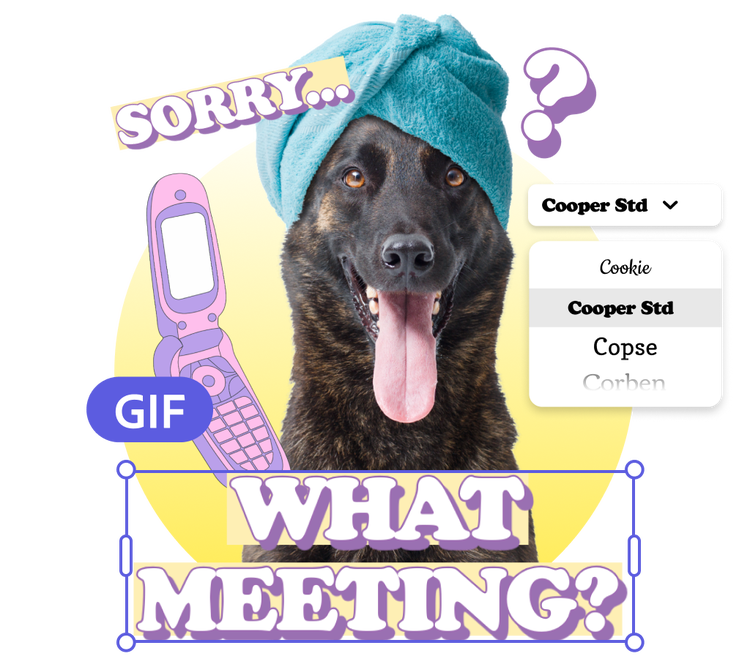
1. Upload your GIF.
Drag and drop or browse your device for the GIF you’d like to edit. Or create a new one from images or videos in the Adobe Express editor.

2. Add text.
Select Text to add in a text box. Choose from thousands of licensed, free Adobe Fonts to get started. Type in your text, drag and drop it anywhere on your GIF, and resize.

3. Continue editing.
Add animation to your text to time it with the GIF animation. Play around with icons, shapes and more. Download your new GIF with text to save and share.

Send a clear message with your GIF.
Whether you’re a social media manager or organizing a text chain among your friends, you want to send a GIF that gets your point across. Use the Text tool in Adobe Express to add a punchline to any new or existing GIF. Browse through thousands of Adobe Fonts to match your GIF’s theme.
Create content that stands out.
Take your GIF to the next level when you mix and match font styles and effects. Tweak your text by adding shadows and outlines to emphasize your message. Or use the Generate text effects tool for a really imaginative touch (like a font that’s covered in tiger fur or purple glitter).
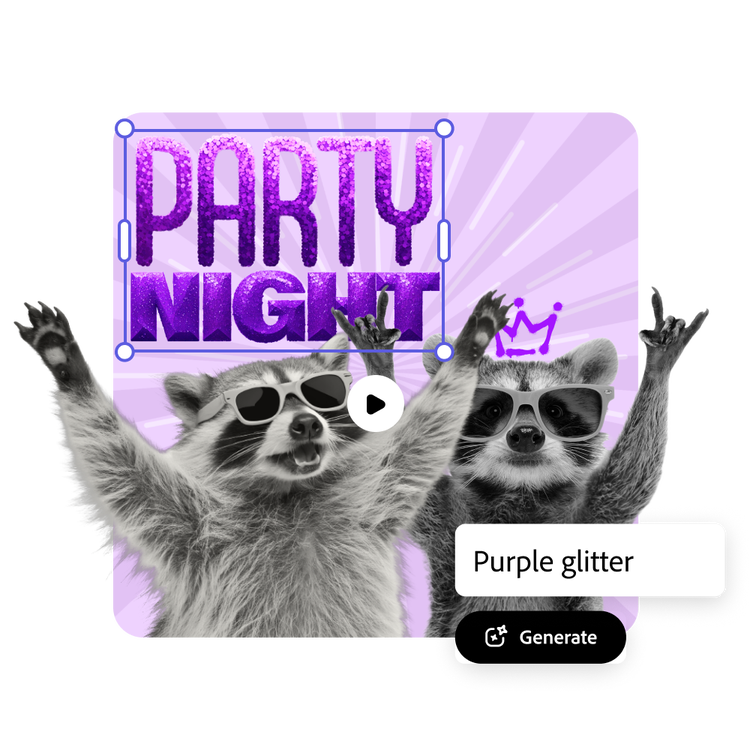

Send GIFs with spunk.
Make your GIFs even more dynamic by animating your text and elements. Fades, slides, or even a typewriter effect can draw the viewer’s eye and emphasize your point further. It’s a simple way to add context, personality, or humor to your GIF. And in Adobe Express it’s easy to do.
Tons of free templates, video, and audio assets to start from.
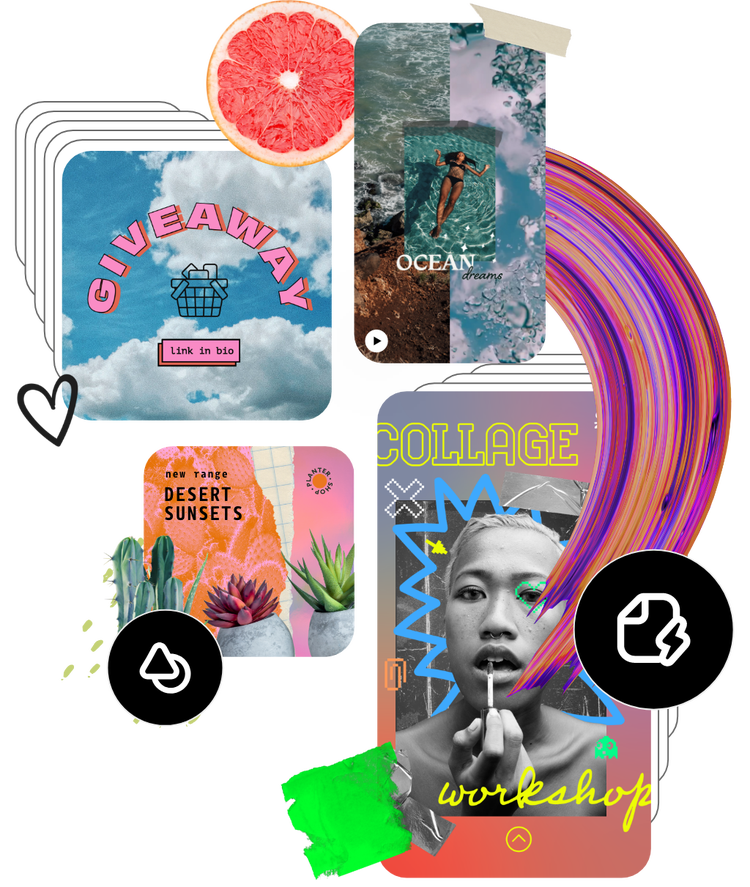
Add your newly edited GIF to a digital flyer, social post, album cover, profile photo, and unlimited other designs. Explore our template library to get started. Then, add other pre-loaded design assets, fonts, icons, or images to personalize your project. There are endless creative opportunities to elevate your designs.
Frequently asked questions.
Do I need to modify my GIF at all before adding text to it?
You can start your project using the original size of your GIF so you can then download your final design without changing the size or quality. Open the Adobe Express editor in your browser, then start a new project using the “Upload media” option to import your photo in its original quality to the editor and start editing directly.
Are the texts adjustable or customizable?
Adobe Express makes it both fun and easy to adjust and customize the text on your GIFs. You can choose to make text adjustments as small as spacing or font styles, or as impactful as curved or animated text if you prefer. You won’t need to worry about resizing each piece of text if you wish — Adobe Express automatically scales your text for you whether it’s sizing up or down.
How can I make a GIF from scratch?
It’s easy to make GIFs in Adobe Express. Start by selecting the image or video you’d like to use. You can upload from your device or peruse the media tab for Adobe Stock content. Adjust the clip length, add text filters, and any other customization you want. Then you’re ready to download and share.
Can I add text to videos with Adobe Express?
Yes, you can easily add text to your videos in the same free Adobe Express online editor you use to add text to GIFs, create static social media posts, flyers, and more. Customize the text on your video in all the same ways as you can with a GIF or an image.
Can I use Adobe Express for free? If so, what’s included?
Yes, we have a free plan available for anyone. Enjoy everything you need to stand out, including dozens of quick action tools, thousands of templates, photo editing and effects, and much more. Explore our plans and pricing for details.

